
Various methods for getting incompatible Firefox Add-Ons to work in newer browser versions
Information
Firefox Add-Ons depend on the developer of the Add-Ons to keep them up-to-date with current and future Firefox browser versions. There are some Add-Ons that that we may use and depend on that are poorly kept up-to-date with new and future Firefox versions (Aurora/Beta/Nightly builds) by the developer/s.
Most of the time (but not always), the Add-Ons will work just fine in a new Aurora or Beta build even though the Add-On on addons/mozilla.org states only up to a lesser browser version than you want to use. Say you want to use a Firefox 6 Beta build, and the Add-On only states up to Firefox 5.0*.
Firefox will run the Add-On compatibility check when updating the browser and disable any Add-Ons that it finds are incompatible. While this may be necessary as the Add-Ons may truly have incompatibility issues, it may also not be really necessary as the Add-On might work just fine in a newer version.
This will show you a few ways to workaround the compatibility check and get the Add-On to work in the new browser version.
Most of the time (but not always), the Add-Ons will work just fine in a new Aurora or Beta build even though the Add-On on addons/mozilla.org states only up to a lesser browser version than you want to use. Say you want to use a Firefox 6 Beta build, and the Add-On only states up to Firefox 5.0*.
Firefox will run the Add-On compatibility check when updating the browser and disable any Add-Ons that it finds are incompatible. While this may be necessary as the Add-Ons may truly have incompatibility issues, it may also not be really necessary as the Add-On might work just fine in a newer version.
This will show you a few ways to workaround the compatibility check and get the Add-On to work in the new browser version.
Warning
OPTION ONE
Check the developers website
Some Add-ons will have an newer updated version on the developers personal website weeks or even months before they show up on addons/mozilla.org. Best to check the devs website first (if they have one) to see if there is an newer version than at addons/mozilla.org. You can usually find the devs website link on Mozilla addons page.
OPTION TWO
Use an Add-on
Use the Add-on Compatibility Reporter add-on from Mozilla. It will enable the disabled incompatible add-ons. You can also test them out and report incompatible add-ons to Mozilla.
Or use the Nightly Tester Tools add-on. It has several features.
OPTION THREE
Use about:config
This will just disable the browser from auto checking if any add-ons are incompatible or not, allowing them to install.
Type about:config in Firefox's address bar and press Enter. Click OK for I'll be Careful, I promise.
Right-click on an empty space in about:config, and create New-Boolean value.
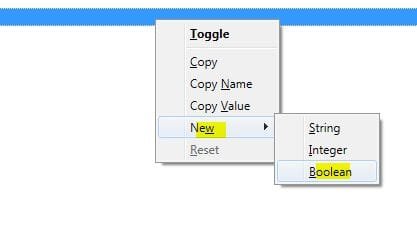
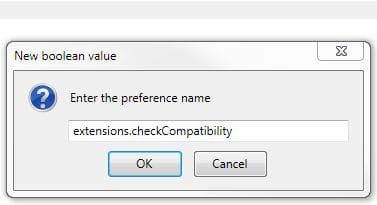
Enter extensions.checkCompatibility and click OK.
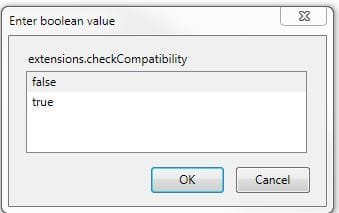
In the True or False value popup that pops up next, enter False, then OK.
Restart the browser.
OPTION FOUR
Edit the version number in the install.rdf file
Edit the specific Add-ons install.rdf file.
Navigate to
Computer/Users/YourUserName/AppData/Roaming/Mozilla/Firefox/Profiles/Profilename/extensions.
The add-ons will most likely be named with numbers followed by the file extension .xpi.
Example: {1AFDJD34-753F5-4cHk-08334445533}.xpi
You'll need to find out which one of those is the add-on you want to edit. You can open and find out which one is which and also edit the .rdf file with a file archiver like 7-Zip.
(The install.rdf file will have the name of the add-on in it somewhere.)
Right-click on the add-on you want to edit, and in the context menu go to 7-Zip/Open archive.

Right-click on the install.rdf file and choose Edit.
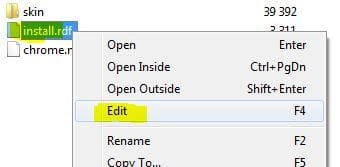
Near the bottom it will show a minversion/maxversion. Enter in the browser version number you want it to work with (if it said 5.0 and you want it to work with FF 6, put in 6 where the 5 was.


Go to File and Save in notepad. Then click Yes to save in archive.

Restart the browser. The add-on should now be enabled.
That's it.
Airbot
Last edited:



