
How to Customize the Orange Bar in Mozilla Firefox
Information
This tutorial will show you how to customize and adjust the orange bar in the left hand corner of Mozilla Firefox.
Note
Requirements:
- Mozilla Firefox v. 4 (and above)
- Notepad
Tip
You cannot only follow the pictures below as a tutorial, read carefully the text.
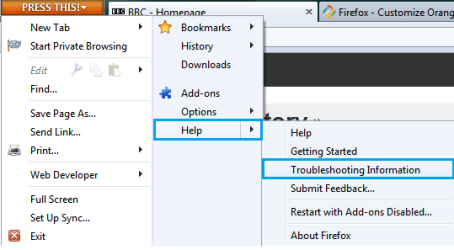
1) Press the Orange Bar, go to Troubleshooting Information
2) Under Application Basics, press Open Containing Folder

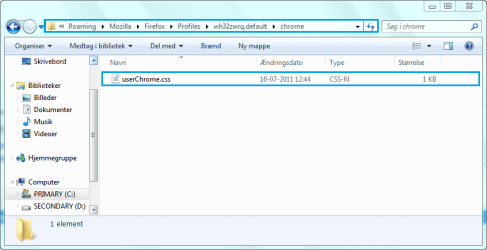
3) Look for a folder called "chrome", and make sure there's a "userChrome.css" inside it - If you can find all this go to step 6), if you cannot find the folder, continue to step 4)
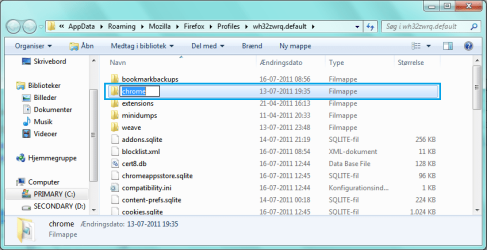
4) Create a new folder called "chrome"
5) Get into Notepad, and copy the code below, Save it as "userChrome.css", and paste it into the chrome folder

Code:
@namespace url("http://www.mozilla.org/keymaster/gatekeeper/there.is.only.xul");
#appmenu-button
{
background: #orange !important;
}
#appmenu-button dropmarker:before {
content: "Firefox" !important;
color: #FFFFFF !important;
}
#appmenu-button .button-text {
display: none !important;
}
6) The code:
Code:
background: #orange !important;The code:
Code:
content: "Firefox" !important;The code:
Code:
color: #FFFFFF !important;Chance it for anything you like, Save it.
Warning
Remember to restart Firefox during chances
Hex Codes
Black: #000000
Red: #FF0000
Green: #00FF00
Blue: #0000FF
Yellow: #FFFF00
Cyan: #00FFFF
Pink: #FF00FF
Gray: #C0C0C0
White: #FFFFFF
Hope you liked it,
FredeGail
Attachments

Last edited by a moderator:


 +1
+1


 many thanks!

