
How to Speed up the Windows 7 Media Center Background
Information
Those of you who used W7 Beta may have noticed that when you play an album in WMC, the animated background displays all of your album art as a 'waterfall'. In newer builds this has significantly slowed down.
Windows Media Center is not available in the Windows 7 Starter and Windows 7 Home Basic editions.
Windows Media Center is not available in the Windows 7 Starter and Windows 7 Home Basic editions.
Warning
Please create a backup copy of ehres.dll
Note
The N and KN editions of Windows 7 have all the features that normally come with each individual Windows 7 edition, except for Windows Media Player 12 and related programs, such as Windows Media Center or Windows DVD Maker.
The N editions of Windows 7 allow you to choose your own media player and software required to manage and play CDs, DVDs, and other digital media files. If you choose to use Windows Media Player 12, downloading it, along with related software, is free. Download Media Feature Pack for Windows 7 N with Service Pack 1 and Windows 7 KN with Service Pack 1 (KB968211) from Official Microsoft Download Center
The N editions of Windows 7 allow you to choose your own media player and software required to manage and play CDs, DVDs, and other digital media files. If you choose to use Windows Media Player 12, downloading it, along with related software, is free. Download Media Feature Pack for Windows 7 N with Service Pack 1 and Windows 7 KN with Service Pack 1 (KB968211) from Official Microsoft Download Center
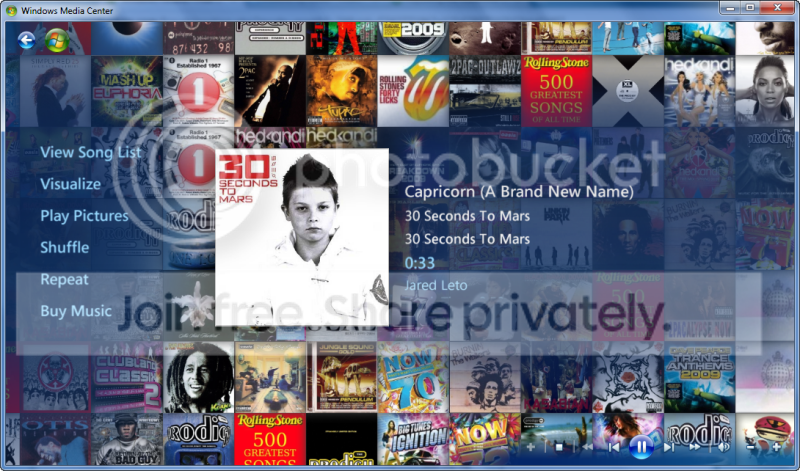
I'll show you how to speed it up!!
[SIZE=+1]1.[/SIZE] Firstly, you'll need a copy of restorator and xml notepad.
[SIZE=+1]2.[/SIZE] Once you have these tools (you'll need them a lot for hacking WMC!) Lets go to A:\Windows\ehome and find ehres.dll, take ownership of it, make a copy and name it ehres BACKUP.dll Open both restorator and XML notepad.
[SIZE=+1]3.[/SIZE] Next step is to open up ehres.dll in restorator. In the left hand pane navigate to the html folder, expand it and find a file called albumartbackground.xml.
Drag this file to the desktop.
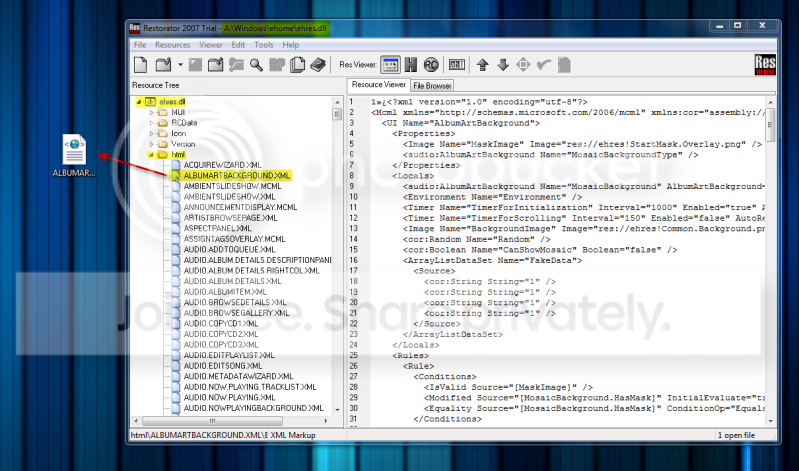
[SIZE=+1]4.[/SIZE] Minimize restorator and call up XML Notepad. Now, drag the albumartbackground.xml file into XML Notepad.
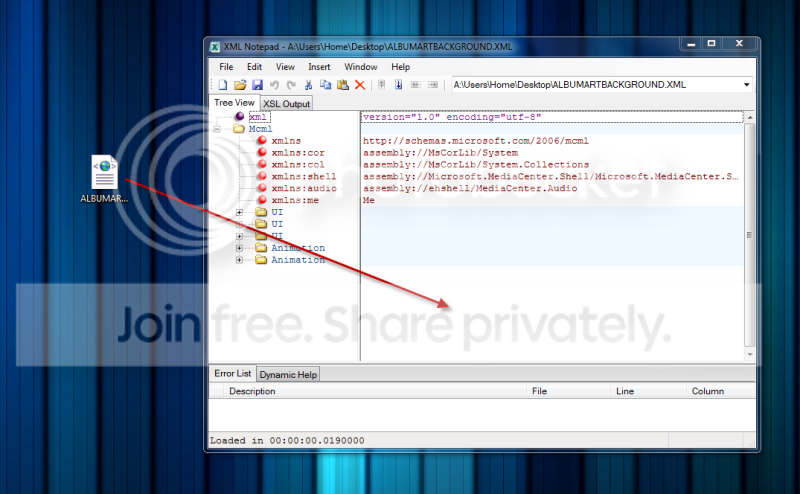
[SIZE=+1]5.[/SIZE] In the left hand pane navigate to the first UI folder, then the Locals folder and finally, the second Timer folder. The default timer will be set to 2000, if you want the 'waterfall' to be twice as fast set it to 1000 etc. I have mine set to 150 and it works beautifully.
Note
If you try and make the animation too fast, it won't render correctly. 75 is the lowest i've managed to get it.
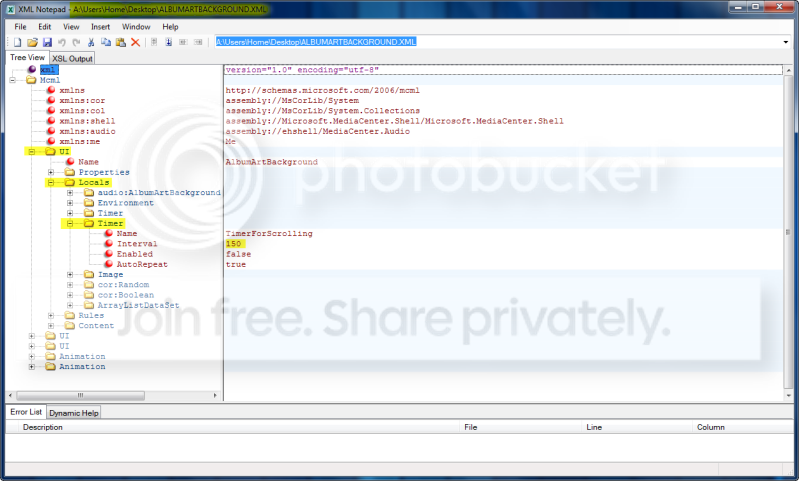
[SIZE=+1]6.[/SIZE] When you have your preferred speed save the file in XML notepad, minimize XML notepad, call back restorator and drag albumartbackground.xml file back to where it was. Save ehres.dll in restorator. You'll get a message about the trial, just click OK. Delete the XML file from the desktop.
[SIZE=+1]7.[/SIZE] Open up WMC and play an album to be sure it renders correctly. If it's too slow decrease the number, if it fails, set it to 250 (should be safe) and try again. Remember the default is 2000.
It sounds complicated but it isn't. Read the instructions a couple of times or have this snapped to one side whilst you work on it.
Put the ehres BACKUP.dll into a folder and store it away safely!!
Hope you enjoy this one

Last edited by a moderator:
