
How to Get Email in Windows 7 Media Center
Information
This will show you how to get Email in W7MC. For the purpose of this tutorial i'll be using Hotmail/Live POP settings. Please check your POP settings with your email provider.
Windows Media Center is not available in the Windows 7 Starter and Windows 7 Home Basic editions.
Windows Media Center is not available in the Windows 7 Starter and Windows 7 Home Basic editions.
Note
Be sure to hit Apply at each stage otherwise you'll lose your settings.
The N and KN editions of Windows 7 have all the features that normally come with each individual Windows 7 edition, except for Windows Media Player 12 and related programs, such as Windows Media Center or Windows DVD Maker.
The N editions of Windows 7 allow you to choose your own media player and software required to manage and play CDs, DVDs, and other digital media files. If you choose to use Windows Media Player 12, downloading it, along with related software, is free. Download Media Feature Pack for Windows 7 N with Service Pack 1 and Windows 7 KN with Service Pack 1 (KB968211) from Official Microsoft Download Center
The N and KN editions of Windows 7 have all the features that normally come with each individual Windows 7 edition, except for Windows Media Player 12 and related programs, such as Windows Media Center or Windows DVD Maker.
The N editions of Windows 7 allow you to choose your own media player and software required to manage and play CDs, DVDs, and other digital media files. If you choose to use Windows Media Player 12, downloading it, along with related software, is free. Download Media Feature Pack for Windows 7 N with Service Pack 1 and Windows 7 KN with Service Pack 1 (KB968211) from Official Microsoft Download Center
[SIZE=+1]1.[/SIZE] Download Media Center Mail, run it and install it. Open it up and you'll be presented with this screen. Set your general settings, Apply and hit the new user icon

[SIZE=+1]2.[/SIZE] Enter the name you want to be displayed in W7MC, choose your avatar and Apply.

[SIZE=+1]3.[/SIZE] Under your name hit the Add a new account for receiving email button. Enter your POP settings, and login credentials on the right hand side (The settings shown are for Hotmail & Live Email accounts). Again, hit Apply,. You'll know that the account has been created successfully because the (new account) label will be changed to your incoming mail server name (pop3.live.com).


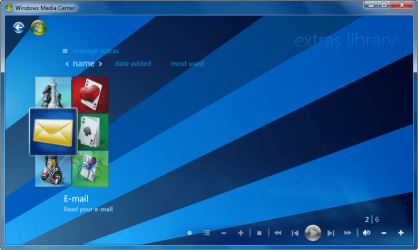
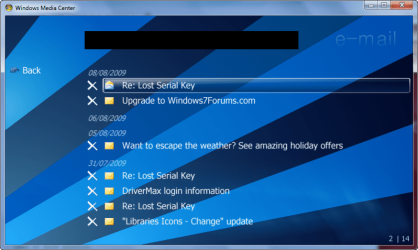
[SIZE=+1]4.[/SIZE] Exit the configuration wizard and open up W7MC, navigate to the Extras strip, click on the Email icon and you're good!


Last edited by a moderator:
