
Internet Explorer - "Always close all tabs" Warning - Turn On or Off
EXAMPLE: "Always close all tabs" / "Do you want to close all tabs or the current tab?" Warning

1. When you close Internet Explorer with more than one tab opened, check the Always close all tabs box, and click/tap on the Close all tabs button. (see screenshot below)
NOTE: In Windows 8, this would be for the IE10 desktop version, and not the IE10 Metro (Windows UI) version.

1. Open the Control Panel (icons view), and click/tap on the Internet Options icon.
A) Go to step 3.
OR
2. In Internet Explorer, click/tap on Tools (Menu bar) and Internet Options.
NOTE: In Windows 8, you would open the IE10 desktop version, and not the IE10 Metro (Windows UI) version.
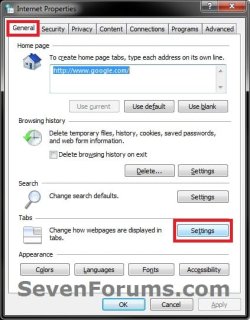
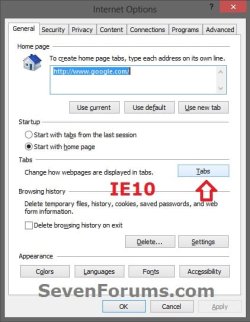
3. In the General tab, click/tap on the Settings (IE9) or Tabs (IE10) button to the right of Tabs, then do either step 4 or 5 below. (see screenshots below)
4. To Turn On "Always close all tabs" Warning in IE
NOTE: This is the default setting.
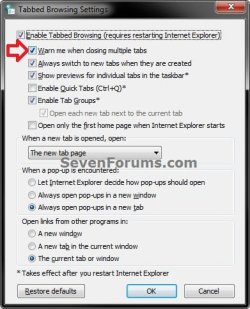
A) Check both the Enable Tabbed Browsing box and Warn me when closing multiple tabs box, then click/tap on OK. (see screenshot below)
B) Go to step 6.
5. To Turn Off "Always close all tabs" Warning in IE
A) Uncheck the Warn me when closing multiple tabs box, then click/tap on OK. (see screenshot below step 4A)
B) Go to step 6.
6. Click/tap on OK. (see screenshot below step 3)
1. To Turn On "Always close all tabs" Warning in IE
NOTE: This is the default setting.
A) Click/tap on the Download button below to download the file below.
Turn-On_IE_Always_close_all-tabs_Warning.reg
Download
B) Go to step 3.
2. To Turn Off "Always close all tabs" Warning in IE
A) Click/tap on the Download button below to download the file below.
Turn-Off_IE_Always_close_all-tabs_Warning.reg
Download
3. Save the .reg file to the Desktop.
4. Double click/tap on the downloaded .reg file to merge it.
5. Click/tap on Run, Yes (UAC-Windows 7/8) or Continue (UAC-Vista), Yes, and then OK when prompted.
6. When done, you can delete the downloaded .reg file if you like.
That's it,
Shawn
How to Turn the "Always close all tabs" Warning Message On or Off in Internet Explorer
Information
This will show you how to to turn on or off the Do you want to close all tabs or the current tab? warning message when you attempt to close Internet Explorer with more than one tab opened in it.
Note
If the Always close all tabs warning message is turned off, Internet Explorer will close immediately when you close it without asking Do you want to close all tabs or the current tab?, no matter how many tabs you have opened at the time.
Warning
You will need to have Internet Explorer tabbed browsing enabled to be able to turn on the "Always close all tabs" warning message.
EXAMPLE: "Always close all tabs" / "Do you want to close all tabs or the current tab?" Warning
OPTION ONE
To Turn Off "Always close all tabs" in Warning Message
1. When you close Internet Explorer with more than one tab opened, check the Always close all tabs box, and click/tap on the Close all tabs button. (see screenshot below)
NOTE: In Windows 8, this would be for the IE10 desktop version, and not the IE10 Metro (Windows UI) version.
OPTION TWO
To Turn On/Off "Always close all tabs" in Internet Options
1. Open the Control Panel (icons view), and click/tap on the Internet Options icon.
A) Go to step 3.
OR
2. In Internet Explorer, click/tap on Tools (Menu bar) and Internet Options.
NOTE: In Windows 8, you would open the IE10 desktop version, and not the IE10 Metro (Windows UI) version.
3. In the General tab, click/tap on the Settings (IE9) or Tabs (IE10) button to the right of Tabs, then do either step 4 or 5 below. (see screenshots below)
4. To Turn On "Always close all tabs" Warning in IE
NOTE: This is the default setting.
A) Check both the Enable Tabbed Browsing box and Warn me when closing multiple tabs box, then click/tap on OK. (see screenshot below)
B) Go to step 6.
5. To Turn Off "Always close all tabs" Warning in IE
A) Uncheck the Warn me when closing multiple tabs box, then click/tap on OK. (see screenshot below step 4A)
B) Go to step 6.
6. Click/tap on OK. (see screenshot below step 3)
OPTION THREE
To Turn On/Off "Always close all tabs" Using a REG File Download
1. To Turn On "Always close all tabs" Warning in IE
NOTE: This is the default setting.
A) Click/tap on the Download button below to download the file below.
Turn-On_IE_Always_close_all-tabs_Warning.reg
Download
B) Go to step 3.
2. To Turn Off "Always close all tabs" Warning in IE
A) Click/tap on the Download button below to download the file below.
Turn-Off_IE_Always_close_all-tabs_Warning.reg
Download
3. Save the .reg file to the Desktop.
4. Double click/tap on the downloaded .reg file to merge it.
5. Click/tap on Run, Yes (UAC-Windows 7/8) or Continue (UAC-Vista), Yes, and then OK when prompted.
6. When done, you can delete the downloaded .reg file if you like.
That's it,
Shawn
Related Tutorials
- How to Enable or Disable Internet Explorer Tabbed Browsing
- How to Enable or Disable "Reopen Last Browsing Session" in Internet Explorer
- How to Reopen the Last Browsing Session in Internet Explorer
- How to Open Recently Closed Tabs in IE9 and IE10
- How to Change What Page a "New Tab" Opens to in IE9 and IE10
Attachments
Last edited: