
How to Create an Internet Explorer No Add-ons Shortcut
Information
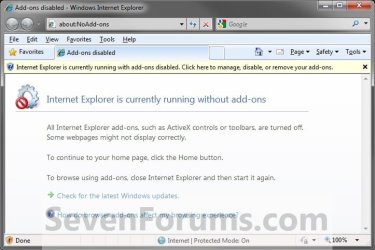
Internet Explorer (No Add-ons) is primarily a troubleshooting tool to help determine if you have a bad add-on installed in Internet Explorer. Internet Explorer (No Add-ons) loads Internet Explorer with all add-ons, such as ActiveX controls or toolbars, turned off.
This tutorial will show you how to create or download a Internet Explorer (No Add-ons) shortcut that opens Internet Explorer with add-ons turned off .
This tutorial will show you how to create or download a Internet Explorer (No Add-ons) shortcut that opens Internet Explorer with add-ons turned off .
EXAMPLE: Internet Explorer (No Add-ons)
OPTION ONE
To Download an "IE No Add-ons" Shortcut
:warn:WARNING: Be sure to use the correct download to match your installed 32-bit or 64-bit Windows version.
1. If You Have 32-bit Windows Installed
A) Click /tapon the download button below to download the file below.
32bit_W7_Internet_Explorer(No Add-ons).zip
Download
B) Go to step 3.
2. If You Have 64-bit Windows Installed
A) Click/tap on the download button below to download the file below.
64bit_W7_Internet_Explorer(No Add-ons).zip
Download
3. Save the .zip file to your desktop.
4. Open the .zip file and extract the Internet Explorer (No Add-ons) shortcut to the desktop.
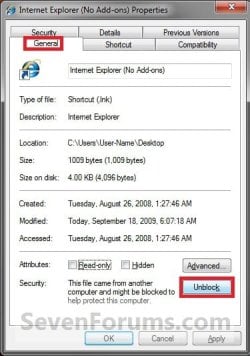
5. Right click on the extracted shortcut, click on Properties, General tab, and on the Unblock button. (See screenshot below)
NOTE: If you do not have a Unblock button under the General tab, then the shortcut is already unblocked and you can continue on to step 6.
6. In Vista and Windows 7, you can now Pin to Taskbar (Windows 7 only) or Pin to Start Menu, add to Quick Launch, assign a keyboard shortcut to it, or move this shortcut to where you like for easy use.
7. In Windows 8 and 8.1, you can Pin to Taskbar on desktop, Pin to Start screen, add to Quick Launch, assign a keyboard shortcut to it, or move this shortcut to where you like for easy use.
8. When done, you can delete the downloaded .zip file on the desktop if you like, or save it to use again.
OPTION TWO
To Manually Create an "IE No Add-ons" Shortcut
:warn:WARNING: Be sure to create the correct shortcut to match your installed 32-bit or 64-bit Windows version.
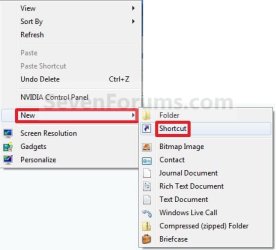
1. Right click on a empty area on desktop, and click/tap on New and Shortcut.
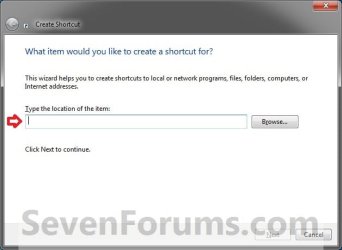
2. Type in bold below into the location area, and click/tap on the Next button. (See screenshot below)
- If You Have 32-bit Windows Installed -
- "%ProgramFiles%\Internet Explorer\iexplore.exe" -extoff
- If You Have 64-bit Windows Installed -
- "%ProgramFiles(x86)%\Internet Explorer\iexplore.exe" -extoff
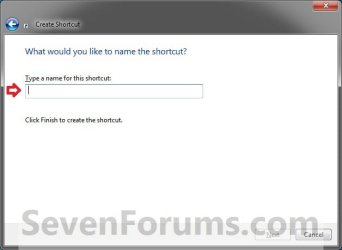
3. Type Internet Explorer (No Add-ons) for the name, and click/tap on the Finish button. (See screenshot below)
NOTE: You can name this anything you would like though.
4. In Vista and Windows 7, you can now Pin to Taskbar (Windows 7 only) or Pin to Start Menu, add to Quick Launch, assign a keyboard shortcut to it, or move this shortcut to where you like for easy use.
5. In Windows 8 and 8.1, you can Pin to Taskbar on desktop, Pin to Start screen, add to Quick Launch, assign a keyboard shortcut to it, or move this shortcut to where you like for easy use.
That's it,
Shawn
Related Tutorials
- How to Create an Internet Options Shortcut
- How to Create a Shortcut to Delete Internet Explorer 8 Temporary Files
- How to Reset Internet Explorer
- How to Enable or Disable a Internet Explorer Toolbar and Extension Add-on
- How to Enable or Disable Toolbars and Extensions in Internet Explorer InPrivate Browsing
- How to Add or Remove a Internet Explorer Accelerator Add-on
- How to Change the Default Start Page for Internet Explorer No Add-ons
- How to Create a "Internet Explorer" Desktop Icon
- How to Create a Internet Explorer InPrivate Browsing Shortcut
- How to Add or Remove Internet Explorer Desktop Icon in Windows 8 and 8.1
Attachments
Last edited:


