Portable OS - Carry your OS on an External Drive

How to Create a Portable OS on an External Drive


Objective

The objective is to create an OS installation on an external USB attached media with which you can carry your OS to any system. I have tested the procedure with Windows 8 and Zorin, an Ubuntu based Linux distro.

In such a configuration the OS becomes independent of the hardware it runs on. The VMware Player becomes the base system.

Besides the portability, it also allows you to run another OS side by side with your current system and switch back and forth with 1 click. It is completely independent of your installed OS.


Requirements


  • A USB port - preferably a USB3 port (Note: eSata is not supported by WMware Player)
  • An external device - SSD or 7200 RPM HDD
  • An external enclosure for the disk
  • VMware Player installed on the system where you want to run (I suggest to carry the VMware Player installation .exe on the external device for easy and quick installation)
For obvious reasons, the SSD works the best. Operations on the HDD will be slower. I have also tried a fast USB3 stick. But that was too slow. See performance section for details.

I found a $55 'value pack' - a SSD and a USB3 enclosure including cable. The 30GB SSD is large enough to accommodate Windows 8 or any Linux distro with room to spare.


Installation on the VMware Player

After the installation of the VMplayer on your host system, I highly recommend you do the initial installation of the guest OS on your host system. It will create a folder called 'Virtual Machines' (or whatever name you gave it) in your Documents folder which is the virtual system. When the installation is completed, copy or move that folder to your external device.

Here is an excellent tutorial by Shawn that will help you to make this first step. The tutorial describes the installation of Windows 8 but should also give you sufficient guidance for other operating systems.


Starting your virtual system

Since you have displaced the original installation, you have to point VMware Player to the new location. Open VMware Player and you will see this window.
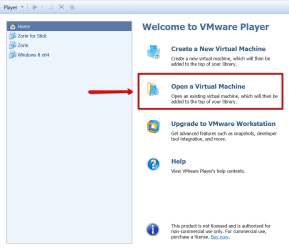
2013-01-28_2203.png
After you clicked on "Open a Virtual Machine", an Explorer window opens where you have to navigate to the virtual machine folder on your device. There you drill down until you find the file with the .vmx extension. Highlight and open that file.
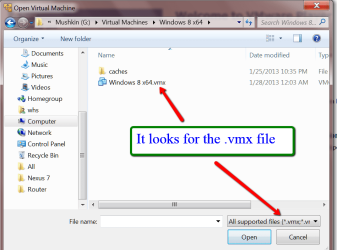
2013-01-28_2206.png
Now the virtual system on your external device is recognized. You will be back on the VMware Player window where you highlight the system you want to play on the top left and then click on "Play Virtual Machine".
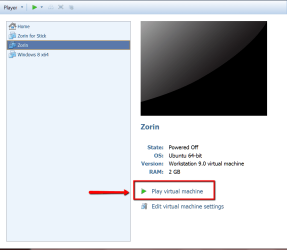
2013-01-28_2219.png
You will be asked whether you have copied or moved the folder - click on 'Copied'. The system will take a little while to start this first time. Both VMware Player and the OS seem to make some adjustments.

Note, there will also be adjustments made when you shutdown the OS in the virtual system. The shutdown of the OS will take only a few seconds, but VMware Player may elaborate for a minute or two. Just minimize VMware Player to the taskbar and go on with work in your host system.


Operational aspects

Make sure you install the VMware Tools. This will be an option during the installation. If you miss that, you can get the tools from this site.

The tools give you full integration of the guest OS with the host OS. You will e.g. share the clipboard between the guest and the host which makes file copy back and forth extremely easy. The cursor will automatically respond to whether it is in the guest system or the host system. That way you can operate on both systems simultaneously.

For the host system, you have full access to the taskbar and to e.g. your hidden Rocket Dock (if any) whilst the guest system is up. The keyboard buttons (e.g. the Start button) will trigger action on the host or the guest depending where the cursor is located - on the guest window or the host taskbar. The same goes for keyboard shortcuts.
2013-01-28_2310.png
You can also maximize the guest window. Then you have no access to the host system. This is practical when you work for a longer period of time on the guest system. It avoids trying to close the virtual system whenever you go to the red X on the top right and confuse the red X of the guest window with that of the VMware Player.

Sometimes the cursor seems to disappear completely - e.g. during shutdown. Press CTL+ALT and the host system cursor will be activated.

An important operational aspect is the fact that you can take your external installation and run it on another system where VMware Player is installed. I had no difficulty moving the systems from my desktop to my laptop. The systems will make some automatic adjustments at that time.

If you move frequently to other systems, it may be useful to carry the VMware Player installation .exe (72MB) on the external device. Then you can quickly install the VMware Player and do not have to download it again.


System backup

If you want to backup the system, you just copy the VMware Player folder to another disk. That beats any imaging in speed. And to recover - if anything should ever happen - you just replace the folder of the defunct system with the backup folder.


Performance considerations

I have installed and tested Windows 8 and Zorin on different media and attached it via USB2 and USB3. Note that eSata is not supported by the VMware Player. Those were the tests.

  • Windows 8 on internal M4 SSD
  • Windows 8 on external Mushkin SSD attached via USB3
  • Windows 8 on external Mushkin SSD attached via USB2
  • Windows 8 on 5400 RPM external HDD attached via USB3
  • Zorin on internal M4 SSD
  • Zorin on external Mushkin SSD attached via USB3
  • Zorin on a fast USB3 stick
All those were run on my Dell XPS 8300 desktop. In addition I ran a couple of configurations on my Toshiba laptop with USB3.

The SSD configurations ran great. There is little difference between internal and external SSD. The boot times for Windows 8 ranged between 25 sec to 41 sec (Event 100 in Event viewer). What amazed me is that there was also little difference between USB2 and USB3 attachments. Both were very fluent with a slight advantage for the USB3. Here is a video conversion example that I ran on the host and in VMware:

I converted a 100MB video clip with Format Factory from .wmv to .avi.

The host system ran Win7 with 4GB of RAM from the internal disk.
The VMware system ran Windows 8 with 4GB of RAM from a USB attached disk.
CPU usage was 30% +/- in both cases.

It took 3 minutes 10 seconds on the host system and 3 minutes 40 seconds in the VMware system. Really not a big difference.

The 5400 RPM HDD was workable on USB3. I would call it borderline. But I am sure that a 7200 RPM HDD would be quite acceptable.

The USB3 stick was a big disappointment. After my good experience with my Windows 8 to go project, I had expected a reasonable result. But unfortunately it did not work out that way. The system was too slow for comfort. Considering that I paid more money for this 32GB USB3 stick than for my 60GB Mushkin SSD, I had expected a better result with the stick.


Have a look how it works


Note: If the audio of this video is too low, do the following:
Right click on the speaker icon in the task tray (bottom right) > Playback devices > double click on your output device > Enhancement tab > check the 'Loudness Equalizer' box


Related Tutorials

How to Share Partitions Between Host and Guest in VMware Player
[/rel]
 
Last edited:
The video volume is way too low...I have to crank up my volume to 75% just to hear it.
 

My Computer

Computer Manufacturer/Model Number
Custom built
OS
Windows 7 Ultimate 64 bit
CPU
AMD Phenom II X4 965 Black Edition
Motherboard
Gigabyte GA-MA790X-DS4
Memory
GSkill 4 X 2 GB PC 8500
Graphics Card(s)
XFX Radeon HD 6790 D
Sound Card
On board RealTek HD
Monitor(s) Displays
Dual monitors:Samsung SyncMaster S20B300
Screen Resolution
1600 X 900
Hard Drives
Seagate Barracuda 1TB (primary)
Seagate Barracuda 2 X 320 GB
PSU
Ultra X4 750 watt fully modular
Case
Thermaltake Overseer RX 1 full tower
Cooling
Core-Contact 92 mm CPU Cooler
Keyboard
Logitech G510
Mouse
Razor DeathAdder
Internet Speed
50/5 Mbps UL/DL
Other Info
Optical: Super Muliti DVD burner w/lightscribe, Hauppauge WinTV HVR-1800
The video volume is way too low...I have to crank up my volume to 75% just to hear it.
I know I have a problem with my recorder - or my mic. Have already cranked it up by 12dB. Will have to see whether I get a new screencapture program or a new mic.

Problem with the screencapture programs is that this is the only one I know that works with a DPI of 150% which I need in order to see things on the screen.

Interestingly enough it plays very well (with medium volume settings) on my system.
 

My Computer

Computer Manufacturer/Model Number
HP, Dell, Gateway, Toshiba - 4 laptops and 2 desktops
OS
Vista, Windows7, Mint Mate, Zorin, Windows 8
CPU
from 1.6GHz Duo to i7
Monitor(s) Displays
2x HP w2207
Hard Drives
5x HDD, 7x SSD, 12x Externals
Keyboard
with trackball - no mices
Mouse
Trackball mice
Internet Speed
DSL 6000
Thank you for this tutorial, I am just getting into VMs and this has been very helpful.

Much appreciated.
 

My Computer

Computer Manufacturer/Model Number
Fujitsu Lifebook T 902
OS
Windows 7 Pro 64 bit
Hard Drives
500GB (7200RPM) SATA HDD,
You are welcome. If you have any questions regarding VMware, you can post them here.
 

My Computer

Computer Manufacturer/Model Number
HP, Dell, Gateway, Toshiba - 4 laptops and 2 desktops
OS
Vista, Windows7, Mint Mate, Zorin, Windows 8
CPU
from 1.6GHz Duo to i7
Monitor(s) Displays
2x HP w2207
Hard Drives
5x HDD, 7x SSD, 12x Externals
Keyboard
with trackball - no mices
Mouse
Trackball mice
Internet Speed
DSL 6000
thanks for this easy step-to-step, helpful tutorial :) it really helps me. the screenshot makes me understand easily :)

thank you so much :party:
 

My Computer

Computer type
Laptop
Computer Manufacturer/Model Number
Toshiba Satellite L510-P4019
OS
Windows 7 Ultimate x86/32bit Build 7600
CPU
Intel Pentium(R) Dual-Core CPU [email protected]
Motherboard
TOSHIBA Portable PC
Memory
5GB DDR3 of RAM, 3GB usable (2 sticks)
Graphics Card(s)
Mobile Intel(R) 4 Series Express Chipset Family
Sound Card
Microsoft High Audio Definitions
Screen Resolution
1366x768
Hard Drives
Toshiba MK3263GSX ATA Device 320GB, WD Ext. HDD My Passport 070A 250GB
Mouse
Toshiba U20 Blue LED Techonology USB Optical Mouse
Antivirus
Avast! Free Antivirus, Malwarebytes Anti-Malware
Browser
Mozilla Firefox, Safari
You are welcome. If you have any questions regarding VMware, you can post them here.

Thank you for the offer of help as well. I expect I will be taking you up on it. Again, much appreciated.
 

My Computer

Computer Manufacturer/Model Number
Fujitsu Lifebook T 902
OS
Windows 7 Pro 64 bit
Hard Drives
500GB (7200RPM) SATA HDD,
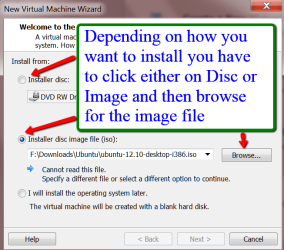
I tried Brink's tutorial on installing VM Player
VMware Player - Install Windows 8

Didn't get very far. Things are fine until it gets to the part to install the operating system on VM Player. It always says it can't be found. I have tried multiple times, with W8, W7, XP, and it just spins its wheels then says it can't find the file to install. Tells me there aren't any. Yes there are, but it won't listen to me. So I can't get to your tutorial unless I figure out how to solve this. What now?
 

My Computer

OS
windows 7
Soahs, Maybe you did not tell it where to look for the OS to be installed.
 

Attachments

  • 2013-03-30_1047.png
    2013-03-30_1047.png
    91 KB · Views: 23,598

My Computer

Computer Manufacturer/Model Number
HP, Dell, Gateway, Toshiba - 4 laptops and 2 desktops
OS
Vista, Windows7, Mint Mate, Zorin, Windows 8
CPU
from 1.6GHz Duo to i7
Monitor(s) Displays
2x HP w2207
Hard Drives
5x HDD, 7x SSD, 12x Externals
Keyboard
with trackball - no mices
Mouse
Trackball mice
Internet Speed
DSL 6000
That's what I thought too and made sure to check Iso and the folder where the file was. However - the tutorial says to check "I will install the operating system later." But you don't have that checked. Could this make a difference?

Also, does the iso file have to be in the same folder as the VM I am trying to create? It isn't.
 

My Computer

OS
windows 7
I never used the "Later" option. I always install immediately with the .iso which can be in any folder (e.g. Downloads). Try that.
 

My Computer

Computer Manufacturer/Model Number
HP, Dell, Gateway, Toshiba - 4 laptops and 2 desktops
OS
Vista, Windows7, Mint Mate, Zorin, Windows 8
CPU
from 1.6GHz Duo to i7
Monitor(s) Displays
2x HP w2207
Hard Drives
5x HDD, 7x SSD, 12x Externals
Keyboard
with trackball - no mices
Mouse
Trackball mice
Internet Speed
DSL 6000
Impressive! It is so simple that I'm impressed! I've been looking for something similar, but found only pieces of tutorials!
 

My Computer

OS
Windows 7 Ultimate x64
5 years later and I am back and I am lovin Vmware Player! It took me awhile to catch on, but I could not be more pleased. Yes I needed to install the iso at time of install :) Seems so easy now. I have virtuals of W7,8, and 10. And a Sabertooth with 32 gigs ram to run all this. Have a question however. What I want to do is to have everything on an external so if I bring it to someone else's computer I don't have to install anything on theirs. This means having the Vmware Player already installed and up and running on the external. Is this even possible? If it is, how many gigs ram would be required on their computer to run Vmware Player and the virtual on an external?
 

My Computer

OS
windows 7
On the external disk you need only the virtual systems (the VMware folders of those systems). VMware Player itself has to be installed on the systems where you want to run those virtual systems from the external disk. This is possible on Windows, Linux and Mac systems. There are compatible VMware Player versions for each of those.
 

My Computer

Computer Manufacturer/Model Number
HP, Dell, Gateway, Toshiba - 4 laptops and 2 desktops
OS
Vista, Windows7, Mint Mate, Zorin, Windows 8
CPU
from 1.6GHz Duo to i7
Monitor(s) Displays
2x HP w2207
Hard Drives
5x HDD, 7x SSD, 12x Externals
Keyboard
with trackball - no mices
Mouse
Trackball mice
Internet Speed
DSL 6000
This means having the Vmware Player already installed and up and running on the external. Is this even possible? If it is, how many gigs ram would be required on their computer to run Vmware Player and the virtual on an external?

Not sure I understand that one ?
The second depends on the system you want to run VMware on which you can't predetermine that until you see their system spec's,

Also whether or not they are able to run a 64 bit v-m or not
My system can not it is only capable of running a 32 bit VMware iso

So to be the most compatible the 32 bit iso would be suggested.
 

My Computer

Computer type
PC/Desktop
Computer Manufacturer/Model Number
Custom assembled by me :}
OS
Win-7-Pro64bit 7-H-Prem-64bit
CPU
i7-5930K 2nd i9-9940x both water blocked VRM's too
Motherboard
ASUS SABERTOOTH X99 2nd ASUS x299 Apex
Memory
Trident-z 3200C14 2nd Trident-z 3600C16
Graphics Card(s)
EVGA 1080ti ftw3 2nd Titan Xp both water blocked
Sound Card
Built-in Realtek
Monitor(s) Displays
1-AOC G2460PG 24"G-Sync 144Hz/ 2nd 1-ASUS VG248QE 24" 144Hz
Screen Resolution
1920 x 1080 144Hz
Hard Drives
2-Samsung M.2 Evo & Evo Plus
2-Samsung 850 EVO 500GB SSD's/ 3-2.5 W.D. Black 1tb-&3-1tb/3-3.5 WD Black 1tb hdd's
PSU
EVGA SuperNOVA 1000-P2 2nd 1200-P2
Case
2-Corsair Obsidian Series 450D Black ATX Mid Tower
Cooling
Custom water loops
Keyboard
Logitech G710+/ 2nd Logitech G910
Mouse
2-RedDragon M901 Perdition 16400 dpi Gaming mouse = wired
Internet Speed
Comcast Ping 19ms 89.31mbps download speed 6.12mbps upload
Antivirus
Malwarebytes Pro/ Superantispyware Pro
Browser
FireFox & Pale moon
Other Info
2nd ASUS X299 Apex/Intel i9-9940x with Custom water loop/7H-Prem-x64/Corsair 450D case/Ram Trident-z 3600C16 4x8gb / Samsung970Evo plus 500gb SSD/Dual ssd EZ swap evo/PSU EVGA SuperNova 1200w-P2 80+Platinum/GPU Titan Xp /8-ML-140 on push-pull on 2-280GTX rads
Back
Top