
How to Backup and Restore Advanced Appearance Settings in Windows
Information
The advanced appearance settings is part of each user account's own personalization settings. This would include changing the size, color, and fonts used for items in Windows.
This tutorial will show you how to back up your advanced appearance settings to be able to restore or apply to any user account in Vista, Windows 7, and Windows 8.
This tutorial will show you how to back up your advanced appearance settings to be able to restore or apply to any user account in Vista, Windows 7, and Windows 8.
Note
All advanced appearance settings for a single user are stored in the three registry keys below. This is what the downloaded .bat file below will automatically back up for you as .reg files.
- HKEY_CURRENT_USER\Control Panel\Colors
- HKEY_CURRENT_USER\Control Panel\Desktop\Colors
- HKEY_CURRENT_USER\Control Panel\Desktop\WindowMetrics
Tip
While Windows 8 and Windows 8.1 doesn't include advanced appearance settings anymore, you could back up your settings in Windows 7, then restore and apply them to a user account in Windows 8.
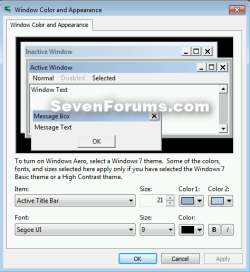
EXAMPLE: Advanced Appearance Settings
Here's How:
1. Click/tap on the Download button below to download the .bat file below, then run it.
Backup_Advanced_Appearance_Settings.bat
Download
2. If prompted, click on Run.
NOTE: If you like, you can stop getting the Run prompt by unblocking the downloaded .bat file.
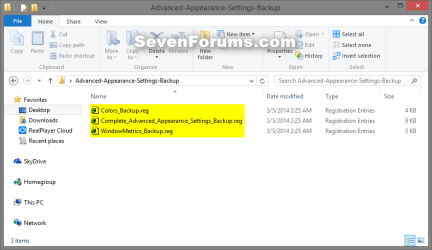
3. You will now have a Advanced-Appearance-Settings-Backup folder on your desktop containing the .reg files below that are the backups of your advanced appearance settings.
- Colors_Backup.reg = Only the two "Colors" registry key locations combined to one .reg file. This is for when you only want to restore the color settings.
- WindowMetrics_Backup.reg = Only the "WindowMetrics" registry key backup. This is for when you only want to restore the WindowMetrics settings.
- Complete_Advanced_Appearance_Settings_Backup.reg = All advanced appearance settings (Colors and WindowsMetrics) backed up to one .reg file.
Note
To restore your advanced appearance settings:
1) While in any user account you want to use the settings for, double click on the .reg file(s) to merge it. The backup .reg files can be used in Vista, Windows 7, and Windows 8.
2) If prompted, click/tap on Run, Yes (UAC-Windows 7/8) or Continue (UAC-Vista), Yes, and OK to approve the merge.
3) Log out and in, or restart the computer to apply the advanced appearance settings to that user account.
1) While in any user account you want to use the settings for, double click on the .reg file(s) to merge it. The backup .reg files can be used in Vista, Windows 7, and Windows 8.
2) If prompted, click/tap on Run, Yes (UAC-Windows 7/8) or Continue (UAC-Vista), Yes, and OK to approve the merge.
3) Log out and in, or restart the computer to apply the advanced appearance settings to that user account.
That's it,
Shawn
Attachments
Last edited:


