
How to Link your Live ID and Share Files in Windows 7 HomeGroup
Information
This tutorial will guide you through the process to show you how to link your desktop account with your online services like Windows Live ID so you can share files with friends.
Note
Microsoft recently enabled the link online id feature which allows you to link your user account with online services such as Windows Live ID.
Using this will make it much easier to share files with other similarly registered friends.
To get an idea of what this could be used for, Microsoft shows us this scenario:
On his homegroup, Bob wants to share certain documents with his wife but not with his kids. Simply by specifying his wife's Windows Live ID user name, Bob can give his wife exclusive permission to access documents on his computer.
Warning
This feature is still under construction and while it seemed to work when I tested it, there maybe the odd bug or two.
FIRST:
Before we begin, you will need to download and install the latest Windows Live ID Sign-in Assistant.
STEP ONE
Link your User Account with your Live ID
1) Open Control Panel and go to Control Panel\User Accounts and Family Safety\User Accounts (you can type that into the address bar to make it easier to find).

2) Click on the Link online IDs link in the left side panel.
NOTE: This will take you to the Link online IDs page:
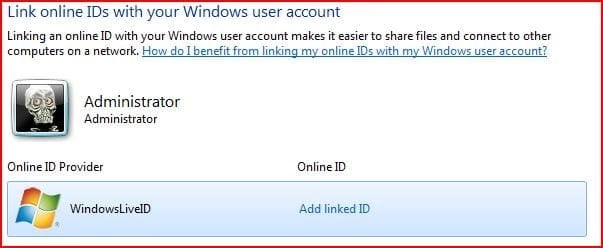
3) Click on Add linked ID which will bring up the Windows Live ID Sign-in Assistant.
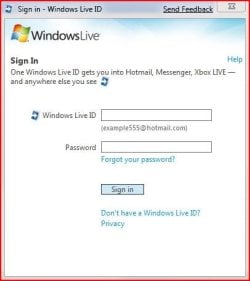
4) Here you can enter any microsoft Live ID account such as your hotmail username or your messenger username.
5) It will take a few moments to generate the certificates and login for your account.

6) When thats done you'l be taken back to your windows user account page.
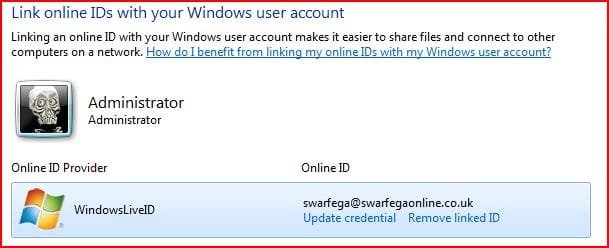
7) Click on the OK button and your done.
STEP TWO
Sharing Files
1) To share a file with someone else in the homegroup who has already linked their user accounts with an Online ID Provider, such as Windows Live ID - right click on that file and choose share with specific people.

2) This will open the sharing wizard where you can select who you want to share the file with.
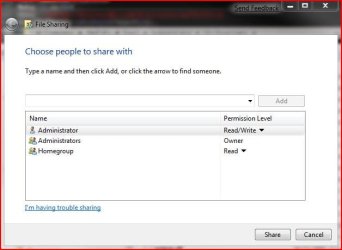
3) This will give you a list of everyone whose been setup to share files across the network. You can add who you want and give them appropriate permissions.
Related Tutorials
- How to Add or Remove the HomeGroup Desktop Icon in Windows 7
- How to Add or Remove Homegroup from the Windows 7 Navigation Pane
- How to View or Print Your Windows 7 Homegroup Password
- How to Change the Windows 7 Homegroup Password
- How to Create a Homegroup in Windows 7
- How to Join or Add a Computer to a Windows 7 Homegroup
- How to Leave a Windows 7 Homegroup
- How to Change Windows 7 Homegroup File and Folder Sharing Settings
- How to Turn Media Streaming Using Windows Media Player On or Off in Windows 7
- How to Enable or Disable Media Sharing from Windows Media Player in Windows 7
- How to Create a HomeGroup Troubleshoot Shortcut in Windows 7
- How to Create a HomeGroup Settings Shortcut in Windows 7
- How to Create a HomeGroup Folder Shortcut in Windows 7
Last edited by a moderator:


