
How to Workaround the Wireless Connection Issue in Standby
Information
This is for the people that like have experienced problems with Wireless Connections not being dropped correctly when in standby. So I thought of a way to make sure that the Wireless Adapter would drop the connection before the standby and bring it up after (so that the standby would not be made too long or the startup too long either) so this is a workaround until MS or someone else will provide a solution to this mess
Note
This might make your your time to standby or hibernation and wake-up time a little longer (since we are disabling a piece of hardware and re-enabling it at startup). Also you must initiate the stand-by/Hibernation as a part of the administrator group (if you have in-depth knowledge on the task scheduler you can customize it to your liking but that is beyond the scope of this Tutorial)
Warning
As i said you must be logged as part of the administrators, since most of you testing W7 are doing so (using the account created at the install this should be no problem), but you must also at wakeup log either to the same account or a account with administrative privileges (being a part of the Administrators Group)
Here's How:
1. Download these xml files which were created just for this problem
Download
View attachment Wifi (workaround).zip
2. Extract them and you should have two files like this...
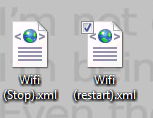
3. Open the Task Scheduler
NOTE: Pressing start and typing task should be enough as seen here.

4.Once you have it open click on the import task...
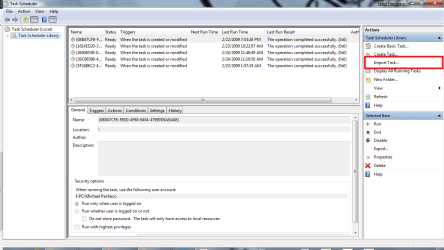
5.Find the Wifi(stop).xml and click open...
this will open and will show the task...
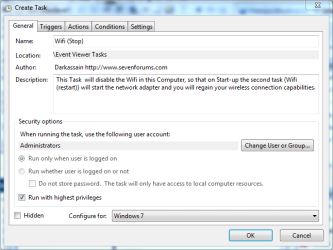
A) Click on OK.
6.Do the same for Wifi(restart).xml

A) When your done click on OK.
7. as a bonus here is the readout of the xml files...
Wifi(stop).xml
Code:
<?xml version="1.0" encoding="UTF-16"?>
<Task version="1.3" xmlns="http://schemas.microsoft.com/windows/2004/02/mit/task">
  <RegistrationInfo>
    <Date>2009-02-25T12:48:57.6969679</Date>
    <Author>Darkassain http://www.sevenforums.com</Author>
    <Description>This Task  will disable the Wifi in this Computer, so that on Start-up the second task (Wifi (restart)) will start the network adapter and you will regain your wireless connection capabilities.</Description>
  </RegistrationInfo>
  <Triggers>
    <EventTrigger>
      <Enabled>true</Enabled>
      <Subscription><QueryList><Query Id="0" Path="System"><Select Path="System">*[System[Provider[@Name='Microsoft-Windows-Kernel-Power'] and (EventID=42)]]</Select></Query></QueryList></Subscription>
    </EventTrigger>
  </Triggers>
  <Principals>
    <Principal id="Author">
      <GroupId>Administrators</GroupId>
      <RunLevel>HighestAvailable</RunLevel>
    </Principal>
  </Principals>
  <Settings>
    <MultipleInstancesPolicy>IgnoreNew</MultipleInstancesPolicy>
    <DisallowStartIfOnBatteries>false</DisallowStartIfOnBatteries>
    <StopIfGoingOnBatteries>true</StopIfGoingOnBatteries>
    <AllowHardTerminate>true</AllowHardTerminate>
    <StartWhenAvailable>false</StartWhenAvailable>
    <RunOnlyIfNetworkAvailable>false</RunOnlyIfNetworkAvailable>
    <IdleSettings>
      <StopOnIdleEnd>true</StopOnIdleEnd>
    </IdleSettings>
    <AllowStartOnDemand>true</AllowStartOnDemand>
    <Enabled>false</Enabled>
    <Hidden>false</Hidden>
    <RunOnlyIfIdle>false</RunOnlyIfIdle>
    <DisallowStartOnRemoteAppSession>false</DisallowStartOnRemoteAppSession>
    <UseUnifiedSchedulingEngine>false</UseUnifiedSchedulingEngine>
    <WakeToRun>false</WakeToRun>
    <ExecutionTimeLimit>P3D</ExecutionTimeLimit>
    <Priority>7</Priority>
  </Settings>
  <Actions Context="Author">
    <Exec>
      <Command>C:\Windows\System32\netsh.exe</Command>
      <Arguments>interface set interface name="Wireless Network Connection" admin=DISABLED</Arguments>
    </Exec>
  </Actions>
</Task>
Code:
<?xml version="1.0" encoding="UTF-16"?>
<Task version="1.3" xmlns="http://schemas.microsoft.com/windows/2004/02/mit/task">
  <RegistrationInfo>
    <Date>2009-02-25T12:25:46.7721402</Date>
    <Author>Darkassain http://www.sevenforums.com</Author>
    <Description>This Task will enable your Wireless Adapter so that  you can regain your Wireless Capabilities without restarting your computer.</Description>
  </RegistrationInfo>
  <Triggers>
    <EventTrigger>
      <Enabled>true</Enabled>
      <Subscription><QueryList><Query Id="0" Path="Microsoft-Windows-Diagnostics-Performance/Operational"><Select Path="Microsoft-Windows-Diagnostics-Performance/Operational">*[System[Provider[@Name='Microsoft-Windows-Diagnostics-Performance'] and (EventID=300)]]</Select></Query></QueryList></Subscription>
    </EventTrigger>
    <BootTrigger>
      <Enabled>true</Enabled>
    </BootTrigger>
  </Triggers>
  <Principals>
    <Principal id="Author">
      <GroupId>Administrators</GroupId>
      <RunLevel>HighestAvailable</RunLevel>
    </Principal>
  </Principals>
  <Settings>
    <MultipleInstancesPolicy>IgnoreNew</MultipleInstancesPolicy>
    <DisallowStartIfOnBatteries>false</DisallowStartIfOnBatteries>
    <StopIfGoingOnBatteries>true</StopIfGoingOnBatteries>
    <AllowHardTerminate>true</AllowHardTerminate>
    <StartWhenAvailable>false</StartWhenAvailable>
    <RunOnlyIfNetworkAvailable>false</RunOnlyIfNetworkAvailable>
    <IdleSettings>
      <StopOnIdleEnd>true</StopOnIdleEnd>
    </IdleSettings>
    <AllowStartOnDemand>true</AllowStartOnDemand>
    <Enabled>false</Enabled>
    <Hidden>false</Hidden>
    <RunOnlyIfIdle>false</RunOnlyIfIdle>
    <DisallowStartOnRemoteAppSession>false</DisallowStartOnRemoteAppSession>
    <UseUnifiedSchedulingEngine>false</UseUnifiedSchedulingEngine>
    <WakeToRun>false</WakeToRun>
    <ExecutionTimeLimit>P3D</ExecutionTimeLimit>
    <Priority>7</Priority>
  </Settings>
  <Actions Context="Author">
    <Exec>
      <Command>C:\Windows\System32\netsh.exe</Command>
      <Arguments>interface set interface name="Wireless Network Connection" admin=ENABLED</Arguments>
    </Exec>
  </Actions>
</Task>DA
Last edited by a moderator: