Start Menu - Pin or Unpin a Folder, Drive, and Library

Add or Remove "Pin to Start Menu" for a Folder, Drive, and Library in Windows 7


   Information
By default, you can only pin programs to the Start menu in Windows 7 with the Pin to Start Menu context menu item. You could also drag a folder, drive, or library to the Start button until you see Pin to Start Menu and drop it to pin the folder, drive, or library to the Start Menu.

This will show you how to add Pin to Start Menu to the context menu of a folder, drive, or library for all users in Windows 7.

You must be logged in as an administrator to be able to do the steps in this tutorial.

   Note
From the Start menu All Programs area, you can only pin the folders you have added to All Programs and not any of the default Accessories, Administrative Tools, Maintenance, and Startup folders.

You can pin any folder, drive, or library from within Windows Explorer to the Start Menu.


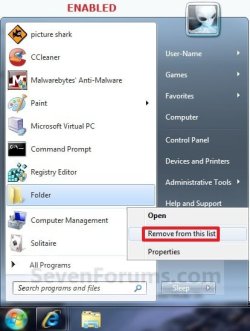
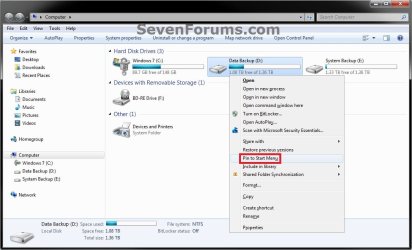
EXAMPLE: "Pin to Start Menu" Enabled for Folders and Drives
NOTE: You will need to press and hold Shift and right click on a folder or drive to see Pin to Start Menu.
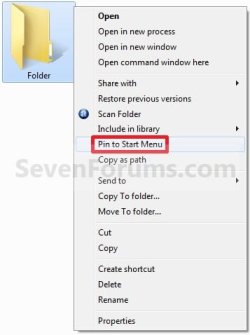
Folder.jpgFolder2.jpg
Drive-1.jpgDrive-2.jpg

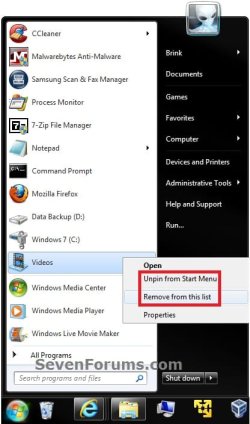
EXAMPLE: "Pin to Start Menu" Enabled for Libraries
NOTE: You will just need to right click on a library to see Pin to Start Menu.
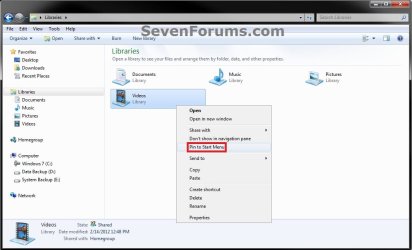
Library-1.jpgLibrary-2.jpg


Here's How:
1. To Enable Folder, Drive, and Library "Pin to Start Menu"
A) Click on the Download button below to download the file below.
Enable_Folder_Drive_Library_Pin_to_Start_Menu.reg

Download


B) Go to step 3.
2. To Disable Folder, Drive, and Library "Pin to Start Menu"
NOTE: This is the default setting.
A) Click on the Download button below to download the file below.
Disable_Folder_Drive_Library_Pin_to_Start_Menu.reg

Download


3. Save the .reg file to the desktop.

4. Right click on the downloaded .reg file and click on Merge.

5. Click on Run, Yes, Yes, and OK when prompted.

6. When done, you can delete the downloaded .reg file if you like.

That's it,
Shawn


Attachments

Last edited:
Issue with unpinning a library

Hi,

I pinned a custom library (named Downloads) to the Start Menu without downloading the registry entries found in this thread. The problem was, I was unable to unpin the item from the Start Menu. Whenever I right clicked on it, I would get two options, open or properties. I tried deleting the library. Not only did the Start Menu entry not go away, but now when I right clicked and selected properties, I was informed the item did not exist. Still no option to unpin though, even for a non-existent item. So I went googling. With the enable registry keys provided here the issue was corrected. So this is more of an FYI, if this is released without those registry keys, then the custom libraries will need to be prevented from being pinned to the Start Menu.
 

My Computer

Computer Manufacturer/Model Number
Dell Latitude D620
OS
Windows 7
CPU
Intel Core 2 Duo 1.8GHz
Memory
4GB DDR2 PC6400
Graphics Card(s)
Integrated Intel
Sound Card
Integrated AC 97'
Thank you Darius, and welcome to Seven Forums.

Interesting, I'm curious as to how you managed to pin the folder to the Start Menu without these registry entries though?
 

My Computer

Computer type
PC/Desktop
Computer Manufacturer/Model Number
Self built custom
OS
64-bit Windows 11 Pro for Workstations
CPU
Intel i7-8700K OC'd to 5 GHz
Motherboard
ASUS ROG Maximus XI Formula Z390
Memory
64 GB (4x16GB) G.SKILL TridentZ RGB DDR4 3600 MHz
Graphics Card(s)
ASUS ROG-STRIX-GTX1080TI-O11G-GAMING
Sound Card
Integrated
Monitor(s) Displays
2 x Samsung Odyssey G7 27"
Screen Resolution
2560x1440
Hard Drives
1TB Samsung 990 PRO M.2,
4TB Samsung 990 PRO PRO M.2,
TerraMaster F8 SSD Plus NAS
PSU
Seasonic Prime Titanium 850W
Case
Thermaltake Core P3
Cooling
Corsair Hydro H115i
Keyboard
Logitech wireless K800
Mouse
Logitech MX Master 4
Internet Speed
2 Gb/s Download and 100 Mb/s Upload
Antivirus
Malwarebyte Anti-Malware Premium
Browser
Google Chrome
Other Info
Logitech Z625 speaker system,
Logitech BRIO 4K Pro webcam,
HP Color LaserJet Pro MFP M477fdn,
APC SMART-UPS RT 1000 XL - SURT1000XLI,
Galaxy S23 Plus phone
Thanks. Well as to that, I didn't know about these registry entries, so I went looking for a solution myself. I'm a tinkerer at heart, so I tried a number of ways to get it to pin in place. The method that worked was to create a custom library, use the context menu to create a desktop shortcut, then pin the shortcut to the start menu. Then I deleted the shortcut and everything worked as intended. At least for 2 days until I decided I did not really want a downloads link on my start menu after all. What I really wanted was the ability to add it to the list of libraries on the right side of the menu. Haven't quite figured that one out yet ;)

After a little more poking around, this works without the custom library. To pin any library to your start menu, you can simply create a desktop shortcut, then drag that to the start menu to pin it. You just can't unpin it.
 
Last edited by a moderator:

My Computer

Computer Manufacturer/Model Number
Dell Latitude D620
OS
Windows 7
CPU
Intel Core 2 Duo 1.8GHz
Memory
4GB DDR2 PC6400
Graphics Card(s)
Integrated Intel
Sound Card
Integrated AC 97'
Using this tutorial, you should be able to just right click on any library in the Libray folder and click on Pin to Start Menu to do so instead, and Unpin from Start Menu to remove it.
 

My Computer

Computer type
PC/Desktop
Computer Manufacturer/Model Number
Self built custom
OS
64-bit Windows 11 Pro for Workstations
CPU
Intel i7-8700K OC'd to 5 GHz
Motherboard
ASUS ROG Maximus XI Formula Z390
Memory
64 GB (4x16GB) G.SKILL TridentZ RGB DDR4 3600 MHz
Graphics Card(s)
ASUS ROG-STRIX-GTX1080TI-O11G-GAMING
Sound Card
Integrated
Monitor(s) Displays
2 x Samsung Odyssey G7 27"
Screen Resolution
2560x1440
Hard Drives
1TB Samsung 990 PRO M.2,
4TB Samsung 990 PRO PRO M.2,
TerraMaster F8 SSD Plus NAS
PSU
Seasonic Prime Titanium 850W
Case
Thermaltake Core P3
Cooling
Corsair Hydro H115i
Keyboard
Logitech wireless K800
Mouse
Logitech MX Master 4
Internet Speed
2 Gb/s Download and 100 Mb/s Upload
Antivirus
Malwarebyte Anti-Malware Premium
Browser
Google Chrome
Other Info
Logitech Z625 speaker system,
Logitech BRIO 4K Pro webcam,
HP Color LaserJet Pro MFP M477fdn,
APC SMART-UPS RT 1000 XL - SURT1000XLI,
Galaxy S23 Plus phone
Hello Bob, and welcome to Seven Forums.

Yes, thank you that is true, but this will add the Pin to Start Menu option to the folder or library context menu so that you can also have it as an option to use to pin a folder or library to the Start Menu as well. Either way is good though. :)
 

My Computer

Computer type
PC/Desktop
Computer Manufacturer/Model Number
Self built custom
OS
64-bit Windows 11 Pro for Workstations
CPU
Intel i7-8700K OC'd to 5 GHz
Motherboard
ASUS ROG Maximus XI Formula Z390
Memory
64 GB (4x16GB) G.SKILL TridentZ RGB DDR4 3600 MHz
Graphics Card(s)
ASUS ROG-STRIX-GTX1080TI-O11G-GAMING
Sound Card
Integrated
Monitor(s) Displays
2 x Samsung Odyssey G7 27"
Screen Resolution
2560x1440
Hard Drives
1TB Samsung 990 PRO M.2,
4TB Samsung 990 PRO PRO M.2,
TerraMaster F8 SSD Plus NAS
PSU
Seasonic Prime Titanium 850W
Case
Thermaltake Core P3
Cooling
Corsair Hydro H115i
Keyboard
Logitech wireless K800
Mouse
Logitech MX Master 4
Internet Speed
2 Gb/s Download and 100 Mb/s Upload
Antivirus
Malwarebyte Anti-Malware Premium
Browser
Google Chrome
Other Info
Logitech Z625 speaker system,
Logitech BRIO 4K Pro webcam,
HP Color LaserJet Pro MFP M477fdn,
APC SMART-UPS RT 1000 XL - SURT1000XLI,
Galaxy S23 Plus phone
Hello,
How did you find out what GUID needed to be edited (in the .reg file)?
 

My Computer

OS
Windows 7 x64 RC
CPU
i7 920
Motherboard
MSI Pro-E
Memory
OZC 6 GB Tri-Channel
Graphics Card(s)
ATI Radeon 4850
Sound Card
M-Audio FastTrack Pro
Monitor(s) Displays
2x Samsung 19" LCD
Hard Drives
500 GB Seagate Barracuda
PSU
OZC 650 ModXStream
Case
Antec 300
Cooling
Dark Knight, Various case fans
Hello Whattf, and welcome to Seven Forums.

Going through the GUIDs in the HKEY_CLASSES_ROOT\CLSID keys, most of them will have a description that will help ID what the GUID is for. From there it's just a matter of looking for that GUID in the usual context menu registry locations.

Hope this helps,
Shawn
 

My Computer

Computer type
PC/Desktop
Computer Manufacturer/Model Number
Self built custom
OS
64-bit Windows 11 Pro for Workstations
CPU
Intel i7-8700K OC'd to 5 GHz
Motherboard
ASUS ROG Maximus XI Formula Z390
Memory
64 GB (4x16GB) G.SKILL TridentZ RGB DDR4 3600 MHz
Graphics Card(s)
ASUS ROG-STRIX-GTX1080TI-O11G-GAMING
Sound Card
Integrated
Monitor(s) Displays
2 x Samsung Odyssey G7 27"
Screen Resolution
2560x1440
Hard Drives
1TB Samsung 990 PRO M.2,
4TB Samsung 990 PRO PRO M.2,
TerraMaster F8 SSD Plus NAS
PSU
Seasonic Prime Titanium 850W
Case
Thermaltake Core P3
Cooling
Corsair Hydro H115i
Keyboard
Logitech wireless K800
Mouse
Logitech MX Master 4
Internet Speed
2 Gb/s Download and 100 Mb/s Upload
Antivirus
Malwarebyte Anti-Malware Premium
Browser
Google Chrome
Other Info
Logitech Z625 speaker system,
Logitech BRIO 4K Pro webcam,
HP Color LaserJet Pro MFP M477fdn,
APC SMART-UPS RT 1000 XL - SURT1000XLI,
Galaxy S23 Plus phone
Pin any folder, document, shortcut to Main Start Menu

Brink: your Enable_Start_Menu_Pin_Folder enables documents or shortcuts (as well as folders) to be (Shift-rtClick) to main Start Menu. However, this will not work if shortcut points to file on another network machine (Vista & XP of course allowed this by simply dropping shortcuts into the StartMenu folder - but not on Win7; it must be pinned). Is the problem some arcane security setting (maybe this post holds the key http://www.sevenforums.com/customiz...ic-menu-shortcuts-attributes-big-mistake.html )?
 

My Computer

OS
Win7
Hello JQQ, and welcome to Seven Forums.

As a workaround, you can create a new folder (not network) and copy or place shortcuts of the network folders in the new folder. You can then pin the new folder to the Start Menu.

Hope this helps,
Shawn
 

My Computer

Computer type
PC/Desktop
Computer Manufacturer/Model Number
Self built custom
OS
64-bit Windows 11 Pro for Workstations
CPU
Intel i7-8700K OC'd to 5 GHz
Motherboard
ASUS ROG Maximus XI Formula Z390
Memory
64 GB (4x16GB) G.SKILL TridentZ RGB DDR4 3600 MHz
Graphics Card(s)
ASUS ROG-STRIX-GTX1080TI-O11G-GAMING
Sound Card
Integrated
Monitor(s) Displays
2 x Samsung Odyssey G7 27"
Screen Resolution
2560x1440
Hard Drives
1TB Samsung 990 PRO M.2,
4TB Samsung 990 PRO PRO M.2,
TerraMaster F8 SSD Plus NAS
PSU
Seasonic Prime Titanium 850W
Case
Thermaltake Core P3
Cooling
Corsair Hydro H115i
Keyboard
Logitech wireless K800
Mouse
Logitech MX Master 4
Internet Speed
2 Gb/s Download and 100 Mb/s Upload
Antivirus
Malwarebyte Anti-Malware Premium
Browser
Google Chrome
Other Info
Logitech Z625 speaker system,
Logitech BRIO 4K Pro webcam,
HP Color LaserJet Pro MFP M477fdn,
APC SMART-UPS RT 1000 XL - SURT1000XLI,
Galaxy S23 Plus phone
thing is, if it doesn't display as a menu on mouseover, it's kind of worthless.
 

My Computer

OS
windows 7
Hello Bardos,

It can be helpful if you wanted to use it as a quick shortcut to just open the folder from the Start Menu Pin To area. I agree though, you would be better off pinning the folder to the taskbar instead to be able to expand it. :)
 

My Computer

Computer type
PC/Desktop
Computer Manufacturer/Model Number
Self built custom
OS
64-bit Windows 11 Pro for Workstations
CPU
Intel i7-8700K OC'd to 5 GHz
Motherboard
ASUS ROG Maximus XI Formula Z390
Memory
64 GB (4x16GB) G.SKILL TridentZ RGB DDR4 3600 MHz
Graphics Card(s)
ASUS ROG-STRIX-GTX1080TI-O11G-GAMING
Sound Card
Integrated
Monitor(s) Displays
2 x Samsung Odyssey G7 27"
Screen Resolution
2560x1440
Hard Drives
1TB Samsung 990 PRO M.2,
4TB Samsung 990 PRO PRO M.2,
TerraMaster F8 SSD Plus NAS
PSU
Seasonic Prime Titanium 850W
Case
Thermaltake Core P3
Cooling
Corsair Hydro H115i
Keyboard
Logitech wireless K800
Mouse
Logitech MX Master 4
Internet Speed
2 Gb/s Download and 100 Mb/s Upload
Antivirus
Malwarebyte Anti-Malware Premium
Browser
Google Chrome
Other Info
Logitech Z625 speaker system,
Logitech BRIO 4K Pro webcam,
HP Color LaserJet Pro MFP M477fdn,
APC SMART-UPS RT 1000 XL - SURT1000XLI,
Galaxy S23 Plus phone
This works, but not the way I was expecting. I am looking for the cascading type of folder that you find on previous versions of Windows, or like the All Programs folder. Any fix for that?
 
Hello Dwaldmann, and welcome to Seven Forums.

Unfortunately pinned folders to the Start Menu do not expand, and only open. :(

However, you could pin a folder to the taskbar that will expand, but it's subfolders will still not expand.

Hope this helps,
Shawn
 

My Computer

Computer type
PC/Desktop
Computer Manufacturer/Model Number
Self built custom
OS
64-bit Windows 11 Pro for Workstations
CPU
Intel i7-8700K OC'd to 5 GHz
Motherboard
ASUS ROG Maximus XI Formula Z390
Memory
64 GB (4x16GB) G.SKILL TridentZ RGB DDR4 3600 MHz
Graphics Card(s)
ASUS ROG-STRIX-GTX1080TI-O11G-GAMING
Sound Card
Integrated
Monitor(s) Displays
2 x Samsung Odyssey G7 27"
Screen Resolution
2560x1440
Hard Drives
1TB Samsung 990 PRO M.2,
4TB Samsung 990 PRO PRO M.2,
TerraMaster F8 SSD Plus NAS
PSU
Seasonic Prime Titanium 850W
Case
Thermaltake Core P3
Cooling
Corsair Hydro H115i
Keyboard
Logitech wireless K800
Mouse
Logitech MX Master 4
Internet Speed
2 Gb/s Download and 100 Mb/s Upload
Antivirus
Malwarebyte Anti-Malware Premium
Browser
Google Chrome
Other Info
Logitech Z625 speaker system,
Logitech BRIO 4K Pro webcam,
HP Color LaserJet Pro MFP M477fdn,
APC SMART-UPS RT 1000 XL - SURT1000XLI,
Galaxy S23 Plus phone
Shawn,

I actually discovered a built-in feature that will allow me to do almost exactly what I'm looking for, just in a very slightly different way.

I found that if you enable the Toolbar "Desktop", you will get a cascading menu of all folders, folders within folders and any files along the way. Of course, it shows everything on the desktop, not just what you want on the menu, but I can work with that. I am using just one folder (called "Start Menu"...) on the desktop, which I've placed at the very bottom of the list so it's closest to the cursor when it opens, and go from there as if it were the real Start Menu. I can build the structure of my "Real Start Menu" just like the old days.

thanks,

David
 
David,

I'm happy to hear that you found a workaround, but which desktop toolbar feature did you use? This feature was removed in Windows. :confused:
 

My Computer

Computer type
PC/Desktop
Computer Manufacturer/Model Number
Self built custom
OS
64-bit Windows 11 Pro for Workstations
CPU
Intel i7-8700K OC'd to 5 GHz
Motherboard
ASUS ROG Maximus XI Formula Z390
Memory
64 GB (4x16GB) G.SKILL TridentZ RGB DDR4 3600 MHz
Graphics Card(s)
ASUS ROG-STRIX-GTX1080TI-O11G-GAMING
Sound Card
Integrated
Monitor(s) Displays
2 x Samsung Odyssey G7 27"
Screen Resolution
2560x1440
Hard Drives
1TB Samsung 990 PRO M.2,
4TB Samsung 990 PRO PRO M.2,
TerraMaster F8 SSD Plus NAS
PSU
Seasonic Prime Titanium 850W
Case
Thermaltake Core P3
Cooling
Corsair Hydro H115i
Keyboard
Logitech wireless K800
Mouse
Logitech MX Master 4
Internet Speed
2 Gb/s Download and 100 Mb/s Upload
Antivirus
Malwarebyte Anti-Malware Premium
Browser
Google Chrome
Other Info
Logitech Z625 speaker system,
Logitech BRIO 4K Pro webcam,
HP Color LaserJet Pro MFP M477fdn,
APC SMART-UPS RT 1000 XL - SURT1000XLI,
Galaxy S23 Plus phone
Shawn,

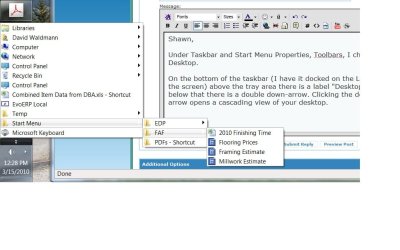
Under Taskbar and Start Menu Properties, Toolbars, I checked of Desktop.

On the bottom of the taskbar (I have it docked on the Left Side of the screen) above the tray area there is a label "Desktop", and below that there is a double down-arrow. Clicking the double down arrow opens a cascading view of your desktop.
 

Attachments

  • Start_Menu.jpg
    Start_Menu.jpg
    143.8 KB · Views: 703
Ok, ok I see what you mean now for that. Thank you. :)
 

My Computer

Computer type
PC/Desktop
Computer Manufacturer/Model Number
Self built custom
OS
64-bit Windows 11 Pro for Workstations
CPU
Intel i7-8700K OC'd to 5 GHz
Motherboard
ASUS ROG Maximus XI Formula Z390
Memory
64 GB (4x16GB) G.SKILL TridentZ RGB DDR4 3600 MHz
Graphics Card(s)
ASUS ROG-STRIX-GTX1080TI-O11G-GAMING
Sound Card
Integrated
Monitor(s) Displays
2 x Samsung Odyssey G7 27"
Screen Resolution
2560x1440
Hard Drives
1TB Samsung 990 PRO M.2,
4TB Samsung 990 PRO PRO M.2,
TerraMaster F8 SSD Plus NAS
PSU
Seasonic Prime Titanium 850W
Case
Thermaltake Core P3
Cooling
Corsair Hydro H115i
Keyboard
Logitech wireless K800
Mouse
Logitech MX Master 4
Internet Speed
2 Gb/s Download and 100 Mb/s Upload
Antivirus
Malwarebyte Anti-Malware Premium
Browser
Google Chrome
Other Info
Logitech Z625 speaker system,
Logitech BRIO 4K Pro webcam,
HP Color LaserJet Pro MFP M477fdn,
APC SMART-UPS RT 1000 XL - SURT1000XLI,
Galaxy S23 Plus phone
New task bar tool bar

I used to have a shortcut to a folder on the network in my WinXP Start menu that had shortcuts and stuff that i'd share across computers. With Win7 I couldn't have that shortcut in the start menu anymore, but what i ended up doing was right clicking on my task bar and going to Toolbars and then New Toolbar and choosing the folder on the network that had my short cuts. Now I have a pop up menu on my task bar that has the shortcuts I need. So they aren't in the start menu exactly, but at least they're some place I can get at them easily.
 
Last edited by a moderator:

My Computer

Computer Manufacturer/Model Number
HP EliteBook 8740w
OS
Windows 7 Enterprise 64-bit
CPU
Intel Core i7 720QM
Motherboard
Hewlett-Packard 1520
Memory
8126 MB DDR3
Graphics Card(s)
NVIDIA Quadro FX 3800M
Back
Top