
How to Install and Setup a SATA DVD CD Drive

Today i'm going to show you how to install and setup a SATA Disc Drive on a desktop PC. (Parts needed is in picture above)
Warning
Always remember to discharge yourself before touching the components inside the case. This is done by touching the metal inside the case with you hands, as showed in the picture below

Note
These are the things you will need:
- Screwdriver to screw the side of your case off/on
- SATA Cable
- Molex to SATA Converter [Only needed if no SATA Power Cable is available]
- A SATA DVD/Bluray/CD drive
- A Desktop PC (lol)
Step 1. Installing the Disc Drive
1. Disconnect all cables from your PC. Unplug the main power cable as well.
2. Take the side panel of the PC
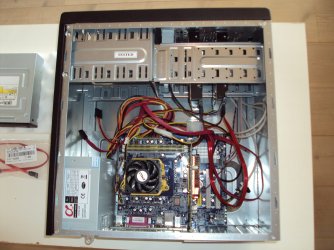
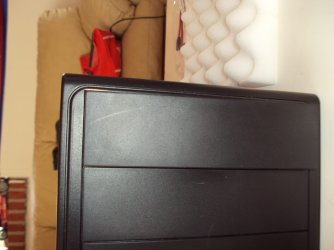
3. Now you need to remove one of the 'panels' from the front of the PC. You should be able to just press it out from the inside of the PC.
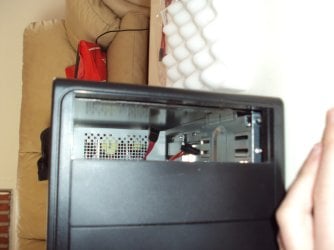
4. Connect your SATA cable to your motherboard (Also if needed connect Molex to SATA converter)

5. Put in the Drive in the slot where you removed the panel from. You should be able to slide it in from the front. If not you will have to try until you got it, as every case is different
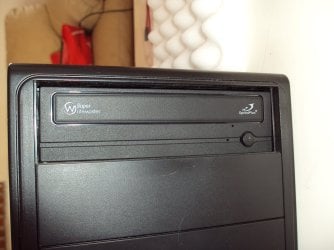
6. If provided attach it with screws in the holes in the Drive.
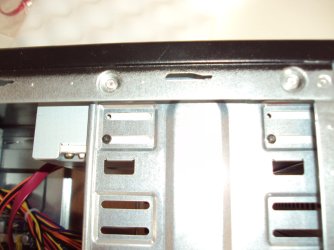
7. Connect the SATA Cable and the SATA Power cable to the disc drive.
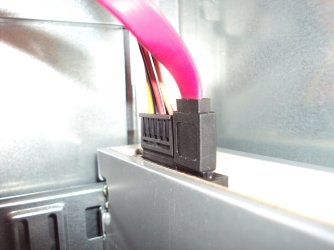
8. Screw the sidepanel back on, and connect all cables again.
Step 2. Checking if it's working
1. Start up your PC
2. Go into your BIOS
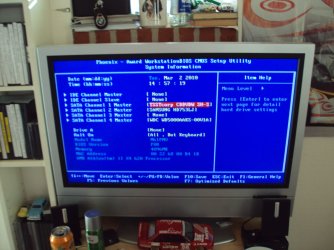
3. Check if the drive is visible on the page with the rest of the system info, If it is not then you have done something wrong or the drive is not working.
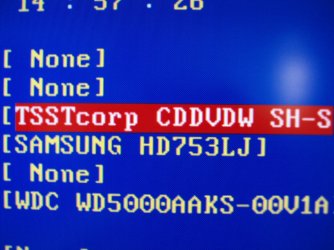
Step 3. Using it
1. Start your PC, and login
2. If needed install the provided driver from the software CD or wait for Windows to download and install the drivers automatically.
3. Go to "Computer" and you can now see your newly install Disc Drive


Last edited by a moderator:


