Account Lockout Duration for Locked Out User Accounts

How to Set Account Lockout Duration for Locked Out User Accounts

   Information
The account lockout duration security setting determines the number of minutes a locked out account remains locked out, after reaching the account lockout threshold of invalid logon attempts with a incorrect user name and/or password, before automatically becoming unlocked.

When you first setup an account lockout threshold, the default account lockout duration is set to 30 minutes. This tutorial will show you how to set how many minutes you want for the account lockout duration to be in Windows 7 and Windows 8.

   Warning
You will only be able to do this while logged in as an administrator.

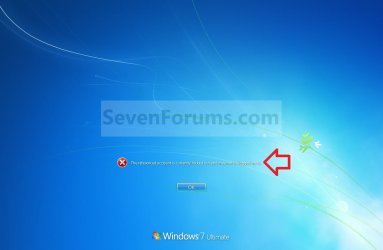
EXAMPLE: Locked Out User Account
NOTE: This is the locked out message a user will get if they reach the account lockout threshold number of invalid logon attempts.
Logon_Screen.jpg


OPTION ONE

Through Local Security Policy


1. If you have not already, you will need to set a account lockout threshold first for the number of invalid or failed logon attempts that causes a user account to be locked out.

2. Open the Local Security Policy editor.

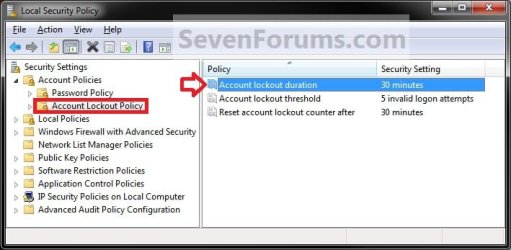
3. In the left pane, expand Account Policies, and click on Acount Lockout Policy. (see screenshot below)
Duration1.jpg
4. In the right pane, double click on Account lockout duration. (see screenshot above)

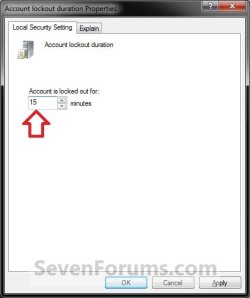
5. Type in a number between 0 and 99999 for how many minutes you want the user acount to be locked out for until automatically unlocked, then click on OK. (see screenshot below)
NOTE: The account lockout duration must be greater than or equal to the reset account lockout counter after time.
WARNING: If you set the account lockout duration to 0, then a locked out user account will be locked out until an administrator manually unlocks that locked out user account.
Duration2.jpg
6. Click on OK. (see screenshot below)
NOTE: You will not see this unless the account lockout duration is not greater than or equal to the reset account lockout counter after time.
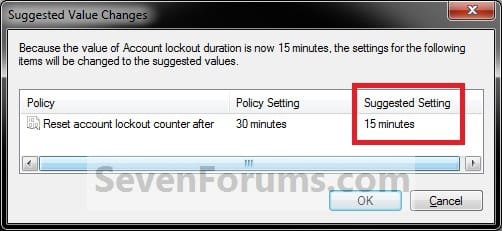
Duration3.jpg
7. When done, close the Local Security Policy editor. (see screenshot below)
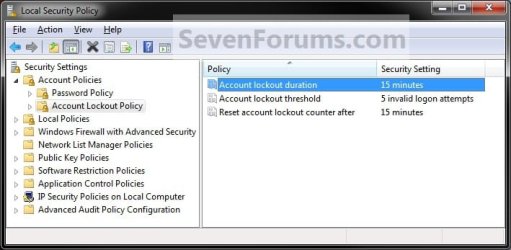
Duration4.jpg


OPTION TWO

Through an Elevated Command Prompt


1. If you have not already, you will need to set a account lockout threshold first for the number of invalid or failed logon attempts that causes a user account to be locked out.

2. Open an elevated command prompt in Windows 7 or Windows 8.


3. To See the Current "Account Lockout Duration" Setting
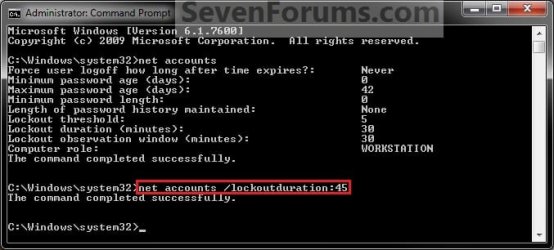
A) In the elevated command prompt, type net accounts and press enter. (see screenshot below)
NOTE: The account lockout duration must be greater than or equal to the reset account lockout counter after time.
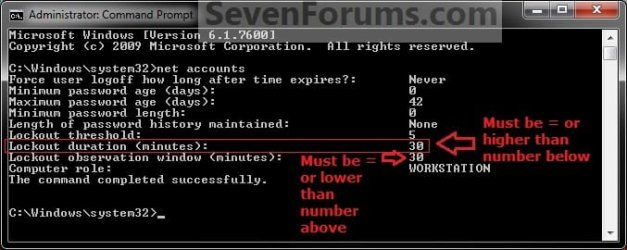
CMD_Duration1.jpg
4. In the command prompt, type the command below and press Enter.
NOTE: Substitute (1-99999) for a number between 1 and 99999 for how many minutes you want the user acount to be locked out for until automatically unlocked.
Code:
net accounts /lockoutduration:[B][COLOR=#ff0000](1-99999)[/COLOR][/B]
For example, for 45 minutes until a locked out user account is unlocked automatically, I would type in this command below and press enter.

Code:
net accounts /lockoutduration:45
CMD_Duration2.jpg
5. Close the elevated command prompt.
That's it,
Shawn


Last edited:
I want to be able to set the account lockout duration to 0 using cmd. When doing this in Local Security Policy, it shows that a lockout duration of 0 means an administrator will have to unlock the account. I need to be able to do this same function via cmd or Powershell.

Here is what happens when I try and do it via cmd:
5a0538c8a273d1b4ee074046e68f7765.png
 

My Computer

Computer type
PC/Desktop
Computer Manufacturer/Model Number
Custom
OS
Win10x64Pro
CPU
Intel i7 6700k @ 4.4 Ghz
Motherboard
Gigabye Z1720 Gaming 5
Memory
2x8Gb Corsair Vengeance DDR4 @ 3000 Mhz
Graphics Card(s)
MSI Geforce GTX 1080 Gaming X
Hard Drives
Seagate Barracuda 2 TB
3x Seagate Barracuda 1 TB
Samsung 850 EVO 250 GB
Antivirus
Avira
Browser
Vivaldi
Hello zwork, and welcome to Seven Forums. :)

It appears that Microsoft has changed this for the command for some reason. I suppose you could enter the maximum value of 99999 as workaround for them to be blocked out for about 70 days.

In addition, see this below for a GPO that may help.

https://technet.microsoft.com/en-us/library/hh994569(v=ws.11).aspx
 

My Computer

Computer type
PC/Desktop
Computer Manufacturer/Model Number
Self built custom
OS
64-bit Windows 11 Pro for Workstations
CPU
Intel i7-8700K OC'd to 5 GHz
Motherboard
ASUS ROG Maximus XI Formula Z390
Memory
64 GB (4x16GB) G.SKILL TridentZ RGB DDR4 3600 MHz
Graphics Card(s)
ASUS ROG-STRIX-GTX1080TI-O11G-GAMING
Sound Card
Integrated
Monitor(s) Displays
2 x Samsung Odyssey G7 27"
Screen Resolution
2560x1440
Hard Drives
1TB Samsung 990 PRO M.2,
4TB Samsung 990 PRO PRO M.2,
TerraMaster F8 SSD Plus NAS
PSU
Seasonic Prime Titanium 850W
Case
Thermaltake Core P3
Cooling
Corsair Hydro H115i
Keyboard
Logitech wireless K800
Mouse
Logitech MX Master 4
Internet Speed
2 Gb/s Download and 100 Mb/s Upload
Antivirus
Malwarebyte Anti-Malware Premium
Browser
Google Chrome
Other Info
Logitech Z625 speaker system,
Logitech BRIO 4K Pro webcam,
HP Color LaserJet Pro MFP M477fdn,
APC SMART-UPS RT 1000 XL - SURT1000XLI,
Galaxy S23 Plus phone
Is there a way to change a GPO setting via CMD or Powershell? A quick google search didn't reveal anything outside of a registry change, but the local security policies aren't "in the clear" in the registry
 

My Computer

Computer type
PC/Desktop
Computer Manufacturer/Model Number
Custom
OS
Win10x64Pro
CPU
Intel i7 6700k @ 4.4 Ghz
Motherboard
Gigabye Z1720 Gaming 5
Memory
2x8Gb Corsair Vengeance DDR4 @ 3000 Mhz
Graphics Card(s)
MSI Geforce GTX 1080 Gaming X
Hard Drives
Seagate Barracuda 2 TB
3x Seagate Barracuda 1 TB
Samsung 850 EVO 250 GB
Antivirus
Avira
Browser
Vivaldi
I don't know of a way other than through security policy. :(
 

My Computer

Computer type
PC/Desktop
Computer Manufacturer/Model Number
Self built custom
OS
64-bit Windows 11 Pro for Workstations
CPU
Intel i7-8700K OC'd to 5 GHz
Motherboard
ASUS ROG Maximus XI Formula Z390
Memory
64 GB (4x16GB) G.SKILL TridentZ RGB DDR4 3600 MHz
Graphics Card(s)
ASUS ROG-STRIX-GTX1080TI-O11G-GAMING
Sound Card
Integrated
Monitor(s) Displays
2 x Samsung Odyssey G7 27"
Screen Resolution
2560x1440
Hard Drives
1TB Samsung 990 PRO M.2,
4TB Samsung 990 PRO PRO M.2,
TerraMaster F8 SSD Plus NAS
PSU
Seasonic Prime Titanium 850W
Case
Thermaltake Core P3
Cooling
Corsair Hydro H115i
Keyboard
Logitech wireless K800
Mouse
Logitech MX Master 4
Internet Speed
2 Gb/s Download and 100 Mb/s Upload
Antivirus
Malwarebyte Anti-Malware Premium
Browser
Google Chrome
Other Info
Logitech Z625 speaker system,
Logitech BRIO 4K Pro webcam,
HP Color LaserJet Pro MFP M477fdn,
APC SMART-UPS RT 1000 XL - SURT1000XLI,
Galaxy S23 Plus phone
Ok thanks, I'll keep looking.
Also, is there a
Code:
net accounts
option for password complexity?
af2c1c33dcc13631d787b873db163cbc.png
 

My Computer

Computer type
PC/Desktop
Computer Manufacturer/Model Number
Custom
OS
Win10x64Pro
CPU
Intel i7 6700k @ 4.4 Ghz
Motherboard
Gigabye Z1720 Gaming 5
Memory
2x8Gb Corsair Vengeance DDR4 @ 3000 Mhz
Graphics Card(s)
MSI Geforce GTX 1080 Gaming X
Hard Drives
Seagate Barracuda 2 TB
3x Seagate Barracuda 1 TB
Samsung 850 EVO 250 GB
Antivirus
Avira
Browser
Vivaldi
If you know the exact text for the LSP setting, you can use this:
Code:
secedit /export /cfg c:\secpol.cfg
(gc C:\secpol.cfg).replace("PasswordComplexity = 0", "PasswordComplexity = 1") | Out-File C:\secpol.cfg
secedit /configure /db c:\windows\security\local.sdb /cfg c:\secpol.cfg /areas SECURITYPOLICY
rm -force c:\secpol.cfg -confirm:$false
Just replace "PasswordComplexity" with the setting you want to change (and then obviously update the new values)
The left PasswordComplexity is the existing value, and the one on the right is the new, desired value.
 

My Computer

Computer type
PC/Desktop
Computer Manufacturer/Model Number
Custom
OS
Win10x64Pro
CPU
Intel i7 6700k @ 4.4 Ghz
Motherboard
Gigabye Z1720 Gaming 5
Memory
2x8Gb Corsair Vengeance DDR4 @ 3000 Mhz
Graphics Card(s)
MSI Geforce GTX 1080 Gaming X
Hard Drives
Seagate Barracuda 2 TB
3x Seagate Barracuda 1 TB
Samsung 850 EVO 250 GB
Antivirus
Avira
Browser
Vivaldi
Thank you. :)
 

My Computer

Computer type
PC/Desktop
Computer Manufacturer/Model Number
Self built custom
OS
64-bit Windows 11 Pro for Workstations
CPU
Intel i7-8700K OC'd to 5 GHz
Motherboard
ASUS ROG Maximus XI Formula Z390
Memory
64 GB (4x16GB) G.SKILL TridentZ RGB DDR4 3600 MHz
Graphics Card(s)
ASUS ROG-STRIX-GTX1080TI-O11G-GAMING
Sound Card
Integrated
Monitor(s) Displays
2 x Samsung Odyssey G7 27"
Screen Resolution
2560x1440
Hard Drives
1TB Samsung 990 PRO M.2,
4TB Samsung 990 PRO PRO M.2,
TerraMaster F8 SSD Plus NAS
PSU
Seasonic Prime Titanium 850W
Case
Thermaltake Core P3
Cooling
Corsair Hydro H115i
Keyboard
Logitech wireless K800
Mouse
Logitech MX Master 4
Internet Speed
2 Gb/s Download and 100 Mb/s Upload
Antivirus
Malwarebyte Anti-Malware Premium
Browser
Google Chrome
Other Info
Logitech Z625 speaker system,
Logitech BRIO 4K Pro webcam,
HP Color LaserJet Pro MFP M477fdn,
APC SMART-UPS RT 1000 XL - SURT1000XLI,
Galaxy S23 Plus phone
Back
Top