
How to Set the Reset Account Lockout Counter After Setting
Information
The reset account lockout after security setting determines the number of minutes that must elapse after a invalid logon attempt before the invalid logon attempt counter is reset back to 0 invalid logon attempts. If the account lockout threshold of invalid logon attempts is reached before the counter resets, then the user account will be locked out until either the account lockout duration has expired or the administrator manually unlocks the locked out user account.
When you first setup an account lockout threshold, the default reset account lockout after setting is set to 30 minutes. This will show you how to set how many minutes you want this instead in Windows 7 and Windows 8.
When you first setup an account lockout threshold, the default reset account lockout after setting is set to 30 minutes. This will show you how to set how many minutes you want this instead in Windows 7 and Windows 8.
Warning
You will only be able to do this while logged in as an administrator.
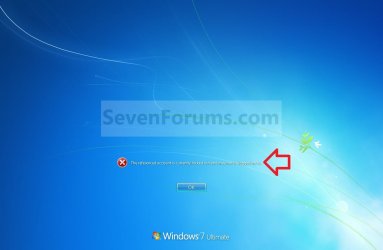
EXAMPLE: Locked Out User Account
NOTE: This is the locked out message a user will get if they reach the account lockout threshold number of invalid logon attempts.
OPTION ONE
Through Local Security Policy
1. If you have not already, you will need to set a account lockout threshold first for the number of invalid or failed logon attempts that causes a user account to be locked out.
2. Open the Local Security Policy editor.
3. In the left pane, expand Account Policies, and click on Acount Lockout Policy. (see screenshot below)
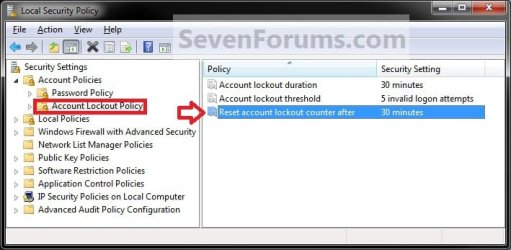
4. In the right pane, double click on Account lockout duration. (see screenshot above)
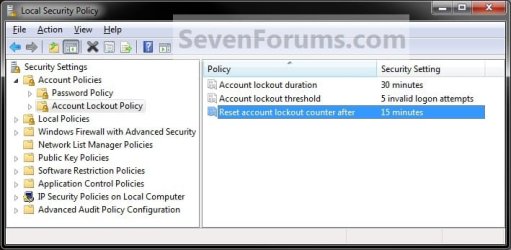
5. Type in a number between 0 and 99999 for how many minutes you want after a invalid logon attempt before the invalid logon attempt counter is reset back to 0 invalid logon attempts, then click on OK. (see screenshot below)
NOTE: The reset account lockout counter after time must be less than or equal to the account lockout duration time.

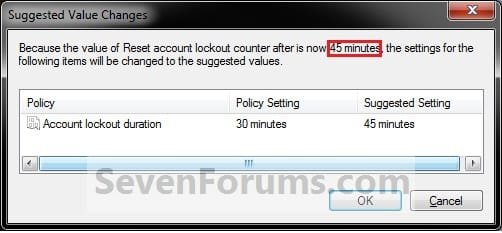
6. Click on OK. (see screenshot below)
NOTE: You will not see this unless the reset account lockout counter after time is not less than or equal to the account lockout duration time..
7. When done, close the Local Security Policy editor. (see screenshot below)
OPTION TWO
Through Elevated Command Prompt
1. If you have not already, you will need to set a account lockout threshold first for the number of invalid or failed logon attempts that causes a user account to be locked out.
2. Open an elevated command prompt in Windows 7 or Windows 8.
3. To See the Current Reset Account "Lockout observation window" Setting
A) In the elevated command prompt, type net accounts and press enter. (see screenshot below)
NOTE: The reset account lockout counter after time must be less than or equal to the account lockout duration time.
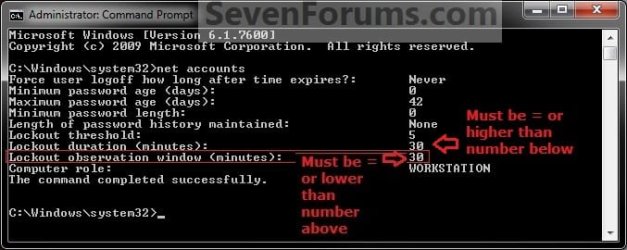
4. In the command prompt, type the command below and press Enter.
NOTE: Substitute (0-99999) for a number between 0 and 99999 for how many minutes you want after a invalid logon attempt before the invalid logon attempt counter is reset back to 0 invalid logon attempts.
Code:
net accounts /lockoutwindow:[B][COLOR=#ff0000](0-99999)[/COLOR][/B]
Code:
net accounts /lockoutwindow:15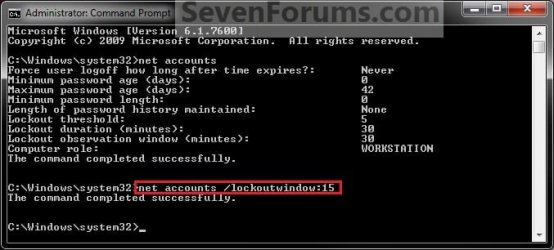
5. Close the elevated command prompt.
That's it,
Shawn
Related Tutorials
- How to Create a Password for a Windows 7 User Account
- How to Change the Password for Your or Another User Account in Windows 7
- How to Create a Password for a Local User Account in Windows 8
- How to Change or Remove a Local Account Password in Windows 8
- How to Change or Reset Password of Your Microsoft Account in Windows 8
- How to Enable or Disable Secure Logon CTRL+ALT+DELETE in Windows 7
- How to Automatically Log On a User Account at Windows 7 Startup
- How to Make Windows 7 Require a User Name and Password at Log On
- How to Enable or Disable Password Expiration for a User in Windows 7
- How to Change the Maximum and Minimum Password Age in Windows 7
- How to Enable or Disable Windows 7 Password History Enforcement
- How to Change the Time to Warn a User to Change Password Before Expiration
- How to Set an Audit Policy for an Account Lockout
Last edited:


