

How to "Apply to Folders" a Specific Folder View to All Folders with the Same Folder Template in Windows 7
InformationThis will show you how to Apply to Folders a specific folder's folder view to all folders that have been optimized with the same folder template as it in Windows 7.TipIf you would like to reset the changes applied to all folders back to the default folder view settings, then see: How to Reset the Folder View settings for All Folders in Windows 7WarningThe folder view of Computer, Favorites (not IE Favorites), and library folders cannot be applied to all folders.
The Apply to Folders button will be grayed out if Folder Options is opened in these folders.
Here's How:1. Navigate to the folder that you want to apply it's folder views to all folders with the same folder template as it. (see screenshots below)That's it,
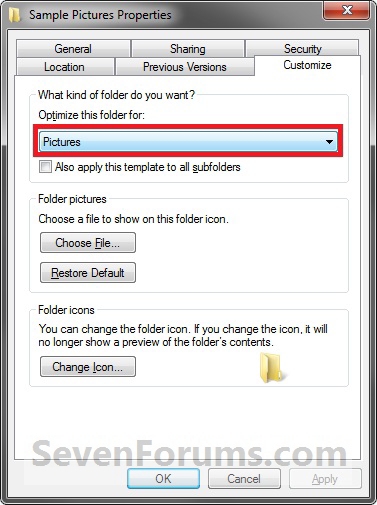
NOTE: For example, C:\Users\Public\Public Pictures\Sample Pictures that has the Pictures folder template by default.2. Make any changes to the Group by, Sort by, Arrange by arrangement , Icon Size, column width, add/remove columns, or View arrangement in this folder that you would like to have applied to all folders with the same folder template as it. (see screenshot below)
NOTE: For example, I changed the Icon Size to Medium Icons, and to be Grouped by Names.3. When done, open Folder Options from within this same folder (step 1) window and not through the Control Panel or from another folder. (See screenshot below)
NOTE: You would want to use either OPTION TWO or OPTION THREE at that link.4. Click on the View tab, then click on the Apply to Folders button. (See sceenshot above)
NOTE: If the Apply to Folders button is grayed out, then you may have not opened Folder Options from within the same folder. See WARNING box at the top of the tutorial if you did for why it may still be grayed out.
5. Click on Yes to confirm. (See screenshot below)6. Click on OK. (See screenshot below step 3)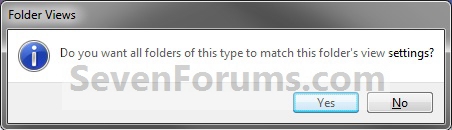
7. Whenever you open any folder with the same folder template as the folder from step 1, you will now see it have the same folder view.
NOTE: This would be for all folders with the Pictures folder template for the example C:\Users\Public\Public Pictures\Sample Pictures folder that I have used in step 1.
Shawn
Related Tutorials
- How to Back Up and Restore Your Folder View Settings in Vista, Windows 7, and Windows 8
- How to Change a Folder Template in Windows 7
- How to Set a Default Folder Template for All Folders in Windows 7
- How to Change the File and Folder View Arrangement in Windows 7 Explorer
- How to Change the Icon Size in a Windows 7 Explorer Window
- How to Change the Group by, Sort by, and Arrange by Folder View in Windows 7 Explorer
- How to Reset the Folder View Settings for All Folders with the Same Folder Template in Windows 7
- How to Reset All Folder View Settings to Default in Windows 7
- How to Set a Default Folder View for All Folders in Windows 7
- How to Disable Auto Arrange in Windows 7 Explorer to have Free Sorting
- How to Add or Remove Windows Explorer Columns
- How to Change the Width of Columns in Windows Explorer
Folder View - Apply to Folders
-
New #1
thanks Brink nice tutorial I was wondering what way to do it, do you know what registry key save this config ?
-
-
New #3
Trying to follow this for a search window - Apply to Folders button is grayed out - the warning and notes do not apply.
?
-
New #4
Hello MrsD,
This will not work in a search window since it's not technically a "folder" window. Sorry.
-
New #5
thank you very much for the lighting fast reply :)
was trying to apply this : Howto customize search result columns - Vista Forums
to win7 - any ideas on that ?
-
New #6
MrsD,
You might give the tutorial below a try with another folder to apply the folder view to all folders, and hopefully include the search window as well.
Folder View - Set a Default for All Folders
-
New #7
BUMP
Do you know how many different "templates" there are that would have to be physically changed and then applied so that any folder that opens has what I want showing. Example, if I set up folder (C:\Users\Me\XYZ), apply the settings, then open (C:\Users\Me), it is set up differently. How many folder types (templates) must be set up and applied to the same folder types such that all are the same?
-
New #8
I dont know why, but for some reason i can't acces the button " apply to folders" anymore.
But in the past i used this button. How can i make it back ?
Thanks.
-
New #9
Hello stereo,
Be sure that you open Folder Options (Tools - menu bar) from within the exact same Windows Explorer folder window that you want to apply. If you open Folder Options from any other location (ex: Control Panel), "Apply to Folders" will be grayed out like that.

Folder View - Apply to Folders
How to "Apply to Folders" a Specific Folder View to All Folders with the Same Folder Template in Windows 7Published by Brink


 Quote
Quote
Related Discussions