


How to Use Windows 7 Disk Defragmenter
InformationFragmentation makes your hard disk do extra work that can slow down your computer. Removable storage devices such as USB flash drives can also become fragmented. Disk Defragmenter rearranges fragmented data so your disks and drives can work more efficiently. While Disk Defragmenter can run on a schedule, this will show you how to open and use Disk Defragmenter to manually analyze and defragment your disks and drives in Windows 7.
Note
- If the disk is already in exclusive use by another program, or if the disk is formatted using a file system other than NTFS file system, FAT, or FAT32, then it cannot be defragmented.
- Network locations cannot be defragmented.
- If a disk that you're expecting to see under Current status is not showing up there, it might be because it contains an error. You should try to repair the disk first with Disk Check, then return to Disk Defragmenter to try again.
WarningSolid State Drives (SSD) and USB flash key drives do not need to be defragmented. Doing so may shorten the lifespan of them.
OPTION ONEUsing "Disk Deframenter" in Windows 7
1. Open the Start Menu, and double click on to expand All Programs, Accessories, System Tools, and click on Disk Defragmenter. (See screenshot below)A) Go to step 3.OR
2. Open the Start Menu, then type dfrgui into the search line and press Enter.
3. To Anaylze a Disk
NOTE: This will anaylze the selected disk to see what percentage fragmented it is. If the number is above 10%, you should defragment the disk.A) Select a disk, and click on the Anaylze disk button. (See screenshot below)4. To Defragment a Disk
NOTE: Disk Defragmenter might take from several minutes to a few hours to finish, depending on the size and degree of fragmentation of your hard disk. You can still use your computer during the defragmentation process.A) Select a disk, and click on the Defragment disk button. (See screenshot below)5. When finished, click on Close. (See screenshot below)B) You will now see the disk being defragmented. (See screenshot below)
NOTE: You can abort the defragmentation of the selected disk at anytime by clicking on the Stop operation button.
OPTION TWORun Defragmenter from Drive's Properties Page
1. Open the Start Menu and click on the Computer button on the right dark side.
2. Right click the hard disk drive that you want to check, and click on Properties. (see screenshot below)3. Click on the Tools tab, and click on the Defragment now button. (see screenshot below) 4. You can now do either step 3 or 4 in OPTION ONE above.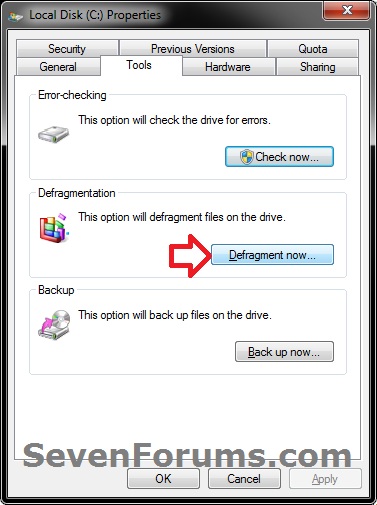
OPTION THREERun Defragmenter in a Command Prompt
1. Do step 2 or 3 below for how you would like to run the defrag command.
2. To Use an Elevated Command Prompt in Windows 7 3. To Use a Command Prompt at BootA) Open a command prompt at startup.4. In the command prompt, type in the following command below followed by one or more switches (flags) that you would like to use below with a space between each switch and press Enter.
B) In the command prompt, type diskpart and press Enter.
C) In the command prompt, type list volume and press Enter.
NOTE: Make note of the drive letter that you want to run defrag on. The drive letter for the drive will not always be the same at boot as it is in Windows 7.
D) In the command prompt, type exit and press Enter.
E) Continue on to step 4.
NOTE: For example, the most common command to run defrag on your C: drive is:
defrag C: /Fdefrag [drive letter]: [switches]
TipIf you would like to defrag more than one drive letter at once, then you can just include as many separate drive letters in the command like below for the ones you want to defrag. For example, with drive letters C, E, and H.
defrag C: E: H: /F
Switches:
NOTE: The ones in red below are new to Windows 7.
- /A - Perform analysis on the specified volumes.
- /B - Boot optimization to defrags the boot sector of the boot volume (ex: Windows drive). This will not work on a SSD.
- /C - Perform the operation on all volumes.
- /E - Perform the operation on all volumes except those specified.
- /F - Forces defragmentation of the volume when free space is low.
- /H - Run the operation at normal priority (default is low).
- /M - Run the operation on each volume in parallel in the background.
- /R - Performs partial defragmentation (default). Attempts to consolidate only fragments smaller than 64 megabytes (MB).
- /T - Track an operation already in progress on the specified volume.
- /U - Print the progress of the operation on the screen.
- /V - Print verbose output containing the fragmentation statistics.
- /X - Perform free space consolidation on the specified volumes.
That's it,
Shawn
Disk Defragmenter - Open and Use
-
New #1
Disk degfragmenter hanging and crashing computer
Hi, I have just installed windows 7 after a particularly bad virus destroyed xp, and I could not restore xp (even system restore was wiped off!)
So I have tried to run the w7 defrag to see if that would clear a bit of the mess left by the virus, but when I tried to run it, it got stuck at 97% analysed. When I came back a bit later to see if it had done anything, the computer had crashed.
I tried a hard reboot, and when w7 recovered the session, the defrag came back on its own, and was showing the c drive as 0% consolidated, and just got stuck there too.
Has this happened to anyone else? Because from what I read the defrag tool is meant to be very good, but it doesn't seem to do much on my pc?
-
New #2
there are also a few command-line options for those that like that kind of thing.
Disk Defragmenter from Command Prompt - Vista Forums
open a command prompt, and type defrag to see the full list.
probably the most useful is the /c switch which will defrag all your drives/partitions one after the other.
if you have multiple drives (rather than multiple partitions on the one drive) you can also use the /m switch in combination with /c - this will partition your drives in parallel ie all at the same time - please note that this switch is best avoided on multi-partitioned drives, as it will put too much strain on the drive as the heads will be constantly switching from one partition to the other.
you can also use further switches to exclude certain partitions.
happy defragging! :)Last edited by Brink; 25 Jul 2009 at 13:00.
-
New #3
Cheers for that-weirdly enough after I tried rebooting again it has worked! But if it hangs again I might give that a go.
Take it easy
-
New #4
Surely USB Flash Drives should not be defragmented?
"Removable storage devices such as USB flash drives can also become fragmented."
True - but since there's no time-consuming disk head movement a fragmented UFD is no slower than a defragmented one. Additionally, the UFD 'wears out' by being written. See, for example, Should I defragment my USB Flash drive?
-
New #5
Hello John, and welcome to Seven Forums.
No, it would not be a good idea to defragment a USB flash drive.
-
New #6
what happens if you defragment a 3% fragmented disk or even a 0% fragmented disk ??
-
New #7
Hello Villanuevayael,
As long as it's not a SSD, then it's not going to hurt anything to defrag a 3% fragmented HDD or even a 0% fragmented HDD. It's just that there's really no need to until it reaches a higher percentage, say around 10%.
-
New #8
-


 Quote
Quote
Related Discussions