

How to Allow or Prevent Specific Users and Groups from Changing the Time Zone in Windows
InformationThis will show you how to allow or prevent specific users and groups from being able to change the computer time zone in Vista, Windows 7, and Windows 8.
You will need to be logged in as an administrator to do this tutorial.
NoteDefault Users and Groups Allowed to Change the Time Zone
NOTE: This user right determines which users and groups can change the time zone used by the computer for displaying the local time, which is the computer's system time plus the time zone offset. System time itself is absolute and is not affected by a change in the time zone.
On All Computers: Administrators, LOCAL SERVICE, Users
OPTION ONEAllow or Prevent Changing Time Zone using Local Security Policy
1. Open the Local Security Policy window, double click/tap on Local Policies and User Rights Assignment in the left pane to expand them open. (see screenshot below)2. In the right pane of User Rights Assignment, double click/tap on Change the time zone. (see screenshot above)
3. Prevent Users or Groups to be able to Change the Time Zone
WARNING: Do not remove LOCAL SERVICE.A) Select (highlight) listed user(s) and/or group(s) that you do not want to be allowed to change the time zone anymore, then click/tap on the Remove button. (see screenshot below)
NOTE: You can press and hold the CTRL key to select more than one listed user and group.TipTo Only Prevent Specific Users
- To only prevent specific "standard users", you will also need to remove the Users group in addition to step 3A, then only add each standard user account name in step 4A that you want to be able to change the time zone.
- To only prevent specific "administrators", you will also need to remove the Administrators group in addition to step 3A first, then only add each administrator user account name in step 4A that you want to be able to change the time zone.
B) Click/tap on Apply. (see screenshot below)4. Allow Users or Groups to be able to Change the Time ZoneA) Click/tap on the Add User or Group button. (see screenshot below)B) To Change the Location to Search for "Object Types"
NOTE: This is only if you wanted to search for object types to allow from a location other than your local computer. If you only want to search from your computer, then skip this step and go to step 4C.5. When finished, click/tap on OK. (see screenshots below steps 3B and 4I)
- Click/tap on the Locations button. (see screenshot below step 4C)
- Select a location, and click/tap on OK. (see screenshot below)
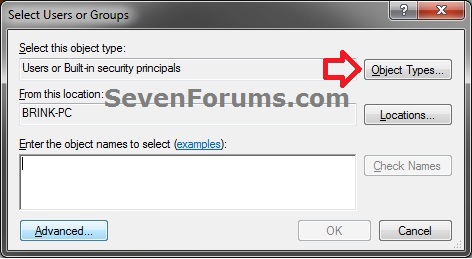
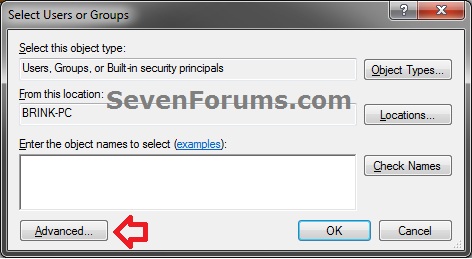
C) Click/tap on the Advanced button. (see screenshot below)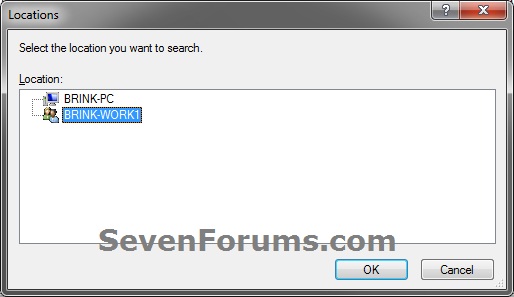 D) Click/tap on the Object Types button. (see screenshot below)
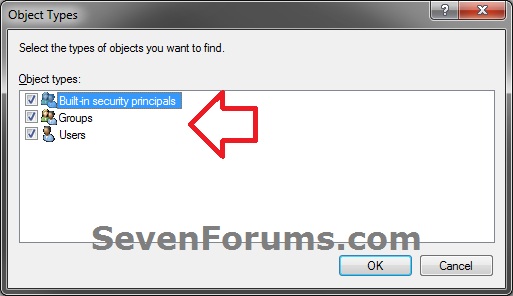
 E) Check all boxes or the "object types" (ex: Users or Groups) that you want to find and select from in step 4G, and click/tap on OK. (see screenshot below)
 F) Click/tap on the Find Now button. (see screenshot below)
 G) In the bottom pane under Search results, select the user account name(s) and/or groups that you want to be allowed to change the time zone, then click/tap on OK. (see screenshot below)
NOTE: You can press and hold the CTRL key to select more than one listed users (user account names) or group.H) Click/tap on OK. (see screenshot below)
TipTo Only Allow Specific Users
- To only allow specific "standard users", you will need to remove the Users group in step 3 first, then add each standard user account name that you want to be able to change the time zone.
- To only allow specific "administrators", you will need to remove the Administrators group in step 3 first, then add each administrator user account name that you want to be able to change the time zone.
I) Click/tap on Apply. (see screenshot below)
6. Close the Local Security Policy window. (see screenshot below step 1)
OPTION TWOAllow or Prevent Changing Time Zone using an Elevated Command Prompt
NOTE: Be sure to write down changes you make to the user rights assignment so that you will know what you changed later. Please see the NOTE box at the top of the tutorial for the default user rights assignments.1. If you have not already, click/tap on the Download button below to download the ntrights.exe file originally from within the Windows Server 2003 Resource Kit Tools.That's it,2. Open an elevated command prompt (Run as administrator).
Download
A) Save the ntrights.exe file to your desktop.
B) Right click on the ntrights.exe file, click/tap on Properties, General tab, and click on the Unblock button if available. (see screenshot below)
NOTE: If you do not have a Unblock button under the General tab, then the file is already unblocked and you can continue on to step 1C.C) Right click or press and hold on the ntrights.exe file, and click/tap on Move.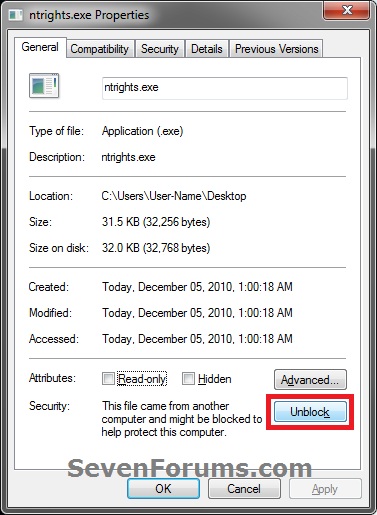
D) Open Windows Explorer and navigate to and open the C:\Windows\System32 folder, then Paste the ntrights.exe file to move it here.
E) If prompted, click/tap on Continue and Yes to approve moving the ntrights.exe file into the System32 folder, then close the Windows Explorer window.
3. Prevent Users or Groups to be able to Change the Time Zone
WARNING: Do not remove LOCAL SERVICE.A) In the elevated command prompt type in the command below and press enter. (see screenshot below step 5)
NOTE: Substitute User or Group in the command below with the actual user account name (ex: Users) or group name within quotes that you want to prevent.4. Allow Users or Groups to be able to Change the Time Zonentrights -U "User or Group" -R SeTimeZonePrivilege
TipTo Only Prevent Specific Users
- To only prevent specific "standard users", you will also need to remove the Users group in addition to step 3A, then only add each standard user account name in step 4A that you want to be able to change the time zone.
- To only prevent specific "administrators", you will also need to remove the Administrators group in addition to step 3A first, then only add each administrator user account name in step 4A that you want to be able to change the time zone.
A) In the elevated command prompt type in the command below and press enter. (see screenshot below step 5)
NOTE: Substitute User or Group in the command below with the actual user account name (ex: Users) or group name within quotes that you want to allow.5. When finished, close the elevated command prompt. (see screenshot below)ntrights -U "User or Group" +R SeTimeZonePrivilege
TipTo Only Allow Specific Users
- To only allow specific "standard users", you will need to remove the Users group in step 3A first, then add each standard user account name that you want to be able to change the time zone.
- To only allow specific "administrators", you will need to remove the Administrators group in step 3A first, then add each administrator user account name that you want to be able to change the time zone.
Shawn
Time Zone - Allow or Prevent Users and Groups from Changing

Time Zone - Allow or Prevent Users and Groups from Changing
How to Allow or Prevent Specific Users and Groups from Changing the Time Zone in WindowsPublished by Brink


Related Discussions