


How to Copy a Virtual XP Machine in Windows 7
NoteNotice please:
This tutorial was written when we were still using first beta versions of Virtual PC and XP mode. This method to copy a VPC virtual machine was the most practical at that time. It still is a fully working and secure way to copy a virtual machine.
Today, with the current version of VPC and XP Mode, copying a virtual machine is much easier. Basically, all you have to do is to copy a vhd-file to another location on same computer and create a new virtual machine using an existing vhd as told here.
Kari
November 2010
InformationThis tutorial will show how to make a working copy of a Virtual XP Machine. Same priciple can also be used to make a copy of any Virtual PC virtual hard disk.
By default, XP Mode virtual machine consists of five files when installed and run first time, plus two additional files if XP Mode is hibernated or the Undo Disk feature is enabled. The file names, extensions and default locations are:
- Windows XP Mode base.vhd
- XP Mode base disk, contains the core elements of operating system (XP), no user data is saved on this virtual disk
- default location C:\Program Files\Windows XP Mode
- Windows XP Mode.vhd
- Virtual Machine virtual hard drive image, all user data and content is saved on this virtual disk
- default location C:\Users\Your_Username\AppData\Local\Microsoft\Windows Virtual PC\Virtual Machines
- Windows XP Mode.vmcx
- Virtual Machine description and registration settings
- default location C:\Users\Your_Username\Virtual Machines
- Windows XP Mode.vmc
- Virtual Machine settings file
- default location C:\Users\Your_Username\AppData\Local\Microsoft\Windows Virtual PC\Virtual Machines
- Windows XP Mode.vmc.vpcbackup
- Virtual Machine settings backup
- default location C:\Users\Your_Username\AppData\Local\Microsoft\Windows Virtual PC\Virtual Machines
Additional files, only exist when certain criteria is met:- Windows XP Mode.vsv
- Virtual Machine saved state file (hibernation data)
- default location C:\Users\Your_Username\AppData\Local\Microsoft\Windows Virtual PC\Virtual Machines
- This file exists only when XP Mode is hibernated or is running. It is deleted automatically every time XP Mode is shut down
- VirtualPCUndo_Windows XP Mode_X_Y_ZZZZZZZZZZZZZZ.vud
- Virtual machine Undo-disk (X, Y & Z in the file name are replaced with digits)
- default location C:\Users\Your_Username\AppData\Local\Microsoft\Windows Virtual PC\Virtual Machines
- This file exists only if so called Undo Disk is enabled in XP Mode settings
Copying Virtual XP or any other virtual hard disk created with Virtual PC is very easy and fast. Here's what you have to do:
That's it. Now you can run two Virtual XP's simultaneously.
- Turn off your Virtual XP, do not hibernate it
- Open Folder Options, choose Show hidden files, folders and drives. Uncheck Hide extensions for known file types
- Goto C:\Users\Your_Username\AppData\Local\Microsoft\Windows Virtual PC\Virtual Machines
- Copy Windows XP Mode.vhd and Windows XP Mode.vmc files
- Paste files to the same folder. Windows adds word Copy to both filenames, so now you have two new files: Windows XP Mode - Copy.vhd and Windows XP Mode - Copy.vmc
- Open Windows XP Mode - Copy.vmc with Notepad. It is a xml-file, so you can edit it normally with Notepad
- Find the following string containing virtual drives name: <drive_type type="integer">1</drive_type>
- Under the <drive_type...> change the vhd-file name to Windows XP Mode - Copy.vhd both in <absolute type="string"> and <relative type="string">
- Find the following place under <virtual_network> containing MAC-adress for Virtual XP's ethernet adapter: <id type="bytes">
- To allow two copies of Virtual XP to connect to network simultaneously , we have to change the MAC-adress of the ethernet adapter to avoid MAC-adress conflict. Adress is given in hex, 0-9 and A-E. It is enough to change one bit. In this example we have changed the last bit from 1 to 0
- Save and close the file
- Go to C:\Users\Your_Username\Virtual Machines , copy Windows XP Mode.vmcx and paste it to same folder
- Open the file Windows XP Mode - Copy.vmcx with Notepad
- Change the file names to Windows XP Mode - Copy.vhd in <primary_disk1 type="string"> and to Windows XP Mode - Copy.vmc in <vmc_path type="string">
- Save and close the file
- Open Folder Options and choose Don't show hidden files, folders or drives. Check Hide extensions for known file types and click OK.
Have fun,
Kari
EDIT: Thanks to Brink for visual appearance.
Related Tutorials
- How to Install and Setup Virtual Windows XP Mode in Windows 7
- How to Enable the Built-in Administrator Account in Windows XP Mode
- How to Create a Virtual Machine in Windows Virtual PC
- How to Create Differencing Disks in Windows Virtual PC
- How to Delete a Virtual Machine Created with Windows Virtual PC
- How to Change Virtual Machine Settings in Windows Virtual PC
- How to Add Limited User Accounts to Windows Virtual PC XP Mode
- How to Boot from a CD or DVD in a Windows Virtual PC
- How to Install, Enable, and Disable Windows Virtual PC Integration Features
- How to Select Host Devices to Share with Virtual Machines in Windows Virtual PC
Virtual XP Machine - Copy
-
-
New #2
Thanks, mate. Don't know about being an expert. I just need Virtual Machines at my line of work.
Kari
-
New #3
Virtual XP Machine - Copy
Didn't work for me.
I even tried copying and editing the .vmcx file. When I try to run it or check the settings, I get an error that I don't have premission or the file is missing, then it disappears.
-
New #4
It works. Please do not misunderstand me but it have to be a self caused issue, like misspelling or forgetting something.
Here's a short checklist:
- Do not change the file locations:
- The vmcx-files should always be located in C:\Your_Username\Virtual Machines
- The vmc-, vhd- and possible vsv-files should always be located in C:\Your_Username\AppData\Local\Microsoft\Windows Virtual PC\Virtual Machines
- The virtual machine you copy must be powered down, not hibernated
- All virtual machine files belonging to a certain virtual machine must have exactly the same name, only difference being the filename extension
- Tutorial, point 7: vhd-name must be changed in both absolute and relative type
- Tutorial, point 10: MAC-Address must be a valid 32-bit hexadecimal
- Tutorial, point 13: vhd-name must be changed in both primary_disk1 type and vmc_path type
So, check spelling, check the files needed are in the right folders, and check you edited the right files; for example after copying and pasting the files edit the copies, not the originals.
Good luck.
KariLast edited by Kari; 26 Jan 2010 at 20:17.
- Do not change the file locations:
-
New #5
Beta to RC
It's worth noting that if you go from W7VPC Beta to RC, the instructs listed are not quite enough (if you're using dynamic disks). You also need to copy the parent disk to the exact same location on the new computer. In my case, this simply meant copying over the "C:\Program Files\Virtual Windows XP" folder.
-
Posts : 8,375 W7 Ultimate x64/W10 Pro x64/W11 Pro Triple Boot - Main PC W7 Remote PC Micro ATX W7 Pro x64/W11 ProNew #6
Here I was able to backup the entire virtual machines folder before proceeding to place them into the new folder on a fresh install of 7 to see the XP Mode as well as a previous Vista on vhd install run again.
Later when the VPC RC and XP Mode RC were released the same vhd used for Vista needed a fresh install where the 32bit 7 RC was used to replace Vista on that same vhd!
-
New #7
I see same problem as JackStockton
I've been through the steps a few times with care, and I see the same strange behavior JackStockton mentioned where the .vmcx disappears as soon as I click on it. I will post a solution if I figure it out, but I just wanted to reinforce that JackStockton is not imagining things, and as near as I can tell, not failing to follow the directions with care.
-
Posts : 8,375 W7 Ultimate x64/W10 Pro x64/W11 Pro Triple Boot - Main PC W7 Remote PC Micro ATX W7 Pro x64/W11 ProNew #8
Welcome to the Se7en Forums! rfeague
One thing I found fast from the time this guide was first posted here and once the final XP Mode was available was that copying no longer worked as it had been seen with the XP Mode RC version which was the only version available at the time.
The final version runs like an installer with a preconfigured setup mode for each fresh install there unlike the RC. The guide here worked then for the RC version however but now needs to be updated.
When the RC version was used on a second 7 RC installation I would simply create a new shortcut once the files/folders were copied over once a fresh install of the Virtual PC was seen first to have it work then.
First you now install the VPC, restart the system, and then install the XP Mode later to watch the setup take place.
-
New #9
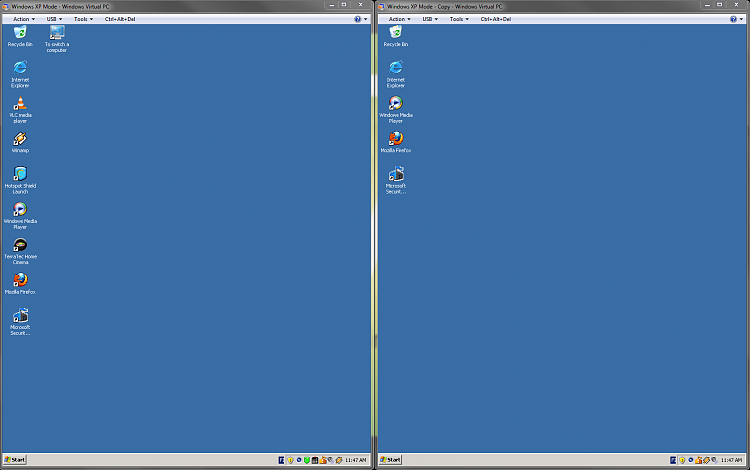
I really do not know why some of you guys are experiencing problems. To re-test the validity of this tutorial, I checked everything once more this morning.
I followed tutorial literally and it works. In the attached screenshot from this morning you can see two independent XP Modes open at the same time, both having different software installed, both connected to network.
I have Virtual PC and XP Mode RC, and this method works as it did with beta. The base vhd-file in C:\Program Files\Virtual Windows XP should not be copied, it is as the name says the base to every copy of the XP Mode.
Kari
Last edited by Kari; 15 Jan 2010 at 11:07. Reason: Spelling


 Quote
Quote
Related Discussions