

How to Set a Startup Password to Lock or Unlock Windows
InformationSysKey (SAM Lock Tool) is an in-built Windows utility that can help you secure the Security Accounts Management or SAM database.
This tutorial will show you how to use SysKey to require a password to be entered by users during system startup in XP, Vista, Windows 7, or Windows 8.
You must be logged in as an administrator to be able to do the steps in this tutorial.
Note
- A startup password is only entered at system startup at boot.
- A startup password is not the same as a user account's password entered in the log on screen.
- After entering the startup password, Windows will then startup to allow a user to login.
Warning
EXAMPLE: Windows Startup
NOTE: This is an example of what you will see at Windows startup if you set a startup password. Windows will not startup until you have entered the startup password.
Here's How:
1. Press the Windows+R keys to open the Run dialog, type syskey, and click/tap on OK.
2. If prompted by UAC, then click/tap on Yes (Windows 7/8) or Continue (Vista).
3. Click/tap on Update. (see screenshot below)
4. Do step 5 or 6 below for what you would like to do.
5. To Set a Startup Password
A) Select (dot) the Password Startup option, enter a password you want twice, and click/tap on OK. (see screenshot below)6. To Remove Startup Password
B) If you currently have Windows set to require a USB Startup Key to be connected at system startup, then you will need to connect it now, and click/tap on OK. (see screenshot below)
C) Click/tap on OK. (see screenshot below)
D) Windows will now require users to enter the startup password at every system startup before Windows will start and users allowed to login to their user accounts.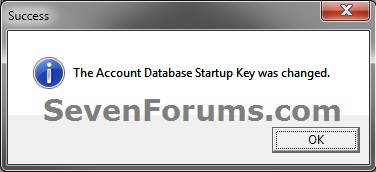
WarningIt is recommended that you write down this startup password and keep it somewhere safe. Windows will not startup without it being entered.
A) Select (dot) System Generated Password, select (dot) the Store Startup Key Locally option, and click/tap on OK. (see screenshot below)That's it,
B) Enter the startup password from step 5A above, and click/tap on OK. (see screenshot below)
C) Click/tap on OK. (see screenshot below)
D) Windows will now no longer require users to enter the startup password at every system startup.
Shawn
SysKey - Set Startup Password to Lock or Unlock Windows
-
New #1
Very nice Brink! So, to be absolutely clear....there is no known 'backdoor' if the password is forgotten?
-
-
New #3
If you recently set the password; you can restore your system from Recovery Environment if there is any restore points.
-
-
-
New #6
Shawn,
With System Repair Disc, can I:
1) edit the regisry in such a manner as to remove this protection
2) access any and all data?
-
New #7
Hello Karl,
I'm sure if there is a will there's a way, but it wouldn't be very easy to do. :)
-
-
New #9
Syskey only working during restart
My custome syskey is only asking for the syskey (SAM) password during a restart, but if I do a full shutdown, it boots into Windows and only asks for my Windows logon password. Any help would be appreciated
Thank You

SysKey - Set Startup Password to Lock or Unlock Windows
How to Set a Startup Password to Lock or Unlock WindowsPublished by Brink


 Quote
Quote
 works on xp too. regards stig01
Related Discussions