

How to Change the Icon Size in a Windows 7 Explorer Window
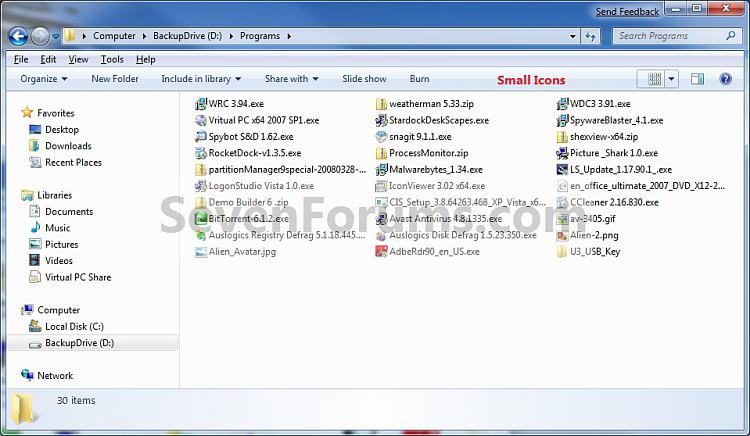
InformationWhen you open a folder or library in Windows 7, you can change how the files look in the window. This will show you how to change the file and folder icon size in that window to be either Extra Large Icons, Large Icons, Medium Icons, Small Icons, or custom icons sizes of your choice.
NoteAll folders in a library share the same folder view. Any change made below in a library will automatically be applied to all folders in the library.
EXAMPLE: Extra Large Icons, Large Icons, Medium Icons, or Small Icons
NOTE: What you see in your window will also depend on what you have the folder template set as.
Here's How:

1. Open the Windows Explorer folder or library window that you wish to change the view of the icon sizes in.That's it,
2. Click on the View menu bar item and select either the Extra Large Icons, Large Icons, Medium Icons, or Small Icons option. (see screenshot below)OR
3. Click on the View toolbar button drop down arrow to select either the Extra Large Icons, Large Icons, Medium Icons, or Small Icons option. (see screenshots below)OR
4. Click on the View toolbar button to the left of the arrow to cycle through the different icon sizes until you have the icon size you want. (see top screenshot above)
OR
5. Click on the View toolbar button drop down arrow, then move the slider at the left up (larger icons) and down (smaller icons) until you have the custom icon size you want. (see screenshots below step 3)
OR
6. Click on a empty area in the Windows Explorer window or on the Desktop. Now press and hold the Ctrl (Control) key and roll your mouse wheel up (larger icons) and down (smaller icons) until you have the custom icon size you want, then release the Ctrl key.
OR
7. Right click on the Desktop or in the Windows Explorer window, then select View and click on the icon size your want selected for the folder view. (see screenshots below)
Shawn
Related Tutorials
- How to Back Up and Restore Your Folder View Settings in Vista, Windows 7, and Windows 8
- How to Easily Change the Windows Desktop Icons Size
- How to Change a Folder Template in Windows 7
- How to Set a Default Folder Template for All Folders in Windows 7
- How to Change the File and Folder View Arrangement in Windows 7 Explorer
- How to Change the Group by, Sort by, and Arrange by Folder View in Windows 7 Explorer
- How to "Apply to Folders" a Specific Folder View to All Folders with the Same Folder Template in Windows 7
- How to Reset the Folder View Settings for All Folders with the Same Folder Template in Windows 7
- How to Reset All Folder View Settings to Default in Windows 7
- How to Set a Default Folder View for All Folders in Windows 7
- How to Disable Auto Arrange in Windows 7 Explorer to have Free Sorting
- How to Add or Remove Windows Explorer Columns
- How to Change the Width of Columns in Windows Explorer
Icon Size - Change in Windows Explorer Window
-
New #1
How to make such changes for all folders? I want to set all folders "Medium Icons" view. Any help?
-
New #2
Hello Symbianas, and welcome to Seven Forums.
You can do this below do so. :)
1. Set all folders to have the same folder template of your choice.
2. Now, change the folder view to have "Medium Icons", and apply these changes to all folders with the same folder template. Since you changed all folder to have the same template in step 1 above, all folders (except libraries) will have this folder view now when applied.
Hope this helps,
Shawn
-
New #3
Extra Large Folder, tiny icon
Now let take this one step farther. How would I get the icon to fill the folder when the folder view is set to extra large? I have been racking my brain to figure this out. It looks awefull when you have a extra large folder and a tiny little icon in the middle of it.
Ron
-
-
Icon Size - Change in Windows Explorer Window
How to Change the Icon Size in a Windows 7 Explorer WindowPublished by Brink


 Quote
Quote
Related Discussions