

How to Change the Group by, Sort by, and Arrange by Folder View in Windows 7 Explorer
InformationThis will show you how to change and organize the file and folder arrangements in a opened folder using Arrange by, Sort by, or Group by folder views in Windows 7.
TipAfter you make any changes to the Sort by or Group by folder view settings in a library, you can restore the library back to it's default Sort by or Group by folder view by clicking on the Arrange by drop down menu on the toolbar (top right corner) and clicking on Clear changes.
If Clear changes is not listed, then the library is already set to be viewed by it's default Sort by or Group by folder view.
EXAMPLE: "Group by" and "Sort by" in Windows Explorer
NOTE: These screenshots are using the Name column to "Group by" and "Sort by". What you see in your window will also depend on what you have the folder template and arrangement set as.
OPTION ONETo Change "Sort by" and "Group by" View using the View Menu
1. Open the Windows Explorer folder or library window that you wish to change the view of the icon sizes in.
2. Click on the View menu bar item and select either the Sort By or Group by arrangement options, then select a column name and Ascending or Descending order for how you want the window arranged by. (See screenshots below)
NOTE: The column names listed in the View menu bar will depend on what you have the folder template set as. You can also click on More to add more column name options.
OPTION TWOTo Change "Sort by" and "Group by" View using the Column Headings
NoteThe Sort and Group option at the top, and the Stack by option at the bottom are no longer available in the final Windows 7 RTM. Please disregard them in the screenshots.
1. Open the Windows Explorer folder or library window that you wish to change the view of the icon sizes in.
2. To Sort by or Group by the Column Headings Name Menu
A) Move your mouse pointer on the column headings name that you want to have the window organized by, then click on the arrow to the right of it. (See screenshots below step 3)OR
B) You can now select to Sort by or Group by the window by that column headings name. (See screenshots below)
NOTE: What you see in your window will also depend on what you have the folder template and arrangement set as.
3. To Select to Organize By the Column Headings Name
NOTE: This will allow you to quickly change what column headings name the window is organized by with still using the Sort By or Group By arrangement that you have set in step 2 or OPTION ONE above.
A) Click on the column heading name. (See screenshots below step 2)
NOTE: Whatever column headings name the triangle is in, is the one that the window is being organized by.
B) Click on the same column heading name until you have the ascending or descending order that you want. (See screenshots below step 2)
NOTE: When the triangle in the column headings name is pointing upwards, then it is descending. When the triangle in the column headings name is pointing downwards, then it is ascending.
OPTION THREETo Change "Arrange by" Folder View in Libraries
NoteArrange by is only available in the Library folders. The arrange by options will vary depending on the folder template of the library folder. All included folders and subfolders in a library will always share the same folder view. You are able to have separate "Arrange by" view settings in each added right click -> New -> Folder created in the library itself though.
- The Windows Search Service must be set to Automatic and Started for this option to work.
- Disabling the index in Windows 7 will cause you to no longer be able to use Arrange by in Libraries.
1. Open the library folder that you wish to change the Arrange by view of the files in.That's it,
2. Click on the View menu bar item and select Arrange by and the option for how you want the library folder files arranged. (See screenshot below)
OR
3. Click on the Arrange by toolbar option and select Arrange by and the drop down menu option for how you want the library folder files arranged. (See screenshot below)
4. All included folders in the library will now have the same Arrange by set for them as well. The library will always open with the same Arrange by setting that it had when it was last closed.
Shawn
Related Tutorials
- How to Back Up and Restore Your Folder View Settings in Vista, Windows 7, and Windows 8
- How to Change a Folder Template in Windows 7
- How to Set a Default Folder Template for All Folders in Windows 7
- How to Change the File and Folder View Arrangement in Windows 7 Explorer
- How to Change the Icon Size in a Windows 7 Explorer Window
- "Apply to Folders" a Specific Folder View to All Folders with Same Folder Template in Windows 7
- How to Reset the Folder View Settings for All Folders with Same Folder Template in Windows 7
- How to Reset All Folder View Settings to Default in Windows 7
- How to Set a Default Folder View for All Folders in Windows 7
- How to Enable or Disable Numerical Sorting in Windows Explorer
- How to Disable Auto Arrange in Windows 7 Explorer to have Free Sorting
- How to Add or Remove Windows Explorer Columns
- How to Change the Width of Columns in Windows Explorer
- How to Arrange Folders Included in a Library in Any Order in Windows 7 and Windows 8
- How to Clear Changes made to Library View in Windows 7 and Windows 8
File and Folder Arrangement - Group by - Sort by - Arrange by
-
New #1
one might note that to see the menu bar you may have to press the alt tab, since it is not on by default.
On a temporary basis:
Press the Alt key to temporarily show the menu bar. After you make a selection it will disappear.
Permanently:
1. Click the Start button, type folder options and click the "Folder Options" link that appears.
Accessing Folder Options from the Windows 7 Start button
2. When the "Folder Options" multi-tabbed dialog box appears, click the "View" tab.
3. Underneath "Advanced Settings", check "Always Show Menus".
4. Click "OK" to close the dialog box.
Last edited by Brink; 28 Aug 2009 at 01:23. Reason: link removed
-
-
New #3
Is the Stack option still relevant in RTM? I can't find it.....?
-
New #4
Hello Stu,
You're not crazy, Stack By has been removed in the Windows 7 RTM. Seems I have missed updating this tutorial for this. I will update the screenshots later tonight.
-
New #5
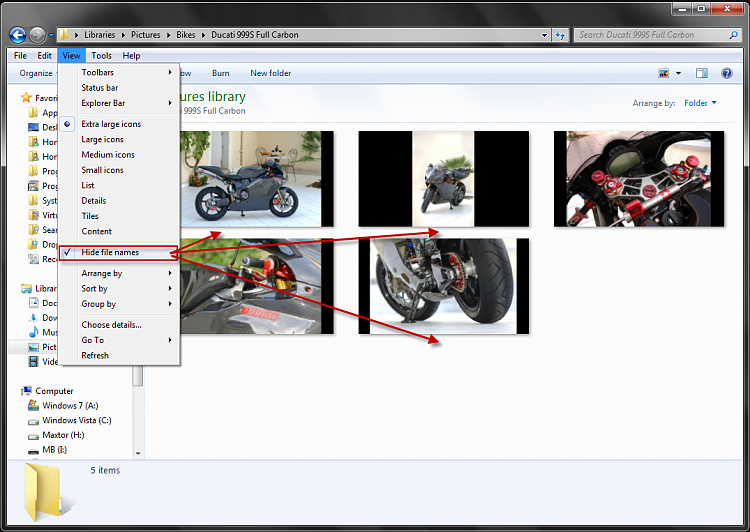
Is the 'Hide File Names' worth a little mention in this tut Shawn?
-
New #6
It's a nice option, but it will be for a whole separate tutorial with other options of hiding the text.
Folder Window Icon Text - Hide or Show File Names - Vista ForumsLast edited by Brink; 13 Sep 2009 at 00:51.
-
New #7
-
New #8
Hello Vash, and welcome to Seven Forums.
I do not know if it'll be gone forever, but it did get cut in the RTM. Hopefully it will be added back sometime in the future through a update or a service pack.
-
New #9
I was looking for a way to display all my pictures in one window so I thought I'd pass this tip along.
Only the arrange by - ratings displays all items the items at once.
Folder, month, date, and tag all create sub groupings.
*Edit, stupid me, the arrange by day will work too*

File and Folder Arrangement - Group by - Sort by - Arrange by
How to Change the Group by, Sort by, and Arrange by Folder View in Windows 7 ExplorerPublished by Brink


 Quote
Quote
Related Discussions