

How to Allow Incoming VPN Connections in Windows 7 and Windows 8
InformationThis will show you how to configure your computer to accept VPN connection and router settings to allow Point-to-Point Tunneling Protocol (PPTP) on your Network in Windows 7 and Windows 8.
Here’s How:
1. Go to Control Panel and open Network and Sharing Center.
2. Click on Change adapter settings.
3. Press Alt+F and select New Incoming connection…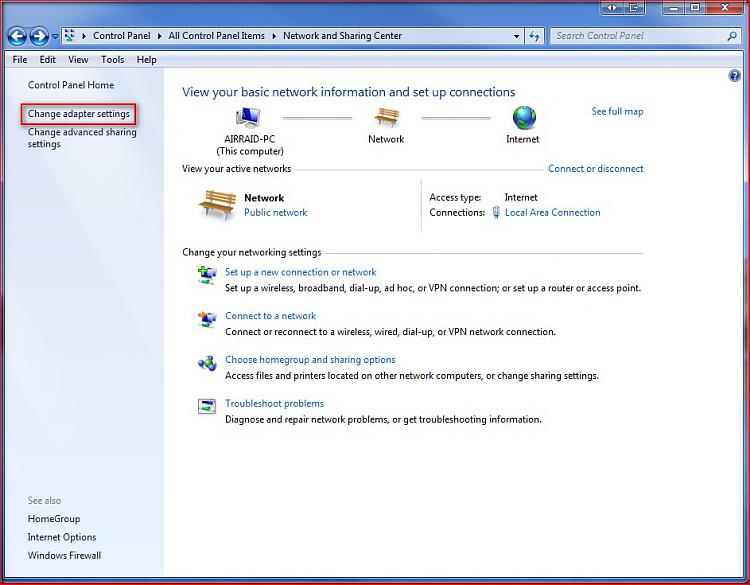
4. Put a check on who you’d like to give access to this computer or you can configure a new account by clicking on Add someone… Click on Next.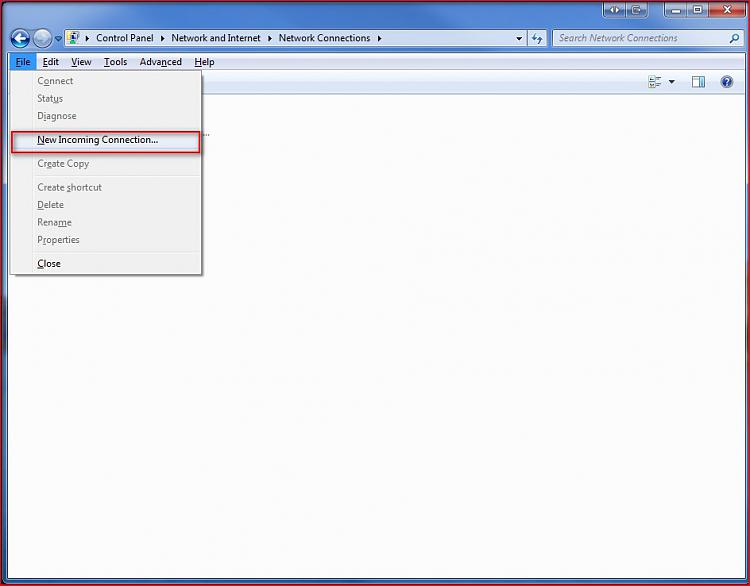
5. Put a check mark on Through the Internet. Click on Next.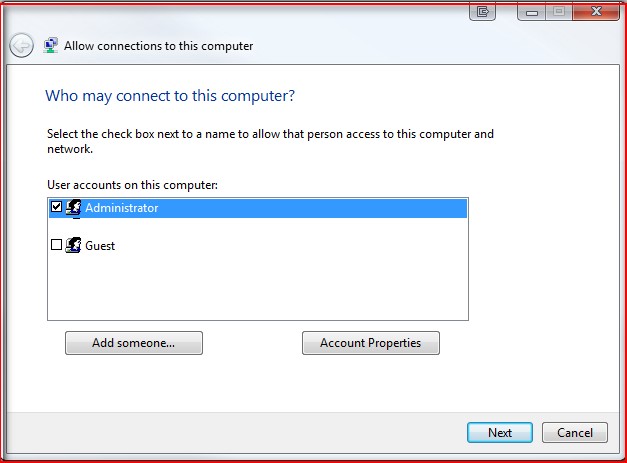
6. Select the protocols you want to enable for this connection. Click on Allow access.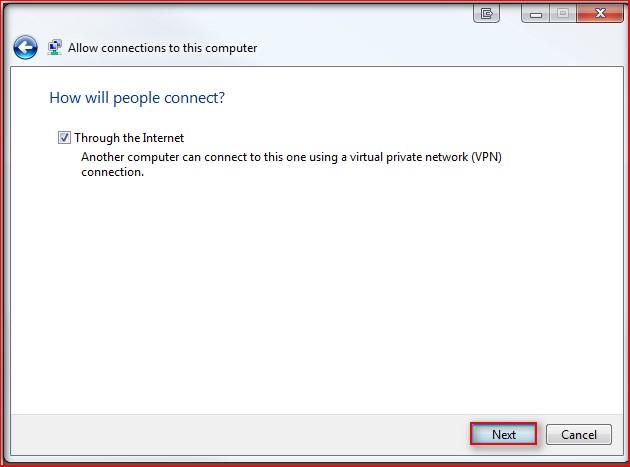
Tip: Default selections (Recommended): Internet Protocol Version 4 (TCP/IPv4), File and Printer Sharing for Microsoft Networks and QoS Packet Scheduler. You should have at least TCP/IPv4 selected to successfully accept connections. Highlight the protocols for their descriptions.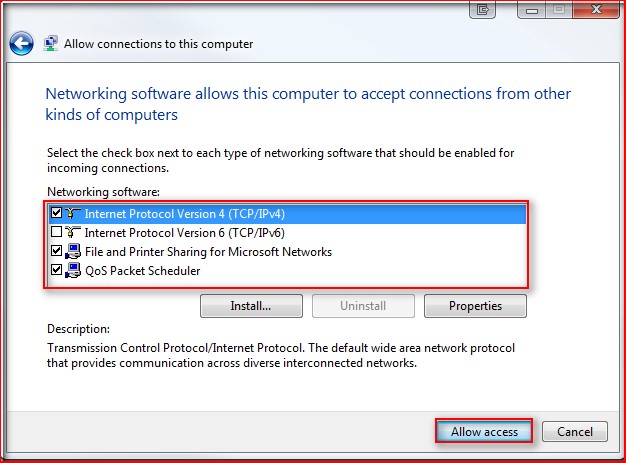
A) To allow the client access your LAN resources, highlight Internet Protocol Version 4 (TCP/IPv4) and click on Properties. Put a check mark on Allow all callers to access my local area network. Here you can have the IP assigned automatically, assign IPs following your LAN segment format or let the client assign its own IP address.7. Take note of the Computer name as this will be used by the client to connect to this computer. Click on Close.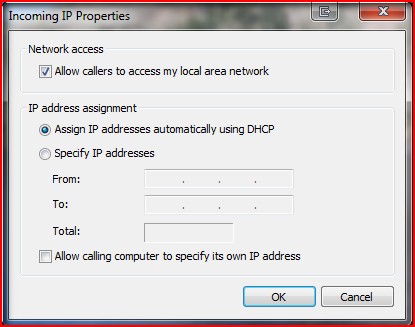
8. You will now have the Incoming Connections icon in Network Connections. Your computer is now ready to accept incoming VPN connections.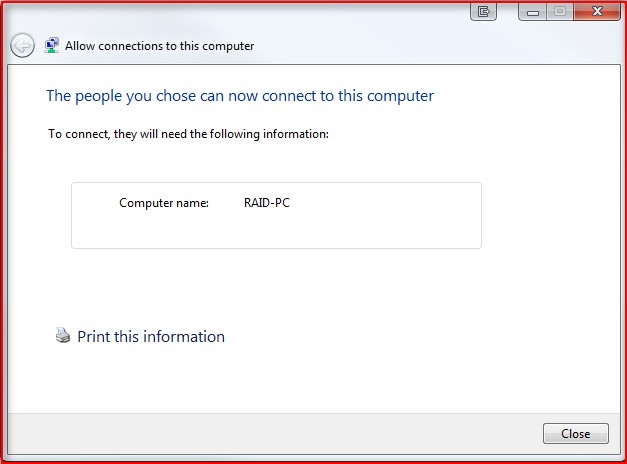
Important: Configure your firewall to allow access to TCP port 1723 to allow incoming Point-to-Point Tunneling Protocol (PPTP) connection for VPN.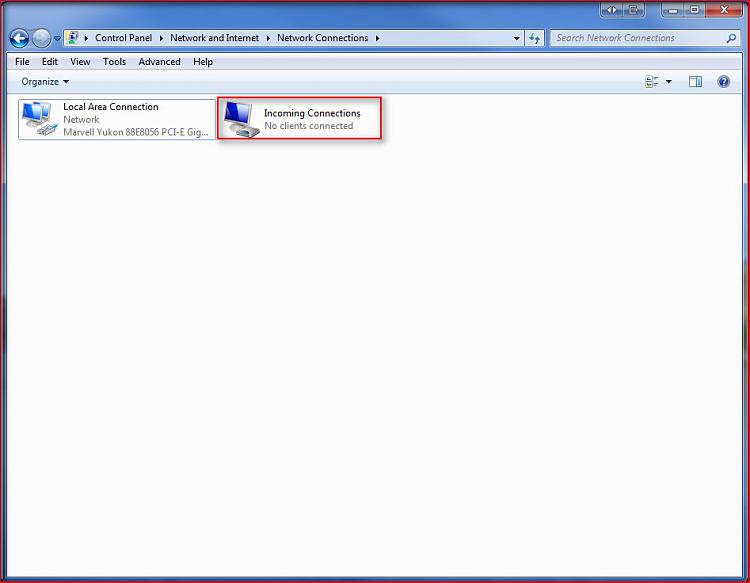
Router Configuration: Enable PPTP and Generic Route Encapsulation (GRE) on the Router. Depending on the type of router, you need to either enable PPTP or create a port forward to port 1723. If you’re router has an additional setting for PPTP or VPN, make sure it’s enabled. It’s usually called a “pass-through” setting (i.e. PPTP pass-through or VPN pass-through)
You're done,
Nos
Virtual Private Network (VPN) - Enable Incoming VPN Connections
-
New #1
Excellent tutorial, just what i wanted. I've been trying to sort out a VPN to my girlfriends mums Vista machine (long distance) & now i can. Thanks
-
New #2
hi there!
i dont know if this is the right place to put my doubt but there it goes...
i try to configure my win7 network to allow me use the internet of my school, but always i try to acess properties of network the explorer block even im safety mode... can u help me?
-
-
New #4
VPN is a Virtual Private Network, which means you can setup a network (e.g. 1 computer from 1 house, and 1 from a house miles away) using the internet. This allows for a network to be created 'Virtually Over Internet' even if both machines are not connected to the same router/network.
-
New #5
Was wondering if there was a way to setup l2tp (incoming) on a windows 7 box, not pptp. I need to connect to my windows 7 computer at home using l2tp, I can not use pptp(just to clarify). I know this can be done with windows server 2003, but can't figure out a way to do it on 7, can not find any programs to do it either so for now I am stuck using my mac and IVPN..
-
New #6
It seems this also uses port 443 for "Secure Socket Tunneling Protocol"??
Which is interfering with my web https service...
Any advice?
-
New #7
I was able to set up the VPN but when I try to connect I get "Error 800". I am going through a Linksys router. I set up the VPN to use my ISP IP address and my computer name. Also How do I set up file sharing on the VPN? I have a Drobo I would like to share.
-
New #8
Win 7 VPN issue
Hi,
thanks for the very inputs and help in settings, inspite of all these, I am not able to connect the VPN in Win 7. Error says that the GRE is not enabled. I can see that it is enabled !!
Pls suggest the way forward to resolve this.
Reg,
Praveen
-

Virtual Private Network (VPN) - Enable Incoming VPN Connections
How to Allow Incoming VPN Connections in Windows 7 and Windows 8Published by NosferatuX


 Quote
Quote
Related Discussions