

How to Create and Delete Sticky Notes in Windows 7 and Windows 8
InformationSticky Notes allows you to type and leave a Post-it type note on your desktop until deleted.
This tutorial will show you how to create and delete Sticky Notes in Windows 7 and Windows 8.
WarningSticky Notes is not available in the Windows 7 Starter and Home Basic editions.
OPTION ONETo Create a Sticky Note
1. Press the Windows + R keys to open the Run dialog, type stikynot, and press Enter.
2. Type in your message, and move the Sticky Note to where you like it to be displayed on the desktop. (See screenshot below)
NOTE: It will remain there until you delete it.
3. To Resize the Sticky Note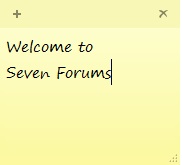
A) Click/tap and hold on the arrow tab at the bottom right corner, or move the mouse point to the edge of an existing Sticky Note until it turn into a double arrow, and drag the Sticky Note to the size you want it to be. (See screenshot below)4. To Create another New Sticky Note
OR
B) Move the mouse pointer over any one of the borders of the sticky note itself until the pointer turns into a double arrow, then drag the border back and forth to adjust it's width or hight to how you like.
A) Click/tap on the + sign at the top left corner of an existing Sticky Note, or press Ctrl+N, to open another new blank Stick Note. (See screenshot below)
B) Repeat steps 2 and 3 above.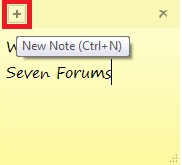
OPTION TWOTo Delete a Sticky Note
1. Click/tap on the X sign at the top right corner of an existing Sticky Note, or press Ctrl+D, to delete that Sticky Note. (See screenshot below)
2. Click/tap on Yes to confirm deletion. (See screenshot below)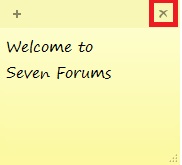
That's it,
Shawn
Related Tutorials
- How to Change the Color of a Sticky Note in Windows 7 and Windows 8
- How to Format Text in a Sticky Note in Windows 7 and Windows 8
- How to Backup and Restore Sticky Notes in Windows 7 and Windows 8
- How to Change the Default Font in Sticky Notes in Windows 7 and Windows 8
- How to Enable or Disable Sticky Notes Delete Confirmation in Windows 7 and Windows 8
Sticky Notes - Create and Delete
-
-
New #2
Hello Steve,
Sorry, but saving the sticky note as a file is not a option. As long as you do not delete the sticky notes, they will stay on your desktop even after a shutdown, restart, log off, sleep, or hibernate.
-
-
New #4
I like it and then..............
Yes, it's useful but what I don't like is that when you have one or more sticky notes active, then you have an icon called "Sticky Notes" in the taskbar. IF I ever want to know or see if I have any notes all I have to do is go to Show Desktop.
-
New #5
how do I remove or disable sticky notes from reappearing when I restart windows.
-
New #6
Hello Baitmn, and welcome to Seven Forums.
Deleting all of the sticky notes will have them not display at startup anymore. :)
-
New #7
Perhaps I'm being too picky, but the one thing that annoys me about Sticky Notes is that it continues to display it's icon on the Taskbar. Is there no way to have it appear in the System Tray instead?
-
New #8
Check out this tool.
Sticky Notes Taskbar Hider - Send Notes to Tray!
-
New #9
Realize this is an ancient thread but hoping for help anyway. I use Sticky notes and love them. I recently accidentally deleted 2 and while searching for a solution saw an option to have a "do you want to delete this" message come up before they are deleted. I have followed the regedit instructions to re-enable the messages but it doesn't work. Is there something else I can do to have the message come up if I accidentally hit the delete again?

Sticky Notes - Create and Delete
How to Create and Delete Sticky Notes in Windows 7 and Windows 8Published by Brink


 Quote
Quote
Related Discussions