Windows 7 Forums Search

Go Back Windows 7 Forums > Windows 7 help and support > Tutorials » Color Management Shortcut - Create

Welcome to Windows 7 Forums. Our forum is dedicated to helping you find solutions with any problems, errors or issues you are experiencing with Windows 7. The Windows 7 forum also covers news and updates and has an extensive Windows 7 tutorial section that covers a wide range of tips and tricks.

Windows 7 - Color Management Shortcut - Create


Color Management Shortcut - Create

How to Create a Color Management Shortcut in Windows 7
Published by Brink
03-03-2010
Default Color Management Shortcut - Create

How to Create a Color Management Shortcut in Windows 7
information   Information
This will show you how to create or download a Color Management shortcut to change color management settings. You can also Pin to Taskbar or Pin to Start Menu this shortcut, or move where you like in Windows 7 for easy use.

EXAMPLE: Color Management
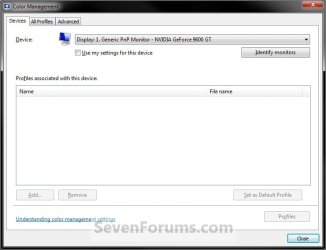
Color Management Shortcut - Create-color_management.jpg


Option One

Download the Shortcut

1.
Click on the download button below to download the Color_Management.zip file.
download
2. Click on Save, and save the .zip file to the desktop.

3. Open the .zip file and extract the Color Managementshortcut to the desktop.

4. Right click on the Color Management shortcut, and click on Properties, General tab, and on the Unblock button. (See screenshot below)
NOTE: If you do not have a Unblock button under the General tab, then the shortcut is already unblocked and you can continue on to step 5.
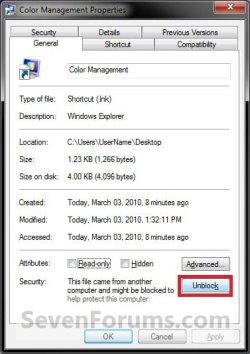
Color Management Shortcut - Create-unblock.jpg
5. Move the shortcut to where you like for easy use.

6. When done, you can delete the downloaded .zip file on the desktop if you like, or save it to use again.


Option Two

Manually Create the Shortcut

1.
Right click on a empty area on desktop, and click on New and Shortcut.

2. Type the location below into the location area, and click on the Next button. (See screenshot below)

Code:
C:\Windows\explorer.exe shell:::{B2C761C6-29BC-4f19-9251-E6195265BAF1}
Color Management Shortcut - Create-step1.jpg
3. Type Color Management for the name, and click on the Finish button. (See screenshot below)
NOTE: You can name this anything you would like though.
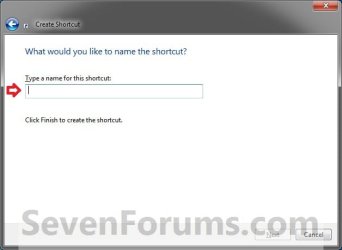
Color Management Shortcut - Create-step2.jpg
4. Right click on the new Color Management shortcut on the Desktop and click on Properties.

5. Click on the Shortcut tab, then click on the Change Icon button. (See screenshot below)
Color Management Shortcut - Create-step3.jpg
6. In the line under "Look for icons in this file", type the location below and press Enter. (See screenshot below)

Code:
%systemroot%\system32\colorcpl.exe
Color Management Shortcut - Create-step4.jpg
7. Select the icon highlighted in blue above and click on OK. (See screenshot above)
NOTE: You can use any icon that you would like instead though.

8. Click on OK. (See screenshot below)
Color Management Shortcut - Create-step5.jpg
9. Move the shortcut to where you like for easy use.
That's it,
Shawn


Published by
Brink's Avatar
Administrator

Join Date: Oct 2008
Location: Texas
Posts: 18,299
Brink has a reputation beyond reputeBrink has a reputation beyond reputeBrink has a reputation beyond reputeBrink has a reputation beyond repute
Brink has a reputation beyond reputeBrink has a reputation beyond reputeBrink has a reputation beyond reputeBrink has a reputation beyond reputeBrink has a reputation beyond reputeBrink has a reputation beyond reputeBrink has a reputation beyond reputeBrink has a reputation beyond reputeBrink has a reputation beyond reputeBrink has a reputation beyond reputeBrink has a reputation beyond reputeBrink has a reputation beyond repute

Tutorial Tools
Comment

Tutorial Tools


Similar Threads for: Color Management Shortcut - Create
Windows 7 Tutorial Category
Monitor ICC Profile (color management) Performance & Maintenance
Window Color and Appearance Shortcut - Create Tutorials
Color management General Discussion
Explorer/System Color Management General Discussion
Picture viewer with color management.. Music, Pictures & Video


All times are GMT -5. The time now is 02:53 AM.


Windows 7 Forums is an independent web site and has not been authorized,
sponsored, or otherwise approved by Microsoft Corporation.
"Windows 7" and related materials are trademarks of Microsoft Corp.
© Designer Media Ltd

1 2 3 4 5 6 7 8 9 10 11 12 13 14 15 16 17 18 19 20 21 22 23 24 25 26 27 28