

How to Import and Export RSS Feeds in Internet Explorer
InformationFeeds, also known as RSS feeds, XML feeds, syndicated content, or web feeds, contain frequently updated content published by a website. They are often used for news and blog websites, but are also used for distributing other types of digital content, including pictures, audio files, or video. Internet Explorer can discover and display feeds as you visit websites. You can also subscribe to feeds to automatically check for and download updates that you can view later. In addition, when you add a Web Slice to your Favorites bar, you automatically subscribe to its associated feed.
This will show you how to import or export your list of RSS feeds in Internet Explorer. You can use this exported list as a backup and to import to another computer or program. In addition, you can import a list of RSS feeds from another computer or program into your Internet Explorer list of RSS feeds.
Internet Explorer uses the standard OPML (Outline Processor Markup Language) file extension format, used by many RSS applications.
EXAMPLE: List of Subscribed RSS Feeds in Internet Explorer
NOTE: To see your list of available RSS feeds in Internet Explorer, click/tap on the Favorites star toolbar button to the right of the tabs, and click/tap on the Feeds tab.
OPTION ONEExport RSS Feeds in Internet Explorer
1. Open Internet Explorer.
NOTE: In Windows 8, this would only apply to the IE10 desktop version, and not the IE10 Metro (Windows UI) version.
2. Click/tap on the Favorites star toolbar button to the right of the tabs, then click/tap on the Add to Favorites drop down arrow, and click/tap on Import and Export. (see screenshot below)
3. Select (dot) Export to a file, and click/tap on Next. (see screenshot below)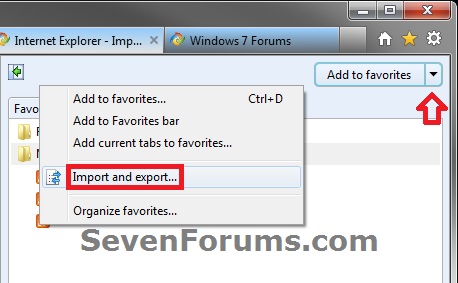
4. Check Feeds, and click/tap on Next. (see screenshot below)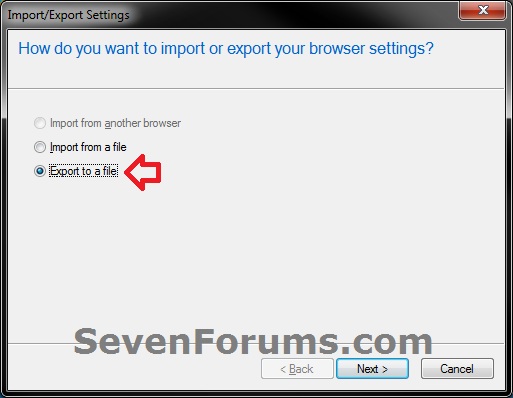
5. Browse to the location that you want to save the exported RSS feeds list file to, type in a name (ex: feeds.opml) for the .opml file, and click/tap on Save. Click/tap on Export. (see screenshots below)
6. Click/tap on Finish. (see screenshot below)
7. You can now use this .opml file to select and import your list of RSS feeds with.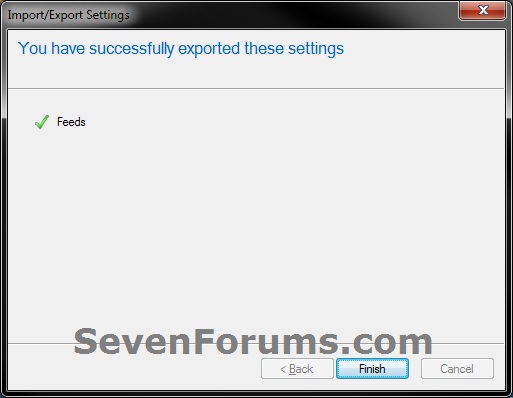
OPTION TWOImport RSS Feeds in Internet Explorer
1. Open Internet Explorer.That's it,
NOTE: In Windows 8, this would only apply to the IE10 desktop version, and not the IE10 Metro (Windows UI) version.
2. Click/tap on the Favorites star toolbar button to the right of the tabs, then click/tap on the Add to Favorites drop down arrow, and click/tap on Import and Export. (see screenshot below)
3. Select (dot) Import from a file, and click/tap on Next. (see screenshot below)
4. Check Feeds, and click/tap on Next. (see screenshot below)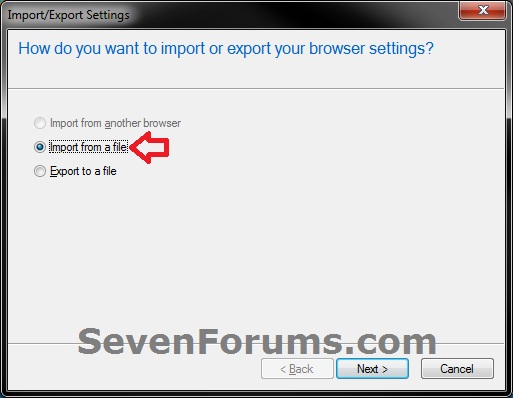
5. Browse to the location of the exported RSS feeds list file that you want to import, select the .opml file, and click/tap on Open. (see screenshots below)
6. Select a destination feeds folder (ex: Feeds) that you want to import the RSS feeds list into, then click/tap on Import. (see screenshot below)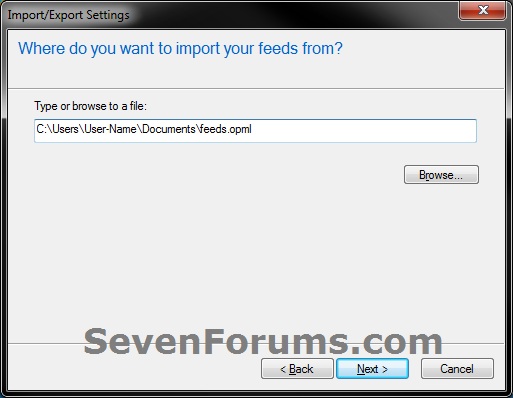
7. Click/tap on Finish. (see screenshot below)
8. You can now open your Feeds list in Internet Explorer to confirm that the RSS feeds list .opml file has been imported. (see example at top of tutorial)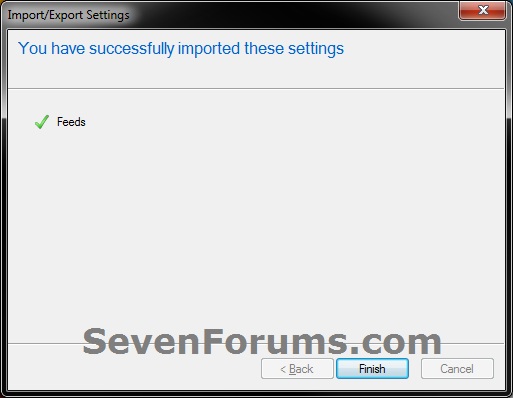
Shawn
Related Tutorials
- How to Import and Export Cookies in Internet Explorer
- How to Import and Export Internet Explorer Cookies Per Site Privacy Actions
- How to Import and Export Favorites in Internet Explorer
- How to Subscribe or Unsubscribe to a RSS Feed in Internet Explorer
- How to Import and Export Internet Explorer Pop-up Blocker Settings
- How to Import and Export Compatibility View Websites in Internet Explorer
Internet Explorer - Import and Export RSS Feeds

Internet Explorer - Import and Export RSS Feeds
How to Import and Export RSS Feeds in Internet ExplorerPublished by Brink


Related Discussions