Windows 7 Forums


Windows 7: Check Disk (chkdsk) - Read Event Viewer Log


Check Disk (chkdsk) - Read Event Viewer Log

How to Read the Event Viewer Log for Check Disk (chkdsk) in Vista, Windows 7, and Windows 8
Published 11 Jul 2010
Published by

Applies to:
7,8,Vista

Featured Tutorial

Online Scanners - Scan Suspicious Files on your PC

How to Scan Suspicious Files using Online Scanners

System Preparation Tool - Use to Customize Windows

How to Use Sysprep to Customize Windows 7 and Windows 8

Search - Find More with Filters and Operators

How to Use Windows Search Filters and Operators to get better Search Results in Windows 7

Microsoft Account - Sign up for and Create

How to Sign up for and Create a Microsoft Account

Troubleshooting Steps for Windows 7


Bootmgr - Move to C:\ with EasyBCD

How to Move Bootmgr to C:\ with EasyBCD
How to Read the Event Viewer Log for Check Disk (chkdsk) in Vista, Windows 7, and Windows 8

information   Information
This will show you how to read the Event Viewer log to see the scan results of Check Disk (chkdsk) in Vista, Windows 7, and Windows 8.

You must be logged in as administrator to be able to open Event Viewer.


Here's How:
1. If you have not already, you will need to have ran Check Disk (chkdsk) in Vista/Windows 7 or Windows 8 prior before it will be in the Event Viewer System log.

2. Press the Windows + R keys to open the Run dialog, type eventvwr.msc, and press Enter.

3. If prompted by UAC, then click on Yes (Windows 7/8) or Continue (Vista).

4. In the left pane of Event Viewer, double click on Windows Logs to expand it, then right click on Application and click on Find. (see screenshot below)
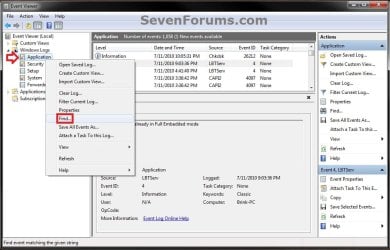
Check Disk (chkdsk) - Read Event Viewer Log-step1.jpg
5. Copy and paste Chkdsk into the line, and click on Find Next. (see screenshot below)
NOTE: You can continue to click on Find Next to search for other older application logs (if available) for Check Disk (chkdsk) to see them as well.

Check Disk (chkdsk) - Read Event Viewer Log-step2.jpg
6. You will now see the system log for the scan results of Check Disk (chkdsk). (see screenshot below)
NOTE: The log will have the Chkdsk tag if Check Disk is ran only from within Windows.
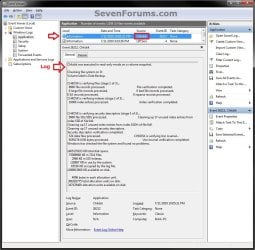
Check Disk (chkdsk) - Read Event Viewer Log-step3.jpg
7. Go back to the top of the log file list in the middle pane of Event Viewer, then copy and paste Wininit into the line, and click on Find Next. (see screenshot below step 5)
NOTE: You can continue to click on Find Next to search for other older application logs (if available) for Check Disk (chkdsk) to see them as well.

8. You will now see the system log for the scan results of Check Disk (Wininit). (see screenshot below)
NOTE: The log will have the Wininit tag if the computer has to restart to run Check Disk at startup instead of within Windows.
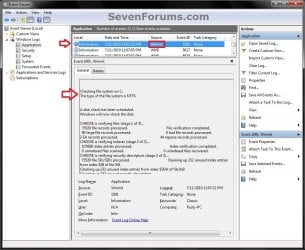
Check Disk (chkdsk) - Read Event Viewer Log-wininit.jpg
9. When finished searching for Check Disk (chkdsk) application logs, you can close the Find window. (see screenshot below step 5)

10. When finished, you can close Event Viewer.
That's it,
Shawn


Need more help? Try searching our extensive help and support site.
Loading
12 Jul 2010   #1
theog

ME/XP/Vista/Win7
uk Hampshire


Hi Shawn

Very nice tutorial, Shawn.

Just a thought, may be you could update the Disk Check tutorial to include Command Prompt as in Check Disk tutorial Vista x64forum.

Ray.

My System SpecsSystem Spec

12 Jul 2010   #2
Brink

64-bit Windows 7 Ultimate SP1 & Windows 8 Enterprise
Texas


Hello Ray,

I shall add the command prompt option tonight.

UPDATE:
It has now been added.
Disk Check

Last edited by Brink; 12 Jul 2010 at 01:35 PM..
My System SpecsSystem Spec
13 Jul 2010   #3
theog

ME/XP/Vista/Win7
uk Hampshire


Looks great.
My System SpecsSystem Spec
.


13 Jul 2010   #4
Brink

64-bit Windows 7 Ultimate SP1 & Windows 8 Enterprise
Texas


Thank you.
My System SpecsSystem Spec
02 May 2011   #5
ICit2lol

Desk1 7 Home Prem / Desk2 7 Home Prem / Laptop 7 Pro all 64bit
 
 
Brilliant

Hey Brink you're a legend mate I have been trying to find out 1) how to read the event viewer and 2) what my chkdsk's have come up with.

My local forum doesn't have such brilliant tutorials laid out like this format and I am one of those who need either an analogy or something like this to get it into the little bit of grey matter that's left you make it look so easy for silly old buggas like me
My System SpecsSystem Spec
02 May 2011   #6
Brink

64-bit Windows 7 Ultimate SP1 & Windows 8 Enterprise
Texas


Thank you for the kind words John. It's always great to know that the tutorials are helpful for everyone.
My System SpecsSystem Spec
15 Sep 2011   #7
Onclejean

Win 7 Ultimate SP1


Thanks for the tutorial. It enables me to illustrate but not solve my problem. The log found is

CHKDSK is verifying files (stage 1 of 3)...
207616 file records processed. File verification completed.
185 large file records processed. 0 bad file records processed. 2 EA records processed. 109 reparse records processed. CHKDSK is verifying indexes (stage 2 of 3)...
283042 index entries processed. Index verification completed.
CHKDSK is scanning unindexed files for reconnect to their original directory.
Recovering orphaned file Chkdsk20110703093010.log (68213) into directory file 68197.
Recovering orphaned file Chkdsk20110709165629.log (68214) into directory file 68197.
Recovering orphaned file Chkdsk20110714133433.log (68215) into directory file 68197.
Recovering orphaned file Chkdsk20110722172351.log (68216) into directory file 68197.
Recovering orphaned file Chkdsk20110722173123.log (68217) into directory file 68197.
Recovering orphaned file Chkdsk20110725194533.log (68218) into directory file 68197.
Recovering orphaned file Chkdsk20110727084051.log (68219) into directory file 68197.
Recovering orphaned file Chkdsk20110727120925.log (68220) into directory file 68197.
Recovering orphaned file Chkdsk20110805083128.log (77448) into directory file 68197.
10 unindexed files scanned. Recovering orphaned file Chkdsk20110806090816.log (77450) into directory file 68197.

Unfortunately I cannot find file directory 68197: and when I run chkdsk again at the next boot chkds does the same thing. So I conclude it is NOT infact clearing the orphans. What more should I do or just leave it?
My System SpecsSystem Spec
15 Sep 2011   #8
Brink

64-bit Windows 7 Ultimate SP1 & Windows 8 Enterprise
Texas


Hello John,

With it saying 0 bad file records processed., I would not worry about it.
My System SpecsSystem Spec
07 Dec 2011   #9
dbdb

Wundows 7 Home Premium 64


Yes but it is very annoying I have the same problem. I suspect Casper as the drive was cloned and re-created using Casper when the errors started appearing. Thye always relate to Chkdskxxx.log files.
My System SpecsSystem Spec
Comment

 Check Disk (chkdsk) - Read Event Viewer Log problems?


Tutorial Tools


Similar help and support threads for: Check Disk (chkdsk) - Read Event Viewer Log
Windows 7 Tutorial Category
"Disk error" invisible except to event viewer, when imaging hard drive Hardware & Devices
Event viewer information survives low level format! Spooky - read on! Backup and Restore
WHEA-Logger event 18/19 errors in Event Viewer (W7 Home Premium) Hardware & Devices
Wake Source - Read Event Viewer Log Tutorials
Memory Diagnostics Tool - Read Event Viewer Log Tutorials


All times are GMT -5. The time now is 06:39 PM.


Seven Forums Android App Seven Forums IOS App Follow us on Facebook

Windows 7 Forums is an independent web site and has not been authorized,
sponsored, or otherwise approved by Microsoft Corporation.
"Windows 7" and related materials are trademarks of Microsoft Corp.
© Designer Media Ltd
  

1 2 3 4 5 6 7 8 9 10 11 12 13 14 15 16 17 18 19 20 21 22 23 24 25 26 27 28 29 30 31 32