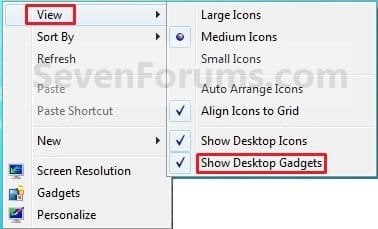
Desktop Icons - Hide or Show

How to Hide or Show Desktop Icons in Windows 7 and Windows 8

   Information
This will show you how to easily hide or show all icons (ex: files, folders, shortcuts) on your desktop in Windows 7 and Windows 8.


OPTION ONE

Hide or Show Desktop Icons using the Desktop Context Menu


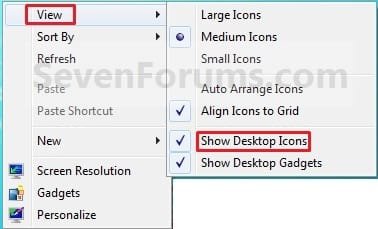
1. Right click or press and hold on a empty area of your desktop, then do step 2 or 3 below for what you would like to do.

2. To Show All Desktop Icons
NOTE: This is the default setting.
A) Click/tap on Show Desktop Icons to check it. (See screenshot below step 3)
3. To Hide All Desktop Icons
A) Click/tap on Show Desktop Icons to uncheck it. (See screenshot below)
Icons.jpg
B) Save your current theme in Windows 7 or Windows 8 to help prevent these settings from being reset after you log off and on, or restart the computer.


OPTION TWO

Hide or Show Desktop Icons using a BAT File Download


1. To Show All Desktop Icons
NOTE: This is the default setting.
A) Click/tap on the download button below to download the file below, and go to step 3 below.
Show_Desktop_Icons.bat


Download


2. To Hide All Desktop Icons
A) Click/tap on the download button below to download the file below, and go to step 3 below.
Hide_Desktop_Icons.bat

Download


3. Save the .bat file to another location other than your desktop, and run it.
NOTE: It would be hard to see the .bat file on your desktop if already set to hide.

4. If prompted, click/tap on Run.
NOTE: If you like, you can stop getting the Run prompt by unblocking the downloaded .bat file.

5. You will now notice a command prompt quickly open and close, and your screen flash while applying the changes to your registry and restarting explorer.

6. When finished, you can delete the downloaded .bat file(s) if you like.
That's it,
Shawn


Attachments

Last edited:
Hey Brink,

Thanks for replying, i'll await your results ;)

Gz
 

My Computer

Computer type
Laptop
Computer Manufacturer/Model Number
Custom build
OS
Windows 7 Professional x64
CPU
Intel(R) Core(TM) i7-2630QM CPU @ 2.00Ghz 2.00 Ghz
Motherboard
Unknown
Memory
8GB
Graphics Card(s)
Nvidia GeForce GT 540M
Hard Drives
Harde schijf ST9500420AS (465 GB, IDE)
Antivirus
None
Browser
Google Chrome
Gz,

I haven't been able to reproduce this in Windows 7.

As a test, how does it work for you in another or new user account?
 

My Computer

Computer type
PC/Desktop
Computer Manufacturer/Model Number
Self built custom
OS
64-bit Windows 11 Pro for Workstations
CPU
Intel i7-8700K OC'd to 5 GHz
Motherboard
ASUS ROG Maximus XI Formula Z390
Memory
64 GB (4x16GB) G.SKILL TridentZ RGB DDR4 3600 MHz
Graphics Card(s)
ASUS ROG-STRIX-GTX1080TI-O11G-GAMING
Sound Card
Integrated
Monitor(s) Displays
2 x Samsung Odyssey G7 27"
Screen Resolution
2560x1440
Hard Drives
1TB Samsung 990 PRO M.2,
4TB Samsung 990 PRO PRO M.2,
TerraMaster F8 SSD Plus NAS
PSU
Seasonic Prime Titanium 850W
Case
Thermaltake Core P3
Cooling
Corsair Hydro H115i
Keyboard
Logitech wireless K800
Mouse
Logitech MX Master 4
Internet Speed
2 Gb/s Download and 100 Mb/s Upload
Antivirus
Malwarebyte Anti-Malware Premium
Browser
Google Chrome
Other Info
Logitech Z625 speaker system,
Logitech BRIO 4K Pro webcam,
HP Color LaserJet Pro MFP M477fdn,
APC SMART-UPS RT 1000 XL - SURT1000XLI,
Galaxy S23 Plus phone
Hey,

In another(new) user account, it does the same.

But a friend of mine who's got knowledge about this, is helping me as we speak.

I'll let you know if it's fixed;)

Grtz
 

My Computer

Computer type
Laptop
Computer Manufacturer/Model Number
Custom build
OS
Windows 7 Professional x64
CPU
Intel(R) Core(TM) i7-2630QM CPU @ 2.00Ghz 2.00 Ghz
Motherboard
Unknown
Memory
8GB
Graphics Card(s)
Nvidia GeForce GT 540M
Hard Drives
Harde schijf ST9500420AS (465 GB, IDE)
Antivirus
None
Browser
Google Chrome
Help

I downloaded the 2 bat files to hide, and show icons.

Bat hide icons works fine.

Bat show icons doesn't work at all

I can right click on desktop and go to View and there is a check by show icons. But there still isn't any icons.

I even restored the computer to a earlier date, and that made no difference to my problem.

I can't get my icons back.

Can anyone help me with this problem???
 

My Computer

Computer type
PC/Desktop
OS
Windows 7 64bit
Hello Iceblast, and welcome to Seven Forums.

Use Option One to hide and unhide them again to toggle it to see if they show then.

Are they at your "C:\Users\(user-name)\Desktop" folder location?
 

My Computer

Computer type
PC/Desktop
Computer Manufacturer/Model Number
Self built custom
OS
64-bit Windows 11 Pro for Workstations
CPU
Intel i7-8700K OC'd to 5 GHz
Motherboard
ASUS ROG Maximus XI Formula Z390
Memory
64 GB (4x16GB) G.SKILL TridentZ RGB DDR4 3600 MHz
Graphics Card(s)
ASUS ROG-STRIX-GTX1080TI-O11G-GAMING
Sound Card
Integrated
Monitor(s) Displays
2 x Samsung Odyssey G7 27"
Screen Resolution
2560x1440
Hard Drives
1TB Samsung 990 PRO M.2,
4TB Samsung 990 PRO PRO M.2,
TerraMaster F8 SSD Plus NAS
PSU
Seasonic Prime Titanium 850W
Case
Thermaltake Core P3
Cooling
Corsair Hydro H115i
Keyboard
Logitech wireless K800
Mouse
Logitech MX Master 4
Internet Speed
2 Gb/s Download and 100 Mb/s Upload
Antivirus
Malwarebyte Anti-Malware Premium
Browser
Google Chrome
Other Info
Logitech Z625 speaker system,
Logitech BRIO 4K Pro webcam,
HP Color LaserJet Pro MFP M477fdn,
APC SMART-UPS RT 1000 XL - SURT1000XLI,
Galaxy S23 Plus phone
Well, I just fixed the problem. I don't know why this fixed it though. I had to go to my Desktop folder, and move all the files there to another folder I randomly made, and then move the files back. Now, I can see my icons. Nothing else worked.

Right click the desktop menu made no difference if you had show icons or not checked.

Refreshing you desktop made no difference, and restoring you computer to a earlier date did no good.

But moving the files from and back to desktop folder did. Strange...

Thanks for responding so quick though. But it looks like everything is straight again. I'll be deleting those bat files though. Not worth the trouble they caused.
 

My Computer

Computer type
PC/Desktop
OS
Windows 7 64bit
Not sure what the problem was since the .bat files work just fine on my system, and they only toggle the same settings the desktop context menu uses to hide/show them. :confused:
 

My Computer

Computer type
PC/Desktop
Computer Manufacturer/Model Number
Self built custom
OS
64-bit Windows 11 Pro for Workstations
CPU
Intel i7-8700K OC'd to 5 GHz
Motherboard
ASUS ROG Maximus XI Formula Z390
Memory
64 GB (4x16GB) G.SKILL TridentZ RGB DDR4 3600 MHz
Graphics Card(s)
ASUS ROG-STRIX-GTX1080TI-O11G-GAMING
Sound Card
Integrated
Monitor(s) Displays
2 x Samsung Odyssey G7 27"
Screen Resolution
2560x1440
Hard Drives
1TB Samsung 990 PRO M.2,
4TB Samsung 990 PRO PRO M.2,
TerraMaster F8 SSD Plus NAS
PSU
Seasonic Prime Titanium 850W
Case
Thermaltake Core P3
Cooling
Corsair Hydro H115i
Keyboard
Logitech wireless K800
Mouse
Logitech MX Master 4
Internet Speed
2 Gb/s Download and 100 Mb/s Upload
Antivirus
Malwarebyte Anti-Malware Premium
Browser
Google Chrome
Other Info
Logitech Z625 speaker system,
Logitech BRIO 4K Pro webcam,
HP Color LaserJet Pro MFP M477fdn,
APC SMART-UPS RT 1000 XL - SURT1000XLI,
Galaxy S23 Plus phone

My Computer

Computer type
PC/Desktop
Computer Manufacturer/Model Number
Custom Built PC
OS
Windows 7 Ultimate 64 bit SP1
CPU
Intel(R) Core(TM) i5-2500K
Motherboard
Gigabyte Technology Co., Ltd. Z68X-UD3-B3
Memory
12GB Kingston Hyperx 1600MHz
Graphics Card(s)
Asus GTS 450
PSU
500W Coolink
Other Info
Genius G-Pen F610 (PenPad)
Just found this tutorial. Using the 2 .bat files all is well except for one critical issue. For some reason, executing either of these closes all my open explorer windows. Thoughts anyone?
 

My Computer

Computer type
PC/Desktop
Computer Manufacturer/Model Number
HP (HP-P6212F)
OS
Microsoft Windows 7 Home Premium 64-bit 7601 Multiprocessor Free Service Pack 1
CPU
Pentium(R) Dual-Core CPU E5300 @ 2.60GHz
Motherboard
PEGATRON CORPORATION Benicia
Memory
6.00 GB
Graphics Card(s)
Intel(R) G33/G31 Express Chipset Family
Sound Card
Realtek High Definition Audio
Monitor(s) Displays
24'' HP WS LCD
Screen Resolution
1920 x 1080 x 32 bits (4294967296 colors) @ 60 Hz
Hard Drives
(1) ATA Hitachi HDT72106 SCSI Disk Device (2) Generic- Compact Flash USB Device (3) Generic- MS/MS-Pro USB Device (4) Generic- SD/MMC USB Device (5) Generic- SM/xD-Picture USB Device (6) Verbatim STORE N GO USB Device
Keyboard
Logitech G510s
Mouse
Logitech Trackball M570
Antivirus
Microsoft Security Essentials / Malwarebytes
Browser
IE / Firefox / Chrome
Hello Marc, :)

That's normal when using the .bat files. They need to restart explorer to apply.
 

My Computer

Computer type
PC/Desktop
Computer Manufacturer/Model Number
Self built custom
OS
64-bit Windows 11 Pro for Workstations
CPU
Intel i7-8700K OC'd to 5 GHz
Motherboard
ASUS ROG Maximus XI Formula Z390
Memory
64 GB (4x16GB) G.SKILL TridentZ RGB DDR4 3600 MHz
Graphics Card(s)
ASUS ROG-STRIX-GTX1080TI-O11G-GAMING
Sound Card
Integrated
Monitor(s) Displays
2 x Samsung Odyssey G7 27"
Screen Resolution
2560x1440
Hard Drives
1TB Samsung 990 PRO M.2,
4TB Samsung 990 PRO PRO M.2,
TerraMaster F8 SSD Plus NAS
PSU
Seasonic Prime Titanium 850W
Case
Thermaltake Core P3
Cooling
Corsair Hydro H115i
Keyboard
Logitech wireless K800
Mouse
Logitech MX Master 4
Internet Speed
2 Gb/s Download and 100 Mb/s Upload
Antivirus
Malwarebyte Anti-Malware Premium
Browser
Google Chrome
Other Info
Logitech Z625 speaker system,
Logitech BRIO 4K Pro webcam,
HP Color LaserJet Pro MFP M477fdn,
APC SMART-UPS RT 1000 XL - SURT1000XLI,
Galaxy S23 Plus phone
Hello Marc, :)

That's normal when using the .bat files. They need to restart explorer to apply.
oh well, it was a nice idea - thx Shawn

p.s. if anyone comes up with a clean toggle for hide/show let me/us know -laters
 

My Computer

Computer type
PC/Desktop
Computer Manufacturer/Model Number
HP (HP-P6212F)
OS
Microsoft Windows 7 Home Premium 64-bit 7601 Multiprocessor Free Service Pack 1
CPU
Pentium(R) Dual-Core CPU E5300 @ 2.60GHz
Motherboard
PEGATRON CORPORATION Benicia
Memory
6.00 GB
Graphics Card(s)
Intel(R) G33/G31 Express Chipset Family
Sound Card
Realtek High Definition Audio
Monitor(s) Displays
24'' HP WS LCD
Screen Resolution
1920 x 1080 x 32 bits (4294967296 colors) @ 60 Hz
Hard Drives
(1) ATA Hitachi HDT72106 SCSI Disk Device (2) Generic- Compact Flash USB Device (3) Generic- MS/MS-Pro USB Device (4) Generic- SD/MMC USB Device (5) Generic- SM/xD-Picture USB Device (6) Verbatim STORE N GO USB Device
Keyboard
Logitech G510s
Mouse
Logitech Trackball M570
Antivirus
Microsoft Security Essentials / Malwarebytes
Browser
IE / Firefox / Chrome

My Computer

Computer type
PC/Desktop
Computer Manufacturer/Model Number
HP (HP-P6212F)
OS
Microsoft Windows 7 Home Premium 64-bit 7601 Multiprocessor Free Service Pack 1
CPU
Pentium(R) Dual-Core CPU E5300 @ 2.60GHz
Motherboard
PEGATRON CORPORATION Benicia
Memory
6.00 GB
Graphics Card(s)
Intel(R) G33/G31 Express Chipset Family
Sound Card
Realtek High Definition Audio
Monitor(s) Displays
24'' HP WS LCD
Screen Resolution
1920 x 1080 x 32 bits (4294967296 colors) @ 60 Hz
Hard Drives
(1) ATA Hitachi HDT72106 SCSI Disk Device (2) Generic- Compact Flash USB Device (3) Generic- MS/MS-Pro USB Device (4) Generic- SD/MMC USB Device (5) Generic- SM/xD-Picture USB Device (6) Verbatim STORE N GO USB Device
Keyboard
Logitech G510s
Mouse
Logitech Trackball M570
Antivirus
Microsoft Security Essentials / Malwarebytes
Browser
IE / Firefox / Chrome
​Because writing to the registry is not the proper way to toggle Show Desktop Icons, restarting Explorer is the only way for a batch file to get it to read newly assigned registry values. This unfortunately has the caveat of closing all Explorer windows.

Utilising C# code, PowerShell may interact with the Windows API. This allows for a "clean" way of toggling that Show Desktop Icons using a builtin script.


ToggleShowDesktopIcons.ps1
Code:
$signatures = @'
[DllImport("user32.dll")]
public static extern IntPtr FindWindow(string lpClassName, string lpWindowName);
[DllImport("user32.dll")]
public static extern IntPtr FindWindowEx(IntPtr hwndParent, IntPtr hwndChildAfter, string lpszClass, string lpszWindow);
[DllImport("user32.dll")]
public static extern IntPtr SendMessage(IntPtr hWnd, uint Msg, IntPtr wParam, IntPtr lParam);
'@
$API = Add-Type -MemberDefinition $signatures -Name 'Win32' -Namespace 'Win32Functions' -PassThru
 
$progman_handle = $API::FindWindow('Progman', 'Program Manager')
$shellviewwin_handle = $API::FindWindowEx($progman_handle, 0, 'SHELLDLL_DefView', '')
[void]$API::SendMessage($shellviewwin_handle, 0x0111, 0x7402, 0)
 
Last edited:

My Computer

Computer type
PC/Desktop
OS
Windows 10, Windows 8.1 Pro, Windows 7 Professional, OS X El Capitan
Great job Pyprohly. :)
 

My Computer

Computer type
PC/Desktop
Computer Manufacturer/Model Number
Self built custom
OS
64-bit Windows 11 Pro for Workstations
CPU
Intel i7-8700K OC'd to 5 GHz
Motherboard
ASUS ROG Maximus XI Formula Z390
Memory
64 GB (4x16GB) G.SKILL TridentZ RGB DDR4 3600 MHz
Graphics Card(s)
ASUS ROG-STRIX-GTX1080TI-O11G-GAMING
Sound Card
Integrated
Monitor(s) Displays
2 x Samsung Odyssey G7 27"
Screen Resolution
2560x1440
Hard Drives
1TB Samsung 990 PRO M.2,
4TB Samsung 990 PRO PRO M.2,
TerraMaster F8 SSD Plus NAS
PSU
Seasonic Prime Titanium 850W
Case
Thermaltake Core P3
Cooling
Corsair Hydro H115i
Keyboard
Logitech wireless K800
Mouse
Logitech MX Master 4
Internet Speed
2 Gb/s Download and 100 Mb/s Upload
Antivirus
Malwarebyte Anti-Malware Premium
Browser
Google Chrome
Other Info
Logitech Z625 speaker system,
Logitech BRIO 4K Pro webcam,
HP Color LaserJet Pro MFP M477fdn,
APC SMART-UPS RT 1000 XL - SURT1000XLI,
Galaxy S23 Plus phone
Great job Pyprohly. :)
I agree (tho I have no understanding of the posted code whatsoever :D). Shawn, will this be incorporated into this tutorial, or how would I do it here at home?
 

My Computer

Computer type
PC/Desktop
Computer Manufacturer/Model Number
HP (HP-P6212F)
OS
Microsoft Windows 7 Home Premium 64-bit 7601 Multiprocessor Free Service Pack 1
CPU
Pentium(R) Dual-Core CPU E5300 @ 2.60GHz
Motherboard
PEGATRON CORPORATION Benicia
Memory
6.00 GB
Graphics Card(s)
Intel(R) G33/G31 Express Chipset Family
Sound Card
Realtek High Definition Audio
Monitor(s) Displays
24'' HP WS LCD
Screen Resolution
1920 x 1080 x 32 bits (4294967296 colors) @ 60 Hz
Hard Drives
(1) ATA Hitachi HDT72106 SCSI Disk Device (2) Generic- Compact Flash USB Device (3) Generic- MS/MS-Pro USB Device (4) Generic- SD/MMC USB Device (5) Generic- SM/xD-Picture USB Device (6) Verbatim STORE N GO USB Device
Keyboard
Logitech G510s
Mouse
Logitech Trackball M570
Antivirus
Microsoft Security Essentials / Malwarebytes
Browser
IE / Firefox / Chrome
Yeah, I'll get it added later tonight. :)
 

My Computer

Computer type
PC/Desktop
Computer Manufacturer/Model Number
Self built custom
OS
64-bit Windows 11 Pro for Workstations
CPU
Intel i7-8700K OC'd to 5 GHz
Motherboard
ASUS ROG Maximus XI Formula Z390
Memory
64 GB (4x16GB) G.SKILL TridentZ RGB DDR4 3600 MHz
Graphics Card(s)
ASUS ROG-STRIX-GTX1080TI-O11G-GAMING
Sound Card
Integrated
Monitor(s) Displays
2 x Samsung Odyssey G7 27"
Screen Resolution
2560x1440
Hard Drives
1TB Samsung 990 PRO M.2,
4TB Samsung 990 PRO PRO M.2,
TerraMaster F8 SSD Plus NAS
PSU
Seasonic Prime Titanium 850W
Case
Thermaltake Core P3
Cooling
Corsair Hydro H115i
Keyboard
Logitech wireless K800
Mouse
Logitech MX Master 4
Internet Speed
2 Gb/s Download and 100 Mb/s Upload
Antivirus
Malwarebyte Anti-Malware Premium
Browser
Google Chrome
Other Info
Logitech Z625 speaker system,
Logitech BRIO 4K Pro webcam,
HP Color LaserJet Pro MFP M477fdn,
APC SMART-UPS RT 1000 XL - SURT1000XLI,
Galaxy S23 Plus phone
Yeah, I'll get it added later tonight. :)
000-dancing.gif
 

My Computer

Computer type
PC/Desktop
Computer Manufacturer/Model Number
HP (HP-P6212F)
OS
Microsoft Windows 7 Home Premium 64-bit 7601 Multiprocessor Free Service Pack 1
CPU
Pentium(R) Dual-Core CPU E5300 @ 2.60GHz
Motherboard
PEGATRON CORPORATION Benicia
Memory
6.00 GB
Graphics Card(s)
Intel(R) G33/G31 Express Chipset Family
Sound Card
Realtek High Definition Audio
Monitor(s) Displays
24'' HP WS LCD
Screen Resolution
1920 x 1080 x 32 bits (4294967296 colors) @ 60 Hz
Hard Drives
(1) ATA Hitachi HDT72106 SCSI Disk Device (2) Generic- Compact Flash USB Device (3) Generic- MS/MS-Pro USB Device (4) Generic- SD/MMC USB Device (5) Generic- SM/xD-Picture USB Device (6) Verbatim STORE N GO USB Device
Keyboard
Logitech G510s
Mouse
Logitech Trackball M570
Antivirus
Microsoft Security Essentials / Malwarebytes
Browser
IE / Firefox / Chrome
Marc,

I've been playing with the .ps1 file, but I'm just not sure how it's any easier than just using OPTION ONE when you still need to right click on the .ps1 file and click on "Run with PowerShell". :(

You could create a .bat file to run the .ps1 file with PowerShell.exe though.
 

My Computer

Computer type
PC/Desktop
Computer Manufacturer/Model Number
Self built custom
OS
64-bit Windows 11 Pro for Workstations
CPU
Intel i7-8700K OC'd to 5 GHz
Motherboard
ASUS ROG Maximus XI Formula Z390
Memory
64 GB (4x16GB) G.SKILL TridentZ RGB DDR4 3600 MHz
Graphics Card(s)
ASUS ROG-STRIX-GTX1080TI-O11G-GAMING
Sound Card
Integrated
Monitor(s) Displays
2 x Samsung Odyssey G7 27"
Screen Resolution
2560x1440
Hard Drives
1TB Samsung 990 PRO M.2,
4TB Samsung 990 PRO PRO M.2,
TerraMaster F8 SSD Plus NAS
PSU
Seasonic Prime Titanium 850W
Case
Thermaltake Core P3
Cooling
Corsair Hydro H115i
Keyboard
Logitech wireless K800
Mouse
Logitech MX Master 4
Internet Speed
2 Gb/s Download and 100 Mb/s Upload
Antivirus
Malwarebyte Anti-Malware Premium
Browser
Google Chrome
Other Info
Logitech Z625 speaker system,
Logitech BRIO 4K Pro webcam,
HP Color LaserJet Pro MFP M477fdn,
APC SMART-UPS RT 1000 XL - SURT1000XLI,
Galaxy S23 Plus phone
Marc,

I've been playing with the .ps1 file, but I'm just not sure how it's any easier than just using OPTION ONE ...
Thx for the effort. I've no clue what all is happening/involved, thought maybe the code would be incorporated into your OPTION TWO, I do not like having all my open explorers closed.

Option One and/or the app referenced in post#51 will suffice.

-thx
 

My Computer

Computer type
PC/Desktop
Computer Manufacturer/Model Number
HP (HP-P6212F)
OS
Microsoft Windows 7 Home Premium 64-bit 7601 Multiprocessor Free Service Pack 1
CPU
Pentium(R) Dual-Core CPU E5300 @ 2.60GHz
Motherboard
PEGATRON CORPORATION Benicia
Memory
6.00 GB
Graphics Card(s)
Intel(R) G33/G31 Express Chipset Family
Sound Card
Realtek High Definition Audio
Monitor(s) Displays
24'' HP WS LCD
Screen Resolution
1920 x 1080 x 32 bits (4294967296 colors) @ 60 Hz
Hard Drives
(1) ATA Hitachi HDT72106 SCSI Disk Device (2) Generic- Compact Flash USB Device (3) Generic- MS/MS-Pro USB Device (4) Generic- SD/MMC USB Device (5) Generic- SM/xD-Picture USB Device (6) Verbatim STORE N GO USB Device
Keyboard
Logitech G510s
Mouse
Logitech Trackball M570
Antivirus
Microsoft Security Essentials / Malwarebytes
Browser
IE / Firefox / Chrome
I've been playing with the .ps1 file, but I'm just not sure how it's any easier than just using OPTION ONE when you still need to right click on the .ps1 file and click on "Run with PowerShell". :(
A good idea would be to shortcut it: assign the script a hotkey. I can't imagine why anyone would want to recreate the Show Desktop Icons functionality if their intentions aren't to bind it to a hotkey.

You could create a .bat file to run the .ps1 file with PowerShell.exe though.
If it helps, any PowerShell script can easily be turned into a batch file by placing the below lines at the top of the script and renaming the file accordingly (with a .bat extension). (Caveat: the resulting script will not be able to accept arguments. Though, there exists another version for that.)
Code:
<# :
@powershell -Command Invoke-Expression $([String]::Join([char]10, (Get-Content \"%~f0\")))"
@goto :eof
#>

E.g.
ToggleShowDesktopIcons.ps1.bat
Code:
<# :
@powershell -Command Invoke-Expression $([String]::Join([char]10, (Get-Content \"%~f0\")))"
@goto :eof
#>
 
$signatures = @'
[DllImport("user32.dll")]
public static extern IntPtr FindWindow(string lpClassName, string lpWindowName);
[DllImport("user32.dll")]
public static extern IntPtr FindWindowEx(IntPtr hwndParent, IntPtr hwndChildAfter, string lpszClass, string lpszWindow);
[DllImport("user32.dll")]
public static extern IntPtr SendMessage(IntPtr hWnd, uint Msg, IntPtr wParam, IntPtr lParam);
'@
$API = Add-Type -MemberDefinition $signatures -Name 'Win32' -Namespace 'Win32Functions' -PassThru
 
$progman_handle = $API::FindWindow('Progman', 'Program Manager')
$shellviewwin_handle = $API::FindWindowEx($progman_handle, 0, 'SHELLDLL_DefView', '')
[void]$API::SendMessage($shellviewwin_handle, 0x0111, 0x7402, 0)


Brink, MourningStar, the PowerShell script I posted was just a demonstration of a native solution for toggling Show Desktop Icons in a clean way, to satisfy MourningStar. I posted the PowerShell script to prove that such native solution does exist. I didn't expect both of you to want to incorporate the script in the tutorial, so I kept the script short and simple, at the price of ignoring a noteworthy bug. But if you guys wish for an proper improvement to Option Two, that can be done...

Especially with Windows 8 or newer, there is an issue with the 'ToggleShowDesktopIcons.ps1' script where it fails to toggle desktop icons on or off after the user changes their desktop wallpaper. The script works again after restarting Windows Explorer.

TL;DR,
This bug occurs because SHELLDLL_DefView (the window where the desktop icons are drawn, and the thing that gets destroyed and recreated when a desktop refresh takes place), the usual child window of the "Program Manager" shell, detaches from "Program Manager" to a new shell which has the class name of "WorkerW" and are a good number of windows that have the same class name, so locating SHELLDLL_DefView when this happens is no easy chore. I believe the reason why SHELLDLL_DefView is moved is to allow for the smooth transition effect. I'm not sure when SHELLDLL_DefView moves back to begin a child window of Program Manager, or if it does at all.

The PowerShell script below is safe from the mentioned bug. It looks full on though. And all it's doing is executing C# code.


ToggleShowDesktopIcons2.ps1
Code:
$source = @'
using System;
using System.Runtime.InteropServices;
 
namespace DesktopUtility
{
    class Win32Functions
    {
        [DllImport("user32.dll")]
        public static extern IntPtr FindWindow(string lpClassName, string lpWindowName);
        [DllImport("user32.dll")]
        public static extern IntPtr FindWindowEx(IntPtr hwndParent, IntPtr hwndChildAfter, string lpszClass, string lpszWindow);
        [DllImport("user32.dll")]
        public static extern IntPtr GetDesktopWindow();
        [DllImport("user32.dll")]
        public static extern IntPtr SendMessage(IntPtr hWnd, uint Msg, IntPtr wParam, IntPtr lParam);
    }
 
    public class Desktop
    {
        public static IntPtr GetHandle()
        {
            IntPtr hDesktopWin = Win32Functions.GetDesktopWindow();
            IntPtr hProgman = Win32Functions.FindWindow("Progman", "Program Manager");
            IntPtr hWorkerW = IntPtr.Zero;
 
            IntPtr hShellViewWin = Win32Functions.FindWindowEx(hProgman, IntPtr.Zero, "SHELLDLL_DefView", "");
            if (hShellViewWin == IntPtr.Zero)
            {
                do
                {
                    hWorkerW = Win32Functions.FindWindowEx(hDesktopWin, hWorkerW, "WorkerW", "");
                    hShellViewWin = Win32Functions.FindWindowEx(hWorkerW, IntPtr.Zero, "SHELLDLL_DefView", "");
                } while (hShellViewWin == IntPtr.Zero && hWorkerW != null);
            }
            return hShellViewWin;
        }
 
        public static void ToggleDesktopIcons()
        {
            Win32Functions.SendMessage(Desktop.GetHandle(), 0x0111, (IntPtr)0x7402, (IntPtr)0);
        }
    }
}
'@
Add-Type -TypeDefinition $source
 
[DesktopUtility.Desktop]::ToggleDesktopIcons()

Combine this script with four special lines and you've got quite a power-shell batch file.


Edit: I've attached a Batch-wrapped ToggleShowDesktopIcons2.ps1 PowerShell script to this post, and I have also included a binary version of it.

Edit 2: Fixed execution policy error message in batch file.
 

Attachments

Last edited:

My Computer

Computer type
PC/Desktop
OS
Windows 10, Windows 8.1 Pro, Windows 7 Professional, OS X El Capitan
Back
Top