Desktop Icons - Hide or Show

How to Hide or Show Desktop Icons in Windows 7 and Windows 8

   Information
This will show you how to easily hide or show all icons (ex: files, folders, shortcuts) on your desktop in Windows 7 and Windows 8.


OPTION ONE

Hide or Show Desktop Icons using the Desktop Context Menu


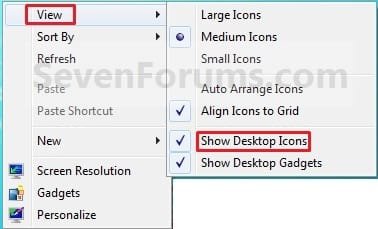
1. Right click or press and hold on a empty area of your desktop, then do step 2 or 3 below for what you would like to do.

2. To Show All Desktop Icons
NOTE: This is the default setting.
A) Click/tap on Show Desktop Icons to check it. (See screenshot below step 3)
3. To Hide All Desktop Icons
A) Click/tap on Show Desktop Icons to uncheck it. (See screenshot below)
Icons.jpg
B) Save your current theme in Windows 7 or Windows 8 to help prevent these settings from being reset after you log off and on, or restart the computer.


OPTION TWO

Hide or Show Desktop Icons using a BAT File Download


1. To Show All Desktop Icons
NOTE: This is the default setting.
A) Click/tap on the download button below to download the file below, and go to step 3 below.
Show_Desktop_Icons.bat


Download


2. To Hide All Desktop Icons
A) Click/tap on the download button below to download the file below, and go to step 3 below.
Hide_Desktop_Icons.bat

Download


3. Save the .bat file to another location other than your desktop, and run it.
NOTE: It would be hard to see the .bat file on your desktop if already set to hide.

4. If prompted, click/tap on Run.
NOTE: If you like, you can stop getting the Run prompt by unblocking the downloaded .bat file.

5. You will now notice a command prompt quickly open and close, and your screen flash while applying the changes to your registry and restarting explorer.

6. When finished, you can delete the downloaded .bat file(s) if you like.
That's it,
Shawn


Attachments

Last edited:
For those who want to get practical and are interested in incorporating the ToggleDesktopIcons() function into their PowerShell scripts, this post includes an extended version of the "DesktopUtility" C# snippet I've been using, and a bit of information on how to use it. Importing the "DesktopUtility" code in a PowerShell session will add the ToggleDesktopIcons() function, including five additional functions, as static methods of the [DesktopUtility.Desktop] class:
  • GetHandle() - gets the handle to the "SHELLDLL_DefView" window, whether it resides under Progman or WorkerW.
  • IsActiveWindow() - determines whether the desktop is the active window, i.e., the window the user is currently interacting with.
  • IsDesktopIconsVisible() - determines whether Windows' "Show Desktop Icons" function is enabled or not.
  • ToggleDesktopIcons() - enables "Show Desktop Icons" if it is disabled and vice versa.
  • IsDesktopControlsVisible() - determines if the main desktop window is visible.
  • ToggleDesktopControls() - turns on or off visibility for the main desktop control. Turning visibility off for the desktop control will hide icons and disable the context menu.

And here is the complete source code to import these functions (hint: use Add-Type -TypeDefiniton in PowerShell):

DesktopUtility
Code:
using System;
using System.Runtime.InteropServices;

namespace DesktopUtility
{
	class Win32Functions
	{
		[DllImport("user32.dll")]
		public static extern IntPtr FindWindow(string lpClassName, string lpWindowName);
		[DllImport("user32.dll")]
		public static extern IntPtr GetWindow(IntPtr hWnd, uint uCmd);
		[DllImport("user32.dll")]
		public static extern IntPtr FindWindowEx(IntPtr hwndParent, IntPtr hwndChildAfter, string lpszClass, string lpszWindow);
		[DllImport("user32.dll")]
		public static extern IntPtr GetDesktopWindow();
		[DllImport("user32.dll")]
		public static extern IntPtr SendMessage(IntPtr hWnd, uint Msg, IntPtr wParam, IntPtr lParam);
		[DllImport("user32.dll")]
		public static extern IntPtr GetForegroundWindow();
		[DllImport("user32.dll")]
		public static extern bool GetWindowInfo(IntPtr hwnd, ref WINDOWINFO pwi);
		[DllImport("user32.dll")]
		public static extern bool ShowWindowAsync(IntPtr hWnd, int nCmdShow);
		[DllImport("user32.dll")]
		public static extern bool IsWindowVisible(IntPtr hWnd);

		[StructLayout(LayoutKind.Sequential)]
		public struct RECT
		{
			private int _Left;
			private int _Top;
			private int _Right;
			private int _Bottom;
		}

		[StructLayout(LayoutKind.Sequential)]
		public struct WINDOWINFO
		{
			public uint cbSize;
			public RECT rcWindow;
			public RECT rcClient;
			public uint dwStyle;
			public uint dwExStyle;
			public uint dwWindowStatus;
			public uint cxWindowBorders;
			public uint cyWindowBorders;
			public ushort atomWindowType;
			public ushort wCreatorVersion;

			public WINDOWINFO(bool? filler) : this()
			{
				cbSize = (uint)Marshal.SizeOf(typeof(WINDOWINFO));
			}
		}

		public const int SW_HIDE = 0;
		public const int SW_SHOWNORMAL = 1;
		public const int SW_SHOWMINIMIZED = 2;
		public const int SW_SHOWMAXIMIZED = 3;
		public const int SW_SHOWNOACTIVATE = 4;
		public const int SW_RESTORE = 9;
		public const int SW_SHOWDEFAULT = 10;
	}

	public class Desktop
	{
		public static IntPtr GetHandle()
		{
			IntPtr hDesktopWin = Win32Functions.GetDesktopWindow();
			IntPtr hProgman = Win32Functions.FindWindow("Progman", "Program Manager");
			IntPtr hWorkerW = IntPtr.Zero;

			IntPtr hShellViewWin = Win32Functions.FindWindowEx(hProgman, IntPtr.Zero, "SHELLDLL_DefView", "");
			if (hShellViewWin == IntPtr.Zero)
			{
				do
				{
					hWorkerW = Win32Functions.FindWindowEx(hDesktopWin, hWorkerW, "WorkerW", "");
					hShellViewWin = Win32Functions.FindWindowEx(hWorkerW, IntPtr.Zero, "SHELLDLL_DefView", "");
				} while (hShellViewWin == IntPtr.Zero && hWorkerW != null);
			}
			return hShellViewWin;
		}

		public static bool IsActiveWindow()
		{
			return Win32Functions.GetWindow(Win32Functions.GetForegroundWindow(), 5)
				== Win32Functions.GetWindow(Desktop.GetHandle(), 3);
		}

		public static bool IsDesktopIconsVisible()
		{
			IntPtr hWnd = Win32Functions.GetWindow(Desktop.GetHandle(), 5);
			Win32Functions.WINDOWINFO info = new Win32Functions.WINDOWINFO();
			info.cbSize = (uint)Marshal.SizeOf(info);
			Win32Functions.GetWindowInfo(hWnd, ref info);
			return (info.dwStyle & 0x10000000) == 0x10000000;
		}

		public static void ToggleDesktopIcons()
		{
			Win32Functions.SendMessage(Desktop.GetHandle(), 0x0111, (IntPtr)0x7402, (IntPtr)0);
		}

		public static bool IsDesktopControlsVisible()
		{
			return Win32Functions.IsWindowVisible(Desktop.GetHandle());
		}

		public static void ToggleDesktopControls()
		{
			if (Desktop.IsDesktopControlsVisible())
				Win32Functions.ShowWindowAsync(Desktop.GetHandle(), Win32Functions.SW_HIDE);
			else
				Win32Functions.ShowWindowAsync(Desktop.GetHandle(), Win32Functions.SW_SHOWNORMAL);
		}
	}
}


An example of a practical use for the new functions would be a PowerShell script that reveals the desktop icons only when the user is interacting with the desktop. The script will immediately hide the desktop icons when the user clicks away from the desktop and is interacting with another program or application. Such PowerShell script would look something like...

HideDesktopIconsWhenDesktopNotActive.ps1
Code:
$source = @'
[COLOR="Gray"][...DesktopUtility code here...][/COLOR]
'@
Add-Type -TypeDefinition $source

function EnableDesktopControls {
	if (![DesktopUtility.Desktop]::IsDesktopControlsVisible()) {
		[DesktopUtility.Desktop]::ToggleDesktopControls()
	}
}

function DisableDesktopControls {
	if ([DesktopUtility.Desktop]::IsDesktopControlsVisible()) {
		[DesktopUtility.Desktop]::ToggleDesktopControls()
	}
}

while (1) {
	sleep -Milliseconds 125
	if ([DesktopUtility.Desktop]::IsActiveWindow()) {
		EnableDesktopControls
	} else {
		DisableDesktopControls
	}
}

I've attached the above example to this post. If you like the idea of this script you may consider running the script in the background as soon as you log in to Windows.
 

Attachments

My Computer My Computer

Computer type
PC/Desktop
OS
Windows 10, Windows 8.1 Pro, Windows 7 Professional, OS X El Capitan
thnxadd.gif
 

My Computer My Computer

Computer type
PC/Desktop
Computer Manufacturer/Model Number
HP (HP-P6212F)
OS
Microsoft Windows 7 Home Premium 64-bit 7601 Multiprocessor Free Service Pack 1
CPU
Pentium(R) Dual-Core CPU E5300 @ 2.60GHz
Motherboard
PEGATRON CORPORATION Benicia
Memory
6.00 GB
Graphics Card(s)
Intel(R) G33/G31 Express Chipset Family
Sound Card
Realtek High Definition Audio
Monitor(s) Displays
24'' HP WS LCD
Screen Resolution
1920 x 1080 x 32 bits (4294967296 colors) @ 60 Hz
Hard Drives
(1) ATA Hitachi HDT72106 SCSI Disk Device (2) Generic- Compact Flash USB Device (3) Generic- MS/MS-Pro USB Device (4) Generic- SD/MMC USB Device (5) Generic- SM/xD-Picture USB Device (6) Verbatim STORE N GO USB Device
Keyboard
Logitech G510s
Mouse
Logitech Trackball M570
Antivirus
Microsoft Security Essentials / Malwarebytes
Browser
IE / Firefox / Chrome
Back
Top