how can i resize a window and have it stick?

34woody

New member
Local time
7:15 AM
Messages
1
I want to resize a window and have it be the new size next time I open it. I understood that holding Shift and clicking the X to close would accomplish that, but it does not work for me. Who can tell me how to do this? :D Thanks!!
 

My Computer My Computer

At a glance

windows 7 pro 64 bit
OS
windows 7 pro 64 bit
Welcome to Windows Seven Forums.

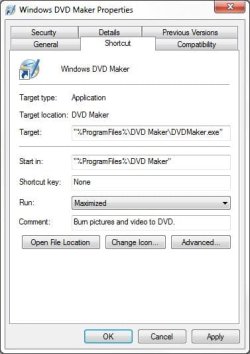
Right-click the shortcut for the application under All Programs in your Start folder and choose Properties.

Go to the Run field under the Shortcut tab and choose Maximized, then click Apply followed by OK.

Max.JPG

You may need to do this for each application you use and you have three choices:

Maximized, which fills the screen.

Minimized, which minimises the window to the task bar.

Normal, which fills part of the screen.
 

My Computer My Computer

At a glance

Windows 7 Ultimate SP1 64-BitIntel Core i7 870 @ 2.93GHz8Gb Dual-Channel DDR3 @ 664MHznVidia GeForce GTX 460 1024MB dedicated RAM
Computer Manufacturer/Model Number
HP Pavilion Elite 495UK
OS
Windows 7 Ultimate SP1 64-Bit
CPU
Intel Core i7 870 @ 2.93GHz
Motherboard
MSI 2A9C (CPU1)
Memory
8Gb Dual-Channel DDR3 @ 664MHz
Graphics Card(s)
nVidia GeForce GTX 460 1024MB dedicated RAM
Sound Card
Realtek HD Audio
Monitor(s) Displays
HP2310i
Screen Resolution
1920 x 1080
Hard Drives
1x1954GB Hitachi HDS22020ALA 330 (RAID), 1x1954GB Hitachi External for backup and storage
PSU
460W
Case
HP Elite
Cooling
Air cooled
Keyboard
Logitech K750 solar-powered keyboard
Mouse
Logitech Wireless M180 mouse
Internet Speed
2Mb
Other Info
Pure Avanti Flow Internet Radio with iPod Dock, 64Gb iPod, HP USB Speakers, Sony MDR-V500 Headphones, Sony Vaio F-Series Laptop
That runs the program full screen. I think the OP wants to just resize the window and save the position.

But.... Resizing is program dependant. Most Windows 7 windows can be resized and their positions saved if you click File then Exit. You can also use the Alt + Space Bar to open the window dialog. Click Size and drag the edges. This stores the size and desktop position in the registry. Not all programs store the window size though.
 

My Computer My Computer

At a glance

Windows 7 Pro-x64i7-2600 3.4GHz - 3.8GHz Turbo8Gb - 2x4GB, Muskin 991770 PC3-1333Integrated Intel HD 2000
Computer type
PC/Desktop
Computer Manufacturer/Model Number
Built 2/11/2011
OS
Windows 7 Pro-x64
CPU
i7-2600 3.4GHz - 3.8GHz Turbo
Motherboard
Intel DH67BL-B3
Memory
8Gb - 2x4GB, Muskin 991770 PC3-1333
Graphics Card(s)
Integrated Intel HD 2000
Sound Card
Integrated Intel 10.1 HD, RealTek ALC892
Monitor(s) Displays
Asus LCD VH222H, Haier HL24XSL2a
Screen Resolution
1920x1080, 1920x1080
Hard Drives
Crucial SSD C300-128Gb,
Western Digital WD5002AALX - 500Gb,
Western Digital WD7501AALS - 750Gb
PSU
Seasonic 650W 80+ Gold Modular
Case
Rosewill Defender
Cooling
Stock CPU, Four 120mm case fans, PCH fan added
Keyboard
Logitech EX100 Y-RBH94 Wireless
Mouse
Logitech EX100 M-RCE95 Wireless
Internet Speed
3.0/1.5 Mbs
Antivirus
Microsoft Security Essentials
Browser
Microsoft Internet Explorer 11
Other Info
Antec Veris Premier-Multimedia IR Station,
Cyber Accoustics-3602 Speakers,
AFT XM-5U Card Reader,
Hauppauge TV-HVR-2250,
Sony LX300 USB Turntable
That runs the program full screen. I think the OP wants to just resize the window and save the position.

But.... Resizing is program dependant. Most Windows 7 windows can be resized and their positions saved if you click File then Exit. You can also use the Alt + Space Bar to open the window dialog. Click Size and drag the edges. This stores the size and desktop position in the registry. Not all programs store the window size though.

You're quite right, it's getting late over this side of the pond! :confused:
 

My Computer My Computer

At a glance

Windows 7 Ultimate SP1 64-BitIntel Core i7 870 @ 2.93GHz8Gb Dual-Channel DDR3 @ 664MHznVidia GeForce GTX 460 1024MB dedicated RAM
Computer Manufacturer/Model Number
HP Pavilion Elite 495UK
OS
Windows 7 Ultimate SP1 64-Bit
CPU
Intel Core i7 870 @ 2.93GHz
Motherboard
MSI 2A9C (CPU1)
Memory
8Gb Dual-Channel DDR3 @ 664MHz
Graphics Card(s)
nVidia GeForce GTX 460 1024MB dedicated RAM
Sound Card
Realtek HD Audio
Monitor(s) Displays
HP2310i
Screen Resolution
1920 x 1080
Hard Drives
1x1954GB Hitachi HDS22020ALA 330 (RAID), 1x1954GB Hitachi External for backup and storage
PSU
460W
Case
HP Elite
Cooling
Air cooled
Keyboard
Logitech K750 solar-powered keyboard
Mouse
Logitech Wireless M180 mouse
Internet Speed
2Mb
Other Info
Pure Avanti Flow Internet Radio with iPod Dock, 64Gb iPod, HP USB Speakers, Sony MDR-V500 Headphones, Sony Vaio F-Series Laptop
First, there are different methods for the different kinds of windows you're referring to: i.e. Windows 7 windows, browser (I.E.) windows,
Windows Explorer windows, MS Office windows, Dialog Boxes, etc. You need to tell us specifically what kind of windows you're referring to, but meanwhile, here are some examples:

DIALOG BOXES

To change size of open Dialog Boxes - Windows 7 allows you to resize them individually by dragging the lower-right corner to the size you wish.

INTERNET EXPLORER – CUSTOM SIZE

1. Right-click the Desktop IE icon or IE in the Start Menu, and click on Properties at bottom of the menu. In the Properties window select the Shortcut tab. Open the ‘Run’ drop-down menu and select the size you wish: Normal Window, Minimized, or Maximized. Hit: Apply, OK

2. IE 8 and IE 9 can be resized with the RE-SIZER icon to permanently enlarge the screen. (The Re-sizer icon is the ‘multiple dots’ icon at the lower right-hand corner of the screen.)

3. Open IE and open an additional (2nd) IE window which will also be small. Put your cursor on the upper-left corner of the 2nd window, until the left-top corner is aligned with the top-left corner of your screen. In the right-bottom corner of the 2nd IE window, drag the RE-SIZER down diagonally until it rests at the top of the Status Bar and at the bottom-right-hand corner of your screen. Close the 1st window and then close the 2nd window. IE will now remember your position and size on the next opening. If that doesn't work, repeat the above, but when closing both windows, hold Ctrl and Shift keys while clicking the X.

4. Open Internet Explorer. Stretch the window with your cursor until you have it the size you want. (Do NOT use the Maximize “1” button at the top-right ).
Press the Ctrl key and HOLD, and while still holding, click File then click Exit (Do NOT use the red Exit 'X' button at the top-right. ) Re-open Internet Explorer. It should open exactly the same size as it was last closed.
Note : if that does not work for you, substitute Ctrl key with Shift key.

INTERNET EXPLORER – “MAXIMIZE”
You can use all of the above methods for “Custom Size” plus these:

1. Maximize the IE page with the Maximize 1 icon, then hold Shift and close with the X. Next time it opens it will be maximized.

2. Maximize your IE window size by dragging each of the 4 edges of the window all the way out to the edges of the screen. Then hold down the Alt key and press the "X" close button. Next time you open that link it should open in the maximized size, the way it was when you closed it!

3. Maximize your IE window size by dragging each of the 4 edges of the window all the way out to the edges of the screen. Then, while holding the Ctrl + Shift keys, close it by clicking File, Close. You might have to do it a few times to make it learn. If this doesn't work, try again, but this time, still holding the Ctrl + Shift keys, close they maximized window using the X icon.

WINDOW EXPLORER

1. Go to Start, All Programs, Accessories, right-click the Windows Explorer icon, select Properties. Click on: Shortcut, open the ‘Run’ drop-down menu, and select either: Normal Size, Maximized or Minimized. Then click Apply.

2. Maximize your window size by dragging each of the 4 edges of the window all the way out to the edges of the screen. Then hold down the Alt key and press the "X" close button. Next time you open that link it should open in the maximized size, the way it was when you closed it!

3. Maximize your window size by dragging each of the 4 edges of the window all the way out to the edges of the screen. Then, while holding the Ctrl + Shift keys, close it by clicking File, Close. You might have to do it a few times to make it learn. If this doesn't work, try again, but this time, still holding the Ctrl + Shift keys, close they maximized window using the X icon.

4. Open Windows Explorer and Maximize it using the “1” icon.
Hold down the Shift key and click on the X to close the window. The system should remember to maximize the window it next you open it.

4. In the Start Menu search pane, type: Explorer. Right click: Windows Explorer, + go to: Properties. Select: Open maximized.

 

My Computer My Computer

At a glance

Vista 64 bit and 32 bit (SP2)Intel(R) Core(TM)2 Duo Processor T9400 (2.53 GHz4GB DDR2 System Memory (2 Dimm)512 MB NVIDIA GeForce 9600M GT
Computer Manufacturer/Model Number
HP Pavillion dv5t (generation 1)
OS
Vista 64 bit and 32 bit (SP2)
CPU
Intel(R) Core(TM)2 Duo Processor T9400 (2.53 GHz
Memory
4GB DDR2 System Memory (2 Dimm)
Graphics Card(s)
512 MB NVIDIA GeForce 9600M GT
Monitor(s) Displays
15.4" diagonal WSXGA+ High-Definition HP BrightView Widescre
Screen Resolution
1680 x 1050
Hard Drives
320GB 5400RPM SATA Hard Drive with HP ProtectSmart Hard Drive Protection
Keyboard
Built-in HP
Mouse
Built in - Synaptics TouchPad V6.5 on PS/2 Port
Internet Speed
Max
Other Info
~ Intel Next-Gen Wireless-N Mini-card w/Bluetooth ~ Blu-Ray ROM DVD+/-R/RW ~ Integ. HDTV Hybrid Tuner ~ 12 Cell Battery ~ MS Office (Home Premium) 2007 ~
This worked for me with Word and Excel 2007, which were opening after a new installation in annoyingly small windows.
First, size the Word/Excel Window, with a file open- could be blank, the way you want it to open. Then in the Start list of programs, right-click on Word or Excel, then choose Properties. Choose to open in a Normal Window. Close the Properties box. Then in the Word/Excel program, click Ctrl F4 (which closes the file) and then Alt F4, which closes the program. Open the program and the window should be the size you want it.
 

My Computer My Computer

At a glance

Windows 7 Ultimate x64
Computer type
PC/Desktop
OS
Windows 7 Ultimate x64

My Computer My Computer

At a glance

Win10 Pro 64-bitAMD Ryzen 7 3800X32 GB Kingston DDR4-2666MSI nVidia GT 710 (2GB)
Computer type
PC/Desktop
Computer Manufacturer/Model Number
Self-Built
OS
Win10 Pro 64-bit
CPU
AMD Ryzen 7 3800X
Motherboard
Gigabyte X570 UD
Memory
32 GB Kingston DDR4-2666
Graphics Card(s)
MSI nVidia GT 710 (2GB)
Sound Card
Creative Audigy FX 5.1
Monitor(s) Displays
ViewSonic VG2439Smh 24"
Screen Resolution
1920x1080
Hard Drives
3xWD1TB; 1xSeagate 1TB... all spinning rust
PSU
EVGA 100-W1-0500-KR (500w)
Case
SilverStone PS10 (modified)
Cooling
CPU:AMD Wraith Prism. Case:3x Noctua 120mm
Keyboard
Compaq Professional PS/2
Mouse
Microsoft Basic Optical Mouse 2.0
Internet Speed
Fiber 1Gbit/sec down/up
Antivirus
Avast Free
Browser
FF, Chrome
Other Info
2x LG GH24NSC0 DVD burners, Mackie CR3 monitor speakers
Back
Top