

- Local time
- 12:56 PM
- Messages
- 18,396
The method used by most to upload screen shots and pictures is saving it in .jpeg/jpg/jpe format and by using the Snipping Tool and the Attachments (paperclip)  at the top of the Reply Box.
If you do not know about the Snipping Tool, please read this Tutorial on it.
How to use the Snipping Tool in Vista - Vista Forums
To start, use the Snipping Tool or whatever screenshot program you prefer and save it as a .jpeg/jpg/jpe.
When you are ready to include a screen shot in your thread/post, click on the paperclip in the reply box, where it will go to the Manage Attachments page.
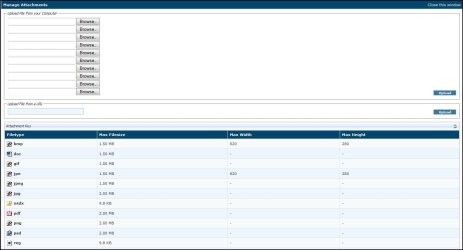
From there, click on the browse button to open up the File Upload window.
Insert your image and click on The Upload button to the right.
You can also upload the file from a URL.
Now, close the Attachment window at the top right.
You can now reclick on your paperclip..
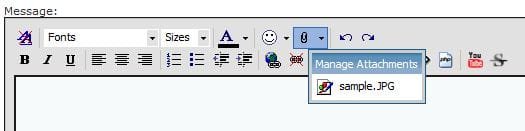
Pick the file to insert into your post.
It will look like this:
[ATTACH]0000[/ATTACH]
You can then Preview your post to see what it will look like.
This is not the only way to do this but it is one method used by many that keeps the threads/posts looking clean instead of having huge screenshots.
SEE ALSO: How to Upload and Post a Screenshot and File in Seven Forums
at the top of the Reply Box.If you do not know about the Snipping Tool, please read this Tutorial on it.
How to use the Snipping Tool in Vista - Vista Forums
To start, use the Snipping Tool or whatever screenshot program you prefer and save it as a .jpeg/jpg/jpe.
When you are ready to include a screen shot in your thread/post, click on the paperclip in the reply box, where it will go to the Manage Attachments page.
From there, click on the browse button to open up the File Upload window.
Insert your image and click on The Upload button to the right.
You can also upload the file from a URL.
Now, close the Attachment window at the top right.
You can now reclick on your paperclip..
Pick the file to insert into your post.
It will look like this:
[ATTACH]0000[/ATTACH]
You can then Preview your post to see what it will look like.
This is not the only way to do this but it is one method used by many that keeps the threads/posts looking clean instead of having huge screenshots.
SEE ALSO: How to Upload and Post a Screenshot and File in Seven Forums
Last edited:
My Computer
- Computer type
- PC/Desktop
- Computer Manufacturer/Model Number
- Airbot 2.0
- OS
- Windows 7 Ultimate x64 SP1
- CPU
- Core i7 920 (D0) @ 4Ghz, *26c idle *65c full load on air
- Motherboard
- Asus P6X58D Premium - Sata 6Gb/s - USB 3.0
- Memory
- 12GB DDR3 Corsair Dominator -CMD12GX3M6A1600C8 at 1600MHz
- Graphics Card(s)
- Zotac Geforce GTX 770
- Sound Card
- ASUS Xonar D2X
- Monitor(s) Displays
- 1 LG 24" Flatron W2453V-PF 1 Samsung 24" P2450H both 2ms RT
- Screen Resolution
- 1920x1080@60hz
- Hard Drives
- 1 Samsung 250GB 840 Evo SSD
1 OCZ Vertex2 180GB SSD
1 TB Samsung Spinpoint F1 7200RPM 32MB cache
2 500GB WD Caviar Blacks 7200RPM 32MB cache (WD5001AALS)
Pioneer DVD Burner DVR-S18M
- PSU
- Corsair HX1000W
- Case
- Cooler Master HAF 932
- Cooling
- Case Fans *3 230mm, *1 140mm/CPU - *Tuniq Tower 120 Extreme
- Keyboard
- Logitech Wireless MK700
- Mouse
- Logitech Wireless MK700
- Internet Speed
- DL 15 Mbps UL 0.98 Mbps
- Antivirus
- None
- Browser
- Firefox Nightly
- Other Info
- Processor-7.7 *RAM- 7.9 *Graphics-7.9 *Gaming Graphics- 7.9 *SSD- 7.8 W.E.I final score= 7.7
*Phone- LG Nexus 5


 SK
SK


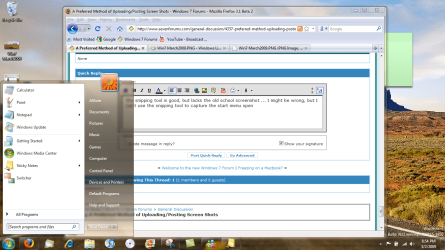

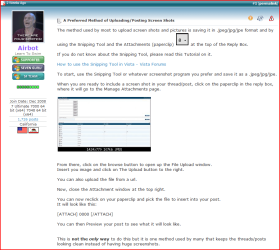


 how so? one click and I see it at a nice proper readable res thats scaled to my browser window's size...