Windows 7 reinstallation time, couple Q's first

Backdraft

New member
Local time
4:45 PM
Messages
10
Hi,

I'm planning my semi-annual Windows reinstall time soon, but this time I want to do it properly and future-proof it as much as possible. I love the fresh feeling of a clean Windows install, but also insist on tweaking Windows for bloat/performance/etc., mainly using the TweakGuides Tweaking Companion, however dread having to spend literally days going through the guide every time for a fresh install. So I just wanted to verify my attack plan this time with the gurus here:

1. Go through How to Optimize an SSD / HDD When You're Ready to Reinstall the Operating System guide to prepare my HDD(s).

2. Go through normal Windows 7 reinstall (although I am looking to move my User Profile to another partition during installation using this guide, of which I have some questions below)

3. Tweak Windows using TGTC (no installation of updates or drivers).

4. Use built-in Windows 7 disk backup/image tool, or a 3rd party like Macrium Reflect or Acronis, to create a future-proof, tweaked version of Windows 7 so I can automatically deploy it in minutes to any machines I want a fresh reinstall on.

Of course reason I'm leaving out updates or drivers is that they get out of date fast, and also I want a hardware-agnostic image as much as possible. Plus I can always update the image later on when SP1 is released.

Some questions though:

If I move my User Profile/ProgramData to another partition as per the guide above, and in the future wipe and reinstall a fresh Windows 7 image (say located on another partition), are there any compatibility issues I should be aware when connecting the old User Profile/ProgramData folder to the new Windows install (ie. say when reinstalling applications again)? I know that many programs store leftover data in User Profile/AppData/ folder(s), so I feel I should be dutily concerned. Or is it just better practice to, whenever reinstalling Windows, to also just start a clean slate with the User Profile/ProgramData folder?

In the future, how do I redeploy my tweaked Windows 7 image? Do I wipe the HDD first, and use the Windows 7 DVD to deploy the image onto the HDD?

Thanks and sorry for being a noob, just want to make sure I do it right the first time.
 

My Computer My Computer

OS
Windows 7 Professional x64
If I move my User Profile/ProgramData to another partition as per the guide above, and in the future wipe and reinstall a fresh Windows 7 image (say located on another partition), are there any compatibility issues I should be aware when connecting the old User Profile/ProgramData folder to the new Windows install (ie. say when reinstalling applications again)? I know that many programs store leftover data in User Profile/AppData/ folder(s), so I feel I should be dutily concerned. Or is it just better practice to, whenever reinstalling Windows, to also just start a clean slate with the User Profile/ProgramData folder?
I feel confident only to answer this question of yours, leaving other questions to real geeks to answer ;)

As an example, I use my own computers. Using the method described in tutorial, I have relocated Users and ProgramData on D: on all rigs. After finalizing the installation, I then create a system image of C: using Windows Backup.

Now if I need to restore the image, it is enough to restore this system image of C:, because it already contains all necessary pointers to Users and ProgramData on D:. All applications can and will find necessary files and folders on %userprofile%\AppData and ProgramData, because the system image already has the needed information on Windows environment variables, and all registry entries point to right locations.

I did an image restore last time about a month ago on my desktop computer, without a problem. That's the advantage of using this method, Users and ProgramData are relocated before creating any user accounts thus making new locations "hard coded" to the system.

Please notice when making system images that if your system has a separate 100 MB system reserved partition, you need to image that, too.

Kari
 

My Computer My Computer

Computer type
Laptop
Computer Manufacturer/Model Number
HP ENVY 17-1150eg
OS
Windows 10 Pro x64 EN-GB
CPU
1.6 GHz Intel Core i7-720QM Processor
Memory
6 GB
Graphics Card(s)
ATI Mobility Radeon HD 5850 Graphics
Sound Card
Beats sound system with integrated subwoofer
Monitor(s) Displays
17" laptop display, 22" LED and 32" Full HD TV through HDMI
Screen Resolution
1600*900 (1), 1920*1080 (2&3)
Hard Drives
Internal: 2 x 500 GB SATA Hard Disk Drive 7200 rpm
External: 2TB for backups, 3TB USB3 network drive for media
Cooling
As Envy runs a bit warm, I have it on a Cooler Master pad
Keyboard
Logitech diNovo Media Desktop Laser (bluetooth)
Mouse
Logitech Performance Mouse MX
Internet Speed
50/10 Mbps VDSL
Antivirus
Windows Defender 4.3.9431.0
Browser
Maxthon 3.5.2., IE11
In all honesty, the days of needing to tweak Windows ended with the release of Windows 7. It is already lean and mean, and fully optimized for the best performance. The best advice you can be given is to install it according to defaults and leave it alone. There is no need, nor benefit in moving your profile to another location. Instead, use that other location for regular backups of your important data and let Windows put data where it wants to.
 

My Computer My Computer

Computer Manufacturer/Model Number
Custom
OS
Windows 7 Ultimate RTM (Technet)
CPU
3.00 gigahertz Intel Core2 Duo E8400
Motherboard
ASUSTeK Computer INC. P5K/EPU Rev 1.xx
Memory
4GB
Graphics Card(s)
ATI Radeon X1950 Pro
Sound Card
Built in HD Audio
Monitor(s) Displays
22" Gateway LCD
Screen Resolution
1920 x 1200
Hard Drives
ST3160023A [Hard drive] (160.04 GB) -- drive 0, rev 8.01, ST3500630AS [Hard drive] (500.11 GB) -- drive 2, rev 3.AAK
ST3500630AS [Hard drive] (500.11 GB) -- drive 1, rev 3.AAK
Keyboard
Logitech G11
Mouse
Microsoft Wireless Laser Mouse 5000
Internet Speed
13.44 Mbps
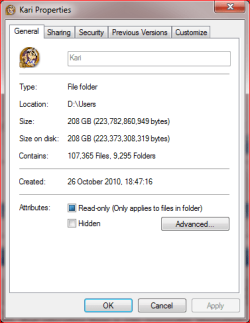
I'm sorry MacGyvr but I disagree. Some users use quite small SSD's as system drives, leaving them too little space for everything. Some others, like myself, have so huge amounts of data on for instance personal user folders, that relocating them is only reasonable alternative. For instance my user folder in this laptop I'm using now is at the moment 208GB; I'd rather relocate the whole folder when installing, and then never need to think that again. Everything I save in my folders and librarries is automatically saved on D:, not taking space on my system drive.

Kari

User_Folder_19122010.PNG
 

My Computer My Computer

Computer type
Laptop
Computer Manufacturer/Model Number
HP ENVY 17-1150eg
OS
Windows 10 Pro x64 EN-GB
CPU
1.6 GHz Intel Core i7-720QM Processor
Memory
6 GB
Graphics Card(s)
ATI Mobility Radeon HD 5850 Graphics
Sound Card
Beats sound system with integrated subwoofer
Monitor(s) Displays
17" laptop display, 22" LED and 32" Full HD TV through HDMI
Screen Resolution
1600*900 (1), 1920*1080 (2&3)
Hard Drives
Internal: 2 x 500 GB SATA Hard Disk Drive 7200 rpm
External: 2TB for backups, 3TB USB3 network drive for media
Cooling
As Envy runs a bit warm, I have it on a Cooler Master pad
Keyboard
Logitech diNovo Media Desktop Laser (bluetooth)
Mouse
Logitech Performance Mouse MX
Internet Speed
50/10 Mbps VDSL
Antivirus
Windows Defender 4.3.9431.0
Browser
Maxthon 3.5.2., IE11
I'm sorry MacGyvr but I disagree. Some users use quite small SSD's as system drives, leaving them too little space for everything. Some others, like myself, have so huge amounts of data on for instance personal user folders, that relocating them is only reasonable alternative. For instance my user folder in this laptop I'm using now is at the moment 208GB; I'd rather relocate the whole folder when installing, and then never need to think that again. Everything I save in my folders and librarries is automatically saved on D:, not taking space on my system drive.

Kari

View attachment 124686

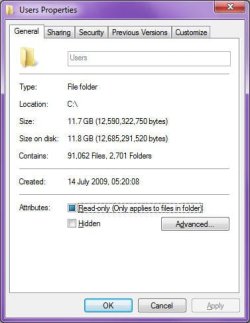
How'd you managed that, Kari? 208GB for the "Users", folder?!

I've not moved any folders except those with built-in facility to allow then to be moved (Document, Pictures, etc...), and the "Users" folder on my drive is right now sitting on 11.7GB, bearing in mind that the total personal file count on my computer (mostly pictures and videos), is pushing nearly 520,000 files:

Image1.jpg

C:\Users


I think maybe that the point MacGyvr was trying to make, and I agree, is that it is not necessary to move the "Programdata" or "Users" folders. If I did so, that would be nearly 12GB I'd be wasting on a data drive.

System drive for system files.
 

My Computer My Computer

Computer type
PC/Desktop
Computer Manufacturer/Model Number
Virtual Machine
OS
Windows 7 Professional 32-bit SP1
CPU
AMD A4/A6
Motherboard
Intel Corporation 440BX Desktop Reference Platform
Memory
3.00GB EDO
Graphics Card(s)
VMware SVGA 3D
Sound Card
High Definition Audio Device
Monitor(s) Displays
Generic Non-PnP Monitor on VMware SVGA 3D
Screen Resolution
1440x900
Hard Drives
1 x 60GB VMware Virtual SATA Hard Drive ATA Device
Antivirus
Kaspersky Total Security
Precisely, system drive for system files, personal files and folders on another drive.

In my case, the size of my user folder includes for instance hundreds of movies and music albums, taking a lot of space even when converted to space saving formats. Alone videos I have filmed myself take about 30 gigs, and Pictures folder is over 20 gigs. AppData is almost 9 gigs, which would simply be unnecessary big to store for instance on a small, 30 to 50 gigs SSD. When the environment variable %userprofiles% has a new value D:\Users, I simply do not need to think of that. My C: is only for Windows, and Program Files alone. What's wrong with that? As a Libraries-feature lover, this way I also have no need to setup Libraries to find certain folders; I'm using default user folders and Libraries (Documents, Music, Pictures and so on) and everything is there by default, without me needing to change a thing.

I'm a little surprised to read your comments. Almost every geek I know has relocated at least some of the personal folders. Why not do it in the simplest possible way, relocating all personal folders at the same time? The method I have described in that tutorial is the only absolutely, completely idiot-proof "do it once and forget" method there is to do that. It makes it easier to use those smaller SSD drives as system drive, without ever needing to think where own docs, pics, music and so on are saved. After restoring an image or restore point, there's no need to recreate junction points or links, no need to re-edit registry, nothing.

Kari
 

My Computer My Computer

Computer type
Laptop
Computer Manufacturer/Model Number
HP ENVY 17-1150eg
OS
Windows 10 Pro x64 EN-GB
CPU
1.6 GHz Intel Core i7-720QM Processor
Memory
6 GB
Graphics Card(s)
ATI Mobility Radeon HD 5850 Graphics
Sound Card
Beats sound system with integrated subwoofer
Monitor(s) Displays
17" laptop display, 22" LED and 32" Full HD TV through HDMI
Screen Resolution
1600*900 (1), 1920*1080 (2&3)
Hard Drives
Internal: 2 x 500 GB SATA Hard Disk Drive 7200 rpm
External: 2TB for backups, 3TB USB3 network drive for media
Cooling
As Envy runs a bit warm, I have it on a Cooler Master pad
Keyboard
Logitech diNovo Media Desktop Laser (bluetooth)
Mouse
Logitech Performance Mouse MX
Internet Speed
50/10 Mbps VDSL
Antivirus
Windows Defender 4.3.9431.0
Browser
Maxthon 3.5.2., IE11
Precisely, system drive for system files, personal files and folders on another drive.

In my case, the size of my user folder includes for instance hundreds of movies and music albums, taking a lot of space even when converted to space saving formats. Alone videos I have filmed myself take about 30 gigs, and Pictures folder is over 20 gigs. AppData is almost 9 gigs, which would simply be unnecessary big to store for instance on a small, 30 to 50 gigs SSD. When the environment variable %userprofiles% has a new value D:\Users, I simply do not need to think of that. My C: is only for Windows, and Program Files alone. What's wrong with that? As a Libraries-feature lover, this way I also have no need to setup Libraries to find certain folders; I'm using default user folders and Libraries (Documents, Music, Pictures and so on) and everything is there by default, without me needing to change a thing.

I'm a little surprised to read your comments. Almost every geek I know has relocated at least some of the personal folders. Why not do it in the simplest possible way, relocating all personal folders at the same time? The method I have described in that tutorial is the only absolutely, completely idiot-proof "do it once and forget" method there is to do that. It makes it easier to use those smaller SSD drives as system drive, without ever needing to think where own docs, pics, music and so on are saved. After restoring an image or restore point, there's no need to recreate junction points or links, no need to re-edit registry, nothing.

Kari

Sure, moving the entire "Users" folder all at once does indeed make some sense because you move one folder once. But alot of what's in "Users" is of no real value to a user in terms of personal files and such. And using your method to move the entire "Users" folder, or moving each recognized user-folder individually to another drive or partition, has no bearing on the outcome of what happens when an image is created and later used to restore the system.

Just as the %USERPROFILE% info is stored in the reigstry, so to is the information pertaining to the locations of Documents, Pictures and other user folders. No junction points or links are involved. All my user folders where moved to other drives using the built-in facilities, leaving "C:\Users" in it's original location, and if or when I need to restore from a backup image, they will all still be pointing to the locations I have specified.

Moving your Documents, Pictures, Videos, etc completely out of "C:\Users", even if that folder itself has been moved, is also a good idea, because it separates physically your personal files from system files. For example, my own Documents folder points to "F:\Documents", Pictures to "F:\Pictures", Videos to "K:\Videos". That way, if for whatever reason I am not able to access "C:\Users", I know that at least I'll still be able get to my own stuff.

Each method I suppose has merrit. I like to seperate the stuff that I want and the stuff I don't need...
 

My Computer My Computer

Computer type
PC/Desktop
Computer Manufacturer/Model Number
Virtual Machine
OS
Windows 7 Professional 32-bit SP1
CPU
AMD A4/A6
Motherboard
Intel Corporation 440BX Desktop Reference Platform
Memory
3.00GB EDO
Graphics Card(s)
VMware SVGA 3D
Sound Card
High Definition Audio Device
Monitor(s) Displays
Generic Non-PnP Monitor on VMware SVGA 3D
Screen Resolution
1440x900
Hard Drives
1 x 60GB VMware Virtual SATA Hard Drive ATA Device
Antivirus
Kaspersky Total Security
I just fail to see the point that instead of doing one simple extra step when installing, using two minutes of extra time, you want to do that manually for every folder and every user you want to relocate. Doing it once as I do, it's done. All future user profiles and folders are automatically created on that new location. No need to then manually modify the settings to those folders this new user wants to relocate.

Might be that I'm missing something here, I just feel odd that you say it's OK to relocate Documents, or Pictures, or Videos, doing it manually, but it's not OK to relocate the whole user folder automatically, even before the accounts are created.

Kari
 

My Computer My Computer

Computer type
Laptop
Computer Manufacturer/Model Number
HP ENVY 17-1150eg
OS
Windows 10 Pro x64 EN-GB
CPU
1.6 GHz Intel Core i7-720QM Processor
Memory
6 GB
Graphics Card(s)
ATI Mobility Radeon HD 5850 Graphics
Sound Card
Beats sound system with integrated subwoofer
Monitor(s) Displays
17" laptop display, 22" LED and 32" Full HD TV through HDMI
Screen Resolution
1600*900 (1), 1920*1080 (2&3)
Hard Drives
Internal: 2 x 500 GB SATA Hard Disk Drive 7200 rpm
External: 2TB for backups, 3TB USB3 network drive for media
Cooling
As Envy runs a bit warm, I have it on a Cooler Master pad
Keyboard
Logitech diNovo Media Desktop Laser (bluetooth)
Mouse
Logitech Performance Mouse MX
Internet Speed
50/10 Mbps VDSL
Antivirus
Windows Defender 4.3.9431.0
Browser
Maxthon 3.5.2., IE11
I just fail to see the point that instead of doing one simple extra step when installing, using two minutes of extra time, you want to do that manually for every folder and every user you want to relocate. Doing it once as I do, it's done. All future user profiles and folders are automatically created on that new location. No need to then manually modify the settings to those folders this new user wants to relocate.

Might be that I'm missing something here, I just feel odd that you say it's OK to relocate Documents, or Pictures, or Videos, doing it manually, but it's not OK to relocate the whole user folder automatically, even before the accounts are created.

Kari

As I said, both methods have merit. It's just that yours doesn't fit my usage patterns.

I'm the only user on Prometheus, and will always be the only user. The only people around who may want to use it can either access what I allow them to over the network, or they can get their own computer.

So my my point of view, moving the whole "C:\Users" doesn't make alot of sense. If I need to do any checking of something that may require another user account, then I use Windows 7 inside of a virtual PC, because it's quicker than having to stop what I'm doing to log off, login to another account, then back again (quicker even that using "Switch User"). I get to continue doing what I'm doing without losing focus on my current work...
 

My Computer My Computer

Computer type
PC/Desktop
Computer Manufacturer/Model Number
Virtual Machine
OS
Windows 7 Professional 32-bit SP1
CPU
AMD A4/A6
Motherboard
Intel Corporation 440BX Desktop Reference Platform
Memory
3.00GB EDO
Graphics Card(s)
VMware SVGA 3D
Sound Card
High Definition Audio Device
Monitor(s) Displays
Generic Non-PnP Monitor on VMware SVGA 3D
Screen Resolution
1440x900
Hard Drives
1 x 60GB VMware Virtual SATA Hard Drive ATA Device
Antivirus
Kaspersky Total Security
It is XPired oldthink to tweak Win7 like we had to do XP or early Vista to claw back performance. It is already as lean and optimized as an OS can be. Tweaks outside of normal system settings will almost always come back to bite you. Improve hardware or edit visual effects if you need better performance.

Nor do we need to clean reinstall Win7 for a "fresh feel" - instead make a built-in backup image shortly after install/setup to reimage the HD in 15 minutes. Once the image is made you never have to reinstall again. Subsequent images can get you back to where System Restore can't take you, but it is the baseline image after install that can substitute for old-timey reinstalls. http://www.sevenforums.com/tutorials/663-backup-complete-computer-create-image-backup.html

Here are some tips for getting a purrfect reinstall based on hundreds done here: http://www.sevenforums.com/installation-setup/125874-re-install-windows-7-a.html#post1086729
 
I have to chime in here to and say that I think "Pictures," "Music" and "Movies" (if you have a lot of them) should always be moved out of the user structure altogether. In my case, I created folders for those items on other drives (I have over 200GB of music alone). I created libraries that have those locations in them, but removed the old "users" locations from those libraries. Everything works as it should, but my "user" information (including actual "documents") still resides in the default location. I think this is the best option as it leaves the user structure intact, and takes care of all those media files as well.
 

My Computer My Computer

Computer Manufacturer/Model Number
Custom
OS
Windows 7 Ultimate RTM (Technet)
CPU
3.00 gigahertz Intel Core2 Duo E8400
Motherboard
ASUSTeK Computer INC. P5K/EPU Rev 1.xx
Memory
4GB
Graphics Card(s)
ATI Radeon X1950 Pro
Sound Card
Built in HD Audio
Monitor(s) Displays
22" Gateway LCD
Screen Resolution
1920 x 1200
Hard Drives
ST3160023A [Hard drive] (160.04 GB) -- drive 0, rev 8.01, ST3500630AS [Hard drive] (500.11 GB) -- drive 2, rev 3.AAK
ST3500630AS [Hard drive] (500.11 GB) -- drive 1, rev 3.AAK
Keyboard
Logitech G11
Mouse
Microsoft Wireless Laser Mouse 5000
Internet Speed
13.44 Mbps
Thanks greg, that's my point, I never made an image before in my previous reinstalls, and want to do it right this time so I don't have to go through the entire install procedure next time.

Also, I'm assuming that's it's best to start with a fresh AppData folder whenever reinstalling Windows, to avoid any potential compatibility issues? I just realized I don't really need my profile folder except for My Documents, which is relatively easy to backup/port over to a new install.

Thanks all.
 

My Computer My Computer

OS
Windows 7 Professional x64
Correct, I would never import AppData as it is a corruption path from old install into new clean install.

I drag my active User folders to external then drag them back after install.

Let us know if you need any further help.
 
Back
Top