Force DVI/HDMI resolutions and refresh rates

How to Force DVI or HDMI Resolutions and Refresh Rates in Windows 7

   Information
There have been innumerable posts on SevenForums about things like 59Hz refresh rates and 1080p 16:9 HDTVs that display only 1024x768 when connected with DVI or HDMI. After a ton of research and development I think I've got a working solution for virtually all of these issues.


Starting with Vista, Microsoft has required graphics vendors to read and respect monitor capability information from the display itself if they wanted to pass Windows Hardware Quality Labs (WHQL) certification. This display capability data is encapsulated in an EDID. Few HDTV manufacturers sought WHQL and it's unclear whether Microsoft tests display EDIDs from monitor manufacturers as a WHQL requirement. Please let me know if you have a WHQL display that seems to have a bad EDID.

As a result, many DVI/HDMI connected HDTVs and some monitors are locked into displaying only those resolutions and refresh rates that are specified in the EDID. No graphics adapter or driver is supposed to allow configurations not listed in the EDID at least as a default. Newer ATI drivers allow for a small number of HD resolutions to be forced but it's been hit or miss for the users I've surveyed and nVidia's offerings don't seem to be a 100% solution either.

The natural solution would appear to be changing the EDID information in the display. Rarely, this is possible with Powestrip if the display stores the EDID in a flash memory but more commonly the EDID is stored in an EPROM that can only be updated with specialized hardware. I've talked with several display vendors during the development of this tutorial and none of them consider a bad EDID grounds for warranty service. So if next to no displays support updating the EDID through software and the manufacturer won't fix the hardware, what are we left to do? Break out the toolkit and warm up the soldering iron?

While that's well within my capabilities it seems to put some end-users off a bit, although I really can't understand why -- I love the smell of solder in the morning! :geek: But there has to be a better way right? Again, Microsoft has a solution if you really dig for it and do your homework: How to Use an INF to Override the Monitor EDID While it's not intended for end users, what really fun stuff is? The challenge was to develop a method accessible to a greater audience -- to improve on the solution that Microsoft provides that's intended for hardware manufacturers and make it work for us.
   Warning

Prerequisites
  • Read and understand both linked documents above.
  • Post questions if anything is unclear before you proceed.
  • Don't blame me when you ruin your $3000 HDTV. Smoke can happen.
  • Read up on what your displays true capabilities are stick close to them.
  • This is more of a coffee tutorial than a beer tutorial...


Procedure
  1. Download View attachment Phoenix.zip and extract it to a working folder.
  2. Run it and click the registry toolbar button.
  3. Click the pencil toolbar button for edit mode.
  4. Change the EDID settings to reflect you display's true capabilities
  5. Pay special attention to the Standard Timings tab.
  6. Detailed Timing blocks 2-4 provide some very interested additional options.
  7. Save the EDID to a .DAT file in the working folder.
  8. Download moninfo.exe and install it.
  9. Open the saved .DAT with MonInfo and make sure it doesn't complain about it
  10. If it does post here for help
  11. If MonInfo reads in an displays the settings the way you configured them in Phoenix then...
  12. Select Create INF... from the file menu and save it to the working folder.
  13. Feel free to edit the strings in the INF to your liking.
  14. Open Start, type devmgmt.msc and press Enter.
  15. Select the monitor you want to change, right click and select Update Driver Software
  16. Use the tried and true "Have Disk" method to select the INF and install it.
  17. Reboot and enjoy your new resolution!


Last edited by a moderator:
Thank you very much for your solution!!
Thanks to you, my Philips 109s can run again in 2010!

What, they didn't support EDID?

No, the 109s has an EDID with a minimum frequency of 75Hz on Windows 7.
But for a resolution of 1600x1200, the screen can only go up to 70Hz.
At 75Hz, the image displayed on the screen but is brown and blackened edges.

Again thank you for using your tutorial!
 

My Computer My Computer

At a glance

Ubuntu 10.10 / Seven / MacOS X
OS
Ubuntu 10.10 / Seven / MacOS X
Help

Hi, I just got the Samsung LCD SynyMaster 2233RZ 120hz. The monitor came with a DVI-DL link but my laptop that I want to connect it to does not support DVI. I went ahead and bought a DVI-D to HDMI Cable. It won't let me surpass 60hz when I try to change the refresh rate. I tried following this guide but it seems so confusing. Can anyone help?
 

My Computer My Computer

At a glance

Windows 7 64bit
OS
Windows 7 64bit
Hi, I just got the Samsung LCD SynyMaster 2233RZ 120hz. The monitor came with a DVI-DL link but my laptop that I want to connect it to does not support DVI. I went ahead and bought a DVI-D to HDMI Cable. It won't let me surpass 60hz when I try to change the refresh rate. I tried following this guide but it seems so confusing. Can anyone help?

That limitation is entirely imposed by your adapter. You should be able to override any mangled EDID information and choose the resolution and refresh rate you desire by following the instructions in this tutorial.
 

My Computer My Computer

At a glance

El Capitan / Windows 10i7-4980HQ16GBIris 5200
Computer type
Laptop
Computer Manufacturer/Model Number
Apple
OS
El Capitan / Windows 10
CPU
i7-4980HQ
Memory
16GB
Graphics Card(s)
Iris 5200
Is there anyway to restore default settings? When I tried using this guide I was careless and experimented with the wrong things.
 

My Computer My Computer

At a glance

Windows 7 64bit
OS
Windows 7 64bit
Is there anyway to restore default settings? When I tried using this guide I was careless and experimented with the wrong things.

Press F8 while rebooting and select low res or 640x480 mode. Then uninstall the custom monitor driver using device manager.
 

My Computer My Computer

At a glance

El Capitan / Windows 10i7-4980HQ16GBIris 5200
Computer type
Laptop
Computer Manufacturer/Model Number
Apple
OS
El Capitan / Windows 10
CPU
i7-4980HQ
Memory
16GB
Graphics Card(s)
Iris 5200
Change to CRT

So I went ahead and plugged my old CRT in that i KNOW gets 100hz on 1024x768. I ran through all the directions correctly and when I restart it shows in drop-down menu that I have the ability to put it to a 100hz. But once I click apply my screen says out of range/frequency? I know for a fact it has something to do with my computer not the monitor itself. Any ideas?
 

My Computer My Computer

At a glance

Windows 7 64bit
OS
Windows 7 64bit
So I went ahead and plugged my old CRT in that i KNOW gets 100hz on 1024x768. I ran through all the directions correctly and when I restart it shows in drop-down menu that I have the ability to put it to a 100hz. But once I click apply my screen says out of range/frequency? I know for a fact it has something to do with my computer not the monitor itself. Any ideas?

Without using the modified monitor driver you created as a product of running through the tutorial, what were the capabilities reported by the monitor? From you recent posts it appears that there are at least two monitors in question here, an "old" CRT, a SyncMaster 2233RZ and maybe something else. The SyncMaster supports only DVI but a true DVI to HDMI adapter cable should work just fine supposing that it is straight wired owing to the fact that the digital video signal carried by HDMI is identical to that carried by DVI-D. I'd verify the SyncMaster's performance on a computer with native DVI and make a technical inquiry about your adapter cable. What does MonInfo claim are your SyncMaster's capabilities and how do they differ from 1) what you want and 2) what Windows is reporting? I've seen some interference from "over-configured" graphics adapter drivers so that might be worth looking at -- later ATI Catalyst drivers allow you to reset the driver settings to their factory defaults.
 

My Computer My Computer

At a glance

El Capitan / Windows 10i7-4980HQ16GBIris 5200
Computer type
Laptop
Computer Manufacturer/Model Number
Apple
OS
El Capitan / Windows 10
CPU
i7-4980HQ
Memory
16GB
Graphics Card(s)
Iris 5200
I returned the Samsung 2233RZ to newegg. I am now using an old Dell CRT E773c Dell E773c - display - CRT - 17" - CRT Monitors - CNET Archive I am attempting to hook it to my gaming lenovo laptop which has an ATI cart 5730 HD 1GB. When I open MonInfo it reads this


Monitor
Model name............... DELL E773c
Windows description...... Generic PnP Monitor
Manufacturer............. Dell
Plug and Play ID......... DELD005
Serial number............ 6418037O30DW
Manufacture date......... 2003, ISO week 30
-------------------------
EDID revision............ 1.3
Input signal type........ Analog 0.700,0.000 (0.7V p-p)
Sync input support....... Separate
Display type............. RGB color
Screen size.............. 320 x 240 mm (15.7 in)
Power management......... Active off/sleep
Extension blocs.......... None
-------------------------
DDC/CI................... n/a

Color characteristics
Default color space...... sRGB
Display gamma............ 2.20
Red chromaticity......... Rx 0.631 - Ry 0.328
Green chromaticity....... Gx 0.275 - Gy 0.600
Blue chromaticity........ Bx 0.143 - By 0.057
White point (default).... Wx 0.283 - Wy 0.298
Additional descriptors... None

Timing characteristics
Horizontal scan range.... 30-70kHz
Vertical scan range...... 50-160Hz
Video bandwidth.......... 110MHz
CVT standard............. Not supported
GTF standard............. Not supported
Additional descriptors... None
Preferred timing......... Yes
Native/preferred timing.. 1024x768p at 75Hz
Modeline............... "1024x768" 78.750 1024 1040 1136 1312 768 769 772 800 +hsync +vsync

Standard timings supported
720 x 400p at 70Hz - IBM VGA
640 x 480p at 60Hz - IBM VGA
640 x 480p at 75Hz - VESA
800 x 600p at 75Hz - VESA
1024 x 768p at 75Hz - VESA
640 x 480p at 85Hz - VESA STD
800 x 600p at 85Hz - VESA STD
1024 x 768p at 100Hz - VESA STD
1280 x 1024p at 60Hz - VESA STD
1152 x 864p at 75Hz - VESA STD

Report information
Date generated........... 1/2/2011
Software revision........ 2.52.0.857
Data source.............. Registry
Operating system......... 6.1.7600.2

Raw data
00,FF,FF,FF,FF,FF,FF,00,10,AC,05,D0,57,44,30,33,1E,0D,01,03,68,20,18,78,2E,8A,A9,A1,54,46,99,24,
0E,48,4C,A4,42,00,31,59,45,59,61,68,81,80,71,4F,01,01,01,01,01,01,C3,1E,00,20,41,00,20,30,10,60,
13,00,36,E6,10,00,00,1E,00,00,00,FF,00,36,34,31,38,30,33,37,4F,33,30,44,57,0A,00,00,00,FC,00,44,
45,4C,4C,20,45,37,37,33,63,0A,20,20,00,00,00,FD,00,32,A0,1E,46,0B,00,0A,20,20,20,20,20,20,00,9D
 

My Computer My Computer

At a glance

Windows 7 64bit
OS
Windows 7 64bit
Your monitor reports supporting 1024 x 768p at 100Hz - VESA STD so you shouldn't need to use this tutorial at all if you want to display that timing. You'll need to open advanced settings from screen resolution control panel and choose from the "list all modes" on the adapter tab.
 

My Computer My Computer

At a glance

El Capitan / Windows 10i7-4980HQ16GBIris 5200
Computer type
Laptop
Computer Manufacturer/Model Number
Apple
OS
El Capitan / Windows 10
CPU
i7-4980HQ
Memory
16GB
Graphics Card(s)
Iris 5200
thats what i dont understand, when i do that it says out of range/frequency.
 

My Computer My Computer

At a glance

Windows 7 64bit
OS
Windows 7 64bit
thats what i dont understand, when i do that it says out of range/frequency.

There's been some confusion over the fact that Windows 7 now uses Electronic Industries Alliance (EIA-861B) TV-compatible timings. This explains it from the NTSC standpoint: Screen refresh rate in Windows 7 does not apply the user selected settings on monitors & TVs (that report specific TV compatible timings)

Even though the KB does not go into it, PAL and SECAM rates are also affected so your 100Hz is actually getting set to 100/1001*100Hz or ~99.9Hz by Windows 7 and the driver. See if you can set a custom rate of 100.1 or see this if you're an nVidia guy:

Advanced Timings

Here's a good explanation of where these weird timings came from: View attachment Frame+Rate+Follies.pdf
 
Last edited:

My Computer My Computer

At a glance

El Capitan / Windows 10i7-4980HQ16GBIris 5200
Computer type
Laptop
Computer Manufacturer/Model Number
Apple
OS
El Capitan / Windows 10
CPU
i7-4980HQ
Memory
16GB
Graphics Card(s)
Iris 5200
I have no idea about what that all means. What do I need to do exactly?
 

My Computer My Computer

At a glance

Windows 7 64bit
OS
Windows 7 64bit
I have no idea about what that all means. What do I need to do exactly?

Look for the following page in Catalyst Control Center and set the controls as in the picture. No guarantee that it will work but it's worth a try.
Untitled.png
 

My Computer My Computer

At a glance

El Capitan / Windows 10i7-4980HQ16GBIris 5200
Computer type
Laptop
Computer Manufacturer/Model Number
Apple
OS
El Capitan / Windows 10
CPU
i7-4980HQ
Memory
16GB
Graphics Card(s)
Iris 5200
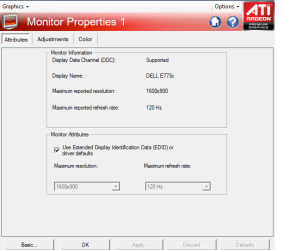
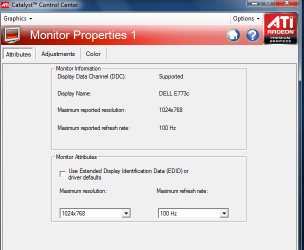
What troubles me is that I do that and it works but still says I have only 85hz when I press the menu button on my monitor. The first picture is what happens when I check that box and and apply it to the resolution 1024x768.
 

Attachments

  • mon.png
    mon.png
    16.6 KB · Views: 673
  • mon2.png
    mon2.png
    21.4 KB · Views: 643

My Computer My Computer

At a glance

Windows 7 64bit
OS
Windows 7 64bit
However, when I try and apply 100hz in the drop down menu from this picture it goes out of range.
 

Attachments

  • Untitled.png
    Untitled.png
    96.5 KB · Views: 254

My Computer My Computer

At a glance

Windows 7 64bit
OS
Windows 7 64bit
Use the ATI control panel to do the resolution and frequency change. Do not involve the Windows control panel at all. I suspect a difference....
 

My Computer My Computer

At a glance

El Capitan / Windows 10i7-4980HQ16GBIris 5200
Computer type
Laptop
Computer Manufacturer/Model Number
Apple
OS
El Capitan / Windows 10
CPU
i7-4980HQ
Memory
16GB
Graphics Card(s)
Iris 5200
What troubles me is that I do that and it works but still says I have only 85hz when I press the menu button on my monitor. The first picture is what happens when I check that box and and apply it to the resolution 1024x768.

You still need to set the resolution after doing that. It just sets the source for the resolution LIMIT not the resolution SETTING.
 

My Computer My Computer

At a glance

El Capitan / Windows 10i7-4980HQ16GBIris 5200
Computer type
Laptop
Computer Manufacturer/Model Number
Apple
OS
El Capitan / Windows 10
CPU
i7-4980HQ
Memory
16GB
Graphics Card(s)
Iris 5200
Hi guys, im having a problem with my TV an LG 32LF15R, i was using my MSI TWIn FROZR GTX 460 768 MB, conected to this tv using a DVI to HDMI converter wich came in the box with the Video Card. TV HDMI input and video card has the converter and an HMDI out.SO.

I was working with an 1920x1080i resolution. It worked flawlessly for about 4 or 5 months, and one day about a week ago i turned on my PC. And nothing all i get its a NO SIGNAL message and now my PC doesnt even detects my TV. I was able to transmit sound to the TV and Video without any problems.

Now cheking on the LG website i realized that this particular monitor supports 1366 x 768p HD resolution so im kinda lost now, why was i able to set higher resolutions if it sopposedly only supported 1366 x 768p ??.

So my pc is not detecting the TV at all i tried using a different cable, tried with the MIni HDMI, and both DVI ports in the back of the card and nothing. im knda sad here so if u could lend me a hand here that but be AWESOME.

and something else, my TV displayed always everything, im talking about the bios and everithing, it was detected when the pc booted.

my question here is if i can force a resolution/refresh rate so the TV is detected again ? is this possible ?
 
Last edited:

My Computer My Computer

At a glance

Windows 7 Ultimate x64Core i7 930 @ 2.8MSI GTX 460 HAWK 768MB
OS
Windows 7 Ultimate x64
CPU
Core i7 930 @ 2.8
Motherboard
Asus P6X58D-E X58
Graphics Card(s)
MSI GTX 460 HAWK 768MB
Monitor(s) Displays
LG TV 32LF15R
PSU
Corsair TX 750W
Case
CoolerMaster HAF 932
upppppppppppppp
 

My Computer My Computer

At a glance

Windows 7 Ultimate x64Core i7 930 @ 2.8MSI GTX 460 HAWK 768MB
OS
Windows 7 Ultimate x64
CPU
Core i7 930 @ 2.8
Motherboard
Asus P6X58D-E X58
Graphics Card(s)
MSI GTX 460 HAWK 768MB
Monitor(s) Displays
LG TV 32LF15R
PSU
Corsair TX 750W
Case
CoolerMaster HAF 932
Hi, I just got the Samsung LCD SynyMaster 2233RZ 120hz. The monitor came with a DVI-DL link but my laptop that I want to connect it to does not support DVI. I went ahead and bought a DVI-D to HDMI Cable. It won't let me surpass 60hz when I try to change the refresh rate. I tried following this guide but it seems so confusing. Can anyone help?

That limitation is entirely imposed by your adapter. You should be able to override any mangled EDID information and choose the resolution and refresh rate you desire by following the instructions in this tutorial.

I have the exact same situation (laptop+HDMI->DL-DVI Cable+2233RZ); I can even run 100Hz for a minute at a time on the resolution I play my game at (640x480) but after 1 minute an error message saying "Not Optimum Mode, Recommended Mode 1680x1050" pops up on the monitor and the screen goes black.

Normally this monitor detects every resolution as 1680x1050 (EDID shows no other resolutions even listed as supported for this monitor) at whatever refresh rate it is you use, but I assume due to the HDMI cable mine shows up as 640x480 @ 100Hz.

I do however know it is possible since it works for one minute at a time and if I want I can simply alt tab after a minute and it will keep working for another minute and so on.

My question is; if I do this thing and change the EDID, will it change something on my COMPUTER or the actual MONITOR? If I change the EDID to say my monitor supports 640x480 @ 100Hz, would it think it's fine and stop showing me that "Not Optimum Mode" screen? If it does change the supported resolutions in the actual monitor, then I assume it would work, but if not; no go.

Cheers,
Tomi
 

My Computer My Computer

At a glance

Windows 7 Ultimate x64
OS
Windows 7 Ultimate x64
Back
Top