Asus Laptop Windows 7 Clean Install Help

dynamite140

New member
Local time
5:54 AM
Messages
149
Hey guys. I got my dell desktop to work after following all the instructions from you posters like greg and barefoot in my other thread.

Today i tried to do the same thing for my laptop. Its an Asus u45jc laptop. I have the Windows 7 Recovery CD for it and the CD with the Driver and Utility CD as well.

However, i encountered multiple problems.

I followed the steps on this site who tells you how to

Complete Walk-through For Doing A Clean Windows 7 Install


The problem that occurs here is


The next screen displays three install options. Depending on your personal needs, you will have to decide which option is best for you. To help you decide, here is what each option means:
Recover Windows to first partition only
This option deletes only the first partition and allows you to keep other partitions, and to create a new system partition as drive "C".

Recover Windows to entire HD
This option deletes all partitions from your hard disk drive and creates a new system partition as drive "C".

Recover Windows to entire HD with two partitions
This option deletes all partitions from your hard drive and creates two new partitions "C" (60%) and "D" (40%).​
My laptop has one hard drive, so my choice is "Recover Windows to entire HD". When you have made your decision, click the "Next" button.
Please note that this process doesn't delete or modify the hidden partition on the hard drive which contains the original factory install. If for some reason you want to return to the original factory install, start by removing the Recovery disc. Then, power cycle the laptop and immediately start tapping the F9 key. Select and press the Enter key over "Windows Setup [EMS Enabled]". The options from that point forward are similar to the ones described here.
The next screen displays another warning. If you accept this, click the "Next" button.

The next screen displays your final warning. If you accept this, click the "Finish" button and the process will start.
Please note that you might notice after clicking the "Finish" button a bit of a pause before the progression gauge begins to move, this is normal. The process can take about 25 minutes to reach 100 percent.
I chosed the 2nd one. Is that fine? Or is the 1st option the best? The thing is this. After i followed all those steps in the link, i noticed the screen resolution and all those things look weird like if i'm missing a ton of stuff. So then i go to control panel, devices and printers and see a computer logo in device with my name-pc on it and a yellow exclammation point. This is what i did on my dell desktop to fix the resolution and all that other stuff that felt like my computer was missing a ton of drivers

I then right click it and do windows update. However, my computer keeps on freezing a ton over and over again. I have tried doing this clean install 2 times already and nothing ever works.

Does anyone who have an asus laptop can help me here?
 

My Computer My Computer

OS
Windows 7
Partitions and hard drives dont mean the same thing. Most people have at least 2 partitions, one for the OS the other for data. I hope you backed up your data before recovering, because it would be wiped out.

Anyways, even if you chose to install win7 on the entire HD, thats fine because you can always create data partitions later.

As for the wierd things, you said you have the driver CD, have you installed all the drivers?
 

My Computer My Computer

Computer Manufacturer/Model Number
Too many to describe...
OS
Windows 7 x64 pro/ Windows 7 x86 Pro/ XP SP3 x86
Hey guys. I got my dell desktop to work after following all the instructions from you posters like greg and barefoot in my other thread.

Today i tried to do the same thing for my laptop. Its an Asus u45jc laptop. I have the Windows 7 Recovery CD for it and the CD with the Driver and Utility CD as well.

However, i encountered multiple problems.

I followed the steps on this site who tells you how to

Complete Walk-through For Doing A Clean Windows 7 Install


The problem that occurs here is


The next screen displays three install options. Depending on your personal needs, you will have to decide which option is best for you. To help you decide, here is what each option means:
Recover Windows to first partition only
This option deletes only the first partition and allows you to keep other partitions, and to create a new system partition as drive "C".

Recover Windows to entire HD
This option deletes all partitions from your hard disk drive and creates a new system partition as drive "C".

Recover Windows to entire HD with two partitions
This option deletes all partitions from your hard drive and creates two new partitions "C" (60%) and "D" (40%).​
My laptop has one hard drive, so my choice is "Recover Windows to entire HD". When you have made your decision, click the "Next" button.
Please note that this process doesn't delete or modify the hidden partition on the hard drive which contains the original factory install. If for some reason you want to return to the original factory install, start by removing the Recovery disc. Then, power cycle the laptop and immediately start tapping the F9 key. Select and press the Enter key over "Windows Setup [EMS Enabled]". The options from that point forward are similar to the ones described here.
The next screen displays another warning. If you accept this, click the "Next" button.

The next screen displays your final warning. If you accept this, click the "Finish" button and the process will start.
Please note that you might notice after clicking the "Finish" button a bit of a pause before the progression gauge begins to move, this is normal. The process can take about 25 minutes to reach 100 percent.
I chosed the 2nd one. Is that fine? Or is the 1st option the best? The thing is this. After i followed all those steps in the link, i noticed the screen resolution and all those things look weird like if i'm missing a ton of stuff. So then i go to control panel, devices and printers and see a computer logo in device with my name-pc on it and a yellow exclammation point. This is what i did on my dell desktop to fix the resolution and all that other stuff that felt like my computer was missing a ton of drivers

I then right click it and do windows update. However, my computer keeps on freezing a ton over and over again. I have tried doing this clean install 2 times already and nothing ever works.

Does anyone who have an asus laptop can help me here?

Hello Dynamite

I don't have a Asus laptop but the third option would seem to me to be the best in your situation,
When it has finished and the devices show exclamation marks you are right that something is missing, these are the drivers only you might not as in your case get them from windows update. To get the drivers you have to go to the asus site and look under support/drivers, you will most likely have to give in your model no. and operating system so that you can download the right drivers

I hope this helps
 

My Computer My Computer

Computer Manufacturer/Model Number
Something I threw together
OS
Windows 7 Ultimate x64
CPU
Intel Core i7-2600K
Motherboard
Asus P8P67
Memory
16 GB G Skill F3-10666 CL9D-4GBRL
Graphics Card(s)
ATI Radeon HD 6870
Sound Card
ATI Radeon HDMI / Realtek ALC892
Monitor(s) Displays
2 x 22" standard monitors / LG32LC56v TV to watch films
Screen Resolution
1920 x1080
Hard Drives
2 x OCZ Vertex2 111.79GB
3 x Samsung103SJ
1 x Samsung103UJ
1 x WD3200BEVT
1 x Hitachi5K320-160
PSU
Thermaltake Toughpower Cable Management 750W
Case
Antec 300
Cooling
Noctua NH-U12P SE2 and 5 120mm Case fans
Keyboard
Microsoft Comfort Curve Keyboard 2000
Mouse
Hama M3110 / Logitech M305
Internet Speed
16000
Other Info
I have also used Fedora, Suse, Ubuntu Linux
And all other Windows from 95 to date except ME
Hello Dynamite

I don't have a Asus laptop but the third option would seem to me to be the best in your situation,
When it has finished and the devices show exclamation marks you are right that something is missing, these are the drivers only you might not as in your case get them from windows update. To get the drivers you have to go to the asus site and look under support/drivers, you will most likely have to give in your model no. and operating system so that you can download the right drivers

I hope this helps
OP, please check whether the 3rd option deletes the recovery partition before trying it anytime. If it does, its not a very good idea.
 

My Computer My Computer

Computer Manufacturer/Model Number
Too many to describe...
OS
Windows 7 x64 pro/ Windows 7 x86 Pro/ XP SP3 x86
Hi there
I have an ACER netbook (love it too --very portable and light when travelling). Very similar to ASUS BTW.

I got rid of all the "pre installed" junk , reformatted the ENTIRE drive and installed Windows 7 ENTERPRISE on it. Runs just fine.

After installing I then used GPARTED to re-partition the drive -- 60 GB for the OS and 260 for the rest.

I changed the original HDD for a faster 7200 RPM 320 GB drive since I'm not too worried about battery but its more convenient to have a larger disk -- I like travelling as LIGHT as possible avoiding carrying spare disks / dvd's etc etc.

If you install on an ENTIRE partition first and hen re-partition the drive you won't get that annoying System partition which can sometimes hose up backups if you need to restore an image.

Note before you start DOWNLOAD ALL the drivers from the ASUS site.

http://support.asus.com/download/download.aspx?SLanguage=en-us

For the inspire one type netbooks you might find 2 different drivers such as for the wireless card --so download them both if you don't know which one your model has.

Install the Chipset drivers etc FROM ASUS first and then any updates from MS.
Some drivers such as the chipset need to be loaded from ASUS as W7 update won't find them or they won't work properly.

I haven't had ANY problems running W7 Enterprise 32 bit on my Netbook.

Cheers
jimbo
 

My Computer My Computer

Computer type
PC/Desktop
Computer Manufacturer/Model Number
Custom built, several laptops HP/ASUS
OS
Linux CENTOS 7 / various Windows OS'es and servers
CPU
Intel i7 Intel i5
Memory
8GB, 16GB
Graphics Card(s)
On Motherboard
Sound Card
Realtek HD audio
Monitor(s) Displays
Apple Cinema display, Samsung LCD
Screen Resolution
1920 X 1080
Hard Drives
4 X 1TB SATA
Mouse
Toshiba wireless laser
Internet Speed
> 20MB up
Hey guys. I actually did it again and it seems to work i think at the moment. I still chosed the 2nd option. That should be okay right?

Also, i noticed my battery life seems to be poorer now. Is there a chance that my laptop can be fine but because i didn't update a driver or something like that, then the battery could be a bit worst?
 

My Computer My Computer

OS
Windows 7
Hey guys. I actually did it again and it seems to work i think at the moment. I still chosed the 2nd option. That should be okay right?

Also, i noticed my battery life seems to be poorer now. Is there a chance that my laptop can be fine but because i didn't update a driver or something like that, then the battery could be a bit worst?

Yes it should be fine if you are happy with it
For battery life right click on a free space on you screen, left click Personalise, Screensaver, Change power settings and make sure that Balanced or Power saver are selected
 

My Computer My Computer

Computer Manufacturer/Model Number
Something I threw together
OS
Windows 7 Ultimate x64
CPU
Intel Core i7-2600K
Motherboard
Asus P8P67
Memory
16 GB G Skill F3-10666 CL9D-4GBRL
Graphics Card(s)
ATI Radeon HD 6870
Sound Card
ATI Radeon HDMI / Realtek ALC892
Monitor(s) Displays
2 x 22" standard monitors / LG32LC56v TV to watch films
Screen Resolution
1920 x1080
Hard Drives
2 x OCZ Vertex2 111.79GB
3 x Samsung103SJ
1 x Samsung103UJ
1 x WD3200BEVT
1 x Hitachi5K320-160
PSU
Thermaltake Toughpower Cable Management 750W
Case
Antec 300
Cooling
Noctua NH-U12P SE2 and 5 120mm Case fans
Keyboard
Microsoft Comfort Curve Keyboard 2000
Mouse
Hama M3110 / Logitech M305
Internet Speed
16000
Other Info
I have also used Fedora, Suse, Ubuntu Linux
And all other Windows from 95 to date except ME
Hey guys. I have a problem. I did this fine last time but had to do it yet again. My problem now is when i put in the asus utility driver cd, it doesn't load anything at all.

Does that mean i can't clean install my asus windows 7 laptop anymore?
 

My Computer My Computer

OS
Windows 7
Do you use the Asus Recovery Disk to reinstall Windows 7?
 

My Computer My Computer

OS
ME/XP/Vista/Win7

My Computer My Computer

Computer Manufacturer/Model Number
* BFK Customs *
OS
W 7 64-bit Ultimate
CPU
Intel Q9550 Yorkfield
Motherboard
ASUS P5Q Pro
Memory
8GB Dominator 8500C5D
Graphics Card(s)
ATI : XFX 5870
Sound Card
Realtek HD Audio 7-1
Monitor(s) Displays
1x 47" LCD HDMI & 3x 26" LCD HDMI
Screen Resolution
1920x1080P & 1920x1200
Hard Drives
1x 80GB Intel X25-M G2 SSD : 1x 500GB & 1x 640GB WD Caviar Black(s)
PSU
Corsair 620HX
Case
Cooler Master RC-690
Cooling
Tuniq Tower 120, 2x 140mm and 3x 120mm case fans
Keyboard
Microsoft 500
Mouse
Razer Diamondback 3G
Internet Speed
14 Mb/s
Other Info
1x Koutech 3Gb/s SATA HDD Hot Swap Rack
Do you use the Asus Recovery Disk to reinstall Windows 7?


yes i did. It went great. My problem is when i put the Asus Driver CD, it never runs the cd at all.
 

My Computer My Computer

OS
Windows 7
When you reinstall with Asus Recovery, all software & Drivers are installed aswell.

Do you have drivers missing in Device Manager.
 

My Computer My Computer

OS
ME/XP/Vista/Win7
hey i got the cd to work finally after doing the install all over again.


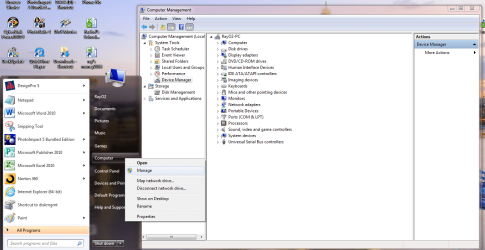
For device manager... i have the yellow exclamation point for

Standard VGA Graphics Adapter

PCI simple communicaiotns controller

Unknown device


I try to right click and update driver but it says its updated already which it isn't...
 

My Computer My Computer

OS
Windows 7
Go to the Support Downloads webpage for your model Asus computer, download and install the display driver and Fax Modem (Simple Communications device).

Look over the list of drivers on the webpage to see what is missing as that will most likely be the unknown Device.

To trace the Unknown Device if necessary, follow these steps: Hardware Identification

Enable hardware auto-updating then watch optional Windows Updates for newer drivers: Automatically get recommended drivers and updates for your hardware
 
Back
Top