How to extract Hyper Terminal from Windows XP Professional ISO file?

strangesweet

New member
Local time
11:12 PM
Messages
9
I have WinRAR and have extracted Windows XP Professional ISO file which I downloaded from school's MSDNAA's web site.

But I can't seem to locate one. Is there a way to obtain Windows XP equivalent (not 3rd party applications) of Hyper Terminal to use it for Windows 7 Ultimate x64?

I need it for school to test assembly language.

Thank you!
 

My Computer My Computer

OS
Windows 7 Ultimate x64
On the Windows 7 box make a new folder under C:\Program Files\HyperTerminal for 32-bit and for 64-bit make a new folder C:\Program Files (x86)\HyperTerminal
From a Windows XP box and copy the following 3 files to the folder that was just created on the Windows 7 box:
C:\Program Files\Windows NT\hypertrm.exe
C:\WINODWS\system32\hypertrm.dll
C:\WINODWS\Help\hypertrm.chm
Now just run hypertrm.exe and HyperTerminal is on Windows 7.
If you want to have HyperTerminal on your Start Menu just create a shortcut to hypertrm.exe and put it inC:\ProgramData\Microsoft\Windows\Start Menu\Programs and when you go to All Programs under the Start Menu HyperTerminal will be there.
The only issue that I have noticed is that when creating a connection the icons do not show, but in my opinion that is a non issue.
 

My Computer My Computer

Computer type
Laptop
Computer Manufacturer/Model Number
ACER ASPIRE 5742G
OS
Microsoft Windows 7 Home Premium 64-bits 7601 Multiprocessor Free Service Pack 1
CPU
Intel(R) Core(TM) i3 CPU M 370 @ 2.40GHz
Motherboard
Acer Aspire 5742G
Memory
4,00 GB
Graphics Card(s)
ATI Mobility Radeon HD 5400 Series
Sound Card
(1) AMD High Definition Audio Device (2) Realtek High Defi
Screen Resolution
1366 x 768 x 32 bits (4294967296 colors) @ 60 Hz
Hard Drives
WDC WD5000BEVT-22ZAT0
do you see hypertrm.* files in extracted ISO? maybe they are located in one of the cab files
 

My Computer My Computer

Computer type
Laptop
Computer Manufacturer/Model Number
ACER ASPIRE 5742G
OS
Microsoft Windows 7 Home Premium 64-bits 7601 Multiprocessor Free Service Pack 1
CPU
Intel(R) Core(TM) i3 CPU M 370 @ 2.40GHz
Motherboard
Acer Aspire 5742G
Memory
4,00 GB
Graphics Card(s)
ATI Mobility Radeon HD 5400 Series
Sound Card
(1) AMD High Definition Audio Device (2) Realtek High Defi
Screen Resolution
1366 x 768 x 32 bits (4294967296 colors) @ 60 Hz
Hard Drives
WDC WD5000BEVT-22ZAT0
On the Windows 7 box make a new folder under C:\Program Files\HyperTerminal for 32-bit and for 64-bit make a new folder C:\Program Files (x86)\HyperTerminal
From a Windows XP box and copy the following 3 files to the folder that was just created on the Windows 7 box:
C:\Program Files\Windows NT\hypertrm.exe
C:\WINODWS\system32\hypertrm.dll
C:\WINODWS\Help\hypertrm.chm
Now just run hypertrm.exe and HyperTerminal is on Windows 7.
If you want to have HyperTerminal on your Start Menu just create a shortcut to hypertrm.exe and put it inC:\ProgramData\Microsoft\Windows\Start Menu\Programs and when you go to All Programs under the Start Menu HyperTerminal will be there.
The only issue that I have noticed is that when creating a connection the icons do not show, but in my opinion that is a non issue.

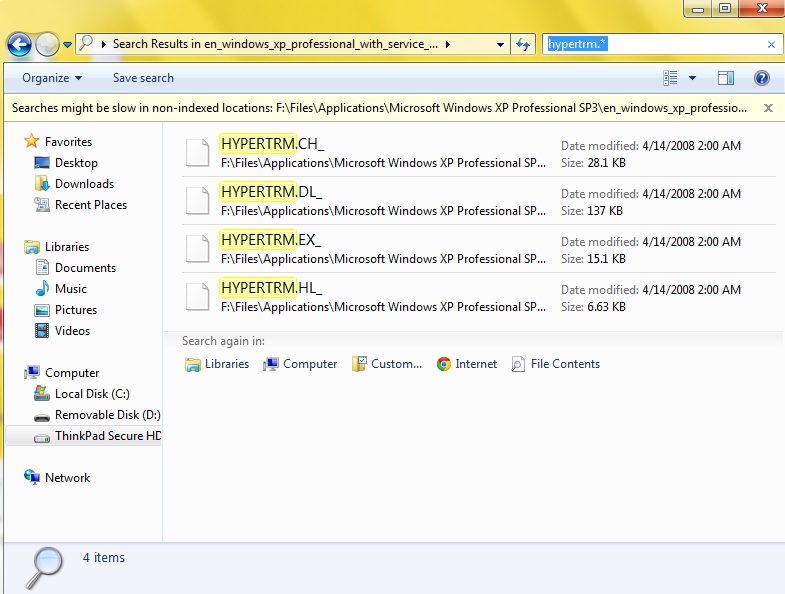
There are number of directories, but not Program Files nor WINDOWS, so I think it may be inside cab directory you are mentioning. I will try to look for it once I get home. Thank you!
 

My Computer My Computer

OS
Windows 7 Ultimate x64
Y0bJn.jpg


These are the files I found in ISO files using 'hypertrm.*' as search keyword. Which files should I copy and to which directory on my hard drive?

Thanks!
 

My Computer My Computer

OS
Windows 7 Ultimate x64
Y0bJn.jpg


These are the files I found in ISO files using 'hypertrm.*' as search keyword. Which files should I copy and to which directory on my hard drive?

Thanks!
actually it's a hlp,dll,exe and chm file. use expand.exe to extract cab Expand Command-Line Options
or use winrar.

just rename dl_ to dll, ex_ to exe as so on (not 100% sure)
 

My Computer My Computer

Computer type
Laptop
Computer Manufacturer/Model Number
ACER ASPIRE 5742G
OS
Microsoft Windows 7 Home Premium 64-bits 7601 Multiprocessor Free Service Pack 1
CPU
Intel(R) Core(TM) i3 CPU M 370 @ 2.40GHz
Motherboard
Acer Aspire 5742G
Memory
4,00 GB
Graphics Card(s)
ATI Mobility Radeon HD 5400 Series
Sound Card
(1) AMD High Definition Audio Device (2) Realtek High Defi
Screen Resolution
1366 x 768 x 32 bits (4294967296 colors) @ 60 Hz
Hard Drives
WDC WD5000BEVT-22ZAT0
These are the files I found in ISO files using 'hypertrm.*' as search keyword. Which files should I copy and to which directory on my hard drive?
Thanks!
where not copy ... I told you before
 

My Computer My Computer

Computer type
Laptop
Computer Manufacturer/Model Number
ACER ASPIRE 5742G
OS
Microsoft Windows 7 Home Premium 64-bits 7601 Multiprocessor Free Service Pack 1
CPU
Intel(R) Core(TM) i3 CPU M 370 @ 2.40GHz
Motherboard
Acer Aspire 5742G
Memory
4,00 GB
Graphics Card(s)
ATI Mobility Radeon HD 5400 Series
Sound Card
(1) AMD High Definition Audio Device (2) Realtek High Defi
Screen Resolution
1366 x 768 x 32 bits (4294967296 colors) @ 60 Hz
Hard Drives
WDC WD5000BEVT-22ZAT0
Yes. I used expand on command prompt and I figured it out few hours ago..

But it doesn't work when all files are put into those directories. It's keep saying that hypertrm.dll is missing although I put it inside system32 directory.

But it works when all four of them are in same directory (after I expanded)
 

My Computer My Computer

OS
Windows 7 Ultimate x64
must be same folder. I told you before
On the Windows 7 box make a new folder under C:\Program Files\HyperTerminal for 32-bit and for 64-bit make a new folder C:\Program Files (x86)\HyperTerminal
From a Windows XP box and copy the following 3 files to the folder that was just created on the Windows 7 box:
C:\Program Files\Windows NT\hypertrm.exe
C:\WINODWS\system32\hypertrm.dll
C:\WINODWS\Help\hypertrm.chm
 

My Computer My Computer

Computer type
Laptop
Computer Manufacturer/Model Number
ACER ASPIRE 5742G
OS
Microsoft Windows 7 Home Premium 64-bits 7601 Multiprocessor Free Service Pack 1
CPU
Intel(R) Core(TM) i3 CPU M 370 @ 2.40GHz
Motherboard
Acer Aspire 5742G
Memory
4,00 GB
Graphics Card(s)
ATI Mobility Radeon HD 5400 Series
Sound Card
(1) AMD High Definition Audio Device (2) Realtek High Defi
Screen Resolution
1366 x 768 x 32 bits (4294967296 colors) @ 60 Hz
Hard Drives
WDC WD5000BEVT-22ZAT0
must be same folder. I told you before
On the Windows 7 box make a new folder under C:\Program Files\HyperTerminal for 32-bit and for 64-bit make a new folder C:\Program Files (x86)\HyperTerminal
From a Windows XP box and copy the following 3 files to the folder that was just created on the Windows 7 box:
C:\Program Files\Windows NT\hypertrm.exe
C:\WINODWS\system32\hypertrm.dll
C:\WINODWS\Help\hypertrm.chm

That's exactly I did. If I do it like above, I get an error message when I attempt to open hypertrm.exe

VT9go.jpg
[/IMG]


But it works only when all of those files are in same directory. Doesn't seem to matter whether the files are in the directories below:
C:\Program Files\Windows NT\hypertrm.exe
C:\WINODWS\system32\hypertrm.dll
C:\WINODWS\Help\hypertrm.chm

It only works when three of those files are in same directory, anywhere pretty much...
 

My Computer My Computer

OS
Windows 7 Ultimate x64
C:\Program Files\Windows NT\hypertrm.exe =>you run it by doubleclick or shortcut. Location doesn't matter
C:\WINODWS\system32\hypertrm.dll => location should be in windows default search path
C:\WINODWS\Help\hypertrm.chm => just a stupid help file
 

My Computer My Computer

Computer type
Laptop
Computer Manufacturer/Model Number
ACER ASPIRE 5742G
OS
Microsoft Windows 7 Home Premium 64-bits 7601 Multiprocessor Free Service Pack 1
CPU
Intel(R) Core(TM) i3 CPU M 370 @ 2.40GHz
Motherboard
Acer Aspire 5742G
Memory
4,00 GB
Graphics Card(s)
ATI Mobility Radeon HD 5400 Series
Sound Card
(1) AMD High Definition Audio Device (2) Realtek High Defi
Screen Resolution
1366 x 768 x 32 bits (4294967296 colors) @ 60 Hz
Hard Drives
WDC WD5000BEVT-22ZAT0
Back
Top