How to put the time in the start menù

Ninnananna

New member
How to put the time in the start menù

Hi to everyone. I don't know if this is the right section, if not, I will be glad if it will be moved in the right one.

My problem is: I want to see the hours in the start menù, in the top of it, instead of the trayicon. If you know a solution, I'd appreciate your help. Thanks!
 

My Computer

OS
Windows 7 Ultimate 32bit
Welcome aboard Ninananna :)

I think there is no way to place the clock n the top of start menu . But there may be a way that is not known to me :confused:
 
Last edited by a moderator:

My Computer

Computer type
PC/Desktop
Computer Manufacturer/Model Number
Self Assembled
OS
Microsoft Windows 10 Pro Insider Preview 64-bit
CPU
Intel(R) Core(TM) i3-4130 CPU @ 3.40GHz
Motherboard
Gigabyte Technology Co., Ltd. B85M-D3H
Memory
Corsair Vengence 4GB x2 (8.00GB Dual-Channel DDR3 @ 798MHz)
Graphics Card(s)
2047MB GeForce GTS 450 (ZOTAC International)
Sound Card
Onboard (Realtek High Definition Audio)
Monitor(s) Displays
LG Flatron E2040T
Screen Resolution
1600x900
Hard Drives
Western Digital 1 TB
Seagate 500 GB
PSU
Corsair VS550
Case
Cooler Master K380
Cooling
Cooler Master Seidon 120V Plus
Keyboard
Logitech MK260r
Mouse
Logitech MK260r
Internet Speed
PMPL Broadband
Antivirus
Windows Defender + MBAM
Browser
Firefox
Other Info
Dell Studio 15" Laptop
Hello Ninnananna and welcome to Seven Forums.

I'd have to agree with Arc. This tutorial shows the customizations allowed through Windows 7.

http://www.sevenforums.com/tutorials/265-start-menu-customize.html

There may be some 3rd party tools available (do an internet search for "customize windows 7 start menu") but no guarantee how bad they may mess things up.

Just out of curiosity, since the start menu is only displayed when you click the start button or click the windows key on the keyboard, and then disappears if you do anything else, wouldn't it be just as easy to look at the system tray to see the time? :)
 

My Computer

Computer type
Laptop
Computer Manufacturer/Model Number
Sony Vaio VPCEB47GM Laptop
OS
Win 7 Pro 64-bit
CPU
Intel i5 2.4 Ghz
Memory
8GB DDR3
Graphics Card(s)
Intel HD 3000
Sound Card
IDT High Definition
Monitor(s) Displays
15.6 WGXA Anti-Glare LED
Screen Resolution
1280x800
Hard Drives
640Gb 7200rpm
Antivirus
MSE
Browser
Opera (primary) with IE9 backup

My Computer

Computer Manufacturer/Model Number
Averatec 6130HS-20
OS
Windows 7 Professional 32-bit (6.1, Build 7600)
CPU
Intel(R) Pentium(R) 4 3.00 GHz HT
Memory
2.0 GB
Graphics Card(s)
ATI Mobility Radeon 9600 64MB
Sound Card
Realtek AC'97 Audio
Screen Resolution
1280 x 800
Hard Drives
Seagate 96023A 60GB 7200RPM -
Seagate FreeAgentDesktop 250GB
Cooling
20 Inch Box Fan
Mouse
Targus PAWM10 Wireless Optical Laptop Mouse
Thanks to all for the infos, you were very kind, but I didn't find what I searched for.

Hello Ninnananna and welcome to Seven Forums.

I'd have to agree with Arc. This tutorial shows the customizations allowed through Windows 7.

http://www.sevenforums.com/tutorials/265-start-menu-customize.html

There may be some 3rd party tools available (do an internet search for "customize windows 7 start menu") but no guarantee how bad they may mess things up.

Just out of curiosity, since the start menu is only displayed when you click the start button or click the windows key on the keyboard, and then disappears if you do anything else, wouldn't it be just as easy to look at the system tray to see the time?

Yes it is, but I put a 3rd part skin in my Windows 7, and its clock in the system tray is bigger than the standard one, so it is a bit annoying.. Also, I have not a widescreen, so I have not so much orizontal space in my taskbar. At least, can you link me a tutorial with a tutorial for to customize the font and its dimensions of the clock? It would be a good solution for me.
Thanks again!
 

My Computer

OS
Windows 7 Ultimate 32bit

Ninnananna, It does not look like anyone has any suggestions for your problem.

Also, to guarantee that people will ignore you is to bump your topic.

some sites will bounce you if you do that as it is considered rude.

Rich
 

My Computer

Computer type
Laptop
Computer Manufacturer/Model Number
Toshiba Laptop Qosimo X870
OS
Windows 7 Pro x64 SP1
CPU
Intel Core I7
Motherboard
Toshiba Qosmio
Memory
16 Gigs
Graphics Card(s)
NVIDIA GeForce GTX 670M
Monitor(s) Displays
17.7" laptop
Screen Resolution
1600 x 900
Hard Drives
256 Gig SanDisk SSD for C
256 Gig Intel SSD for D
Internet Speed
50/25 FIOS
Antivirus
Vipre (all you can eat for 10 machines)
Browser
IE and FF
Other Info
I have dos 6.22, wfwg 3.11, win98, 2000 and xp VHD's available for testing. MS's Virtual PC works great.
You said you are using a third-party theme have you tried asking the theme maker to change that for you?

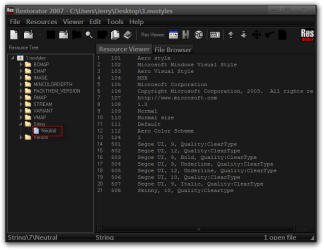
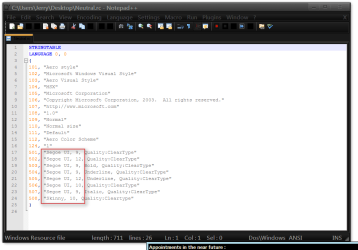
Another way would be to download a 30 day trial of Restorator - Bome Software - Restorator - the resource editor for customization, localization, and translation. and Notepad++ Home it's free. Then open up the theme's .msstyles With restorator and go to String and drag-and-drop the Neutral.rc file to your desktop now open it with notepad++ and change the font or the size or both one at a time and save it put it back in to restorator and save it and try the theme and see if you change the font it will be a long process one font at a time and you still may not actually get it or it will change more than just a clock font. You will need to Switch to a different theme to do the above you cannot be using the theme you are trying to edit at the same time and you will have to log off and log on after each test.
Restorator 2007 - CUsersJerryDesktop1.msstyles.pngCUsersJerryDesktopNeutral.rc - Notepad++.png

Third you could purchase Ave's Windows7 Style Builder and change that font only in just a few clicks. If you are using the default aero theme I would make that change for you in just a few minutes and to make it work You will need to do 1 of these 2 ways of Enabling custom themes for it to work.
http://www.sevenforums.com/tutorials/34579-enabling-custom-themes-windows-7-a.html
Or
http://www.sevenforums.com/tutorials/28377-theme-how-apply-custom-themes.html?filter

Let me know
Jerry
 

My Computer

Computer type
Laptop
Computer Manufacturer/Model Number
Sager NP9170
OS
Win 7 Pro x64 / Win 10 Pro
CPU
Intel(R) Core(TM) i7-3630QM CPU @ 2.40GHz
Motherboard
CLEVO P170EM
Memory
12 GB
Graphics Card(s)
(1) Intel(R) HD Graphics 4000 (2) NVIDIA GeForce GTX 675M
Sound Card
(1) Realtek High Definition Audio (2) Intel(R) Display Aud
Monitor(s) Displays
17.3
Screen Resolution
1920x1080
Hard Drives
(1) Samsung 860 EVO 500GB(OS) (1) Samsung 860 EVO 500GB(Data)
Keyboard
Backlite
Antivirus
MSE, Malwarebytes Pro
Browser
Firefox
Other Info
DESKTOP: Custom-built.
OS: Win 10 Pro x64.
CASE: Rosewill R5.
CPU: Intel I5 4670K CPU @ 3.40GHz.
CPU COOLER: Cool Master Hyper 212 EVO.
MOTHERBOARD: Asus Z87-A.
MEMORY: Kingston HyperX 2x4 GB.
GPU: Nvidia Geforce 650 TI.
PSU: Corsair TX750.
DRIVES: (1) Samsung 840 120 GB SSD (2) Western Digital blue 500 GB 7200 RPM.
You said you are using a third-party theme have you tried asking the theme maker to change that for you?

Another way would be to download a 30 day trial of Restorator - Bome Software - Restorator - the resource editor for customization, localization, and translation. and Notepad++ Home it's free. Then open up the theme's .msstyles With restorator and go to String and drag-and-drop the Neutral.rc file to your desktop now open it with notepad++ and change the font or the size or both one at a time and save it put it back in to restorator and save it and try the theme and see if you change the font it will be a long process one font at a time and you still may not actually get it or it will change more than just a clock font. You will need to Switch to a different theme to do the above you cannot be using the theme you are trying to edit at the same time and you will have to log off and log on after each test.
View attachment 190178View attachment 190179

Third you could purchase Ave's Windows7 Style Builder and change that font only in just a few clicks. If you are using the default aero theme I would make that change for you in just a few minutes and to make it work You will need to do 1 of these 2 ways of Enabling custom themes for it to work.
http://www.sevenforums.com/tutorials/34579-enabling-custom-themes-windows-7-a.html
Or
http://www.sevenforums.com/tutorials/28377-theme-how-apply-custom-themes.html?filter

Let me know
Jerry

Jerry, thanks a lot! I obtained Ave's Windows7 Style Builder, and I was able to change the font of my clock :D ! But I still have a little problem. There are very large spaces (separators?) at the clock sides.. I uploaded this screen of my tray-icon to make you understand my REAL problem (because those spaces were my initial issue.. they take a lot of nonsense space :confused:) :

9ledkj.png


I circled in red the spaces I want to remove. Anyhow, you were very very very kind, I appreciate a lot your help. Thanks again! :)
 

My Computer

OS
Windows 7 Ultimate 32bit
Post a link to the theme you are trying to modify and I will look at it and see if that can be changed.
Jerry
 

My Computer

Computer type
Laptop
Computer Manufacturer/Model Number
Sager NP9170
OS
Win 7 Pro x64 / Win 10 Pro
CPU
Intel(R) Core(TM) i7-3630QM CPU @ 2.40GHz
Motherboard
CLEVO P170EM
Memory
12 GB
Graphics Card(s)
(1) Intel(R) HD Graphics 4000 (2) NVIDIA GeForce GTX 675M
Sound Card
(1) Realtek High Definition Audio (2) Intel(R) Display Aud
Monitor(s) Displays
17.3
Screen Resolution
1920x1080
Hard Drives
(1) Samsung 860 EVO 500GB(OS) (1) Samsung 860 EVO 500GB(Data)
Keyboard
Backlite
Antivirus
MSE, Malwarebytes Pro
Browser
Firefox
Other Info
DESKTOP: Custom-built.
OS: Win 10 Pro x64.
CASE: Rosewill R5.
CPU: Intel I5 4670K CPU @ 3.40GHz.
CPU COOLER: Cool Master Hyper 212 EVO.
MOTHERBOARD: Asus Z87-A.
MEMORY: Kingston HyperX 2x4 GB.
GPU: Nvidia Geforce 650 TI.
PSU: Corsair TX750.
DRIVES: (1) Samsung 840 120 GB SSD (2) Western Digital blue 500 GB 7200 RPM.
Back
Top