SSD - Install and Transfer the Operating System

How to Physically Install a SSD and Transfer the Operating System


Introduction

If you never owned an SSD, you have missed something. Yes, they are not cheap, but Dollar per Dollar there is no other piece of hardware that can give you as much additional performance than an SSD.

Because SSDs are expensive, their current use is for placing the operating system. That’s how you get the best mileage. Although XP and Vista can be installed on SSDs, it is recommended to use them for Windows7, which is the first system to support Trim.

For desktops, an SSD with a 60GB capacity is usually sufficient. The user data can be moved to the HDD – I will explain the procedure later. Should you have very large programs, e.g., games, you should move their program files during the installation of the game to the HDD too.

For laptops, the situation is more complicated because you usually have only one disk bay. I use 80GB and 90GB SSDs on my laptops. In addition, I use the HDD that I recovered from the laptop after I installed the SSD in an external USB enclosure. But, if you move around a lot with the laptop, that may not be so convenient and a bigger SSD (120GB or 250GB) may be in order (budget allowing).


Hardware Installation

For a desktop, you will need a bracket if it is a 2.5” SSD (like most today). But, there are also 3.5” SSDs that will fit without adaptor brackets into the disk bays. You also need a cable to attach the SSD to the motherboard. For electricity, there is usually an extra plug at the PSU which you can use for the SSD’s.

Once you have all those bits, you can install the SSD in an available disk bay – or if none available, some self-adhesive Velcro will also do. The SSDs are light and do not produce any vibration or heat.

For a laptop, you need an external enclosure that attaches to a USB port. That will allow you to make the initial SSD setups. The one I linked attaches via USB2 and eSata, which may be practical later to use as external drive with the HDD that you recovered from the laptop. Also for hot swapping bare bone HDDs. But there are cheaper enclosures for USB2 only and also some that allow attachment to USB3.

Transfer the Operating System

There are two ways to transfer the operating system from your current HDD to the SSD:
1. The Geeky way which comes for free and
2. The easy way that costs $19.95.

1.The Geeky way requires the following steps:

Prepare the SSD – You first have to initialize the SSD to create the MBR. You can do that with Disk Management or with this program (which you will need later anyhow).

Then you need to align the SSD and define an active partition on it. You use an elevated Command Prompt with the following commands:

Diskpart
List disk
Select disk n (where n is the number that was given for your SSD in List disk)
Clean
Create partition primary align=1024
Format fs=ntfs quick
Active (assuming you want to install an OS)
Exit

Note: If you are more comfortable working with Disk Management, you can also define a primary active partition with Disk Management. On a SSD, the partition will be automatically aligned by 1024.


If you want to verify that the alignment is correct, you use these commands:

Diskpart
List disk
Select disk n
List partition


You should see a result like this:

Partition ### Type Size Offset


------------- ---------------- ------- -------
Partition 1 Primary 59 GB

1024 KB - but 64KB or any number divisible by 4 is also good. The offset has to be divisible by 4.

In Windows7, you may have the 100MB active boot partition. The easiest way to deal with that is to move the bootmgr to the C: partition using EasyBCD. That you do on your HDD before you transfer anything to the SSD. Then you do not have to worry about it and you need only transfer the C: partition to the SSD.


But if you care to keep the 100MB partition, then the partition you just created on the SSD is for that 100MB partition. The next step is to shrink the partition you just created to a 100MB size (make sure it is not any smaller). With Disk Management you will have trouble to do that. I recommend this program for the operation.

From the free space you gained, you create the C: partition for the OS. This partition must not be active and need not be a primary (because the 100MB partition contains the boot manager).

Alternatively and easier is if you first create the 100MB partition with these commands:

Diskpart
List disk
Select disk n (where n is the number that was given for your SSD in List disk)
Clean
Create partition primary size=100 align=1024
Format fs=ntfs quick
Active
Exit

Note: The unit in the size parameter is MB

After this action you can use Disk Management to create the C partition from the remaining unallocated space. That can be a logical partition.

If there is no 100MB partition, things are easy. The partition you created with Command Prompt will receive the C partition including boot manager and all.

There may be more partitions on your factory HDD – e.g., the Recovery partition and a Tools Partition. Those you should not transfer to the SSD because of space constraints. I would back them up – e.g., with an imaging program. The Recovery Partition you can also burn to DVDs.

The OS transfer

This is done with an image. There are a variety of free imaging programs (e.g., the free editions of Macrium, Paragon, Acronis, etc.) that are suitable for the task. You can also use the Windows7 imaging, which has the advantage that it deals with the 100MB active boot partition automatically. Disadvantage is that you never know exactly what it does.

You image your partitions to an external disk (you may have to assign a drive letter to the 100MB partition so that the imaging program can identify it) and then pull the images back in to the SSD (using the bootable recovery program of the imaging program).
The recovery is partition by partition. So you have to make separate runs for the 100MB partition (if any) and the C: partition.

Note: Many free imaging programs cannot shrink the originating partition to fit into the usually much smaller C: partition on the SSD - even if the amount of data in that partition would fit. In that case you will need to shrink the C: partition on the HDD prior to imaging it. The HDD C: partition must be smaller or equal in size to the designated partition on the SSD. For that operation I also recommend this program because Disk Management might not be able to shrink it enough. Note: Free Macrium can image to a smaller disk if the data fits.

It is, of course, understood, that the amount of data on your HDD C: partition must not exceed the capacity of the designated C: partition on the SSD. Should you have more data on your HDD C: partition than the size of the SSD C: partition can hold, I suggest you first create a data partition on the HDD system and move the user data there. Here is my video tutorial that explains how this is done. When you finally are on the SSD system, you then right click on the user folders in the data partition (Documents, Pictures, etc.) and Include them into the appropriate library. That approach does not require you to move the user folders later.

Next step is to change the boot sequence in the BIOS to set the SSD as second boot device (leave the CD/DVD reader as first boot device) and, hopefully, your system will boot.

2.The easy way for transferring the OS requires you to purchase this program. It does everything for you – alignment, deals with the 100MB partition, transfers C:, shrinks the originating partition, etc. All you will have to do is change the boot sequence.

Note: Before you activate the SSD, it is recommended to set the BIOS to AHCI. Best time to do that is just before you change the boot sequence. Once Windows7 is running, you make the corresponding settings in the OS. Here is a tutorial on how to do that.
Many people claim that there is a significant performance gain with AHCI. I, however, did not see that. But it may be different from system to system.

Settings after the OS transfer

Disk Defragmentation makes no sense on an SSD. For a laptop, go into Services, navigate to Disk Defragmenter, right click on it and go to Properties. Here you set the service to Disabled.
For a desktop, you may want to disable defrag in the Disk Defragmenter and only for the SSD so that the remaining HDDs can still be defragmented.

Note: As long as Defrag Service is turned off, you cannot shrink any partition. The partition shrink process requires the Defrag service. If you need to shrink a partition later, turn the Defragmentation Service temporarily on.

Hibernation File – most of us do not use Hibernation, but Sleep instead. But, the hiberfile takes precious space on your SSD – to the same tune as the size as your RAM. To get rid of it, run the following command in elevated Command Prompt: powercfg –h off. If you ever want it back, it is powercfg – h on.

Superfetch – many “experts” suggest to turn Superfetch off. I think that is not appropriate. Fetching a program or data from RAM is still a lot faster than fetching it from a disk – even from an SSD.

There are no other settings that are necessary. On the SSD forums you will find a lot of tweaks. I recommend you stay away from them.


Move the user folders to the HDD

To move the user folders to the HDD is very simple. Create a Data partition on the HDD. Define folders in that partition – e.g., Documents, Music, Pictures, etc. One for each folder you want to move off the SSD. The name of those folders can be anything. The system will rename them anyhow. It is just more obvious if you call them by the same name as the originating folders.

Then, open the Explorer and right click on, e.g., My Documents folder (not the Documents Library) in the left pane. Go to Properties and click on the Location tab. Here you click on Move and navigate to the corresponding folder in your Data Partition on the HDD. Then you Select that folder and Apply it.

Very Important: You must move the SSD folder to the corresponding Data Partition folder – NOT to the root of the partition itself. That would create a mess.


Last edited:
Thanks Michael for clarifying this one. I certainly did not know that (although come to think about it, it is logical). I learned something. Reps come when it is your turn - LOL.
 

My Computer My Computer

Computer Manufacturer/Model Number
HP, Dell, Gateway, Toshiba - 4 laptops and 2 desktops
OS
Vista, Windows7, Mint Mate, Zorin, Windows 8
CPU
from 1.6GHz Duo to i7
Monitor(s) Displays
2x HP w2207
Hard Drives
5x HDD, 7x SSD, 12x Externals
Keyboard
with trackball - no mices
Mouse
Trackball mice
Internet Speed
DSL 6000
Moving from Vista HDD to 7 SSD

Yeah great tutorial dude. Thanks for your time writing it.

If this has already been covered please point me in the right direction:

I'm running 64 bit Vista on an HDD but am moving to W7 on an SSD. I also plan to reinstall the rest of my software on the SSD but that's for another thread.

My question is what to do with the Vista that's left on the remaining HDD once I've booted up with W7 on the new SSD?
Can it just be uninstalled like any other program or will there be a clash between the 2 op. systems?

Any advice, however obvious much appreciated.


Phill
 

My Computer My Computer

OS
Windows Vista Ultimate 64bit (SP2) - Upgrading to W7 soon
CPU
AMD Phenom II x4 955 (3.21 GHz)
Motherboard
ASUS M4A79T Deluxe
Memory
Corsair XMS3 (3 x 2GB DDR3 Modules)
Graphics Card(s)
Radeon HD 4890
Monitor(s) Displays
No.1 = iiyama 24inch LCD No.2 = LG 17inch Flatron LCD
Hard Drives
Seagate 1TB HDD
PSU
AntecTruePower New 750W
Phill, Here is a tutorial I made In case you need tro uninstall Vista that is double booted with Windows7: http://www.sevenforums.com/tutorials/210983-dual-boot-delete-os.html

But if you have not yet installed Windows7 on the SSD, you should disconnect the HDD during the Win7 installation on the SSD. This way you avoid a double boot situation. All you have to do then is to change the boot order in the BIOS in order to boot from the SSD.

You can keep Vista on the HDD (at least for a while) and boot into it by changing the boot order back to the HDD. That may be practical until the time that you have installed all your programs on the SSD. When you want to finally get rid of it, you just delete the Vista partition from Disk Management of Win7. I would, however, take an image of the Vista partition before you delete it - just in case you forgot something on that partition that you should not have deleted. With the image on hand, you can always mount the image and retrieve whatever you forgot.
 

My Computer My Computer

Computer Manufacturer/Model Number
HP, Dell, Gateway, Toshiba - 4 laptops and 2 desktops
OS
Vista, Windows7, Mint Mate, Zorin, Windows 8
CPU
from 1.6GHz Duo to i7
Monitor(s) Displays
2x HP w2207
Hard Drives
5x HDD, 7x SSD, 12x Externals
Keyboard
with trackball - no mices
Mouse
Trackball mice
Internet Speed
DSL 6000
After searching for many hours on how to make a move to SSD I finally found this thread and decided to go with Paragon tool.
It worked with no problem for me. Transferred OS from HDD to SSD that was in USB enclosure at the time in about 1 HR,
with roughly 80GB on HDD at time.
After that I did physical swap of drives, went to BIOS and Patriot Pyro SSD was already there and set to 1st priority.
After that I created "D data" on SSD drive, and all of "my documents" were back on D, I'm guessing windows transferred it automatically, it was mapped to store "my documents" on D, and at this time I had HDD in USB enclosure connected to the laptop that had the files still on there.
And that was that.
It would've been nice if it automatically created this D partition on a new drive, but it does OS transfer that was on C so I can't really complain.
So the whole process took 30 minutes maybe, not counting the transfer time, but to get there it took a couple of days of search...well that includes trying to troubleshoot windows not being able to start a back up process...but
that's a whole another issue...

However I saw some complaints about Paragon and wanted to say there is other side of a coin as well, when it works perfectly well.

Thank you
 

My Computer My Computer

Computer Manufacturer/Model Number
Asus UL80V
OS
Windows 7 Pro

My Computer My Computer

Computer Manufacturer/Model Number
HP, Dell, Gateway, Toshiba - 4 laptops and 2 desktops
OS
Vista, Windows7, Mint Mate, Zorin, Windows 8
CPU
from 1.6GHz Duo to i7
Monitor(s) Displays
2x HP w2207
Hard Drives
5x HDD, 7x SSD, 12x Externals
Keyboard
with trackball - no mices
Mouse
Trackball mice
Internet Speed
DSL 6000
@Buco
The Paragon migrate tool appears to work fine for most people. It is also a simple turnkey app. I bought it out of laziness but unfortunately had problems with the reliability monitor after the transfer.
In the end I just did a manual transfer with a system reserved and OS partition. The manual transfer doesn't really take much effort.
 

My Computer My Computer

Computer type
PC/Desktop
Computer Manufacturer/Model Number
Own build
OS
Windows 7x64 Home Premium SP1
CPU
Intel i7 2600k
Motherboard
ASUS P8Z68 Deluxe
Memory
G.Skill Ripjaws (DDR3-1600) 2x4GB
Graphics Card(s)
Nvidia GeForce GTS 450; Intel HD Graphics 3000(GT2+)
Monitor(s) Displays
Dell Ultrasharp IPS panel U2311H, Samsung SyncMaster P2350
Screen Resolution
1920x1080
Hard Drives
Samsung 850 Pro SSD 256GB, Samsung SSD 840 120GB, Seagates 1TB Barracuda ST31000528AS x2
PSU
Seasonic M12II 520W
Case
Lian Li Lancool PC-K60
Cooling
Case: 1x120mm, 3x140mm CPU: Hyper 212+
Keyboard
Logitech MK520 (wireless)
Mouse
Logitech MK520
Internet Speed
6-7 Mbps
Antivirus
Norton Security Premium, Malwarebytes on 2 (MSE on 3rd PC)
Browser
FireFox
Other Info
Audio: Logitech Z523 2.1
@Buco
The Paragon migrate tool appears to work fine for most people. It is also a simple turnkey app. I bought it out of laziness but unfortunately had problems with the reliability monitor after the transfer.
In the end I just did a manual transfer with a system reserved and OS partition. The manual transfer doesn't really take much effort.

I would've been much more apprehensive to even try Paragon if whs wasn't repeatedly saying "it's fine, trust me", cause there was definitely enough complaints to sway me the other way, but I realize people are much faster to complain about something then give a thumbs up so I figured "if this guy is so adamant in saying that works there must be ton of other happy people out there too".

Now I'm not experiencing dramatic changes in laptop performance not even in booting up and shutting down time. I never measured what the time was before the change because I thought it'll be night and day or at least that's what everyone agrees, so I thought it'll be easy to tell the difference.
In WEI disc write speed or whatever it's called did go from 5.5 to 7.5 so that's my piece of mind.
I did all the basic tweaks that are mentioned at the start.
But I guess if I really want it to make a difference I'll have to do what my buddy was saying from the start "go from scratch", as I've been working on this laptop for a little over 2 years now.

And by the way this forum seems to be the best windows 7 resource on the net that I can see so thank you!
 

My Computer My Computer

Computer Manufacturer/Model Number
Asus UL80V
OS
Windows 7 Pro
As I said I'm in the minority not totally happy with the Paragon migrate tool. You pay your money you take your chance.

I'm surprised you haven't seen a dramatic change, especially booting and shutting down. I get one fade of the splash screen and I'm into the logon screen. The Windows user page then appears almost instantly. Shutting down is around a second.

Try running a speed check
AS SSD
look for the English link

Edit: BIOS POST will always take its time.
 

My Computer My Computer

Computer type
PC/Desktop
Computer Manufacturer/Model Number
Own build
OS
Windows 7x64 Home Premium SP1
CPU
Intel i7 2600k
Motherboard
ASUS P8Z68 Deluxe
Memory
G.Skill Ripjaws (DDR3-1600) 2x4GB
Graphics Card(s)
Nvidia GeForce GTS 450; Intel HD Graphics 3000(GT2+)
Monitor(s) Displays
Dell Ultrasharp IPS panel U2311H, Samsung SyncMaster P2350
Screen Resolution
1920x1080
Hard Drives
Samsung 850 Pro SSD 256GB, Samsung SSD 840 120GB, Seagates 1TB Barracuda ST31000528AS x2
PSU
Seasonic M12II 520W
Case
Lian Li Lancool PC-K60
Cooling
Case: 1x120mm, 3x140mm CPU: Hyper 212+
Keyboard
Logitech MK520 (wireless)
Mouse
Logitech MK520
Internet Speed
6-7 Mbps
Antivirus
Norton Security Premium, Malwarebytes on 2 (MSE on 3rd PC)
Browser
FireFox
Other Info
Audio: Logitech Z523 2.1
Yeah great tutorial dude. Thanks for your time writing it.

If this has already been covered please point me in the right direction:

I'm running 64 bit Vista on an HDD but am moving to W7 on an SSD. I also plan to reinstall the rest of my software on the SSD but that's for another thread.

My question is what to do with the Vista that's left on the remaining HDD once I've booted up with W7 on the new SSD?
Can it just be uninstalled like any other program or will there be a clash between the 2 op. systems?

Any advice, however obvious much appreciated.


Phill
Hum I don't know what anyone else does pbc but I just stick a spare drive in the machine and copy and paste the stuff I want to keep.

For the transfer of files outside of the case I use a gadget and EaseUS via a USB port to clone or just transfer files.
 

My Computer My Computer

Computer type
PC/Desktop
Computer Manufacturer/Model Number
Own build (new) Desk1 / Asus ROG Win 7 / Desk2 1st build
OS
Desk1 7 Home Prem / Desk2 10 Pro / Main lap Asus ROG 10 Pro 2 laptop Toshiba 7 Pro Asus P2520 7 & 10
CPU
Desk1 i5 3750K / Laptop i7 GTX 860M / Desk2 i5 2500
Motherboard
Desk1 Asus P877-V / Desk2 Gigabyte H67 UD3H / Laptop ?
Memory
Desk1 8GB (1866) / Desk2 16GB (1333) / Laptop 8Gb DDR3
Graphics Card(s)
Desk 1& 2NVidia GTX 650 & Laptops on board Intel
Sound Card
Desk 1 & 2 -XONAR DG Realtek High Def audio Laptop
Monitor(s) Displays
Desk 1 Benq HD 2450 / Desk2 Philips 24" / Laptop 17.5"
Screen Resolution
1920x1080 D1 & D2 & Laptop 1
Hard Drives
Desk1 Samsung 120GB 830 SSD
Asus ROG 256GB 850 Pro SSD
Desk2 Samsung 840 256 SSD
Toshiba 120GB EVO
PSU
Desk 1 Corsair HX 1050/ Laptop ? / Desk 2 Corsair HX 650
Case
Desk 1 Cooler HAF XM ? Toshiba laptop / Desk2 Coolermaster
Cooling
Fans on all Desk1 -2 Desk2 - all Coolermasters 5 Laptop ?
Keyboard
Desk 1 MS Sidewinder X6 Desk 2 MS Sidewinder X 4
Mouse
Desk 1&2 - Gigabyte MS 900 gamer - laptop - Logitec wireless
Internet Speed
ADSL2+
Other Info
One other Desktop (tester) and spare Toshba laptop both with SSD's
Running Kaspersky 2016 ISS on all machines config'd identically
Logitec audio stereo systems on each machine (x3)
Canon MG5250MFC
Router/modem TP-Link running WPA2SK
Now I'm not experiencing dramatic changes in laptop performance not even in booting up and shutting down time
In order to give you good advice on this one, you have to be more specific. But it is definitely not coming from the Paragon Migration Tool. If your WEI is at 7.5, you are in the middle of in SSD territory. But the SSD is not a cure for every system problem. E.g slow internet connections cannot be cured with a SSD.
 

My Computer My Computer

Computer Manufacturer/Model Number
HP, Dell, Gateway, Toshiba - 4 laptops and 2 desktops
OS
Vista, Windows7, Mint Mate, Zorin, Windows 8
CPU
from 1.6GHz Duo to i7
Monitor(s) Displays
2x HP w2207
Hard Drives
5x HDD, 7x SSD, 12x Externals
Keyboard
with trackball - no mices
Mouse
Trackball mice
Internet Speed
DSL 6000
When I initially installed my Crucial M4 The WEI was 7.7 but after running a few hours and disabling hibernation (Don't think that had any effect) I was at 7.9. they seem to improve a bit right after install.
 

My Computer My Computer

Computer type
PC/Desktop
Computer Manufacturer/Model Number
Home Built Desktop By DataTech
OS
Windows 7 Ultimate X64 SP1
CPU
Intel i5-2550K, Differing ~4.4-4.8GHz No built in GPU
Motherboard
ASUS P8Z68-V PRO/GEN3
Memory
16GB G.Skill Sniper 1866MHz @ 2133MHz 2x8GB
Graphics Card(s)
ASUS GTX650TIB-DC2OC-2GD5, (650TI Boost)
Sound Card
Onboard Realtek 5-1
Monitor(s) Displays
Samsung P2570HD
Screen Resolution
1920x1080
Hard Drives
Samsung 840 Pro 256GB SSD for OS, 500GB Seagate Constellation (Enterprise drive) for Data
PSU
Corsair HX650W
Case
Inwin Dragon Rider
Cooling
Hyper 212 EVO w/two Noctua fans, push-pull, @1300 RPM
Keyboard
E-Z Eyes, bright yellow keys with large characters
Mouse
steelseries SENSEI Laser Pro Gaming
Internet Speed
48-51Mbs Mbs down, 11 Mbs up Xfinity Cable
Antivirus
Norton Internet Security 2013
Browser
IE 10, Opera, Pale Moon if needed
Other Info
4 case fans, LG BluRay-RE, ASUS DVD-RW, Mr. Fusion power supply, 1.21 gigawatts.
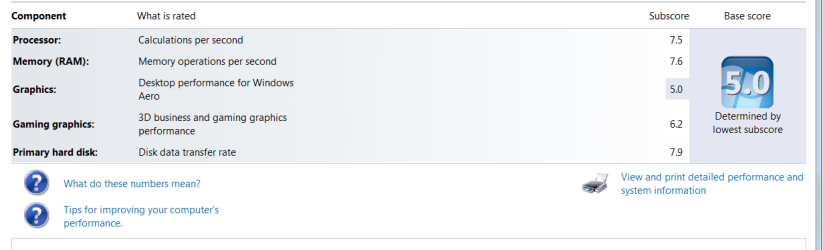
Well going by you folks' scores mines a bit pathetic and reading how the score is worked out I cannot figure out why mine is as it is.

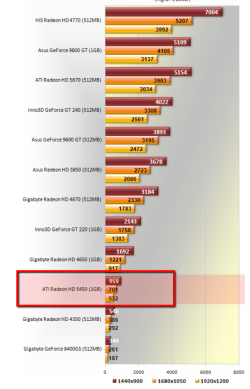
I have the M4 and 16GB RAM a Radeon HD 5450 card run through an Intel i5 2500 plus whatever graphics the board came with I suppose not knowing much about graphical stuff I do not know if the card negates the on board graphics, as it seems to be the graphics that is letting the side down as it were.
 

Attachments

  • WEI.PNG
    WEI.PNG
    25.3 KB · Views: 653

My Computer My Computer

Computer type
PC/Desktop
Computer Manufacturer/Model Number
Own build (new) Desk1 / Asus ROG Win 7 / Desk2 1st build
OS
Desk1 7 Home Prem / Desk2 10 Pro / Main lap Asus ROG 10 Pro 2 laptop Toshiba 7 Pro Asus P2520 7 & 10
CPU
Desk1 i5 3750K / Laptop i7 GTX 860M / Desk2 i5 2500
Motherboard
Desk1 Asus P877-V / Desk2 Gigabyte H67 UD3H / Laptop ?
Memory
Desk1 8GB (1866) / Desk2 16GB (1333) / Laptop 8Gb DDR3
Graphics Card(s)
Desk 1& 2NVidia GTX 650 & Laptops on board Intel
Sound Card
Desk 1 & 2 -XONAR DG Realtek High Def audio Laptop
Monitor(s) Displays
Desk 1 Benq HD 2450 / Desk2 Philips 24" / Laptop 17.5"
Screen Resolution
1920x1080 D1 & D2 & Laptop 1
Hard Drives
Desk1 Samsung 120GB 830 SSD
Asus ROG 256GB 850 Pro SSD
Desk2 Samsung 840 256 SSD
Toshiba 120GB EVO
PSU
Desk 1 Corsair HX 1050/ Laptop ? / Desk 2 Corsair HX 650
Case
Desk 1 Cooler HAF XM ? Toshiba laptop / Desk2 Coolermaster
Cooling
Fans on all Desk1 -2 Desk2 - all Coolermasters 5 Laptop ?
Keyboard
Desk 1 MS Sidewinder X6 Desk 2 MS Sidewinder X 4
Mouse
Desk 1&2 - Gigabyte MS 900 gamer - laptop - Logitec wireless
Internet Speed
ADSL2+
Other Info
One other Desktop (tester) and spare Toshba laptop both with SSD's
Running Kaspersky 2016 ISS on all machines config'd identically
Logitec audio stereo systems on each machine (x3)
Canon MG5250MFC
Router/modem TP-Link running WPA2SK
As I said I'm in the minority not totally happy with the Paragon migrate tool. You pay your money you take your chance.

I'm surprised you haven't seen a dramatic change, especially booting and shutting down. I get one fade of the splash screen and I'm into the logon screen. The Windows user page then appears almost instantly. Shutting down is around a second.

Try running a speed check
AS SSD
look for the English link

Edit: BIOS POST will always take its time.


Well part of the problem was...firmware. Of course that was the first thing I should've checked after I swapped the thing. I upgraded to latest version and this brought pretty good improvement.
And I'm fairly happy with overall performance of my laptop, biggest thing for me was to decrease startup/shutdown times and just bring a level of safety from mechanical failures since it's my work comp and I move around a lot on my job.
One thing I noticed right away is increased battery time. This thing has a crazy good battery life, like ~8hrs easily in "battery conserving" mode and now I get close to 10hrs.
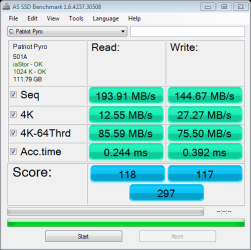
I'm attaching benchmark software snapshot and I'm guessing this is very average result.
Now I timed on/off times and it's like this:
Power ON
~20 sec from off to please wait/starting screen
~45 sec from please wait/starting to when I first saw desktop
~8 sec until everything seemed loaded
So roughly 1:13. I'm guessing on this but I think it was taking about 2 mins with HDD.
Power OFF
~4 sec to get to shutting down screen
~50 sec to off
This isn't bad but far from what I hear people say how fast it can be. And maybe I'm mistaking the process and how people come up with numbers?


[/QUOTE]
In order to give you good advice on this one, you have to be more specific. But it is definitely not coming from the Paragon Migration Tool. If your WEI is at 7.5, you are in the middle of in SSD territory. But the SSD is not a cure for every system problem. E.g slow internet connections cannot be cured with a SSD.[/QUOTE]

Oh I know Paragon has nothing to do with it. And just a couple of mins ago I checked the register and ahci/start parameter was at 0 so I'm good with that but you didn't think it had that much of an impact anyway. I flashed the BIOS to latest version as well.
For what is worth this laptop is Asus UL80VT, 4GB Ram, Intel U7300 1.3 Ghz cpu (can be overclocked to 1.7 Ghz).
And I don't necessarily see this as an issue but would like to hear if I should expect better results?
 

Attachments

  • as-ssd-bench Patriot Pyro 3.2.2012 12-15-20 AM.png
    as-ssd-bench Patriot Pyro 3.2.2012 12-15-20 AM.png
    12.3 KB · Views: 261

My Computer My Computer

Computer Manufacturer/Model Number
Asus UL80V
OS
Windows 7 Pro
Well going by you folks' scores mines a bit pathetic and reading how the score is worked out I cannot figure out why mine is as it is.

Looks kick a$$ to me?!
 

My Computer My Computer

Computer Manufacturer/Model Number
Asus UL80V
OS
Windows 7 Pro
Well going by you folks' scores mines a bit pathetic and reading how the score is worked out I cannot figure out why mine is as it is.

I have the M4 and 16GB RAM a Radeon HD 5450 card run through an Intel i5 2500 plus whatever graphics the board came with I suppose not knowing much about graphical stuff I do not know if the card negates the on board graphics, as it seems to be the graphics that is letting the side down as it were.
I think you have a fine system. Your graphics card is what it is - just a midrange.
 

Attachments

  • 2012-03-02_1158.png
    2012-03-02_1158.png
    61.5 KB · Views: 677

My Computer My Computer

Computer Manufacturer/Model Number
HP, Dell, Gateway, Toshiba - 4 laptops and 2 desktops
OS
Vista, Windows7, Mint Mate, Zorin, Windows 8
CPU
from 1.6GHz Duo to i7
Monitor(s) Displays
2x HP w2207
Hard Drives
5x HDD, 7x SSD, 12x Externals
Keyboard
with trackball - no mices
Mouse
Trackball mice
Internet Speed
DSL 6000
This is what I'm getting and I feel the 4K-64 Thrd and Acc times are not quite as good as others.
crucial M4-AS-SSD.jpg
Maybe your speeds are influenced by the make of SSD and the laptop.
 

My Computer My Computer

Computer type
PC/Desktop
Computer Manufacturer/Model Number
Own build
OS
Windows 7x64 Home Premium SP1
CPU
Intel i7 2600k
Motherboard
ASUS P8Z68 Deluxe
Memory
G.Skill Ripjaws (DDR3-1600) 2x4GB
Graphics Card(s)
Nvidia GeForce GTS 450; Intel HD Graphics 3000(GT2+)
Monitor(s) Displays
Dell Ultrasharp IPS panel U2311H, Samsung SyncMaster P2350
Screen Resolution
1920x1080
Hard Drives
Samsung 850 Pro SSD 256GB, Samsung SSD 840 120GB, Seagates 1TB Barracuda ST31000528AS x2
PSU
Seasonic M12II 520W
Case
Lian Li Lancool PC-K60
Cooling
Case: 1x120mm, 3x140mm CPU: Hyper 212+
Keyboard
Logitech MK520 (wireless)
Mouse
Logitech MK520
Internet Speed
6-7 Mbps
Antivirus
Norton Security Premium, Malwarebytes on 2 (MSE on 3rd PC)
Browser
FireFox
Other Info
Audio: Logitech Z523 2.1
Well going by you folks' scores mines a bit pathetic and reading how the score is worked out I cannot figure out why mine is as it is.

I have the M4 and 16GB RAM a Radeon HD 5450 card run through an Intel i5 2500 plus whatever graphics the board came with I suppose not knowing much about graphical stuff I do not know if the card negates the on board graphics, as it seems to be the graphics that is letting the side down as it were.
I think you have a fine system. Your graphics card is what it is - just a midrange.
Thanks whs I did have a chat with profltd last night and and he has pointed me in the direction of a better GPU.
Now being totally ignorant I to do some researching on GPU specs before I decide on what to do I am torn between a HD 6850 and a HD 7750 the latter being cheaper by $50 but also slower from the little specs I can see.

I see MJF has a nice readout there and suppose it is an app of some app of some sort and would lie to give it a burl if only out of curiosity.
 

My Computer My Computer

Computer type
PC/Desktop
Computer Manufacturer/Model Number
Own build (new) Desk1 / Asus ROG Win 7 / Desk2 1st build
OS
Desk1 7 Home Prem / Desk2 10 Pro / Main lap Asus ROG 10 Pro 2 laptop Toshiba 7 Pro Asus P2520 7 & 10
CPU
Desk1 i5 3750K / Laptop i7 GTX 860M / Desk2 i5 2500
Motherboard
Desk1 Asus P877-V / Desk2 Gigabyte H67 UD3H / Laptop ?
Memory
Desk1 8GB (1866) / Desk2 16GB (1333) / Laptop 8Gb DDR3
Graphics Card(s)
Desk 1& 2NVidia GTX 650 & Laptops on board Intel
Sound Card
Desk 1 & 2 -XONAR DG Realtek High Def audio Laptop
Monitor(s) Displays
Desk 1 Benq HD 2450 / Desk2 Philips 24" / Laptop 17.5"
Screen Resolution
1920x1080 D1 & D2 & Laptop 1
Hard Drives
Desk1 Samsung 120GB 830 SSD
Asus ROG 256GB 850 Pro SSD
Desk2 Samsung 840 256 SSD
Toshiba 120GB EVO
PSU
Desk 1 Corsair HX 1050/ Laptop ? / Desk 2 Corsair HX 650
Case
Desk 1 Cooler HAF XM ? Toshiba laptop / Desk2 Coolermaster
Cooling
Fans on all Desk1 -2 Desk2 - all Coolermasters 5 Laptop ?
Keyboard
Desk 1 MS Sidewinder X6 Desk 2 MS Sidewinder X 4
Mouse
Desk 1&2 - Gigabyte MS 900 gamer - laptop - Logitec wireless
Internet Speed
ADSL2+
Other Info
One other Desktop (tester) and spare Toshba laptop both with SSD's
Running Kaspersky 2016 ISS on all machines config'd identically
Logitec audio stereo systems on each machine (x3)
Canon MG5250MFC
Router/modem TP-Link running WPA2SK
Yeah, graphics cards are a science apart. I suggest you start a seperate thread asking for the experience of the forum members. Specs are nice to look at, but real life experience is always better. State exactly what you are looking for (e.g. type of games you want to play at maximum. I am sure you will get plenty of input.

I myself have very modest graphics requirements because I am not a gamer. For my pictures and videos anything works.
 

My Computer My Computer

Computer Manufacturer/Model Number
HP, Dell, Gateway, Toshiba - 4 laptops and 2 desktops
OS
Vista, Windows7, Mint Mate, Zorin, Windows 8
CPU
from 1.6GHz Duo to i7
Monitor(s) Displays
2x HP w2207
Hard Drives
5x HDD, 7x SSD, 12x Externals
Keyboard
with trackball - no mices
Mouse
Trackball mice
Internet Speed
DSL 6000
Yeah, graphics cards are a science apart. I suggest you start a seperate thread asking for the experience of the forum members. Specs are nice to look at, but real life experience is always better. State exactly what you are looking for (e.g. type of games you want to play at maximum. I am sure you will get plenty of input.

I myself have very modest graphics requirements because I am not a gamer. For my pictures and videos anything works.
Thanks whs I might just do that cos they are a bit of a mystery to me:)
 

My Computer My Computer

Computer type
PC/Desktop
Computer Manufacturer/Model Number
Own build (new) Desk1 / Asus ROG Win 7 / Desk2 1st build
OS
Desk1 7 Home Prem / Desk2 10 Pro / Main lap Asus ROG 10 Pro 2 laptop Toshiba 7 Pro Asus P2520 7 & 10
CPU
Desk1 i5 3750K / Laptop i7 GTX 860M / Desk2 i5 2500
Motherboard
Desk1 Asus P877-V / Desk2 Gigabyte H67 UD3H / Laptop ?
Memory
Desk1 8GB (1866) / Desk2 16GB (1333) / Laptop 8Gb DDR3
Graphics Card(s)
Desk 1& 2NVidia GTX 650 & Laptops on board Intel
Sound Card
Desk 1 & 2 -XONAR DG Realtek High Def audio Laptop
Monitor(s) Displays
Desk 1 Benq HD 2450 / Desk2 Philips 24" / Laptop 17.5"
Screen Resolution
1920x1080 D1 & D2 & Laptop 1
Hard Drives
Desk1 Samsung 120GB 830 SSD
Asus ROG 256GB 850 Pro SSD
Desk2 Samsung 840 256 SSD
Toshiba 120GB EVO
PSU
Desk 1 Corsair HX 1050/ Laptop ? / Desk 2 Corsair HX 650
Case
Desk 1 Cooler HAF XM ? Toshiba laptop / Desk2 Coolermaster
Cooling
Fans on all Desk1 -2 Desk2 - all Coolermasters 5 Laptop ?
Keyboard
Desk 1 MS Sidewinder X6 Desk 2 MS Sidewinder X 4
Mouse
Desk 1&2 - Gigabyte MS 900 gamer - laptop - Logitec wireless
Internet Speed
ADSL2+
Other Info
One other Desktop (tester) and spare Toshba laptop both with SSD's
Running Kaspersky 2016 ISS on all machines config'd identically
Logitec audio stereo systems on each machine (x3)
Canon MG5250MFC
Router/modem TP-Link running WPA2SK
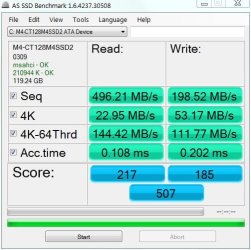
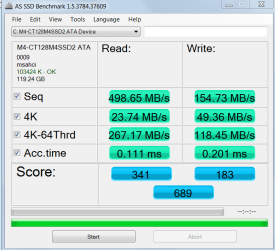
Just a matter of interest because the figures do not really mean a lot to me this is my SSD readout.
 

Attachments

  • BENCH1.PNG
    BENCH1.PNG
    20.5 KB · Views: 246

My Computer My Computer

Computer type
PC/Desktop
Computer Manufacturer/Model Number
Own build (new) Desk1 / Asus ROG Win 7 / Desk2 1st build
OS
Desk1 7 Home Prem / Desk2 10 Pro / Main lap Asus ROG 10 Pro 2 laptop Toshiba 7 Pro Asus P2520 7 & 10
CPU
Desk1 i5 3750K / Laptop i7 GTX 860M / Desk2 i5 2500
Motherboard
Desk1 Asus P877-V / Desk2 Gigabyte H67 UD3H / Laptop ?
Memory
Desk1 8GB (1866) / Desk2 16GB (1333) / Laptop 8Gb DDR3
Graphics Card(s)
Desk 1& 2NVidia GTX 650 & Laptops on board Intel
Sound Card
Desk 1 & 2 -XONAR DG Realtek High Def audio Laptop
Monitor(s) Displays
Desk 1 Benq HD 2450 / Desk2 Philips 24" / Laptop 17.5"
Screen Resolution
1920x1080 D1 & D2 & Laptop 1
Hard Drives
Desk1 Samsung 120GB 830 SSD
Asus ROG 256GB 850 Pro SSD
Desk2 Samsung 840 256 SSD
Toshiba 120GB EVO
PSU
Desk 1 Corsair HX 1050/ Laptop ? / Desk 2 Corsair HX 650
Case
Desk 1 Cooler HAF XM ? Toshiba laptop / Desk2 Coolermaster
Cooling
Fans on all Desk1 -2 Desk2 - all Coolermasters 5 Laptop ?
Keyboard
Desk 1 MS Sidewinder X6 Desk 2 MS Sidewinder X 4
Mouse
Desk 1&2 - Gigabyte MS 900 gamer - laptop - Logitec wireless
Internet Speed
ADSL2+
Other Info
One other Desktop (tester) and spare Toshba laptop both with SSD's
Running Kaspersky 2016 ISS on all machines config'd identically
Logitec audio stereo systems on each machine (x3)
Canon MG5250MFC
Router/modem TP-Link running WPA2SK
Back
Top