Single line notification icons on a left taskbar. How did I do this?

CmdrB

New member
Local time
10:19 AM
Messages
4
Hi everyone,

Basically I want to have my left aligned task and navigation bar as narrow as possible. That being that the width of the vertical bar is narrower than the START button.

Let me tell you first that I searched for this in within the forum and there is another user who was wondering about this without being able to explain it and no apparent solution.

For those who may think that it cannot be done, I DID accomplish this before. In fact, I had it like this this morning until I had to rebooted the system. Unfortunately, despite several efforts, I have absolutely no clue on how to replicate it. The setting went back to a double lined icon bar size after the reboot and it's been bugging me for a few hours now.

Check this snapshot to see what I am talking about. I tried all the obvious settings within the properties. AutoHideTaskbar/HideLabels/NoLock. But I can't seem to be able to single line those notification icons. I even turned off all notification icons (date/clock/net/batt/etc) and the result is the same.

The way it looks in the snapshot is perfect for me but for the life of me, I can't seem to get it to look like that again. Spent way too much time already trying to figure this thing out.:cry:

Any ideas? Much appreciated.


PS. The snapshot has been edited to hide my ip address displayed by Rainmeter on the right.
 

My Computer My Computer

At a glance

Windows 7 Professional 64bitIntel i5 2520mSamsung 4GB DDR3 PC3-10700Intel HD Graphics 3000 (GT2+)
Computer Manufacturer/Model Number
Lenovo X220
OS
Windows 7 Professional 64bit
CPU
Intel i5 2520m
Motherboard
Lenovo 4286CTO
Memory
Samsung 4GB DDR3 PC3-10700
Graphics Card(s)
Intel HD Graphics 3000 (GT2+)
Sound Card
Conexant 20672 built-in
Monitor(s) Displays
12.5 IPS Panel
Screen Resolution
1366x768
Hard Drives
160GB SSD
Hi CmdrB and welcome to Seven Forums.

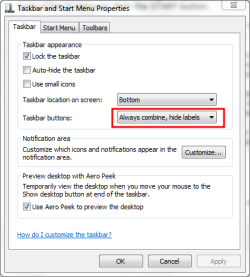
If you right click on an empty area on the taskbar and select properties. Set the dialogue as shown in the screen clip.

screenshot143_2012-03-20.png

You may then need to unlock the taskbar. Right Click and select unlock and then drag the edge of the taskbar to the correct width.
 

My Computer My Computer

At a glance

Microsoft Windows 7 Home Premium 64-bit Servi...Intel(R) Core(TM) i3 CPU M 330 @ 2.13GHz8 GB DDR3Intel(R) HD Graphics
Computer type
Laptop
Computer Manufacturer/Model Number
Hewlett-Packard/G62-107SA Notebook
OS
Microsoft Windows 7 Home Premium 64-bit Service Pack 1
CPU
Intel(R) Core(TM) i3 CPU M 330 @ 2.13GHz
Motherboard
Hewlett-Packard 1425
Memory
8 GB DDR3
Graphics Card(s)
Intel(R) HD Graphics
Sound Card
Realtek High Definition Audio
Monitor(s) Displays
Builtin
Screen Resolution
1366 x 768 x 32 bits (4294967296 colors) @ 60 Hz
Hard Drives
250 GB SATA Hard Disk Drive 7200 rpm
2TB Seagate GoFlex USB 2 Drive
1TB Iomega Prestige USB 2 Drive
1.5TB Iomega Prestige USB 2 Drive (Samsung)
2TB WD MyBook Live NAS.
Mouse
Logitech Anywhere MX
Internet Speed
152 Mbs download 10 Mbs upload
Antivirus
Norton 360
Browser
Chrome
Hi CmdrB and welcome to Seven Forums.
Thank you. Glad to be here. :)


If you right click on an empty area on the taskbar and select properties. Set the dialogue as shown in the screen clip.

You may then need to unlock the taskbar. Right Click and select unlock and then drag the edge of the taskbar to the correct width.

I already tried most of the settings. Perhaps it may be something else or a conflicting software icon but I tried in 2 different workstations running Windows 7.

I pretty much have the settings you suggested.
 

My Computer My Computer

At a glance

Windows 7 Professional 64bitIntel i5 2520mSamsung 4GB DDR3 PC3-10700Intel HD Graphics 3000 (GT2+)
Computer Manufacturer/Model Number
Lenovo X220
OS
Windows 7 Professional 64bit
CPU
Intel i5 2520m
Motherboard
Lenovo 4286CTO
Memory
Samsung 4GB DDR3 PC3-10700
Graphics Card(s)
Intel HD Graphics 3000 (GT2+)
Sound Card
Conexant 20672 built-in
Monitor(s) Displays
12.5 IPS Panel
Screen Resolution
1366x768
Hard Drives
160GB SSD
Hi CmdrB and welcome to Seven Forums.
Thank you. Glad to be here. :)


If you right click on an empty area on the taskbar and select properties. Set the dialogue as shown in the screen clip.

You may then need to unlock the taskbar. Right Click and select unlock and then drag the edge of the taskbar to the correct width.

I already tried most of the settings. Perhaps it may be something else or a conflicting software icon but I tried in 2 different workstations running Windows 7.

I pretty much have the settings you suggested.

I thought it might be the clock but I see you have removed it. I wonder if it is the Show Desktop widget. I'm afraid I don't know how to remove that. There is probably a tutorial on it somewhere but ATM I can't find anything.
 

My Computer My Computer

At a glance

Microsoft Windows 7 Home Premium 64-bit Servi...Intel(R) Core(TM) i3 CPU M 330 @ 2.13GHz8 GB DDR3Intel(R) HD Graphics
Computer type
Laptop
Computer Manufacturer/Model Number
Hewlett-Packard/G62-107SA Notebook
OS
Microsoft Windows 7 Home Premium 64-bit Service Pack 1
CPU
Intel(R) Core(TM) i3 CPU M 330 @ 2.13GHz
Motherboard
Hewlett-Packard 1425
Memory
8 GB DDR3
Graphics Card(s)
Intel(R) HD Graphics
Sound Card
Realtek High Definition Audio
Monitor(s) Displays
Builtin
Screen Resolution
1366 x 768 x 32 bits (4294967296 colors) @ 60 Hz
Hard Drives
250 GB SATA Hard Disk Drive 7200 rpm
2TB Seagate GoFlex USB 2 Drive
1TB Iomega Prestige USB 2 Drive
1.5TB Iomega Prestige USB 2 Drive (Samsung)
2TB WD MyBook Live NAS.
Mouse
Logitech Anywhere MX
Internet Speed
152 Mbs download 10 Mbs upload
Antivirus
Norton 360
Browser
Chrome
I thought it might be the clock but I see you have removed it. I wonder if it is the Show Desktop widget. I'm afraid I don't know how to remove that. There is probably a tutorial on it somewhere but ATM I can't find anything.

The "Show Desktop" widget was still available with a single line of notification icons as seen in my snapshot. Even a narrower version of the clock was present.

It seems the problem is with the notification icons arrangement because when I stretch open the bar the icons line up in a single horizontal line.
 

My Computer My Computer

At a glance

Windows 7 Professional 64bitIntel i5 2520mSamsung 4GB DDR3 PC3-10700Intel HD Graphics 3000 (GT2+)
Computer Manufacturer/Model Number
Lenovo X220
OS
Windows 7 Professional 64bit
CPU
Intel i5 2520m
Motherboard
Lenovo 4286CTO
Memory
Samsung 4GB DDR3 PC3-10700
Graphics Card(s)
Intel HD Graphics 3000 (GT2+)
Sound Card
Conexant 20672 built-in
Monitor(s) Displays
12.5 IPS Panel
Screen Resolution
1366x768
Hard Drives
160GB SSD
Hi,

Try this:

Right-click the Notifications area, choose Properties, click on Customize Notification Icons, select the "Always show all icons and notifications on the task bar" check box, hit OK.
 

My Computer My Computer

At a glance

Windows 7 HP / Ultimate x64Core i5 / X4 955 BE4GB DDR3 1333Mhz / 8GB DDR3 1600MhzHD5470 / HD5670
Computer Manufacturer/Model Number
Dell / Custom
OS
Windows 7 HP / Ultimate x64
CPU
Core i5 / X4 955 BE
Motherboard
OEM / Gigabyte 880GM-USB3
Memory
4GB DDR3 1333Mhz / 8GB DDR3 1600Mhz
Graphics Card(s)
HD5470 / HD5670
Sound Card
Onboard
Monitor(s) Displays
FullHD 15" / Dell 22" WS
Screen Resolution
1920x1080 / 1680x1050
Hard Drives
320GB / 1.5TB
PSU
CM
Case
CM
Cooling
CM, Antec
Keyboard
Logitech
Mouse
Logitech
Try this:

Right-click the Notifications area, choose Properties, click on Customize Notification Icons, select the "Always show all icons and notifications on the task bar" check box, hit OK.

Same thing. Actually both of my snapshots are "always showing all icons" so that probably is not the issue. I even tried unchecking and then checking it again.

I'm curious but, are any of you able to replicate this left taskbar size? Cause if you do, then at least I know that perhaps some of the Lenovo built-in applications may be impeding the intended effect.:confused:
 

My Computer My Computer

At a glance

Windows 7 Professional 64bitIntel i5 2520mSamsung 4GB DDR3 PC3-10700Intel HD Graphics 3000 (GT2+)
Computer Manufacturer/Model Number
Lenovo X220
OS
Windows 7 Professional 64bit
CPU
Intel i5 2520m
Motherboard
Lenovo 4286CTO
Memory
Samsung 4GB DDR3 PC3-10700
Graphics Card(s)
Intel HD Graphics 3000 (GT2+)
Sound Card
Conexant 20672 built-in
Monitor(s) Displays
12.5 IPS Panel
Screen Resolution
1366x768
Hard Drives
160GB SSD
Back
Top