
SSD - Install and Transfer the Operating System

How to Physically Install a SSD and Transfer the Operating System


Introduction

If you never owned an SSD, you have missed something. Yes, they are not cheap, but Dollar per Dollar there is no other piece of hardware that can give you as much additional performance than an SSD.

Because SSDs are expensive, their current use is for placing the operating system. That’s how you get the best mileage. Although XP and Vista can be installed on SSDs, it is recommended to use them for Windows7, which is the first system to support Trim.

For desktops, an SSD with a 60GB capacity is usually sufficient. The user data can be moved to the HDD – I will explain the procedure later. Should you have very large programs, e.g., games, you should move their program files during the installation of the game to the HDD too.

For laptops, the situation is more complicated because you usually have only one disk bay. I use 80GB and 90GB SSDs on my laptops. In addition, I use the HDD that I recovered from the laptop after I installed the SSD in an external USB enclosure. But, if you move around a lot with the laptop, that may not be so convenient and a bigger SSD (120GB or 250GB) may be in order (budget allowing).


Hardware Installation

For a desktop, you will need a bracket if it is a 2.5” SSD (like most today). But, there are also 3.5” SSDs that will fit without adaptor brackets into the disk bays. You also need a cable to attach the SSD to the motherboard. For electricity, there is usually an extra plug at the PSU which you can use for the SSD’s.

Once you have all those bits, you can install the SSD in an available disk bay – or if none available, some self-adhesive Velcro will also do. The SSDs are light and do not produce any vibration or heat.

For a laptop, you need an external enclosure that attaches to a USB port. That will allow you to make the initial SSD setups. The one I linked attaches via USB2 and eSata, which may be practical later to use as external drive with the HDD that you recovered from the laptop. Also for hot swapping bare bone HDDs. But there are cheaper enclosures for USB2 only and also some that allow attachment to USB3.

Transfer the Operating System

There are two ways to transfer the operating system from your current HDD to the SSD:
1. The Geeky way which comes for free and
2. The easy way that costs $19.95.

1.The Geeky way requires the following steps:

Prepare the SSD – You first have to initialize the SSD to create the MBR. You can do that with Disk Management or with this program (which you will need later anyhow).

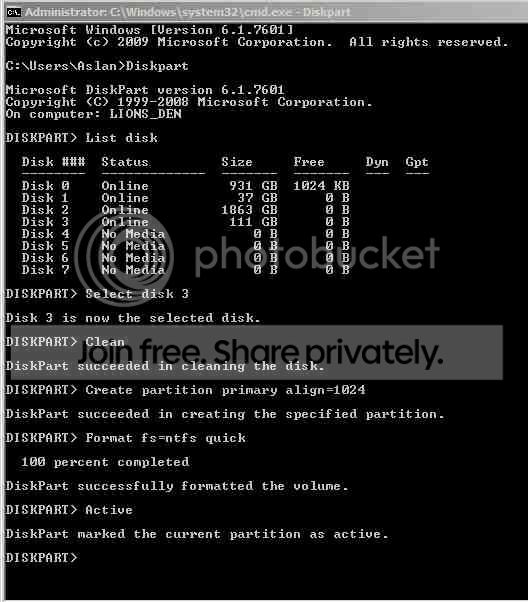
Then you need to align the SSD and define an active partition on it. You use an elevated Command Prompt with the following commands:

Diskpart
List disk
Select disk n (where n is the number that was given for your SSD in List disk)
Clean
Create partition primary align=1024
Format fs=ntfs quick
Active (assuming you want to install an OS)
Exit

Note: If you are more comfortable working with Disk Management, you can also define a primary active partition with Disk Management. On a SSD, the partition will be automatically aligned by 1024.


If you want to verify that the alignment is correct, you use these commands:

Diskpart
List disk
Select disk n
List partition


You should see a result like this:

Partition ### Type Size Offset


------------- ---------------- ------- -------
Partition 1 Primary 59 GB

1024 KB - but 64KB or any number divisible by 4 is also good. The offset has to be divisible by 4.

In Windows7, you may have the 100MB active boot partition. The easiest way to deal with that is to move the bootmgr to the C: partition using EasyBCD. That you do on your HDD before you transfer anything to the SSD. Then you do not have to worry about it and you need only transfer the C: partition to the SSD.


But if you care to keep the 100MB partition, then the partition you just created on the SSD is for that 100MB partition. The next step is to shrink the partition you just created to a 100MB size (make sure it is not any smaller). With Disk Management you will have trouble to do that. I recommend this program for the operation.

From the free space you gained, you create the C: partition for the OS. This partition must not be active and need not be a primary (because the 100MB partition contains the boot manager).

Alternatively and easier is if you first create the 100MB partition with these commands:

Diskpart
List disk
Select disk n (where n is the number that was given for your SSD in List disk)
Clean
Create partition primary size=100 align=1024
Format fs=ntfs quick
Active
Exit

Note: The unit in the size parameter is MB

After this action you can use Disk Management to create the C partition from the remaining unallocated space. That can be a logical partition.

If there is no 100MB partition, things are easy. The partition you created with Command Prompt will receive the C partition including boot manager and all.

There may be more partitions on your factory HDD – e.g., the Recovery partition and a Tools Partition. Those you should not transfer to the SSD because of space constraints. I would back them up – e.g., with an imaging program. The Recovery Partition you can also burn to DVDs.

The OS transfer

This is done with an image. There are a variety of free imaging programs (e.g., the free editions of Macrium, Paragon, Acronis, etc.) that are suitable for the task. You can also use the Windows7 imaging, which has the advantage that it deals with the 100MB active boot partition automatically. Disadvantage is that you never know exactly what it does.

You image your partitions to an external disk (you may have to assign a drive letter to the 100MB partition so that the imaging program can identify it) and then pull the images back in to the SSD (using the bootable recovery program of the imaging program).
The recovery is partition by partition. So you have to make separate runs for the 100MB partition (if any) and the C: partition.

Note: Many free imaging programs cannot shrink the originating partition to fit into the usually much smaller C: partition on the SSD - even if the amount of data in that partition would fit. In that case you will need to shrink the C: partition on the HDD prior to imaging it. The HDD C: partition must be smaller or equal in size to the designated partition on the SSD. For that operation I also recommend this program because Disk Management might not be able to shrink it enough. Note: Free Macrium can image to a smaller disk if the data fits.

It is, of course, understood, that the amount of data on your HDD C: partition must not exceed the capacity of the designated C: partition on the SSD. Should you have more data on your HDD C: partition than the size of the SSD C: partition can hold, I suggest you first create a data partition on the HDD system and move the user data there. Here is my video tutorial that explains how this is done. When you finally are on the SSD system, you then right click on the user folders in the data partition (Documents, Pictures, etc.) and Include them into the appropriate library. That approach does not require you to move the user folders later.

Next step is to change the boot sequence in the BIOS to set the SSD as second boot device (leave the CD/DVD reader as first boot device) and, hopefully, your system will boot.

2.The easy way for transferring the OS requires you to purchase this program. It does everything for you – alignment, deals with the 100MB partition, transfers C:, shrinks the originating partition, etc. All you will have to do is change the boot sequence.

Note: Before you activate the SSD, it is recommended to set the BIOS to AHCI. Best time to do that is just before you change the boot sequence. Once Windows7 is running, you make the corresponding settings in the OS. Here is a tutorial on how to do that.
Many people claim that there is a significant performance gain with AHCI. I, however, did not see that. But it may be different from system to system.

Settings after the OS transfer

Disk Defragmentation makes no sense on an SSD. For a laptop, go into Services, navigate to Disk Defragmenter, right click on it and go to Properties. Here you set the service to Disabled.
For a desktop, you may want to disable defrag in the Disk Defragmenter and only for the SSD so that the remaining HDDs can still be defragmented.

Note: As long as Defrag Service is turned off, you cannot shrink any partition. The partition shrink process requires the Defrag service. If you need to shrink a partition later, turn the Defragmentation Service temporarily on.

Hibernation File – most of us do not use Hibernation, but Sleep instead. But, the hiberfile takes precious space on your SSD – to the same tune as the size as your RAM. To get rid of it, run the following command in elevated Command Prompt: powercfg –h off. If you ever want it back, it is powercfg – h on.

Superfetch – many “experts” suggest to turn Superfetch off. I think that is not appropriate. Fetching a program or data from RAM is still a lot faster than fetching it from a disk – even from an SSD.

There are no other settings that are necessary. On the SSD forums you will find a lot of tweaks. I recommend you stay away from them.


Move the user folders to the HDD

To move the user folders to the HDD is very simple. Create a Data partition on the HDD. Define folders in that partition – e.g., Documents, Music, Pictures, etc. One for each folder you want to move off the SSD. The name of those folders can be anything. The system will rename them anyhow. It is just more obvious if you call them by the same name as the originating folders.

Then, open the Explorer and right click on, e.g., My Documents folder (not the Documents Library) in the left pane. Go to Properties and click on the Location tab. Here you click on Move and navigate to the corresponding folder in your Data Partition on the HDD. Then you Select that folder and Apply it.

Very Important: You must move the SSD folder to the corresponding Data Partition folder – NOT to the root of the partition itself. That would create a mess.


Last edited:

My Computer

Computer Manufacturer/Model Number
HP, Dell, Gateway, Toshiba - 4 laptops and 2 desktops
OS
Vista, Windows7, Mint Mate, Zorin, Windows 8
CPU
from 1.6GHz Duo to i7
Monitor(s) Displays
2x HP w2207
Hard Drives
5x HDD, 7x SSD, 12x Externals
Keyboard
with trackball - no mices
Mouse
Trackball mice
Internet Speed
DSL 6000
If i transfer the os from my hdd to my ssd will it remove any files from my HDD such as My Documents?
 

My Computer

OS
Windows 7 64 Bit
If i transfer the os from my hdd to my ssd will it remove any files from my HDD such as My Documents?
You do not transfer the OS per se, you transfer the C partition and everything that is in it. And if you have a 100MB system partition, that needs to be transferred too. Make sure the data in your C partition is not more than the capacity of the SSD.

Usually we keep the user data (documents, pictures, music and videos) on the HDDs. But if you have a large SSD, they may fit.
 

My Computer

Computer Manufacturer/Model Number
HP, Dell, Gateway, Toshiba - 4 laptops and 2 desktops
OS
Vista, Windows7, Mint Mate, Zorin, Windows 8
CPU
from 1.6GHz Duo to i7
Monitor(s) Displays
2x HP w2207
Hard Drives
5x HDD, 7x SSD, 12x Externals
Keyboard
with trackball - no mices
Mouse
Trackball mice
Internet Speed
DSL 6000
SO i cant just put the OS on there? cause my C: is 200gb full already
 

My Computer

OS
Windows 7 64 Bit
Unless you have a 256GB SSD, the answer is no. If your SSD is only 128GB or 60GB, that's like trying to put 3 gallons of water into a 1 gallon jug.

Why don't you first make a data partition and move all your user folders there.

With the Paragon Migration Tool, you can deselect folders that should not be transferred. But that is messy and I would not recommend to use that function.
 

My Computer

Computer Manufacturer/Model Number
HP, Dell, Gateway, Toshiba - 4 laptops and 2 desktops
OS
Vista, Windows7, Mint Mate, Zorin, Windows 8
CPU
from 1.6GHz Duo to i7
Monitor(s) Displays
2x HP w2207
Hard Drives
5x HDD, 7x SSD, 12x Externals
Keyboard
with trackball - no mices
Mouse
Trackball mice
Internet Speed
DSL 6000
So partition my Hdd and put all my Documents OS and stuff into one and other data into the other partition.
 

My Computer

OS
Windows 7 64 Bit

My Computer

Computer Manufacturer/Model Number
HP, Dell, Gateway, Toshiba - 4 laptops and 2 desktops
OS
Vista, Windows7, Mint Mate, Zorin, Windows 8
CPU
from 1.6GHz Duo to i7
Monitor(s) Displays
2x HP w2207
Hard Drives
5x HDD, 7x SSD, 12x Externals
Keyboard
with trackball - no mices
Mouse
Trackball mice
Internet Speed
DSL 6000
I ahve another partition so do i just put the "WINDOWS" folder into it?
 

My Computer

OS
Windows 7 64 Bit
Hello Wolfgang. Thanks to your excellent step-by-step tutorial I was able to successfully migrate my XP Pro system to a Samsung 830 SSD. I used the 'geeky' method.

Because I'm still on XP (yes, I know), I encountered a few minor hiccups that I was able to overcome. Other XP users may find this information useful.

1. Shrunk the C: partition with the free MiniTool Partition Wizard so it would comfortably fit on the SSD, then used Macrium Reflect Free Edition to create an image of the C: partition on an external drive.

2. Created a boot CD for both MiniTool and Macrium.

3. Installed the SSD in my Dell Vostro 220 with velcro. Fortunately I had the foresight to purchase a power extension cable because the only available power cable inside the Dell was way too short.

4. Initialized the SSD with the MiniTool and then used Diskpart to align and activate the partition. Here I encountered the first hiccup: the XP version of Diskpart does not recognize the "Create partition primary align=1024" command. However, there is an easy workaround - boot from a Vista or Win 7 install cd and get to a DOS window to run Diskpart. My system came with a Vista install CD, but can be freely (and legally) obtained online. The SSD was now properly aligned.

5. Booted from the Macrium boot CD and restored the C: partition image from the external drive to the SSD.

6. Rebooted from my original internal HDD, which may have been a mistake. Opened Minitool to check the status of the SSD and noticed that the C: partition was there, but so was Dell's hidden (and useless) diagnostics partition. This partition comes before the C: partition.

7. Rebooted again, this time from the SSD. And, other than a few 'found new hardware messages', it loaded superfast! Success! Yet, I still had a nagging feeling that all was not right. I rebooted several times and noticed that Windows took a long time shutting down. I checked the alignment and, yes, it got screwed up. That damn Dell partition!

8. Frustrated, I almost did a secure erase and start all over again. Time to take a 10-minute break. Searching for a way to non-destructively reallign and get rid of the Dell partition, I came across Parted Magic (GParted), which is also free.

9. Created a Parted Magic boot CD, booted from it, and told it to delete the Dell partition (which became 47MB of unallocated space. I was then able to move the C: partition to the left with a 1MB alignment. Amazingly, this worked!

10. There was still one minor detail to take care of. My C: partition used to be the second partition on my HDD, but now it was the first partition on my SSD. This meant editing the boot.ini and probably rebuilding the MBR. For this I used the boot CD of MiniTool, which has a boot.ini editor. Actually, there was no need to edit boot.ini as Parted Magic had already taken care of it. So I just rebuild the MBR.

And that was it. Booted from the SSD and XP is running like clockwork, and the partition is perfectly aligned. Followed all the directions to optimize XP running on SSD. The Samsung 830 comes with its own SSD Magician Tool with a Trim function for XP.

Yes, magic does exist. All done with free tools that truly work. The authors deserve a donation for their work and I have already done so.

PS - I love working with DOS commands. I started my computing days with CP/M in 1978 on an Osborne 1 and moved to MS-DOS in 1980. The good old days.
 

My Computer

OS
Windows XP Pro x32
Rocky, you are a real expert. You did very well. But XP on a SSD is ashame - no Trim will ultimately slow you down.

From time to time make an image and do a Secure Erase. That will get the nands back in shape for fast write operations. Then restore the image. If during the Macrium WinPE restore you drag the image from the backup to the SSD, you will even maintain the alignment.
 

Attachments

  • 2012-06-25_1207.png
    2012-06-25_1207.png
    73 KB · Views: 205

My Computer

Computer Manufacturer/Model Number
HP, Dell, Gateway, Toshiba - 4 laptops and 2 desktops
OS
Vista, Windows7, Mint Mate, Zorin, Windows 8
CPU
from 1.6GHz Duo to i7
Monitor(s) Displays
2x HP w2207
Hard Drives
5x HDD, 7x SSD, 12x Externals
Keyboard
with trackball - no mices
Mouse
Trackball mice
Internet Speed
DSL 6000
Thanks, Wolfgang. The included software with the Samsung 830 comes with a manual Trim function that supposedly keeps the drive optimized under XP. We'll see how functional it is. I plan to move most of my data to the HDD. Even with data I still have 72% of free space on the SSD. Nevertheless, I will heed your advice and do a Secure Erase when I notice a slowdown.

I wasn't going to get any upgrades for my old Dell clunker, but couldn't help myself when I saw the 128GB Samsung 830 on sale for $90 on Newegg. Now that I've seen what a solid state drive can do, I feel compelled to spring for a new system to do it justice.

By the way, the drag and drop feature in Macrium WinPE is top-notch. I'm really impressed with the tools that are available today.
 

My Computer

OS
Windows XP Pro x32
LOL, you sound like me. Whenever I see an attractive price for an SSD at NewEgg, I get one. Pretty soon I can start my own SSD shop. Now I have a couple lying around without a system. I think I will stick them into my eSata and USB3 enclosures.
 

My Computer

Computer Manufacturer/Model Number
HP, Dell, Gateway, Toshiba - 4 laptops and 2 desktops
OS
Vista, Windows7, Mint Mate, Zorin, Windows 8
CPU
from 1.6GHz Duo to i7
Monitor(s) Displays
2x HP w2207
Hard Drives
5x HDD, 7x SSD, 12x Externals
Keyboard
with trackball - no mices
Mouse
Trackball mice
Internet Speed
DSL 6000
Hello whs,

I've joined the forum to request a bit of hand-holding for a problem that's just different enough from anything I've read in the 34 pages of this thread (yeah, took me 2 days) for me to want the best advice available before trying anything that could devastate my system. Like many before me, I'm a user not an IT dude, itrw I'm an industrial engineer. I'm a gamer, browser & sometime video producer on the PC, apart from that it's my entertainment system.

So - when I bought this PC, about 18 months ago, it came with just the 1TB hitachi HD and no installed OS. Before leaving the shop I bought the 2TB WD & the 40GB Intel SSD as well as Win7 Pro. I fitted them and then installed win7 to the SSD, which became my C: drive.

Even though I put every 3rd party app etc that gives me a choice into D:/program files (x86)/... about a fortnight ago I got a warning that it was nearly full (200MB left, I think!) so I started thinking about a solution.... a bigger SSD of course!

Yes, I did my research, moved a few files out of C:/users/me...gamesaves, uninstalled a few apps that were on C that I didn't need anymore, that gave me 850MB free. The I found the link to doing the sp-1 clean-up, that gave me 4.2GB free, which will keep me afloat until I solve my real problem. I dealt with the pagefile/hibernation issues after installing the OS if I remember correctly.

I bought a 120GB ADATA SSD, which comes with Acronis HD, and a USB-Sata thingy, followed the instructions, cloned my C: to the new F:, checked that the files had all copied, no problem.

Closed down, opened the case, swapped out the drives - no boot.

OK, to stop this turning into a novel, what I've discovered since, mostly as a result of this thread and some links in it, is that it's actually my D: drive which has the 100MB system partition on it, not C: Either the drive had that 'as standard' or when windows installed it put that on the first SATA location instead of the new SSD - I think I just plugged that into the next available SATA slot, never thought it would matter :(

- I did actually wonder why my WEI for drive speed was only 5.9 with an SSD but never chased it up, I'm guessing that the drive speed is calculated from where the system bit is, not the SSD with the OS.

What I want to do is make the 120GB SSD the bootable OS drive & eventually turn the 'old' 40GB SSD into a drive purely for my "Skyrim" game folder.

I have EasyBCD, Partition Wizard & Paragon awaiting instructions.

Please walk me through what I need to do. I can post screenies of anything you need, I'm used to doing that.

Thanks in advance.

Aslan Freeman
(English Exile in the Netherlands)
 

My Computer

Computer Manufacturer/Model Number
Advanced Power "Stealth III"
OS
Windows 7 Professional x64 (English)
CPU
i7 870 2.93GHz
Motherboard
MSI H55M-E33
Memory
12GB DDR3
Graphics Card(s)
ASUS/NVidia GTX 560ti GPU (1GB/900MHz overclocked)
Sound Card
Realtek HD audio (to Logitech Z550 5.1)
Monitor(s) Displays
-Samsung 24" Monitor 1920x1200 2-Samsung 32" HDTV 1768x992
Screen Resolution
see above
Hard Drives
C: 120GB ADATA S510 SSD - O/S only
D: 2TB Seagate Barracuda 7200rpm - Progs, Games etc
E: 2TB WD Green Caviar - Media & Projects
F: 40GB Intel Speed Demon SSD - Skyrim
also 3x 1TB WD MyBook Essential for offline backup.
PSU
500W
Case
CoolerMaster
Cooling
six inch on pack panel
Keyboard
Steelseries Merc Stealth gaming keyboard
Mouse
Cyborg R.A.T. 7
Internet Speed
18MB/S down 1.2MB/S up
Other Info
Logitech Z550 5.1 surround system
1. In your 40GB insatllation move the bootmgr to C on the SSD. http://www.sevenforums.com/tutorials/209885-bootmgr-move-c-easybcd.html

2. Make an image of this C to one of your HDDs - not the new SSD.

3. Align the new SSD with these commands:

Diskpart
List disk

Select disk n (where n is the number that was given for your new SSD in List disk)
Clean
Create partition primary align=1024
Format fs=ntfs quick
Active
Exit

4. Restore the image of C to this partition.

Now if you want to be really finagly, you can do a Secure Erase of your new SSD before you do step #3. This is not absolutely required, but a SSD purist would do that. Guide Secure Erase With bootable CD/USB Linux.. Point and Click Method
 

My Computer

Computer Manufacturer/Model Number
HP, Dell, Gateway, Toshiba - 4 laptops and 2 desktops
OS
Vista, Windows7, Mint Mate, Zorin, Windows 8
CPU
from 1.6GHz Duo to i7
Monitor(s) Displays
2x HP w2207
Hard Drives
5x HDD, 7x SSD, 12x Externals
Keyboard
with trackball - no mices
Mouse
Trackball mice
Internet Speed
DSL 6000
Impressively quick reply :) It came in just as I was leaving for work so this is my first chance to comment.

I'm not an "SSD Purist", but I certainly respect the opinion of one who is, so I'll do the secure erase before anything else. I still feel the need to ask for a wee bit of clarification on other things though, for the reasons stated earlier...

In 1. This has me confused! The 40GB installation IS the SSD & has no bootmngr, do you mean move the bootmngr from the 1TB drive to the 'old' C: drive which is the 40GB SSD?

2. Can I ask the REASON for imaging to another HDD? (Rather than a straight clone to the new SSD) -Just to help my understanding ;) What software do you recommend for the imaging? Anything to be aware of?
Can you confirm that I don't need to do anything with the order of the SATA cables to the (4) Disk Drives?

-I'm already aware that the missing 'last step' is to alter the BIOS load-order for the new SSD (and I suppose to check that it's in "ACHI" mode, I expect so as the OEM drives (HDD&DVD-R) were both SATA from day 1

I'll have a good cuppa & read the Secure Erase tutorial while I wait...
 

My Computer

Computer Manufacturer/Model Number
Advanced Power "Stealth III"
OS
Windows 7 Professional x64 (English)
CPU
i7 870 2.93GHz
Motherboard
MSI H55M-E33
Memory
12GB DDR3
Graphics Card(s)
ASUS/NVidia GTX 560ti GPU (1GB/900MHz overclocked)
Sound Card
Realtek HD audio (to Logitech Z550 5.1)
Monitor(s) Displays
-Samsung 24" Monitor 1920x1200 2-Samsung 32" HDTV 1768x992
Screen Resolution
see above
Hard Drives
C: 120GB ADATA S510 SSD - O/S only
D: 2TB Seagate Barracuda 7200rpm - Progs, Games etc
E: 2TB WD Green Caviar - Media & Projects
F: 40GB Intel Speed Demon SSD - Skyrim
also 3x 1TB WD MyBook Essential for offline backup.
PSU
500W
Case
CoolerMaster
Cooling
six inch on pack panel
Keyboard
Steelseries Merc Stealth gaming keyboard
Mouse
Cyborg R.A.T. 7
Internet Speed
18MB/S down 1.2MB/S up
Other Info
Logitech Z550 5.1 surround system
To avoid further confusion, you should probably post a screen shot of Windows Disk Management if possible, so we can properly ID your partitions and their status.

We need to know the details of C and System Reserved, where they are, status, size, etc. A picture is worth more than the proverbial thousand words.

I think what he wants you to do is:

Move the boot files from System Reserved (apparently now on the 1 TB drive) to C on the 40 GB SSD with Easy BCD. This eliminates the need for the System Reserved. Then make an image of C (which now contains boot files) and store the image on some HD. Then pre-align the new SSD with Diskpart. Then restore the image of C from wherever you put it to the new SSD.

But let him confirm that.

WHS typically recommends Macrium as a preferred imaging program--and he prefers to use imaging rather than cloning.

Re cabling: ideally, you want the new C on the new SSD to appear as drive 0 in Windows Disk Management, but it's rarely critical.
 

My Computer

Computer type
PC/Desktop
Computer Manufacturer/Model Number
Ignatz Special; 4 speed manual gearbox; factory air conditioning; one of one
OS
Windows 7 Home Premium SP1, 64-bit
CPU
Intel Skylake i5-6600K, not overclocked
Motherboard
AsRock Z170M Extreme 4, micro ATX
Memory
8 GB HyperX DDR4-2666 (2 x 4 GB)
Graphics Card(s)
none; graphics are integrated on CPU
Sound Card
onboard: Realtek ALC1150; external: USB Behringer UF0-202
Monitor(s) Displays
Dell S2340M 23 inch IPS
Screen Resolution
1600 x 900
Hard Drives
System: Crucial MX100 series SSD, 128 GB;
Data: Samsung Spinpoint 103SJ, 1 TB;
Backup: WD Caviar Green WD30EZRX-00D8PB0, 3 TB
PSU
Rosewill SilentNight 500 watt fanless, semi-modular
Case
Antec Solo II
Cooling
Noctua NH-U12S; Noctua F12 intake, Noctua S12A exhaust
Keyboard
Microsoft 200 6JH-00001 USB
Mouse
Dell or Microsoft optical wired; USB
Antivirus
Microsoft Security Essentials and Malwarebytes Premium
Browser
Pale Moon
Other Info
All fans PWM; speeds at idle: CPU circa 500 rpm; intake circa 600 rpm; exhaust circa 600 rpm; CPU temps 27 idle and 47 C load in a warm room (27 C/81 F) when running Intel Extreme Tuning Utility stress test.
Something like this then?

DiskManagement1.jpg


I don't think I'm going to do the secure erase, I got scared by all the linux talk :(
 

My Computer

Computer Manufacturer/Model Number
Advanced Power "Stealth III"
OS
Windows 7 Professional x64 (English)
CPU
i7 870 2.93GHz
Motherboard
MSI H55M-E33
Memory
12GB DDR3
Graphics Card(s)
ASUS/NVidia GTX 560ti GPU (1GB/900MHz overclocked)
Sound Card
Realtek HD audio (to Logitech Z550 5.1)
Monitor(s) Displays
-Samsung 24" Monitor 1920x1200 2-Samsung 32" HDTV 1768x992
Screen Resolution
see above
Hard Drives
C: 120GB ADATA S510 SSD - O/S only
D: 2TB Seagate Barracuda 7200rpm - Progs, Games etc
E: 2TB WD Green Caviar - Media & Projects
F: 40GB Intel Speed Demon SSD - Skyrim
also 3x 1TB WD MyBook Essential for offline backup.
PSU
500W
Case
CoolerMaster
Cooling
six inch on pack panel
Keyboard
Steelseries Merc Stealth gaming keyboard
Mouse
Cyborg R.A.T. 7
Internet Speed
18MB/S down 1.2MB/S up
Other Info
Logitech Z550 5.1 surround system
Impressively quick reply :) It came in just as I was leaving for work so this is my first chance to comment.

I'm not an "SSD Purist", but I certainly respect the opinion of one who is, so I'll do the secure erase before anything else. I still feel the need to ask for a wee bit of clarification on other things though, for the reasons stated earlier...

In 1. This has me confused! The 40GB installation IS the SSD & has no bootmngr, do you mean move the bootmngr from the 1TB drive to the 'old' C: drive which is the 40GB SSD?

2. Can I ask the REASON for imaging to another HDD? (Rather than a straight clone to the new SSD) -Just to help my understanding ;) What software do you recommend for the imaging? Anything to be aware of?
Can you confirm that I don't need to do anything with the order of the SATA cables to the (4) Disk Drives?

-I'm already aware that the missing 'last step' is to alter the BIOS load-order for the new SSD (and I suppose to check that it's in "ACHI" mode, I expect so as the OEM drives (HDD&DVD-R) were both SATA from day 1

I'll have a good cuppa & read the Secure Erase tutorial while I wait...
1. Yes, what EasyBCD will do is move (actually Copy) the bootmgr from your 1TB drive to C.

2. Reason is that you cannot 'boot' an image. You can only boot the restored image. Use free Macrium. Here are all the instructions on how to deal with it: http://www.sevenforums.com/tutorials/73828-imaging-free-macrium.html?ltr=I

3. Yes, you eventually have to change the BIOS boot order. Switching to AHCI you can do any time later. Make the settings in the OS first ( http://www.sevenforums.com/tutorials/61869-ahci-enable-windows-7-vista.html ), then change the BIOS before rebooting.

PS: I am currently in Europe. So my answers may have a time delay because of the time difference.
 

My Computer

Computer Manufacturer/Model Number
HP, Dell, Gateway, Toshiba - 4 laptops and 2 desktops
OS
Vista, Windows7, Mint Mate, Zorin, Windows 8
CPU
from 1.6GHz Duo to i7
Monitor(s) Displays
2x HP w2207
Hard Drives
5x HDD, 7x SSD, 12x Externals
Keyboard
with trackball - no mices
Mouse
Trackball mice
Internet Speed
DSL 6000
Something like this then?

DiskManagement1.jpg


I don't think I'm going to do the secure erase, I got scared by all the linux talk :(
The Secure Erase is actually quite simple. But as I have said, it is optional. What it does is clear all your Nands so that the write operations are running at top speed. But over time, garbage collection will do the same thing.

Here is another link which may explain it in a little easier way: How to securely erase an SSD drive | How To - CNET
 

My Computer

Computer Manufacturer/Model Number
HP, Dell, Gateway, Toshiba - 4 laptops and 2 desktops
OS
Vista, Windows7, Mint Mate, Zorin, Windows 8
CPU
from 1.6GHz Duo to i7
Monitor(s) Displays
2x HP w2207
Hard Drives
5x HDD, 7x SSD, 12x Externals
Keyboard
with trackball - no mices
Mouse
Trackball mice
Internet Speed
DSL 6000
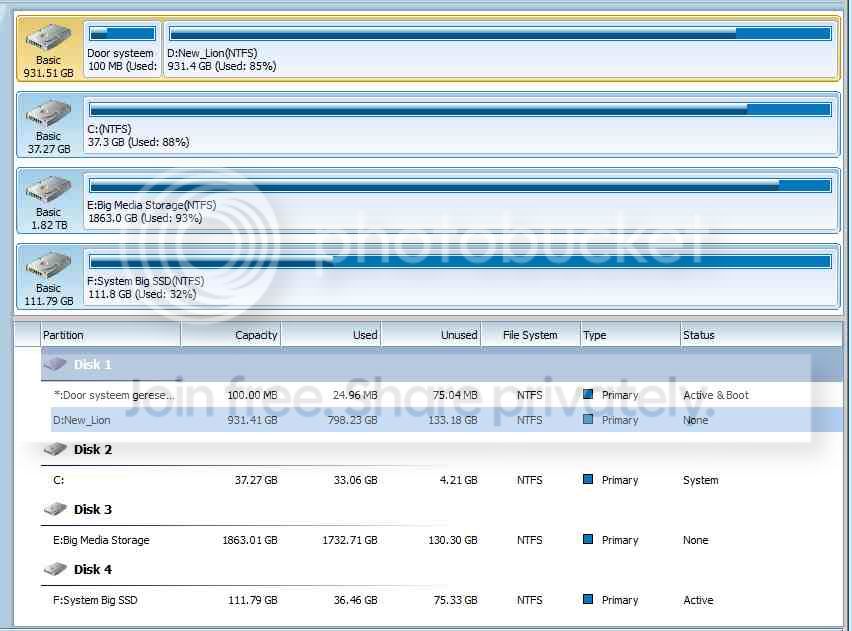
btw-the data on F: is the paragon clone of C: but it should be gone now, I did this while waiting....

DiskManagement2.jpg


If I was to do the cabling correctly (I AM an engineer, after all!) i.e. putting the new big SSD where the D: drive is now, when is the right time to do that, after everything else is done & running or before doing all the migrations? Does the 'bootable' drive have to be on location (sata?) "0" to work at all?
 

My Computer

Computer Manufacturer/Model Number
Advanced Power "Stealth III"
OS
Windows 7 Professional x64 (English)
CPU
i7 870 2.93GHz
Motherboard
MSI H55M-E33
Memory
12GB DDR3
Graphics Card(s)
ASUS/NVidia GTX 560ti GPU (1GB/900MHz overclocked)
Sound Card
Realtek HD audio (to Logitech Z550 5.1)
Monitor(s) Displays
-Samsung 24" Monitor 1920x1200 2-Samsung 32" HDTV 1768x992
Screen Resolution
see above
Hard Drives
C: 120GB ADATA S510 SSD - O/S only
D: 2TB Seagate Barracuda 7200rpm - Progs, Games etc
E: 2TB WD Green Caviar - Media & Projects
F: 40GB Intel Speed Demon SSD - Skyrim
also 3x 1TB WD MyBook Essential for offline backup.
PSU
500W
Case
CoolerMaster
Cooling
six inch on pack panel
Keyboard
Steelseries Merc Stealth gaming keyboard
Mouse
Cyborg R.A.T. 7
Internet Speed
18MB/S down 1.2MB/S up
Other Info
Logitech Z550 5.1 surround system
Back
Top