Solved Nvidia windows kernel mode driver version 301.42 stopped responding

I Know How

Well I Had To Register Because I Just Found Out How To Fix The Nvidia Kernel Mode Driver Recoverd Problem. Since I Did This I Never HAd a Crash Again :)!!!!


Go To Download.com And Download ActiveX Controller

it should say this Below.....when you search it..

DownloadX ActiveX Download Control Windows Version 1.6.5 Added on 10/07/2011
Download files faster and safer with your Web and Windows applications.

2,382,614 total downloads 10,456 last week


............I DONT KNOW HOW AND WHAT ACTIVEX GOT TO DO WITH IT THE KERNEL MODE ISSUE BUT ITS BEEN 8hrs Straight Without a Single Crash!!!!


ITS THE ONLY THING THAT WORK FOR ME AFTER COUNTLESS VIDS ON YOUTUBE
ALl Saying To UPdate Driver OR Safemode Removal..None of that work ....UNTILL THE ACTIVEX Thing....HOPE THIS WORKS FOR ALL!!!

Just Download And Install And Cross Your Fingers
 

My Computer

Computer Manufacturer/Model Number
systemax
OS
Windows 7
Memory
(RAM) 8.gb
Graphics Card(s)
NVIDIA Geforce Gtx 550 Ti
Sound Card
Nvidia High Def
Well I Had To Register Because I Just Found Out How To Fix The Nvidia Kernel Mode Driver Recoverd Problem. Since I Did This I Never HAd a Crash Again :)!!!!


Go To Download.com And Download ActiveX Controller

it should say this Below.....when you search it..

DownloadX ActiveX Download Control Windows Version 1.6.5 Added on 10/07/2011
Download files faster and safer with your Web and Windows applications.

2,382,614 total downloads 10,456 last week


............I DONT KNOW HOW AND WHAT ACTIVEX GOT TO DO WITH IT THE KERNEL MODE ISSUE BUT ITS BEEN 8hrs Straight Without a Single Crash!!!!


ITS THE ONLY THING THAT WORK FOR ME AFTER COUNTLESS VIDS ON YOUTUBE
ALl Saying To UPdate Driver OR Safemode Removal..None of that work ....UNTILL THE ACTIVEX Thing....HOPE THIS WORKS FOR ALL!!!

Just Download And Install And Cross Your Fingers
\

Doubt this fixed it.
 

My Computer

Computer Manufacturer/Model Number
Dell - Vostro 430
OS
Windows 7 Professional x64 SP1
CPU
Intel Core i7 860 @2.80GHz
Motherboard
Dell 054KM3
Memory
6144MB DDR3-SDRAM (3 x 2048 DDR3)
Graphics Card(s)
nVidia GeForce 310
Sound Card
Realtek High Definition Audio ALC662
Monitor(s) Displays
Dell Computer DELL E2311H
Screen Resolution
1920 x 1080
Hard Drives
Seagate Barracuda ST3750528AS (750 GB)
PSU
J515T 350W
Case
14.58inH x 6.69inW x 17.43inD
Cooling
Fan from the Box heehee
Keyboard
Rapoo Wireless Keyboard
Mouse
Rapoo Wireless Mouse
Internet Speed
1 byte every 2.6 hours
Other Info
Dreaming of building a new PC :D

Cant wait :)
hey i have had this issue for like 6 months or more and was woundering if anyone know if its been fixed yet ?(as in us non geeks, just gonna dl a working driver and thats it, can do it)
 

My Computer

OS
w7 64 bit
This is a huge issue for me, i really need my comp to work probely, this stupid issue have happend for more than 6 months, i am utterly clueless to what i am supposed to do to get it too work :(
 

My Computer

OS
w7 64 bit
i think nobody can properbly solved this problem effective
i have repair my computer for this reson many time but each time after repair,its works good and no more freeze or black screen while playing game AT FIRST..but the same problems just come back after few day..
<<get a black screen for about 5 seconds and then the screen recovers. Sometimes it happens 3-4 times a game (League of Legends, Skyrim) and sometimes not at all. During that time, if I alt tab, I can see this message once the screen recovers, "nvidia windows kernel mode driver version 301.42 stopped responding and has recovered.">>
i had a same problems with u...
i play dota2 and my computer just get hang almost each game i playing and i get really mad and frustrated of my computer
any expert of computer please teach me how to solve and what is the main source of causing this problem happen again and again
this computer just freeze while i playing Dota2
doesnt happen when i playing facebook,youtube and etc.. please help.. any help will be appreciate
thanks a lot
 
Last edited:

My Computer

Computer Manufacturer/Model Number
Desktop-ASUSTeK Computer INC. Model:P5KPL-AM
OS
Microsoft Windows 7 Ultimate 32-bit 7601 Multiprocessor Free Service Pack 1
CPU
Pentium(R) Dual-Core CPU E5400 @ 2.70GHz
Motherboard
ASUSTeK Computer INC. P5KPL-AM
Memory
2.00 GB
Graphics Card(s)
NVIDIA GeForce 210
Sound Card
(1) NVIDIA High Definition Audio (2) NVIDIA High Definitio
Screen Resolution
1366 x 768 x 32 bits (4294967296 colors) @ 59 Hz
Hard Drives
ST3500418AS ATA Device
PSU
AVF 500W Power Supply With Power Cable & 12CM Fan (PS500F12B
is this problem cause of overheating inside the CU build or just mine graphic is not good as well to play games?
:(
 

My Computer

Computer Manufacturer/Model Number
Desktop-ASUSTeK Computer INC. Model:P5KPL-AM
OS
Microsoft Windows 7 Ultimate 32-bit 7601 Multiprocessor Free Service Pack 1
CPU
Pentium(R) Dual-Core CPU E5400 @ 2.70GHz
Motherboard
ASUSTeK Computer INC. P5KPL-AM
Memory
2.00 GB
Graphics Card(s)
NVIDIA GeForce 210
Sound Card
(1) NVIDIA High Definition Audio (2) NVIDIA High Definitio
Screen Resolution
1366 x 768 x 32 bits (4294967296 colors) @ 59 Hz
Hard Drives
ST3500418AS ATA Device
PSU
AVF 500W Power Supply With Power Cable & 12CM Fan (PS500F12B
Possible Solution for Nvidia Kernel Mode driver malfunction...

A friend of mine has been having this very same problem for quite a while now, and I spent a considerable amount of time searching for a solution or clues that might lead me to one. Tried different drivers, but nothing seemed to make a difference.
Today, the system started failing right at start-up, and it was obvious that it was due to graphics board malfunction. So, I decided to extract the graphics card and take a closer look at it. Unscrewed the heat-sink, and straight away realized that the thermal paste was completely dried out and definitely not doing its job. So, I scraped off and cleaned out all the old paste, and replaced it with a new thin layer of new paste. Took the opportunity to clean out the heat-sink and fan, and set everything up again neatly. After re-installing the board back in place, re-started the system, and to my great surprise, it suddenly became completely normal and stable. Has been now, for a few hours, after stress tests with intensive graphics applications and games. After all this, it occurs to me that the problem may in fact be due to overheating of the graphics processor, and the defective dissipation of the heat produced.
So here's the suggestion: take some time to look at the hardware instead of the software. Make sure that you have a good heat transference between the surface of the graphics processor and the heat-sink. Might save you some time and a lot of headaches. It might be as simple as this... Give it a try...
 

My Computer

OS
Windows 7 Ultimate x32
A friend of mine has been having this very same problem for quite a while now, and I spent a considerable amount of time searching for a solution or clues that might lead me to one. Tried different drivers, but nothing seemed to make a difference.
Today, the system started failing right at start-up, and it was obvious that it was due to graphics board malfunction. So, I decided to extract the graphics card and take a closer look at it. Unscrewed the heat-sink, and straight away realized that the thermal paste was completely dried out and definitely not doing its job. So, I scraped off and cleaned out all the old paste, and replaced it with a new thin layer of new paste. Took the opportunity to clean out the heat-sink and fan, and set everything up again neatly. After re-installing the board back in place, re-started the system, and to my great surprise, it suddenly became completely normal and stable. Has been now, for a few hours, after stress tests with intensive graphics applications and games. After all this, it occurs to me that the problem may in fact be due to overheating of the graphics processor, and the defective dissipation of the heat produced.
So here's the suggestion: take some time to look at the hardware instead of the software. Make sure that you have a good heat transference between the surface of the graphics processor and the heat-sink. Might save you some time and a lot of headaches. It might be as simple as this... Give it a try...

I'd been getting this problem the last couple of weeks, I'd tried everything software wise, to no avail. So at last resort, I decided to take out my graphics card for a closer look (I have the GTX 550 btw) and much to my surprise it was full of dust, I unscrewed the front fan panel off and gave it a good blow of compressed air. Loaded it back in with no problem and I haven't had any issues now for a few days!

So, pretty much echoing Cyberius' post (thanks alot btw), in my case cleaning the graphics card in the case is pretty much impossible, take all the standard safety procedures and you should be good to go.
 

My Computer

OS
Windows 7 Home Premium x64
Hey guys I am getting a similar Driver Stopped responding issue on my ASUS notebook that carries an Nvidia Geforce GTX560M. I was hoping it was a Windows 7 or driver issue so I rolled back my drivers and when that failed to work I just did a clean install of my OS and used the original manufacturer supplied Disc Drivers. Still having the same Nvidia crash issue. Since my warranty just expired; I opened up the case, cleaned out the fan, GPU, CPU, heatsink, applied new Arctic Silver then swapped the RAM Chips, using a friend's laptop that carried the same type RAM, and it still didn't help.
So I eliminated dust, heat, RAM, OS, Drivers and wondering if it really could be my worst fear of failing Motherboard, processor or GPU. :(
So here is when the problem occurs. The laptop work fine under normal conditions and even works well with F.E.A.R. 3 on MAX and crashed after 15mins in 1 in 4 tests. If however I tried Skyrim on Ultra or even Old Gears of War it runs for a short while then crashes. I tested a less demanding C&C Kane's Wrath and it ran flawlessly. I tried Futuremark Performance tests which I had not run for a long time ago and it crashed a couple seconds into the test...
Anyone got any ideas?
 

My Computer

Computer Manufacturer/Model Number
ASUS
OS
Windows 7 Home Premium 64bit SP1
CPU
i7
Memory
8GB
Graphics Card(s)
NVIDIA GeForce GTX 560M
Monitor(s) Displays
1080p
Hard Drives
1TB
I once had this exact problem with an older 9600GT and it turned out to be video-bios related, for some reason the card fan would remain stuck at 30% and when under load the card would stop responding hence causing the dreaded TDR error. Few have also reported overheating issues and manufacturing defects in the video ram itself. The best solution is to replace/RMA the card.
 

My Computer

Computer type
PC/Desktop
Computer Manufacturer/Model Number
Custom Build
OS
Windows 10 Pro x64, Arch Linux
CPU
Intel Core 2 Quad Q8200 OC'd 3.08GHz
Motherboard
Asus Rampage formula LGA775
Memory
8GB DDR2 900Mhz
Graphics Card(s)
MSI GT730 2GB GDDR5 (Kepler)
Sound Card
Supreme FX2
Monitor(s) Displays
Samsung LS22F350 LED
Screen Resolution
1080P
Hard Drives
Kingston SSDNow UV400 120GB, 500GB Hitachi, 2TB Samsung, 500GB Seagate FreeAgent, 640GB Samsung, 160GB Toshiba (Arch)
PSU
AeroCool 500W Bronze
Cooling
Cooler Master V6 + 3X fans
Keyboard
Prolink keyboard
Mouse
Logitech M705
Internet Speed
1MiB/s
Browser
Chrome Beta
Thanks for the recommendation. Well ever since I cleaned the dust out I have had the bottom lid open and have it on the cooler pad with the twin fans blowing almost directly onto the video card so under load it does not push past 80degrees (average is 60). Plus the laptop fan spins up under heavy load. I mean like blowing pretty well thus I'm assuming heat isn't the problem then.
So I guess the card is damaged/defective... Sucks!
I'm just wondering if I get a new card and the issue still persists. Could it be this is caused by some other problem like Motherboard or low power by the PSU? Is there a way to check for sure without testing with another laptop?
 
Last edited:

My Computer

Computer Manufacturer/Model Number
ASUS
OS
Windows 7 Home Premium 64bit SP1
CPU
i7
Memory
8GB
Graphics Card(s)
NVIDIA GeForce GTX 560M
Monitor(s) Displays
1080p
Hard Drives
1TB
Thanks for the recommendation. Well ever since I cleaned the dust out I have had the bottom lid open and have it on the cooler pad with the twin fans blowing almost directly onto the video card so under load it does not push past 80degrees (average is 60). Plus the laptop fan spins up under heavy load. I mean like blowing pretty well thus I'm assuming heat isn't the problem then.
So I guess the card is damaged/defective... Sucks!
I'm just wondering if I get a new card and the issue still persists. Could it be this is caused by some other problem like Motherboard or low power by the PSU? Is there a way to check for sure without testing with another laptop?
Afaik possible causes are:
- Defective or overheating video card (Deadlocked GPU or defective Video Ram)
- Bad system RAM (Test: http://www.sevenforums.com/tutorials/105647-ram-test-memtest86.html )
- Display driver incorrectly adjusting 3D clock speeds in intensive Apps
- Badly installed display driver (highly unlikely)
- Insufficient power or defective PSU (shouldn't be the case on a laptop)
- Driver conflict especially with Realtek audio drivers

I would recommend an OCCT test, it'll run a bunch of stress tests on both the GPU and the Video RAM. Any defects will be logged.
http://www.sevenforums.com/tutorials/160729-nvidia-amd-video-card-test-occt.html
 

My Computer

Computer type
PC/Desktop
Computer Manufacturer/Model Number
Custom Build
OS
Windows 10 Pro x64, Arch Linux
CPU
Intel Core 2 Quad Q8200 OC'd 3.08GHz
Motherboard
Asus Rampage formula LGA775
Memory
8GB DDR2 900Mhz
Graphics Card(s)
MSI GT730 2GB GDDR5 (Kepler)
Sound Card
Supreme FX2
Monitor(s) Displays
Samsung LS22F350 LED
Screen Resolution
1080P
Hard Drives
Kingston SSDNow UV400 120GB, 500GB Hitachi, 2TB Samsung, 500GB Seagate FreeAgent, 640GB Samsung, 160GB Toshiba (Arch)
PSU
AeroCool 500W Bronze
Cooling
Cooler Master V6 + 3X fans
Keyboard
Prolink keyboard
Mouse
Logitech M705
Internet Speed
1MiB/s
Browser
Chrome Beta
i have found the solution to the problem...............
it seem that nvidia graphic cards are compatible with our respective possessors but our cpu frequency isn't compatible with graphic card's default frequency &
each cpu has different u need to find it and overclock or underclock ur graphic card accordingly
my pc spec is
Operating System: Windows 7 Ultimate 32-bit
Card name: NVIDIA GeForce GT 520
Processor: Intel(R) Core(TM)2 Duo CPU E7400 @ 2.80GHz (2 CPUs), ~2.8GHz
Memory: 2048MB RAM

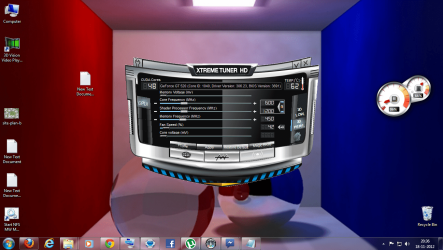
u can see in the image that i have underclocked it and now its working like charm for 3-4 months without any errors
 

Attachments

  • Untitled.png
    Untitled.png
    252.4 KB · Views: 413

My Computer

Computer Manufacturer/Model Number
Gigabyte Technology Co., Ltd.
OS
Windows 7 Ultimate 32bit.
CPU
Intel(R) Core(TM)2 Duo CPU E7400 @ 2.80GHz (2 CPUs), ~2
Motherboard
G31M-ES2L
Memory
2048MB RAM
Graphics Card(s)
NVIDIA GeForce GT 520
Sound Card
Speakers (Realtek High Definition Audio)
Monitor(s) Displays
Samsung SAM0598
Hard Drives
5oo gb
it seem that nvidia graphic cards are compatible with our respective possessors but our cpu frequency isn't compatible with graphic card's default frequency &
each cpu has different u need to find it and overclock or underclock ur graphic card accordingly
Makes no sense, graphics card are NOT dependent on processors or whatsoever clock speed of the latter.
each cpu has different u need to find it and overclock or underclock ur graphic card accordingly
No
u can see in the image that i have underclocked it and now its working like charm for 3-4 months without any errors
You actually underclocked your graphics card, the card may have been factory overclocked, clocked at a speed that it wasn't supposed to be running or the GPU itself can't handle the load at those respective clock speeds.
 

My Computer

Computer type
PC/Desktop
Computer Manufacturer/Model Number
Custom Build
OS
Windows 10 Pro x64, Arch Linux
CPU
Intel Core 2 Quad Q8200 OC'd 3.08GHz
Motherboard
Asus Rampage formula LGA775
Memory
8GB DDR2 900Mhz
Graphics Card(s)
MSI GT730 2GB GDDR5 (Kepler)
Sound Card
Supreme FX2
Monitor(s) Displays
Samsung LS22F350 LED
Screen Resolution
1080P
Hard Drives
Kingston SSDNow UV400 120GB, 500GB Hitachi, 2TB Samsung, 500GB Seagate FreeAgent, 640GB Samsung, 160GB Toshiba (Arch)
PSU
AeroCool 500W Bronze
Cooling
Cooler Master V6 + 3X fans
Keyboard
Prolink keyboard
Mouse
Logitech M705
Internet Speed
1MiB/s
Browser
Chrome Beta
I found a solution!!!

I FOUND A SOLUTION!!!

Ok. I have had the same problem with "NIVIDA Kernal Mode stopped responding" error and blackout every few minutes and screen going black etc. I have had this problem for days and tried all of the solutions I found on forums. I even had another NVIDA graphics card, put it in my rig and it had the same errors, meaning this was not GPU malfuntion. I tried rolling back drivers and installing older driver versions about 5 generations, and no avail. I swept drivers, checked memory and power supply, etc. but the problem remained.

FINALLY I SOLVED THE PROBLEM!

I switched my Graphics card to a different PCI slot on my motherboard! My GPU was a little loose, and I believe that constant motion of travelling with my rig and doing work inside caused either damage or dirt buildup on the connectors in the PCI express slot that I kept my graphics card on. As soon as I moved it to another slot, my problem has been resolved and my NVIDIA card works perfectly. If you have tried all of the fixes (including re-installing Windows even) but still have constant blackouts, just open your rig case, and switch your Graphic Card to an open slot and reboot and allow your system to identify it, reboot again and I can almost guarantee it will work!

NOTE! This error has been solved on some rigs using driver rollbacks, reinstallations, etc., so not all instances of this error message are caused by the same thing. Sometimes its just a driver conflict. So try this only after you have tried other solutions, unless you just prefer to switch the slot.

NOTE! In the event that you dont have more than one PCI Slot for your card, an alternate solution might be to blow out the slot with a can of air duster or try to run a paper towel lightly dabbed in rubbing alcohol through your faulty PCI slot to clean the connectors. I have not done this, but if that are dirty and not damaged, this will most likely remove the buildup and create a solid connection again. Alternately, it is possible that your NVIDIA graphics card has the dirty connection. In this event simply get a pencil with an eraser and run your eraser up an down the metal connectors on your GPU a few times. This is a great way to clean any dirty connections in your rig that can be reached with an eraser.
 

My Computer

Computer type
PC/Desktop
OS
Windows & Ultimate
I too have been having the problems with the accursed "Display Driver stopped responding and has recovered" / "Display Driver NVIDIA Windows Kernal Mode Driver, version 311.06 stopped responding and has successfully recovered" error messages. Also BSODs which look like they're in a similar vein.

I don't play games on my machine but I will need to run Premier Pro CS6 on it. Over the last week or so I have followed almost every suggestion I could find in this thread and elsewhere for solving this immensely frustrating issue, and, although I've managed to reduce the frequency of the problem, I have so far been unable to eliminate it. Frankly I'm at my wit's end - so I'm flinging myself at the mercy of this forum in the hope of a solution.

My GPU is an NVIDIA GeForce GTX 285, my PSU is a brand new Corsair CX750 (i.e. 750 watt) and my OS is Windows 7 64-bit. There's more details about my rig under "System Specs" in my profile.

So far in my attempts to resolve this infuriating error I have tried the following...

I was able to run Memtest v4.0 for about two hours with high CPU temperatures (I monitor them with CoreTemp) and no errors were detected in Memtest until a BSOD shut the computer down. The period that elapsed before the BSOD was about normal - in other words the stressing of the CPU and RAM did not seem to hasten the time of failure.

I was able to run Furmark v1.10.6 for an hour or so - with GPU temperatures of around 90 degrees C for most of that time - before finally getting the error message:
"The NVIDIA Open GL driver detected a problem with the display driver and is unable to continue. The application must close. Error code: 3"

Following Lucius2571's suggestion I have removed my graphics card, cleaned up the contacts, and re-seated it in a different slot.

Following Cyberius' sugestion, I've also checked my GPU's innards, but I found it to be surprisingly free of dust and fluff.

I've tried using the latest Beta drivers from NVIDIA for my GTX 285 but that didn't help, so instead I used Driver Sweeper (well actually it's successor Driver Fusion) to uninstall those drivers and in their place I installed an old driver - version 285.62 from October 2011. Many folk have mentioned this helped and I think it helped me too. The errors and BSODs seemed to occur less after clean installing the 285.62 drivers, but occur they sadly still did.

I've gone into -
Control Panel > System and Security > Power Options
- and selected "High Performance".

I've gone into -
NVIDIA Control Panel > 3D Settings > Power Management Mode
- and set it to "Prefer Maximum Performance"

I think all of these last three changes improved things somewhat - when I first started up my machine I could go for an hour or so browsing the internet (no gaming) without any problems before eventually getting a "Display Driver stopped responding..." message. After that they would become more frequent, culminating in a BSOD.

Eventually, frustrated by all this, I made a change that I really didn't want to. I switched off the lovely glassy translucent "Aero" themes by going into -
Control Panel > System and Security > Advanced System Settings (aka System Properties) > Advanced > Performance: Settings
- and selecting "Adjust for best performance".

Gosh what an ugly Windows 2000 style display this has left me with! - but it has also given me the best improvement so far in eliminating "Display Driver stopped responding..." errors and BSODs. When carring out regular computer functions such as web browsing or running Outlook, this change appears to have almost (but not completely) eliminated the problem. I even managed to run Memtest right through the night without it detecting any errors.

However, the system still crashes after about 4 hours of doing humdrum activities like web browsing and writing emails or documents. If I run Furmark the system scrashes sooner. Now, though, I get a slightly different error...
"The NVIDIA Open GL driver detected a problem with the display driver and is unable to continue. The application must close. Error code: 7"
... So it seems I've progressed (if that's the right word) from Furmark giving me "Error code 3" to it giving me "Error code 7" - whatever those codes mean. Does anyone know?

Incidentally, a few days ago I found a rather handy summary of many of the trouble shooting suggestions mentioned earlier in this thread. It came too late for me, but it might be useful to others:

Fixing the Nvlddmkm Error (Display driver has stopped responding)

I think that out of the 9 techniques suggested in that summary the only thing I haven't already tried is making changes to the registry. Before I resort to that scarey option, are there any other tricks I haven't tried yet that might help the situation?

Finally, if I do resort to the Registry trick and find it doesn't work, should I just conclude it's time to ditch my NVIDIA GeForce GTX 285 ? I'm on a pretty tight budget here at the moment so very reluctant to if I can avoid it. I note however that it's a model of GPU that pre-dates the launch of my OS, Windows 7. I wonder if that's somehow causing issues. Any thoughts on that?

As I mentioned I'm not a gamer, but I do need to use my rig for HD video editing, so it's essential I debug this pain-in-the-bum error for that. Also I'd love to be able to use Aero themes again - they're just so pretty... so very, very pretty...

Help me SevenForum Obi Wans. You're my only hope...
 
(SF Diagnostic Tool log attached) 



Attachments

Last edited:

My Computer

Computer type
PC/Desktop
OS
Windows 7 Professional x64 with SP1
CPU
Intel i7-3820 @3.60GHz, 3801Mhz, 4Cores, 8Logical Processors
Motherboard
Gigabyte GA-X79-UD3
Memory
Corsair Vengeance LP DDR3 1600MHz 16GB
Graphics Card(s)
BFG NVIDIA GeForce GTX 285
Monitor(s) Displays
Dual monitor VGA (fat backs)
Screen Resolution
1280 x 960
Hard Drives
Corsair Force GS 120GB (SSD containing OS) SATA3
Hitachi HDP725050GLA360 500GB (HD) SATA2
PSU
Corsair CX750 750 Watts
Antivirus
Comodo Internet Security Premium ver 5.12
Browser
IE 10
Other Info
BIOS Version/ Date:
American Megatrends Inc. F11, 05/07/2012
i have found the solution to the problem...............
it seem that nvidia graphic cards are compatible with our respective possessors but our cpu frequency isn't compatible with graphic card's default frequency &
each cpu has different u need to find it and overclock or underclock ur graphic card accordingly
my pc spec is
Operating System: Windows 7 Ultimate 32-bit
Card name: NVIDIA GeForce GT 520
Processor: Intel(R) Core(TM)2 Duo CPU E7400 @ 2.80GHz (2 CPUs), ~2.8GHz
Memory: 2048MB RAM

u can see in the image that i have underclocked it and now its working like charm for 3-4 months without any errors

tell me how to overclocking my NVIDIA GeForce 650M
tell me in detail? :(

Spec.
ASUS N56VZ-S4298H, Intel® Core™ i7-3610QM 2.30 GHz, 12GB Memory, 1TB HDD, DVDRW, 15.6" HD LED, GeForce GT650M 4GB, Windows 8 .
 

My Computer

Computer type
Laptop
Computer Manufacturer/Model Number
Asus
OS
Windows 8 x64
CPU
I7
Motherboard
Intel
Memory
12 MB
Graphics Card(s)
4 GB
Hard Drives
1 TB
Antivirus
Nod32
Browser
Firefox
download galaxy xtreme tunar or any other overclocking software
Google it
 

My Computer

Computer Manufacturer/Model Number
Gigabyte Technology Co., Ltd.
OS
Windows 7 Ultimate 32bit.
CPU
Intel(R) Core(TM)2 Duo CPU E7400 @ 2.80GHz (2 CPUs), ~2
Motherboard
G31M-ES2L
Memory
2048MB RAM
Graphics Card(s)
NVIDIA GeForce GT 520
Sound Card
Speakers (Realtek High Definition Audio)
Monitor(s) Displays
Samsung SAM0598
Hard Drives
5oo gb
Back
Top