Windows 7 Installation - Transfer to a New Computer

How to Transfer your Complete Windows 7 Installation to New Computer

To start, a warning from Microsoft:

   Note
Important

You must use the Sysprep /generalize command to generalize a complete Windows installation before you can use the installation for deployment to a new computer, whether you use imaging, hard disk duplication, or another method. Moving or copying a Windows image to a different computer without running the Sysprep /generalize command is not supported.

This tutorial will show you how to do the transfer.

   Information
Windows 7 System Preparation Tool is a powerful, native Windows tool. When for instance used in so called Audit Mode, it let's you to freely configure Windows 7 to be then deployed to other computers as hardware independent image.

In this tutorial we use System Preparation Tool (sysprep) to prepare your Windows 7 installation to be moved to a new computer, keeping all your installed applications, program settings and user profiles. You can use this method for instance when you have bought a new PC and want to transfer your existing setup completely, without need to reinstall everything, or when you want to make major hardware changes like change the motherboard or GPU, which would usually cause Windows to stop booting normally.

   Warning
Using this method causes Windows 7 to lose all activation information, and it needs to be reactivated afterwards. If your Windows 7 is an OEM version, you might not be able to reactivate it, at least not without phone activation option.

I do not recommend to use this method on RAID systems. All experiments on RAID I know have failed.

With the speed of today's hardware evolution, most of us geeks are upgrading the hardware more often than operating system. Upgrading hardware can be painfully slow process if we need to reinstall the operating system and all our installed applications, plus transfer program settings and user profiles.

Using sysprep makes this easy. Changing the motherboard, or for instance an old ATI GPU to a new nVidia GPU quite often causes Windows 7 not to be able to boot anymore. This fact is usually accepted by the user, who then reinstalls the OS and all applications and transfers user profiles from a backup location.

Same thing when buying a new computer with completely different hardware setup compared to the old one, or trying to restore a system image to different hardware setup. Normally this would include a complete reinstallation of Windows 7 and all applications.

Why not use sysprep to avoid reinstalling? Here are the different scenarios where you can use it.


   Warning

An upgraded Windows cannot be sysprepped. As this method is based in sysprepping, this tutorial is valid only for Windows setups which have not been upgraded.

This means that if you have for instance in-place upgraded Vista to Seven, or using Anytime Upgrade upgraded for instance a Home Premium to Ultimate, you cannot sysprep and this tutorial cannot be used in your case.

Notice that a repair install is also an upgrade install, so if you have ever done a repair install (= in-place upgrade to same edition), you cannot sysprep.


PLEASE DO NOT FORGET TO CREATE A SYSTEM IMAGE BEFORE PROCEEDING!​


As you can read on this thread, on rare occasions this method does not work. If this happens, you can always restore your system using your backup image.

Backup Complete Computer - Create an Image Backup
System Image Recovery

IE10 Users: Please read this article first: Sysprep Fatal Error With IE 10 (FIX) | System Administration


METHOD ONE

Changing hardware components but keeping old hard disk(s)


Use this method if you:
- Change other hardware components but keep your old HD containing Windows 7
- Move the HD containing Windows 7 to another computer
  1. Before installing new hardware, boot Windows 7 normally
  2. Disconnect all external hardware except mouse, keyboard and main display. If your system folders are located only on C: drive, disconnect all other hard disks except that containing the C:. In case of relocated system folders, for instance the profile folder Users located in another drive and other system folders on C:, first move the relocated system folders back to C: then disconnect all other drives. Reboot after this
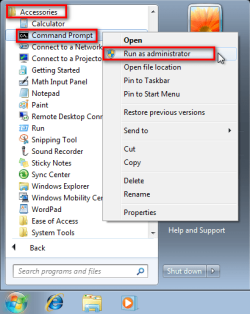
  3. Run Command Prompt as administrator
    .
    Audit_1.png
    .
  4. Type to Command Prompt: %windir%\System32\Sysprep\Sysprep.exe, and hit Enter
    .

    sysprep_start.png
    .
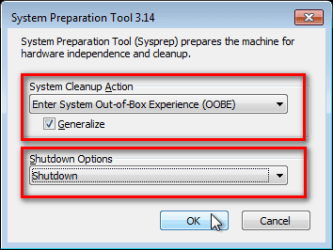
  5. In sysprep dialog that opens, choose System Cleanup Action as Enter System Out-of-Box-Experience (OOBE), select Generalize, select Shutdown Options Shutdown. Click OK
    .
    Sysprep_Run_and_generalize.png
    .
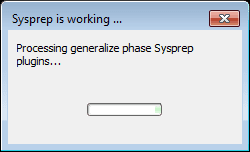
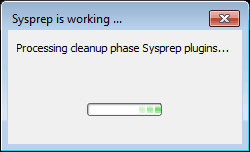
  6. Sysprep generalizes now your Windows 7 setup and shuts down your computer. Do not run any other programs during this phase!
    .
    Sysprep_Run_and_generalize_2.png
    .
    Sysprep_Run_and_generalize_3.png
    .
  7. Switch the main power of your PC off and install the new hardware OR dismount the hard disk(s) and mount it (them) to a new computer
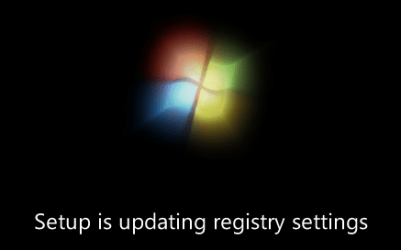
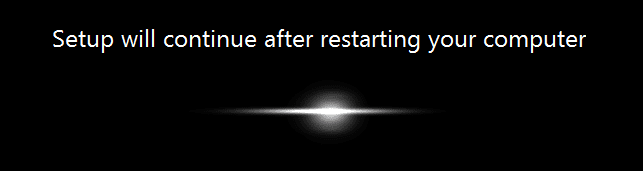
  8. Boot the PC from sysprep generalized hard disk. You will notice Windows booting as if it was the first boot after installation, installing default drivers and updating registry. One or two reboots are needed, depending on your system specifications
    .

    Sysprep_Reinstalling_devices.png
    .
    Sysprep_Registry_settings.png
    .
    Sysprep_Reboot_needed.png
    .
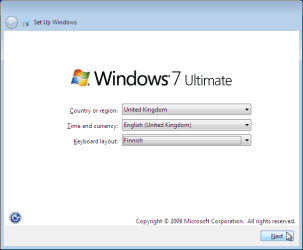
  9. When Windows finally boots up, you will need to enter all information as if this really was a new, fresh installation
    .
    Sysprep_First_boot_2.png
    .
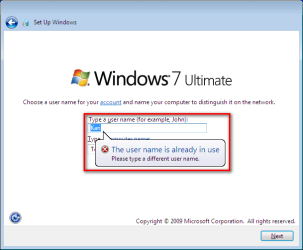
  10. Because your old user profiles already exist, Windows does not accept your normal username, but instead you have to create a new temporary user. I use username Test for this purpose
    .
    Sysprep_First_boot_3.png
    .
  11. When login screen appears, choose your old user account to login
    .

    Sysprep_First_boot_5.png
    .
  12. Windows boots now to default OOBE first boot desktop, with default 800*600 resolution and default theme. All your installed applications are there, as well as your old user profiles and folders. Windows has installed the default drivers for your setup, you can update them if needed
    .
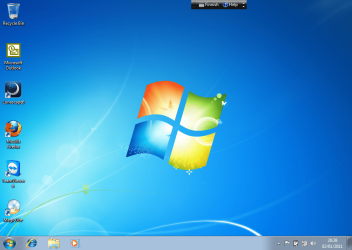
    Sysprep_First_boot_6.png
    .
  13. Go to Control Panel > User Accounts and delete the temporary user account (in this case Test) that you just created


METHOD TWO

Change the hard disk(s) or move Windows 7 setup to a new computer using third party imaging software

Use this method if you:
- Replace the HD containing Windows 7 on your old computer
- Move Windows 7 to a new HD on another computer
  1. Follow steps 1 through 5 above (method 1)
  2. Boot PC with an imaging CD/DVD (Paragon, Macrium etc.). See Macrium Reflect Free:at our sister site TenForums.com: Backup and Restore with Macrium Reflect Windows 10 Backup Restore Tutorials . Also see this post for a practical tip to create a Macrium system image.
  3. Create an image of your system
  4. Turn PC off, change the hard disk(s) and reboot with imaging application, restoring the image OR boot the new computer with imaging software and restore the image
  5. Continue from step 7 above (method 1)

This procedure is failsafe, and works every time. There is nothing to worry, but of course it is recommended to make a backup before trying this. I have even used this method when some serious driver issues caused the PC to constantly crash (BSOD), to reset all drivers to Windows defaults and then reinstalling them one by one to find the culprit.

   Note
What does Sysprep generalizing do to my Windows 7 setup?
  • All system specific information is removed or uninstalled
  • Security ID (SID) of your hardware setup is reseted
  • All system restore points are deleted
  • All event logs are deleted
  • All personalization is removed (taskbar, toolbars, folder options, start orb etc.)
  • Built-in administrator account is disabled (if it was enabled) and needs to be re-enabled after the transfer if needed

What happens when booting first time after sysprep generalizing?
  • First boot configuration is run
  • New SID is created
  • Re-arm counter is reseted if not already re-armed three times
  • Windows 7 is booted using first boot default drivers and settings


I have tested all above mentioned methods with all versions of Windows 7, from Starter to Enterprise. It works every time, with one exception: for reasons unknown to me, sysprep seems sometimes dislike Windows Media Player networking service, which is by default started every time Windows 7 starts. In about every third time I've done this, I've got an error message when trying to generalize:
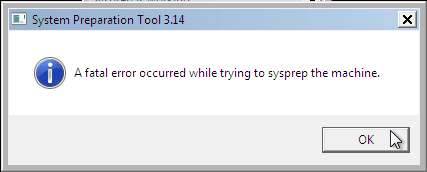
Sysprep_Fatal_Error.png

However, this is not a big problem. You just need to stop the WMP networking service, and run sysprep with generalize option again. You can stop the service in question by typing net stop WMPNetworkSvc to command prompt, and hitting Enter:

Sysprep_Stop_WMP_service.png

If you have any questions, do not hesitate to ask.

Happy computing!

Kari

EDIT: A Useful tip from xxxwea, as later confirmed by Victor:
Kari, just a suggestion.

You might note in the tutorial that if on first booting Windows can't finish configuring, a reboot into safe mode, then a normal reboot will allow it to finish successfully.

This has happened to me both times I used a sysprepped system drive in a new computer. I found the answer to this problem buried deep in this thread the first time I ran into it, and the same thing happened yesterday on a different computer.

It's a seemingly very silly solution, but it works. I do believe many people have abandoned their sysprep work when they encounter the problem.

I think the solution deserves more visibility.
 
Last edited:
Kari,


I successfully ran sysprep, moved the ssd to the new machine and get the following errors and bsod:

1. Auto check program not found
2. Then windows logo, then blue screen flash with error c000021a "session manager initialization system process terminated."
3. immediate reboot

I was really hoping this would work, any ideas?

Would the inability to not find the "auto check program" upon booting the syspreped drive have something to do with the "system reserve" partition being altered and Windows looking at the "C" drive at boot instead of system reserve partition?


Does sysprep work with Windows Ultimate7 64 installations that have the "system reserve" partition?


Thank you,

Rick
 

My Computer

Computer Manufacturer/Model Number
Intel
OS
Windows 7 Ultimate x64
CPU
I7 920
Motherboard
Intel x58
Memory
12 gb
Graphics Card(s)
470
Monitor(s) Displays
2 x 27 Asus
Hard Drives
SSD F120
Does sysprep work with Windows Ultimate7 64 installations that have the "system reserve" partition?


Thank you,

Rick
Yes. I have successfully sysprepped my PCs with system reserved partition.
 

My Computer

Computer type
Laptop
Computer Manufacturer/Model Number
HP ENVY 17-1150eg
OS
Windows 10 Pro x64 EN-GB
CPU
1.6 GHz Intel Core i7-720QM Processor
Memory
6 GB
Graphics Card(s)
ATI Mobility Radeon HD 5850 Graphics
Sound Card
Beats sound system with integrated subwoofer
Monitor(s) Displays
17" laptop display, 22" LED and 32" Full HD TV through HDMI
Screen Resolution
1600*900 (1), 1920*1080 (2&3)
Hard Drives
Internal: 2 x 500 GB SATA Hard Disk Drive 7200 rpm
External: 2TB for backups, 3TB USB3 network drive for media
Cooling
As Envy runs a bit warm, I have it on a Cooler Master pad
Keyboard
Logitech diNovo Media Desktop Laser (bluetooth)
Mouse
Logitech Performance Mouse MX
Internet Speed
50/10 Mbps VDSL
Antivirus
Windows Defender 4.3.9431.0
Browser
Maxthon 3.5.2., IE11
I successfully ran sysprep, moved the ssd to the new machine and get the following errors and bsod:

1. Auto check program not found
2. Then windows logo, then blue screen flash with error c000021a "session manager initialization system process terminated."
3. immediate reboot

I was really hoping this would work, any ideas?

Would the inability to not find the "auto check program" upon booting the syspreped drive have something to do with the "system reserve" partition being altered and Windows looking at the "C" drive at boot instead of system reserve partition?

See this.
Windows sysprep troubleshooting - wiki

"Autochk program not found."

What's to lose?
 

My Computer

Computer Manufacturer/Model Number
Home Built
OS
Windows 7 Ultimate x64
CPU
QuadCore Intel Core i7 920, 2666 MHz (20 x 133)
Motherboard
Asus P6T
Memory
6134 MB (DDR3-1333 DDR3 SDRAM)
Graphics Card(s)
(2 - SLI) NVIDIA GeForce GTS 250 (1024 MB)
Sound Card
Onboard Realtek ALC888/1200 @ Intel 82801JB IC
Monitor(s) Displays
HDMII
Screen Resolution
1280 x 800
Hard Drives
Crucial M4 (64 GB SSD)
WD Caviar Blacks
WD5001AALS-00J7B1 ATA Device (465 GB)
WD5001AALS-00L3B2 ATA Device (465 GB)
WD Elements USB External (250 GB)
PSU
Corsair 550
Case
iStarUSA S-10000BL Black
Very useful tutorial and interesting thread.

Seems SF have a good solution to most major Win7 problems.
 

My Computer

Computer Manufacturer/Model Number
Acer Notebook
OS
Win 8 RP, Win 7, XP
CPU
Intel
I successfully ran sysprep, moved the ssd to the new machine and get the following errors and bsod:

1. Auto check program not found
2. Then windows logo, then blue screen flash with error c000021a "session manager initialization system process terminated."
3. immediate reboot

I was really hoping this would work, any ideas?

Would the inability to not find the "auto check program" upon booting the syspreped drive have something to do with the "system reserve" partition being altered and Windows looking at the "C" drive at boot instead of system reserve partition?

See this.
Windows sysprep troubleshooting - wiki

"Autochk program not found."

What's to lose?


Thank you for the link Victor.

By the time I got your response I was three quarters of the way through a fresh install. It took me literally one solid week of hard work from buying the new computer parts to getting back 97% of where I was on my old machine.

When I get some free time, I will try the solutions offered in the link and see if it works.

(I did manage to get my drive booted by stripping away as many drivers as I could manually before I moved it to another machine. I was happy to see it booted but it seemed quite unstable, so hence, I started from scratch with a clean install rebuilding the software last Tuesday).
 

My Computer

Computer Manufacturer/Model Number
Intel
OS
Windows 7 Ultimate x64
CPU
I7 920
Motherboard
Intel x58
Memory
12 gb
Graphics Card(s)
470
Monitor(s) Displays
2 x 27 Asus
Hard Drives
SSD F120
What can you do if the donor hard drive has more than 1 partition?
Sysprep is not working in my case.
 

My Computer

OS
Win7 32 bit
This discussion has been exactly what I need, has shown me just how many gotchas there are in this, and methods to get it done right. But I still have a few queries. In particular, it looks as though a means for backing up user data may be needed.

My situation is thus: I have Windows 7 64bit Ultimate on my machine. Its 'Program Files' are located in a separate partition, and some of the user's file (My Documents, My Pictures etc) are on another drive altogether. All in all I've tried to keep this machine's C: partition as clean as possible of non-OS stuff.

I now wish to migrate to an SSD, and a new motherboard. Might as well be a new machine, but I'm keeping the CPU and graphics card, and the case and PSU, so I can't run machines in parallel. And I most certainly don't want to just reinstall everything.

The concept of creating a 'sysprep' installation is great ! Thanks Kari, what a bonus that is :) Thanks to MS as well, they obviously do listen.

With my penchant for keeping data separate from the OS, I know it's up to me to transfer everything else across, and I started thinking of user data, and where the line is drawn. The things I've set up myself are obviously my responsibility, but I've been looking at the need for the 'Backup User Data' Microsoft utility as well. If I save a picture in My Pictures, will it be migrated with sysprep, or with Backup User Data. What about the custom definitions for a third party antivirus package such as AVG? Or rule sets for Comodo firewall, or other stuff in AppData? I guess the most important things will be email settings and data, network authentication details.

The essential information, though, is knowing just what is being backup up, and making sure I don't miss anything.


Rob
 

My Computer

OS
7 64bit Ultimate
CPU
G620
Motherboard
Gigabyte P8H77-M PRO
Memory
8G GSkill
Graphics Card(s)
Gigabyte 7850 OC 2G
Monitor(s) Displays
Dell U2711, Samsung 204B
Screen Resolution
2650x1440
Hard Drives
Samsung 830 128G, Seagate 1T
PSU
Seasonic S12D
Case
fractal ARC midi
Keyboard
Filco Majestouch2 (blue keys)
Mouse
Logitech 950
Internet Speed
ADSL2+
Problem

I loved this tutorial, very helpful!

But I just booted up my sysprepped HDD and when it goes to the "Setup is Starting Services" part of the process it brings up an error:

"Windows could not finish configuring the system. To attempt to resume configuration, restart the computer."

I have tried restarting a few times, same thing. I hope there is a fix for this or maybe I could try inserting my windows 7 disk and repair or something. I backed up everything important and it would not be the end of the world for a clean install but I really don't want to :|
 

My Computer

OS
Windows 7 Ultimate x64
I am looking to sysprep my system for use on another system. When I boot the hard drive onto the new computer will everything be the same as before? Like for example my files and folders on the desktop would be the same, what will be different?
 

My Computer

OS
Windows 7 Ultimate x32
Hi Kari I am about to relace my motherboard,Cpu & memory. My PC is presently setup as a daul boot system useing 2 seperate hard drives one for each operating system XP & windows 7 ultimate. Could you please explain to me how to use windows sysprep in this type of situation?

Thanks Edison
 

My Computer

Computer Manufacturer/Model Number
Home built
OS
XP 32 bit
CPU
Amd dual core
Motherboard
asus
Memory
4 GB
Graphics Card(s)
Gsx 8400
Sound Card
built in
Monitor(s) Displays
1 Acer 22"
Hard Drives
c drive western digital 1 terabit
d drive seagate 400 gb
PSU
Corsair 600 wats
Case
Na
Cooling
6 fans
A question Kari,
used METHOD ONE:did everything as you said in"command prompt" typed in %windir%\System32\Sysprep\Sysprep.exe, the OOBE came up as you said.Even a fatal error occurred box came up also,clicked OK,tried what you said typing> net stop WMPNetworkSVC comes up invalid command; then tried> NET STOP WMPNetworkSVC and it comes up with system error 5 has occurred.
Have you got any ideas to help me as I want to change my motherboard as part of a computer upgrade.Am running Windows 7 Ultimate x64 bit.
 

My Computer

OS
Windows 7 Ultimate x64
I still have one question after reading this tutorial. I have a laptop wit windows 7 Home Premium on it can I completly romove windows 7 off it and put it on my desktop? My laptop right now I about to bite the dust, and I built my desktop from scratch. Right now my desktop has windows xp and i was looking to upgrade it.
 

My Computer

OS
Windows 7
I still have one question after reading this tutorial. I have a laptop wit windows 7 Home Premium on it can I completly romove windows 7 off it and put it on my desktop? My laptop right now I about to bite the dust, and I built my desktop from scratch. Right now my desktop has windows xp and i was looking to upgrade it.

You cannot do that if your laptop has an OEM Windows 7 license, which it probably does. OEM licenses are tied to the original machine---which means the original motherboard.

If you have a RETAIL license of some type, yes, you could do it. Retail licenses can be installed to any number of computers and motherboards, BUT ONLY TO ONE AT A TIME.
 

My Computer

Computer type
PC/Desktop
Computer Manufacturer/Model Number
Ignatz Special; 4 speed manual gearbox; factory air conditioning; one of one
OS
Windows 7 Home Premium SP1, 64-bit
CPU
Intel Skylake i5-6600K, not overclocked
Motherboard
AsRock Z170M Extreme 4, micro ATX
Memory
8 GB HyperX DDR4-2666 (2 x 4 GB)
Graphics Card(s)
none; graphics are integrated on CPU
Sound Card
onboard: Realtek ALC1150; external: USB Behringer UF0-202
Monitor(s) Displays
Dell S2340M 23 inch IPS
Screen Resolution
1600 x 900
Hard Drives
System: Crucial MX100 series SSD, 128 GB;
Data: Samsung Spinpoint 103SJ, 1 TB;
Backup: WD Caviar Green WD30EZRX-00D8PB0, 3 TB
PSU
Rosewill SilentNight 500 watt fanless, semi-modular
Case
Antec Solo II
Cooling
Noctua NH-U12S; Noctua F12 intake, Noctua S12A exhaust
Keyboard
Microsoft 200 6JH-00001 USB
Mouse
Dell or Microsoft optical wired; USB
Antivirus
Microsoft Security Essentials and Malwarebytes Premium
Browser
Pale Moon
Other Info
All fans PWM; speeds at idle: CPU circa 500 rpm; intake circa 600 rpm; exhaust circa 600 rpm; CPU temps 27 idle and 47 C load in a warm room (27 C/81 F) when running Intel Extreme Tuning Utility stress test.
I followed everything and after trying out everything I could, I got it to work.

Everything is fine now but every time I boot I get "Setup is updating registry settings". How can I fix this? It's not much of a problem just a nuisance really.

Thanks.

I would appreciate it if anyone could answer this, as i am having the same issue.

Thank you.
 

My Computer

OS
Windows 7 Home Premium 64 bit
I still have one question after reading this tutorial. I have a laptop wit windows 7 Home Premium on it can I completly romove windows 7 off it and put it on my desktop? My laptop right now I about to bite the dust, and I built my desktop from scratch. Right now my desktop has windows xp and i was looking to upgrade it.
Hiyya and welcome Isyther as ignaztsonic says - slightly different though is that I had an OEM on a refurbished machine in which the motherboard died and a phone call to Microsoft and they let me transfer the OEM to another machine that had previously been Vista (the other machine I had slipped in a SSD of course).

My point is for the cost of a local phone call what have you got to lose :cool:?
 

My Computer

Computer type
PC/Desktop
Computer Manufacturer/Model Number
Own build (new) Desk1 / Asus ROG Win 7 / Desk2 1st build
OS
Desk1 7 Home Prem / Desk2 10 Pro / Main lap Asus ROG 10 Pro 2 laptop Toshiba 7 Pro Asus P2520 7 & 10
CPU
Desk1 i5 3750K / Laptop i7 GTX 860M / Desk2 i5 2500
Motherboard
Desk1 Asus P877-V / Desk2 Gigabyte H67 UD3H / Laptop ?
Memory
Desk1 8GB (1866) / Desk2 16GB (1333) / Laptop 8Gb DDR3
Graphics Card(s)
Desk 1& 2NVidia GTX 650 & Laptops on board Intel
Sound Card
Desk 1 & 2 -XONAR DG Realtek High Def audio Laptop
Monitor(s) Displays
Desk 1 Benq HD 2450 / Desk2 Philips 24" / Laptop 17.5"
Screen Resolution
1920x1080 D1 & D2 & Laptop 1
Hard Drives
Desk1 Samsung 120GB 830 SSD
Asus ROG 256GB 850 Pro SSD
Desk2 Samsung 840 256 SSD
Toshiba 120GB EVO
PSU
Desk 1 Corsair HX 1050/ Laptop ? / Desk 2 Corsair HX 650
Case
Desk 1 Cooler HAF XM ? Toshiba laptop / Desk2 Coolermaster
Cooling
Fans on all Desk1 -2 Desk2 - all Coolermasters 5 Laptop ?
Keyboard
Desk 1 MS Sidewinder X6 Desk 2 MS Sidewinder X 4
Mouse
Desk 1&2 - Gigabyte MS 900 gamer - laptop - Logitec wireless
Internet Speed
ADSL2+
Other Info
One other Desktop (tester) and spare Toshba laptop both with SSD's
Running Kaspersky 2016 ISS on all machines config'd identically
Logitec audio stereo systems on each machine (x3)
Canon MG5250MFC
Router/modem TP-Link running WPA2SK
I still have one question after reading this tutorial. I have a laptop wit windows 7 Home Premium on it can I completly romove windows 7 off it and put it on my desktop? My laptop right now I about to bite the dust, and I built my desktop from scratch. Right now my desktop has windows xp and i was looking to upgrade it.
Hiyya and welcome Isyther as ignaztsonic says - slightly different though is that I had an OEM on a refurbished machine in which the motherboard died and a phone call to Microsoft and they let me transfer the OEM to another machine that had previously been Vista (the other machine I had slipped in a SSD of course).

My point is for the cost of a local phone call what have you got to lose :cool:?

I think the key points here are yours originally came with Vista, so your OEM was a separate purchase.

The OEM ignatzasonic is speaking about is the one that originally came with Isyther's laptop.

So, if it is like yours, sure it's worth a call.

If it's what ignatzasonic is referring to, it is indeed tied to the motherboard.

If it is a separate retail license, none of the above matters, it can be freely moved to another computer.
 

My Computer

Computer type
PC/Desktop
Computer Manufacturer/Model Number
Self Built
OS
Win 10 Pro x64
CPU
Intel I5-2500K @3.3GHz
Motherboard
Asrock P67 Extreme4
Memory
16GB G.Skill Ripjaws X (4x4GB)
Graphics Card(s)
EVGA GeForce 750 Ti SC 2GB
Sound Card
ASUS Xonar DG 5.1 Channels 24-bit 96KHz PCI Interface Sound
Monitor(s) Displays
auria eq2367
Screen Resolution
1920 x 1080
Hard Drives
250GB Samsung 850 EVO SSD
1TB WD Blue
1TB Hitachi
PSU
SeaSonic X 650W 80 Plus Gold
Case
Corsair Obsidian 750D
Cooling
Corsair H60, Three 140mm case fans
Keyboard
Logitech Wireless Keyboard K520
Mouse
Logitech Wireless Mouse M310
Internet Speed
Wave Broadband ~ 100 dn 5 up
Antivirus
Windows Defender, Malwarebytes Premium
Browser
Edge, IE11, Chrome
Other Info
Laptop specs: HP g7-1365dx /
CPU: AMD A6-3420M APU with Radeon(tm) HD Graphics /
RAM: Crucial 8Gb (2x4Gb) /
SSD: Crucial M4-CT128M4SSD2 ATA Device/ FW 000F /
GFX: AMD Radeon HD 6520G /
OS: Windows 10 Pro x64
I have been on holiday, only checked in for personal messages. I will read recent posts and will try to answer them when I have time.

Sorry.

Kari
 

My Computer

Computer type
Laptop
Computer Manufacturer/Model Number
HP ENVY 17-1150eg
OS
Windows 10 Pro x64 EN-GB
CPU
1.6 GHz Intel Core i7-720QM Processor
Memory
6 GB
Graphics Card(s)
ATI Mobility Radeon HD 5850 Graphics
Sound Card
Beats sound system with integrated subwoofer
Monitor(s) Displays
17" laptop display, 22" LED and 32" Full HD TV through HDMI
Screen Resolution
1600*900 (1), 1920*1080 (2&3)
Hard Drives
Internal: 2 x 500 GB SATA Hard Disk Drive 7200 rpm
External: 2TB for backups, 3TB USB3 network drive for media
Cooling
As Envy runs a bit warm, I have it on a Cooler Master pad
Keyboard
Logitech diNovo Media Desktop Laser (bluetooth)
Mouse
Logitech Performance Mouse MX
Internet Speed
50/10 Mbps VDSL
Antivirus
Windows Defender 4.3.9431.0
Browser
Maxthon 3.5.2., IE11
Hi Kari, excellent tutorial!

I have a question though. When I installed Windows 7 on my system I followed some of the ideas I found on this forum and installed Windows on a SSD while moving the Users, Logs, and some other folders on a HDD. The rational for this was to avoid frequent writing to the SSD.

Now, I bought a new motherboard and a new processor, but would rather keep my old SSD, basically just now I have no time to reinstall all of the programs on my computer and redo all of the personalizations. Sure, some of those will be lost as you've described, but at least not everything.

Now, given that the system installation is spread between two drives, what would be the best way to proceed: try to plug both drives in similarly numbered SATA ports and hope for the best, or should I first move the files back to the SSD and then proceed with the transfer?

Thanks in advance.
 

My Computer

Computer Manufacturer/Model Number
Dell Inspiron 530
OS
Windows 7 Ultimate (x64)
CPU
Q6600
Memory
8 GB
Graphics Card(s)
ATI Radeon HD 2600 XT
Monitor(s) Displays
Samsung Syncmaster P2450
Screen Resolution
1920x1080
Hard Drives
Samsung HD103UJ
Samsung HD501LJ
Internet Speed
25 Mb/s
Hello unifex,

I would recommend to move them back to their default locations on the SSD first to help make sure that would be one less possible issue during the transfer. :)
 

My Computer

Computer type
PC/Desktop
Computer Manufacturer/Model Number
Self built custom
OS
64-bit Windows 11 Pro for Workstations
CPU
Intel i7-8700K OC'd to 5 GHz
Motherboard
ASUS ROG Maximus XI Formula Z390
Memory
64 GB (4x16GB) G.SKILL TridentZ RGB DDR4 3600 MHz
Graphics Card(s)
ASUS ROG-STRIX-GTX1080TI-O11G-GAMING
Sound Card
Integrated
Monitor(s) Displays
2 x Samsung Odyssey G7 27"
Screen Resolution
2560x1440
Hard Drives
1TB Samsung 990 PRO M.2,
4TB Samsung 990 PRO PRO M.2,
TerraMaster F8 SSD Plus NAS
PSU
Seasonic Prime Titanium 850W
Case
Thermaltake Core P3
Cooling
Corsair Hydro H115i
Keyboard
Logitech wireless K800
Mouse
Logitech MX Master 4
Internet Speed
2 Gb/s Download and 100 Mb/s Upload
Antivirus
Malwarebyte Anti-Malware Premium
Browser
Google Chrome
Other Info
Logitech Z625 speaker system,
Logitech BRIO 4K Pro webcam,
HP Color LaserJet Pro MFP M477fdn,
APC SMART-UPS RT 1000 XL - SURT1000XLI,
Galaxy S23 Plus phone
Second what Brink said. Besides hearing that "excessive writes" isn't a practical issue with SSD's, putting system folders on a non-system drive greatly complicates imaging.
When I tested sysprep, restoring an image to a PC with very different hardware, I didn't notice loss of personal settings. Didn't dig in hard, but the desktop had all my program shortcuts and I did use a few. Tweaking my single account back to admin was the only task, as I recall.
 

My Computer

Computer Manufacturer/Model Number
Home Built
OS
Windows 7 Ultimate x64
CPU
QuadCore Intel Core i7 920, 2666 MHz (20 x 133)
Motherboard
Asus P6T
Memory
6134 MB (DDR3-1333 DDR3 SDRAM)
Graphics Card(s)
(2 - SLI) NVIDIA GeForce GTS 250 (1024 MB)
Sound Card
Onboard Realtek ALC888/1200 @ Intel 82801JB IC
Monitor(s) Displays
HDMII
Screen Resolution
1280 x 800
Hard Drives
Crucial M4 (64 GB SSD)
WD Caviar Blacks
WD5001AALS-00J7B1 ATA Device (465 GB)
WD5001AALS-00L3B2 ATA Device (465 GB)
WD Elements USB External (250 GB)
PSU
Corsair 550
Case
iStarUSA S-10000BL Black
Back
Top