Help! i want to do this in Photoshop CS4!

robertcrowther

New member
Local time
3:39 PM
Messages
8
Hey i am having troubles with a tutorial for photoshop. I am using photoshop cs4 by the way. http://hv-designs.co.uk/2007/10/10/blueprints-tutorial/ this is the tutorial i am having troubles with. now when i get to this step :Create a new layer above your image and fill it with the color (#0054a5) then set the layer mode to “linear dodge” your image should now look like this. i set a new layer but i can't change it to that color. any help? (screen shots would be much appreciated.)
 

My Computer My Computer

At a glance

Windows 7 RTMIntel dual core @ 1.73Ghz4 GbAti Radeon Xpress 200m
Computer Manufacturer/Model Number
Gateway MT3708
OS
Windows 7 RTM
CPU
Intel dual core @ 1.73Ghz
Memory
4 Gb
Graphics Card(s)
Ati Radeon Xpress 200m
Monitor(s) Displays
External: Mitsubishi Diamond Pro 920
Hard Drives
120GB
make the color change before you create the layer..create layer switch foregrand/background .. use bucket fill tool to fill the layer.. I think, Im going from memory here..
 

My Computer My Computer

At a glance

64-bit Windows 8.1 ProCore(TM) i5 CPU 4330 Haswell @ 3.20GHz12.00 GBIntel(R) HD Graphics
Computer type
PC/Desktop
Computer Manufacturer/Model Number
LENOVO K450 @3.0GHZ
OS
64-bit Windows 8.1 Pro
CPU
Core(TM) i5 CPU 4330 Haswell @ 3.20GHz
Motherboard
LENOVO
Memory
12.00 GB
Graphics Card(s)
Intel(R) HD Graphics
Sound Card
Intel HD integtrated
Monitor(s) Displays
HP 25' ISP Monitor
Screen Resolution
1900/1020
Hard Drives
(1) ST1000DM003-1CH162 (2) Generic STORAGE DEVICE USB Device (3) Generic STORAGE DEVICE USB Device
Internet Speed
100mb down/10mb up
Assuming you've managed to create the new layer (Layer>Duplicate Layer), then just look to the right of your CS4 window, where you can see the tools palette. Here, select the Flood fill tool (looks like a tilted bucket) by clicking and holding the small arrow at the corner near the Gradient fill tool (which is selected by default). Then click in the foreground colour selector at the bottom of the tools palette and paste in the color code in the box at the bottom with the hash next to it. Enter only the figures, not the hash itself.

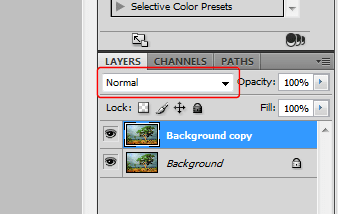
Now select the duplicate layer (Background Copy, or whatever name you gave it, by clicking on it), in the Layers palette on the right of the CS4 window, and click the image to fill the layer with the color you need.

Now at the top of the Layers palette, there is a drop-down with the word "Normal". Cllick the arrow and look in the list for "Linear Dodge (Add)" and click on it.

That should do it.
 

Attachments

  • CS4_Layer.PNG
    CS4_Layer.PNG
    5.5 KB · Views: 22

My Computers My Computers

  • At a glance

    Windows 10 Professional 64-BitIntel Core i7 8700KG.Skill TridentZ RGB DDR4 4000 F4-4000C18D-16...Zotac GeForce GTX-1660 Ti AMP 6GB
    Computer type
    Laptop
    Computer Manufacturer/Model Number
    Custom
    OS
    Windows 10 Professional 64-Bit
    CPU
    Intel Core i7 8700K
    Motherboard
    Asus Maximus X Code
    Memory
    G.Skill TridentZ RGB DDR4 4000 F4-4000C18D-16GTZR
    Graphics Card(s)
    Zotac GeForce GTX-1660 Ti AMP 6GB
    Sound Card
    ROG SupremeFX S1220 (Onboard)
    Monitor(s) Displays
    Dell UP2716D
    Screen Resolution
    2560x1440
    Hard Drives
    Samsung 980 Pro PCIe NVMe 500GB
    Samsung 970 Evo PCIe NVMe 250GB
    Samsung 860 Evo SATA III 2TB
    WD Black WD2003FZEX 2TB x 3
    ODD - GH24NSC0
    PSU
    Coolermaster V1000
    Case
    Corsair Obsidian 450D
    Cooling
    Corsair H115i - Corsair SP140 Red x 2
    Keyboard
    Logitech G213
    Mouse
    Logitech G102
    Internet Speed
    100 Mbps (Supposedly) - Asianet India FTTH
    Antivirus
    Avast Free!
    Browser
    Maxthon Cloud Browser 5.xx
    Other Info
    Asus FX-553VD (960 Evo, 860 Evo, 16GB)
    Samsung Galaxy C9 Pro
    Canon EOS 70D
  • At a glance

    Windows 10 Pro x64Intel Core i7 7700HQ2 x 8GB Samsung DDR4 2400GTX 1050
    Computer type
    Laptop
    System Manufacturer/Model Number
    Asus FX503VD
    OS
    Windows 10 Pro x64
    CPU
    Intel Core i7 7700HQ
    Memory
    2 x 8GB Samsung DDR4 2400
    Graphics Card(s)
    GTX 1050
    Screen Resolution
    1920 x 1080
    Hard Drives
    Samsung 960 Evo PCIe NVMe 250GB Boot
    Samsung 840 Pro Series 256 GB SSD (MZ-7PD256BW);
Wonder if this is your problem - if you save the car photo from that site, it's a gif. If you open that gif and try to do this tutorial, you won't be able to add a new layer. You can do Step 1 (desaturate) but that's it. Just copy the gif, open a new window, paste it in there, and you'll have a jpg, then you can edit accordingly.

I think they're incorrect about one step - it's filter > stylize > find edges. Not filter distort > find edges.
 

My Computer My Computer

At a glance

Black Label 7 x64AMD Phenom II X6 1055t8GB Corsair XMS3Radeon HD 6790
Computer Manufacturer/Model Number
Colonel Travis 5000
OS
Black Label 7 x64
CPU
AMD Phenom II X6 1055t
Motherboard
GA-890FXA-UD5
Memory
8GB Corsair XMS3
Graphics Card(s)
Radeon HD 6790
Sound Card
X-FI Titanium Fatal1ty Pro
Monitor(s) Displays
Acer AJ15
Screen Resolution
1600x900
Hard Drives
OCZ Agility 3 SSD 120GB |
Corsair Force GT SSD 120 GB |
Barracuda 7200 SATA 300GB |
WD Caviar Green SATA 500GB
PSU
OCZ ModXStream 700W
Cooling
50 billion case fans
Internet Speed
35Mbps/35Mbps
Assuming you've managed to create the new layer (Layer>Duplicate Layer), then just look to the right of your CS4 window, where you can see the tools palette. Here, select the Flood fill tool (looks like a tilted bucket) by clicking and holding the small arrow at the corner near the Gradient fill tool (which is selected by default). Then click in the foreground colour selector at the bottom of the tools palette and paste in the color code in the box at the bottom with the hash next to it. Enter only the figures, not the hash itself.

Now select the duplicate layer (Background Copy, or whatever name you gave it, by clicking on it), in the Layers palette on the right of the CS4 window, and click the image to fill the layer with the color you need.

Now at the top of the Layers palette, there is a drop-down with the word "Normal". Cllick the arrow and look in the list for "Linear Dodge (Add)" and click on it.

That should do it.


Thank you so much! I have been trying to do this for 3 days! And by the way Colonel Travis, they used Photoshop 6.0 to make this tutorial, Find Edges wasn't in stylize before.
 
Last edited:

My Computer My Computer

At a glance

Windows 7 RTMIntel dual core @ 1.73Ghz4 GbAti Radeon Xpress 200m
Computer Manufacturer/Model Number
Gateway MT3708
OS
Windows 7 RTM
CPU
Intel dual core @ 1.73Ghz
Memory
4 Gb
Graphics Card(s)
Ati Radeon Xpress 200m
Monitor(s) Displays
External: Mitsubishi Diamond Pro 920
Hard Drives
120GB
Back
Top