Solved How do I completely delete all of the files in HDD (E drive)

angelbeats96

New member
Member
VIP
Local time
9:18 AM
Messages
101
This question relates to the previous thread I've made about how I wasn't able to delete the files:
http://www.sevenforums.com/general-discussion/262268-how-delete-program-files-system-folders.html


Anyway, I've managed to delete majority of files using unlocker however, it still says that I have 20.2GB of used space in my E drive. I've completely deleted everything (including hidden files) and there are literally nothing in the drive (and recycle bin as well):
New_Picture1.png

New_Picture2.png

New_Picture3.png


I'm not able to format the HDD as the option is greyed out in the disk management (See the previous thread for more info).

Is there any ways to completely wipe out everything in my E drive?

Thank you, help would be appreciated it.
 

My Computer My Computer

At a glance

Windows 7 Ultimate x64
OS
Windows 7 Ultimate x64
Open elevated command prompt (Start, type cmd in the search box. Right click on cmd.exe and run-as administrator)
Type 'diskpart' and hit enter
select drive E: (type "list disk" and hit enter. It will show the disks installed. to select a particular disk, type "select disk #" and hit enter, where # is the disk number desired. Type "list disk" again and the selected disk will have a * next to it. Notice it doesn't show volumes, just physical drives. It looks like it'd be disk 0 for you. Go by size.)
Type "clean" and hit enter. It's extremely important you've done the previous step correctly before running clean.
Type exit when done. Close the Command window. Go back into disk management and set the disk back up.
 

My Computer My Computer

At a glance

Windows 7 Enterprise x64Core2Duo8GB DDR2nVidia
Computer Manufacturer/Model Number
Dell Optiplex 745
OS
Windows 7 Enterprise x64
CPU
Core2Duo
Memory
8GB DDR2
Graphics Card(s)
nVidia
Sound Card
on-board
Monitor(s) Displays
20"
Screen Resolution
1400x900
Hard Drives
160GB SATA

My Computer My Computer

At a glance

Windows 10 Pro x64Intel Core i7 6700KGSkill TridentZ RGB 16GB 3600 16-16-16-36EVGA GTX 980 Ti SC x2
Computer type
PC/Desktop
Computer Manufacturer/Model Number
Skylake Special #666
OS
Windows 10 Pro x64
CPU
Intel Core i7 6700K
Motherboard
Asus Sabertooth Z170 Mark 1
Memory
GSkill TridentZ RGB 16GB 3600 16-16-16-36
Graphics Card(s)
EVGA GTX 980 Ti SC x2
Sound Card
Realtek High Definition
Monitor(s) Displays
AOC G2460PG
Screen Resolution
1920 x 1080 144Hz
Hard Drives
Samsung 860 Pro 256GB, Seagate Barracuda 4TB x2
PSU
EVGA 1000 P2, EVGA White Custom Braided Cables
Case
Corsair Vengeance C70 Gunmetal Black
Cooling
Corsair H100i v2, Corsair ML120 x2, Thermal Grizzly Kryonaut
Keyboard
Logitech G910 Orion Spectrum
Mouse
Logitech G700s
Internet Speed
Verizon Fios Quantum Gateway 75/75
Antivirus
Windows Defender, Malwarebytes Free 3.8.3
Browser
Chrome
Other Info
Corsair SP120 x4, LG Blu-ray Drive, Durabrand HT-395 100 Watt Dolby Digital Amp, Corsair H2100 Wireless 7.1 Headset
Open elevated command prompt (Start, type cmd in the search box. Right click on cmd.exe and run-as administrator)
Type 'diskpart' and hit enter
select drive E: (type "list disk" and hit enter. It will show the disks installed. to select a particular disk, type "select disk #" and hit enter, where # is the disk number desired. Type "list disk" again and the selected disk will have a * next to it. Notice it doesn't show volumes, just physical drives. It looks like it'd be disk 0 for you. Go by size.)
Type "clean" and hit enter. It's extremely important you've done the previous step correctly before running clean.
Type exit when done. Close the Command window. Go back into disk management and set the disk back up.

Thanks for the info.

I just tried doing that however, it gave me an error: "Virtual Disk Service error: Clean is not allowed on the disk containing current boot, system pagefile, crashdump or hibernation volume"

I think this had to do with the files that have been copied from my C drive. It was explained in the previous thread but basically, what happened was that before installing a new SSD my friend "cloned" everything from my C drive to my E drive. After doing so, he installed the SSD and copied all of those cloned files back to the C drive (where C drive is now SSD). He left the cloned files in E drive without deleting it and thus, as you can see I'm stuck in trying to delete these files.
 

My Computer My Computer

At a glance

Windows 7 Ultimate x64
OS
Windows 7 Ultimate x64

My Computer My Computer

At a glance

Windows 10 Pro x64Intel Core i7 6700KGSkill TridentZ RGB 16GB 3600 16-16-16-36EVGA GTX 980 Ti SC x2
Computer type
PC/Desktop
Computer Manufacturer/Model Number
Skylake Special #666
OS
Windows 10 Pro x64
CPU
Intel Core i7 6700K
Motherboard
Asus Sabertooth Z170 Mark 1
Memory
GSkill TridentZ RGB 16GB 3600 16-16-16-36
Graphics Card(s)
EVGA GTX 980 Ti SC x2
Sound Card
Realtek High Definition
Monitor(s) Displays
AOC G2460PG
Screen Resolution
1920 x 1080 144Hz
Hard Drives
Samsung 860 Pro 256GB, Seagate Barracuda 4TB x2
PSU
EVGA 1000 P2, EVGA White Custom Braided Cables
Case
Corsair Vengeance C70 Gunmetal Black
Cooling
Corsair H100i v2, Corsair ML120 x2, Thermal Grizzly Kryonaut
Keyboard
Logitech G910 Orion Spectrum
Mouse
Logitech G700s
Internet Speed
Verizon Fios Quantum Gateway 75/75
Antivirus
Windows Defender, Malwarebytes Free 3.8.3
Browser
Chrome
Other Info
Corsair SP120 x4, LG Blu-ray Drive, Durabrand HT-395 100 Watt Dolby Digital Amp, Corsair H2100 Wireless 7.1 Headset

My Computer My Computer

At a glance

Windows 7 Ultimate x64
OS
Windows 7 Ultimate x64
Or you can use parted magic:
start
Boot it from a usb drive or cd and write 0s to the drive and format as raw.

If you need instructions I can be happy to assist if AddRAM's method does not work.
 

My Computer My Computer

At a glance

Windows 7 Ultimate SP1 x64AMD A6-3420M APU4.0 Gb DDR3 838 MHzAMD Radeon HD 6520G
Computer type
PC/Desktop
Computer Manufacturer/Model Number
HP Pavilion g7-1350dx
OS
Windows 7 Ultimate SP1 x64
CPU
AMD A6-3420M APU
Memory
4.0 Gb DDR3 838 MHz
Graphics Card(s)
AMD Radeon HD 6520G
Sound Card
IDT HD Audio
Screen Resolution
1600x 900
Hard Drives
500GB Hitachi HTS547550A9E384
So assuming that you want to try PartedMagic, do you have a usb flash drive available?
 

My Computer My Computer

At a glance

Windows 7 Ultimate SP1 x64AMD A6-3420M APU4.0 Gb DDR3 838 MHzAMD Radeon HD 6520G
Computer type
PC/Desktop
Computer Manufacturer/Model Number
HP Pavilion g7-1350dx
OS
Windows 7 Ultimate SP1 x64
CPU
AMD A6-3420M APU
Memory
4.0 Gb DDR3 838 MHz
Graphics Card(s)
AMD Radeon HD 6520G
Sound Card
IDT HD Audio
Screen Resolution
1600x 900
Hard Drives
500GB Hitachi HTS547550A9E384
So assuming that you want to try PartedMagic, do you have a usb flash drive available?

Yes I do have one (2GB).

And yes, AddRam's method did not work. I don't think any method will work while I'm on the OS.
 

My Computer My Computer

At a glance

Windows 7 Ultimate x64
OS
Windows 7 Ultimate x64
Please post back a screenshot of your maximized Disk Management drive map and listings:

1. Type Disk Management in Start Search box.
2. Open Disk Mgmt. window and maximize it.
3. Type Snipping Tool in Start Search box.
4. Open Snipping Tool, choose Rectangular Snip, click New, draw a box around full drive map and all listings.
5, Save Snip, attach using paper clip in Reply Box.

Tell us what is on each partition and exactly what you'd like to do.
 
Please post back a screenshot of your maximized Disk Management drive map and listings:

1. Type Disk Management in Start Search box.
2. Open Disk Mgmt. window and maximize it.
3. Type Snipping Tool in Start Search box.
4. Open Snipping Tool, choose Rectangular Snip, click New, draw a box around full drive map and all listings.
5, Save Snip, attach using paper clip in Reply Box.

Tell us what is on each partition and exactly what you'd like to do.

Its already been inactivated:
New_Picture.png


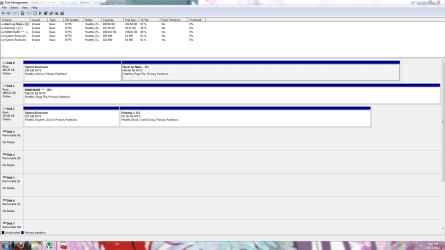
I uploaded the screenshot of the disk management (Also attached):
Capture.png


- E drive: HDD, cloned files from C drive before (This is what I want to wipe out)
- D drive: another HDD
- C drive: SSD, boot, windows, program files, all those important stuff etc...

What I want to do is delete everything in "Back-up Nabe~ (E drive)" and make the free space 100%. However, it won't let me do anything because its being used/processed. I've tried deleted everything in that drive and you can see how there is nothing there (including hidden files) on the screenshots before.
 

Attachments

  • Capture.PNG
    Capture.PNG
    64.8 KB · Views: 13

My Computer My Computer

At a glance

Windows 7 Ultimate x64
OS
Windows 7 Ultimate x64
Ill let gregrocker try to guide you through it his method, if that doesn't work we can still try parted magic.
 

My Computer My Computer

At a glance

Windows 7 Ultimate SP1 x64AMD A6-3420M APU4.0 Gb DDR3 838 MHzAMD Radeon HD 6520G
Computer type
PC/Desktop
Computer Manufacturer/Model Number
HP Pavilion g7-1350dx
OS
Windows 7 Ultimate SP1 x64
CPU
AMD A6-3420M APU
Memory
4.0 Gb DDR3 838 MHz
Graphics Card(s)
AMD Radeon HD 6520G
Sound Card
IDT HD Audio
Screen Resolution
1600x 900
Hard Drives
500GB Hitachi HTS547550A9E384
What we look at first are the flags and what's immediately spotted is that you have the System boot files correctly on the Disk2 System Reserved partition, also correctly marked Active, and C is marked Boot meaning it is the one booted.

But what's missing is actually from the C partition. Where is the Page File, an important System file? Aha, there it is on D and E, blocking E's deletion.


Click to enlarge


To solve this go to Control Panel>System>Advanced System Settings>Performance Settings>Advanced tab>Virtual Memory. Click Change:


Then uncheck whatever setting is chosen for paging file, check No Paging File, then Set, OK and reboot.


After reboot return to the same place to highlight C drive (only) and select System Managed Size, click Set, then OK.

After another reboot Paging file should now show up on C partition in Disk Mgmt.

If so mark the Disk0 old System Reserved partition Inactive and delete both partitions on Disk0 in Disk Mgmt, create and format new partition(s) as you wish: Partition - Mark as Inactive - Windows 7 Forums
Partition or Volume - Delete
Partition or Volume - Create New

Check periodically that no other partition besides System Reserved is marked Active, especially if you run Startup Repair, so that the System boot files don't get derailed to another HD. Another way to assure this is to swap the cables between Disk0 and Disk2 so that WIn7 HD is in first position where it's safest - making sure it remains set first to boot in BIOS setup.
 
What we look at first are the flags and what's immediately spotted is that you have the System boot files correctly on the Disk2 System Reserved partition, also correctly marked Active, and C is marked Boot meaning it is the one booted.

But what's missing is actually from the C partition. Where is the Page File, an important System file? Aha, there it is on D and E, blocking E's deletion.


Click to enlarge


To solve this go to Control Panel>System>Advanced System Settings>Performance Settings>Advanced tab>Virtual Memory. Click Change:


Then uncheck whatever setting is chosen for paging file, check No Paging File, then Set, OK and reboot.


After reboot return to the same place to highlight C drive (only) and select System Managed Size, click Set, then OK.

After another reboot Paging file should now show up on C partition in Disk Mgmt.

If so mark the Disk0 old System Reserved partition Inactive and delete both partitions on Disk0 in Disk Mgmt, create and format new partition(s) as you wish: Partition - Mark as Inactive - Windows 7 Forums
Partition or Volume - Delete
Partition or Volume - Create New

Check periodically that no other partition besides System Reserved is marked Active, especially if you run Startup Repair, so that the System boot files don't get derailed to another HD. Another way to assure this is to swap the cables between Disk0 and Disk2 so that WIn7 HD is in first position where it's safest - making sure it remains set first to boot in BIOS setup.

Thank you very much for the info.

I've just tried it and after setting the E drive to no paging file, I was able to format the E drive and completely delete everything (I thought deleting the partition was no point so I just formatted it instead). Problem was solved.

However, when I check the virtual memory its been set up like this:
New_Picture.png

For some reasons, the C drive is marked "none" whereas the D drive is marked as "system managed".

Although the problem has been solved, is it alright to leave it like this?

Moreover, here is the result after formatting the E drive:
New_Picture1.png
 

My Computer My Computer

At a glance

Windows 7 Ultimate x64
OS
Windows 7 Ultimate x64
That's why I gave you illustated steps to turn off all the paging files, reboot, then Set only C to be System Managed. Please do that now.

I would also delete both partitions on the old Disk0 in DIsk Mgmt, then create a new partition for the whole HD if that's what you want. No reason to leave the old System Reserved on the HD, and plenty of reason to at least mark it Inactive to avoid future probs.

So please complete all of the steps and then you'll be good to go.
 
That's why I gave you illustated steps to turn off all the paging files, reboot, then Set only C to be System Managed. Please do that now.

I would also delete both partitions on the old Disk0 in DIsk Mgmt, then create a new partition for the whole HD if that's what you want. No reason to leave the old System Reserved on the HD, and plenty of reason to at least mark it Inactive to avoid future probs.

So please complete all of the steps and then you'll be good to go.

Ah, yeah I was confused about the system reserved.

New_Picture.png


Thanks for the help.
 

My Computer My Computer

At a glance

Windows 7 Ultimate x64
OS
Windows 7 Ultimate x64
You're most welcome. :)

Let us know if there's anything else we can help you with.

Enjoy Win7.
 
Back
Top