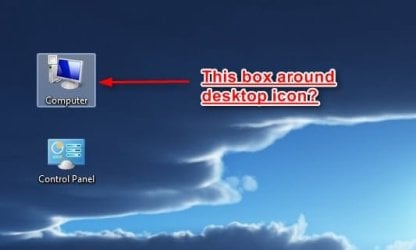
Remove shaded box around desktop icons, etc?

jetsetter883

New member
Local time
4:32 PM
Messages
11
Been looking all over for a way to disable the obnoxious shaded boxes and rectangles that appear whenever I hover my mouse over desktop icons as well as file selections in Explorer. I know what file I'm about to click, it doesn't need to be highlighted for me. The option of de-selecting 'Show translucent selection rectangle' in System Properties > Advanced > Settings > Performance does not work unfortunately.

I don't recall this feature in XP and it's been annoying me ever since upgrading to 7.

Has anybody found a workaround for this? Hack? Patch? Registry setting?
 

My Computer My Computer

At a glance

Wndows 7 Home Premium 64 bit
OS
Wndows 7 Home Premium 64 bit
Welcome to Seven Forums.

To disable tooltips follow the steps given below.

1. Click on Start, click on Control Panel, click on Classic View, and click on Folder Options.
2. Click on the View tab, scroll down to the bottom, and uncheck Show pop-up description for folder and desktop items.
3. Click Apply, and then click OK.
4. You will no longer receive tooltips for folder and desktop items.

For more information follow the link.
Tooltips and Infotips
Disable ToolTips Windows 7 - Microsoft Answers

Also How to Enable/Disable folders size ToolTips in Windows-7 Explorer?
 
Last edited:

My Computer My Computer

At a glance

Windows 7 Professional SP1 64-bitIntel Core 2 Duo Processor E8300 @ 2.83GHz4.00 GB Dual-Channel DDR2 @ 332MHz (5-5-5-15)Intel(R) G33/G31 Express Chipset Family
Computer type
PC/Desktop
Computer Manufacturer/Model Number
Dell Inspiron 530
OS
Windows 7 Professional SP1 64-bit
CPU
Intel Core 2 Duo Processor E8300 @ 2.83GHz
Motherboard
Dell Inc. 0RY007 (Socket 775)
Memory
4.00 GB Dual-Channel DDR2 @ 332MHz (5-5-5-15)
Graphics Card(s)
Intel(R) G33/G31 Express Chipset Family
Sound Card
Integrated 7.1 Channel Audio
Monitor(s) Displays
Acer G245HQL 23.6" LED(1920x1080@60Hz)
Screen Resolution
1920 x 1080
Hard Drives
Disk 0 HITACHI 1TB OS Installed - Disk 1 HITACHI 1TB For Backups
Keyboard
Dell USB Keyboard
Mouse
Dell Optical USB Mouse
Internet Speed
DSL 10 meg
Antivirus
Symantec(SEP)
Browser
Pale Moon
I don't know of a way to turn it off but the images in the aero.msstyles can but edited making them transparent.
If you are using the default aero theme I can change that for you, using Windows Style Builder and post it here in a zip folder.
If you are using a custom theme you will need to ask the theme maker. It's not cool to change someone else work.
&
This will be a custom theme and you will need to do 1 of these 2 ways of Enabling custom themes for it to work.
http://www.sevenforums.com/tutorials/34579-enabling-custom-themes-windows-7-a.html
Or
http://www.sevenforums.com/tutorials/28377-theme-how-apply-custom-themes.html?filter

Let me know.
Jerry
 

My Computer My Computer

At a glance

Win 7 Pro x64 / Win 10 ProIntel(R) Core(TM) i7-3630QM CPU @ 2.40GHz12 GB(1) Intel(R) HD Graphics 4000 (2) NVIDIA GeFo...
Computer type
Laptop
Computer Manufacturer/Model Number
Sager NP9170
OS
Win 7 Pro x64 / Win 10 Pro
CPU
Intel(R) Core(TM) i7-3630QM CPU @ 2.40GHz
Motherboard
CLEVO P170EM
Memory
12 GB
Graphics Card(s)
(1) Intel(R) HD Graphics 4000 (2) NVIDIA GeForce GTX 675M
Sound Card
(1) Realtek High Definition Audio (2) Intel(R) Display Aud
Monitor(s) Displays
17.3
Screen Resolution
1920x1080
Hard Drives
(1) Samsung 860 EVO 500GB(OS) (1) Samsung 860 EVO 500GB(Data)
Keyboard
Backlite
Antivirus
MSE, Malwarebytes Pro
Browser
Firefox
Other Info
DESKTOP: Custom-built.
OS: Win 10 Pro x64.
CASE: Rosewill R5.
CPU: Intel I5 4670K CPU @ 3.40GHz.
CPU COOLER: Cool Master Hyper 212 EVO.
MOTHERBOARD: Asus Z87-A.
MEMORY: Kingston HyperX 2x4 GB.
GPU: Nvidia Geforce 650 TI.
PSU: Corsair TX750.
DRIVES: (1) Samsung 840 120 GB SSD (2) Western Digital blue 500 GB 7200 RPM.
Thank you for replying Flatiron. Unfortunately the solution you provided only applies to 'pop up description'. These are somewhat as well, but I can live with them. The thing I am referring to is the box you see around desktop icons when you hover your mouse cursor over it. This is the thing I am trying to get rid of.

@Jerry - Thanks, I will look into that. At the moment I am not using any third party theme just a bunch of tweaks. So far I've been able to 'hack' most of the little annoyances so far but this one remains.
 

My Computer My Computer

At a glance

Wndows 7 Home Premium 64 bit
OS
Wndows 7 Home Premium 64 bit
I think I see what your talking about now.
DT Icon.jpg


In Windows 7, a transparent blue square appears around any icon if you move the mouse slowly across it or if you select it with one click. To remove this feature, right-click on your desktop, select "Personalize" and click "Window Color." Windows 7 is flexible enough that you can change colors or change the intensity of the colors to suit your needs. You can also change your theme from an Aero theme to a Windows Classic theme, removing the transparent effect and making your icons and desktop look like Windows 98.
I played around some with those settings and couldn't get it to disappear. Maybe you can.
I didn't try Windows Classic theme either, because I don't like it.
 

My Computer My Computer

At a glance

Windows 7 Professional SP1 64-bitIntel Core 2 Duo Processor E8300 @ 2.83GHz4.00 GB Dual-Channel DDR2 @ 332MHz (5-5-5-15)Intel(R) G33/G31 Express Chipset Family
Computer type
PC/Desktop
Computer Manufacturer/Model Number
Dell Inspiron 530
OS
Windows 7 Professional SP1 64-bit
CPU
Intel Core 2 Duo Processor E8300 @ 2.83GHz
Motherboard
Dell Inc. 0RY007 (Socket 775)
Memory
4.00 GB Dual-Channel DDR2 @ 332MHz (5-5-5-15)
Graphics Card(s)
Intel(R) G33/G31 Express Chipset Family
Sound Card
Integrated 7.1 Channel Audio
Monitor(s) Displays
Acer G245HQL 23.6" LED(1920x1080@60Hz)
Screen Resolution
1920 x 1080
Hard Drives
Disk 0 HITACHI 1TB OS Installed - Disk 1 HITACHI 1TB For Backups
Keyboard
Dell USB Keyboard
Mouse
Dell Optical USB Mouse
Internet Speed
DSL 10 meg
Antivirus
Symantec(SEP)
Browser
Pale Moon
yup that's the box I'm talking about. I find it irritating.. The Windows Classic theme will get rid of it but that theme is almost too classic for my taste, if it was XP theme though i'd be all about it! Please let me know if you come across a solution for this though.
 

My Computer My Computer

At a glance

Wndows 7 Home Premium 64 bit
OS
Wndows 7 Home Premium 64 bit
yup that's the box I'm talking about. I find it irritating.. The Windows Classic theme will get rid of it but that theme is almost too classic for my taste, if it was XP theme though i'd be all about it! Please let me know if you come across a solution for this though.
That's what my post above will do if you do not find any other way.
Jerry
 

My Computer My Computer

At a glance

Win 7 Pro x64 / Win 10 ProIntel(R) Core(TM) i7-3630QM CPU @ 2.40GHz12 GB(1) Intel(R) HD Graphics 4000 (2) NVIDIA GeFo...
Computer type
Laptop
Computer Manufacturer/Model Number
Sager NP9170
OS
Win 7 Pro x64 / Win 10 Pro
CPU
Intel(R) Core(TM) i7-3630QM CPU @ 2.40GHz
Motherboard
CLEVO P170EM
Memory
12 GB
Graphics Card(s)
(1) Intel(R) HD Graphics 4000 (2) NVIDIA GeForce GTX 675M
Sound Card
(1) Realtek High Definition Audio (2) Intel(R) Display Aud
Monitor(s) Displays
17.3
Screen Resolution
1920x1080
Hard Drives
(1) Samsung 860 EVO 500GB(OS) (1) Samsung 860 EVO 500GB(Data)
Keyboard
Backlite
Antivirus
MSE, Malwarebytes Pro
Browser
Firefox
Other Info
DESKTOP: Custom-built.
OS: Win 10 Pro x64.
CASE: Rosewill R5.
CPU: Intel I5 4670K CPU @ 3.40GHz.
CPU COOLER: Cool Master Hyper 212 EVO.
MOTHERBOARD: Asus Z87-A.
MEMORY: Kingston HyperX 2x4 GB.
GPU: Nvidia Geforce 650 TI.
PSU: Corsair TX750.
DRIVES: (1) Samsung 840 120 GB SSD (2) Western Digital blue 500 GB 7200 RPM.
Jerry,

I want to remove the blue box on hover. really annoying. I have windows 7 style builder. Can you tell me where I can find the setting to remove it? there are so many options to chose from.

Thanks!
 

My Computer My Computer

At a glance

XP
OS
XP
Jerry,

I want to remove the blue box on hover. really annoying. I have windows 7 style builder. Can you tell me where I can find the setting to remove it? there are so many options to chose from.

Thanks!

That would be at
Explorer & Shell > Explorer > ListView > ListItem > Hot
You will need to edit the image.

Jerry
 

My Computer My Computer

At a glance

Win 7 Pro x64 / Win 10 ProIntel(R) Core(TM) i7-3630QM CPU @ 2.40GHz12 GB(1) Intel(R) HD Graphics 4000 (2) NVIDIA GeFo...
Computer type
Laptop
Computer Manufacturer/Model Number
Sager NP9170
OS
Win 7 Pro x64 / Win 10 Pro
CPU
Intel(R) Core(TM) i7-3630QM CPU @ 2.40GHz
Motherboard
CLEVO P170EM
Memory
12 GB
Graphics Card(s)
(1) Intel(R) HD Graphics 4000 (2) NVIDIA GeForce GTX 675M
Sound Card
(1) Realtek High Definition Audio (2) Intel(R) Display Aud
Monitor(s) Displays
17.3
Screen Resolution
1920x1080
Hard Drives
(1) Samsung 860 EVO 500GB(OS) (1) Samsung 860 EVO 500GB(Data)
Keyboard
Backlite
Antivirus
MSE, Malwarebytes Pro
Browser
Firefox
Other Info
DESKTOP: Custom-built.
OS: Win 10 Pro x64.
CASE: Rosewill R5.
CPU: Intel I5 4670K CPU @ 3.40GHz.
CPU COOLER: Cool Master Hyper 212 EVO.
MOTHERBOARD: Asus Z87-A.
MEMORY: Kingston HyperX 2x4 GB.
GPU: Nvidia Geforce 650 TI.
PSU: Corsair TX750.
DRIVES: (1) Samsung 840 120 GB SSD (2) Western Digital blue 500 GB 7200 RPM.
well, after tons of time and frustration I finally got it to work. I didn't realize I need to edit within Style builder which brings up an external editor.

now I noticed that once the icon is actually clicked on the desktop then the blue box is still there.
any setting to change that?

also another question, under the Start menu and then "Programs" we have all our folders with applications installed. Is there any way to change the yellow folder icons for all the folders all at once instead of going through each one?

Thanks!
 

My Computer My Computer

At a glance

XP
OS
XP
well, after tons of time and frustration I finally got it to work. I didn't realize I need to edit within Style builder which brings up an external editor.

now I noticed that once the icon is actually clicked on the desktop then the blue box is still there.
any setting to change that?

also another question, under the Start menu and then "Programs" we have all our folders with applications installed. Is there any way to change the yellow folder icons for all the folders all at once instead of going through each one?

Thanks!

Explorer & Shell > Explorer > ListView > ListItem > Selected

The only one other way to change the folders that I know of would be to edit the imageres.dll and edit the folder icons but this would change all the folders systemwide.

Jerry
 

My Computer My Computer

At a glance

Win 7 Pro x64 / Win 10 ProIntel(R) Core(TM) i7-3630QM CPU @ 2.40GHz12 GB(1) Intel(R) HD Graphics 4000 (2) NVIDIA GeFo...
Computer type
Laptop
Computer Manufacturer/Model Number
Sager NP9170
OS
Win 7 Pro x64 / Win 10 Pro
CPU
Intel(R) Core(TM) i7-3630QM CPU @ 2.40GHz
Motherboard
CLEVO P170EM
Memory
12 GB
Graphics Card(s)
(1) Intel(R) HD Graphics 4000 (2) NVIDIA GeForce GTX 675M
Sound Card
(1) Realtek High Definition Audio (2) Intel(R) Display Aud
Monitor(s) Displays
17.3
Screen Resolution
1920x1080
Hard Drives
(1) Samsung 860 EVO 500GB(OS) (1) Samsung 860 EVO 500GB(Data)
Keyboard
Backlite
Antivirus
MSE, Malwarebytes Pro
Browser
Firefox
Other Info
DESKTOP: Custom-built.
OS: Win 10 Pro x64.
CASE: Rosewill R5.
CPU: Intel I5 4670K CPU @ 3.40GHz.
CPU COOLER: Cool Master Hyper 212 EVO.
MOTHERBOARD: Asus Z87-A.
MEMORY: Kingston HyperX 2x4 GB.
GPU: Nvidia Geforce 650 TI.
PSU: Corsair TX750.
DRIVES: (1) Samsung 840 120 GB SSD (2) Western Digital blue 500 GB 7200 RPM.
Thanks Jerry, both worked great.

just wondering if there is any way to remove that blue box in Windows Explorer too?
 

My Computer My Computer

At a glance

XP
OS
XP
Thanks Jerry, both worked great.

just wondering if there is any way to remove that blue box in Windows Explorer too?

All the image under Explorer & Shell > Explorer > Items View > ListView > ListItem
and
Explorer & Shell > Explorer > Items View > ItemsView > ListItemNotFocused > Hover

Jerry
 

My Computer My Computer

At a glance

Win 7 Pro x64 / Win 10 ProIntel(R) Core(TM) i7-3630QM CPU @ 2.40GHz12 GB(1) Intel(R) HD Graphics 4000 (2) NVIDIA GeFo...
Computer type
Laptop
Computer Manufacturer/Model Number
Sager NP9170
OS
Win 7 Pro x64 / Win 10 Pro
CPU
Intel(R) Core(TM) i7-3630QM CPU @ 2.40GHz
Motherboard
CLEVO P170EM
Memory
12 GB
Graphics Card(s)
(1) Intel(R) HD Graphics 4000 (2) NVIDIA GeForce GTX 675M
Sound Card
(1) Realtek High Definition Audio (2) Intel(R) Display Aud
Monitor(s) Displays
17.3
Screen Resolution
1920x1080
Hard Drives
(1) Samsung 860 EVO 500GB(OS) (1) Samsung 860 EVO 500GB(Data)
Keyboard
Backlite
Antivirus
MSE, Malwarebytes Pro
Browser
Firefox
Other Info
DESKTOP: Custom-built.
OS: Win 10 Pro x64.
CASE: Rosewill R5.
CPU: Intel I5 4670K CPU @ 3.40GHz.
CPU COOLER: Cool Master Hyper 212 EVO.
MOTHERBOARD: Asus Z87-A.
MEMORY: Kingston HyperX 2x4 GB.
GPU: Nvidia Geforce 650 TI.
PSU: Corsair TX750.
DRIVES: (1) Samsung 840 120 GB SSD (2) Western Digital blue 500 GB 7200 RPM.
How are hover borders defined? I removed the image and other properties and the hover background is gone, but there's still a border.
 

My Computer My Computer

At a glance

Win8 x64
Computer type
PC/Desktop
OS
Win8 x64
How are hover borders defined? I removed the image and other properties and the hover background is gone, but there's still a border.
Welcome to the Seven Forums

Windows 7 or 8?

Post a screenshot of the border.

Use these tutorials for posting screenshots.
http://www.sevenforums.com/tutorials/9717-screenshot-paint.html
How to Use the Snipping Tool in Vista - Vista Forums
http://www.sevenforums.com/tutorials/9733-screenshots-files-upload-post-seven-forums.html

Jerry
 

My Computer My Computer

At a glance

Win 7 Pro x64 / Win 10 ProIntel(R) Core(TM) i7-3630QM CPU @ 2.40GHz12 GB(1) Intel(R) HD Graphics 4000 (2) NVIDIA GeFo...
Computer type
Laptop
Computer Manufacturer/Model Number
Sager NP9170
OS
Win 7 Pro x64 / Win 10 Pro
CPU
Intel(R) Core(TM) i7-3630QM CPU @ 2.40GHz
Motherboard
CLEVO P170EM
Memory
12 GB
Graphics Card(s)
(1) Intel(R) HD Graphics 4000 (2) NVIDIA GeForce GTX 675M
Sound Card
(1) Realtek High Definition Audio (2) Intel(R) Display Aud
Monitor(s) Displays
17.3
Screen Resolution
1920x1080
Hard Drives
(1) Samsung 860 EVO 500GB(OS) (1) Samsung 860 EVO 500GB(Data)
Keyboard
Backlite
Antivirus
MSE, Malwarebytes Pro
Browser
Firefox
Other Info
DESKTOP: Custom-built.
OS: Win 10 Pro x64.
CASE: Rosewill R5.
CPU: Intel I5 4670K CPU @ 3.40GHz.
CPU COOLER: Cool Master Hyper 212 EVO.
MOTHERBOARD: Asus Z87-A.
MEMORY: Kingston HyperX 2x4 GB.
GPU: Nvidia Geforce 650 TI.
PSU: Corsair TX750.
DRIVES: (1) Samsung 840 120 GB SSD (2) Western Digital blue 500 GB 7200 RPM.
Thanks.

Win8, but the basics should be similar to 7.

I found how to fix it. Initially I deleted all properties for what I didn't wanted styled (hot states), which removed the background fill but left the border. What seems to work is setting BGTYPE to NONE. It looks like removing the properties somehow defaults to BGTYPE BORDERFILL. I also didn't realize initially the images included both the border and the inside fill, and the margins define what's what.

There was another issue afterwards. "Test" worked for applying the style, but selecting it normally in Windows, when linked to a theme, didn't apply it. It resolved after stopping UxStyle service/restarting Windows/reenabling UxStyle/reselecting theme (one or more of the above :)).
 
Last edited:

My Computer My Computer

At a glance

Win8 x64
Computer type
PC/Desktop
OS
Win8 x64
Back
Top