Error related to EFI system..unable to install windows 7 64-bit

lenovog580

New member
Local time
1:29 AM
Messages
3
Hi,
I have Lenovo g580 which had DOS preinstalled in it {i5, 500GB, 4GB} and initially I had installed Win 7 32-bit on it. At that time, it gave some problem while rebooting 1st time, but i ran repair windows option and everything ran smoothly.

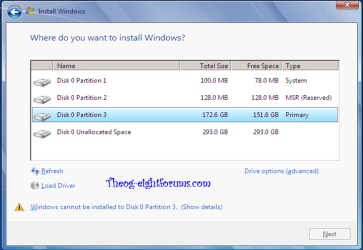
But the problem came when I tried to install windows 7 64-bit on the laptop using a DVD, no matter which drive I select, it does not allow me to go ahead. When I checked the details, I got the error message which is attached here.

original

There is no disk controller option in BIOS, nor is there anything related to UEFI systems.
i did r&d on UEFI systems, but i want to be sure of everything before i go ahead with anything.
Any help would be appreciated.
 

My Computer My Computer

At a glance

Windows 7 Ultimate x86
OS
Windows 7 Ultimate x86
Please do not post the same thread in multiple sections of the site (other thread removed).
 

My Computer My Computer

At a glance

Windows 11
Computer type
PC/Desktop
OS
Windows 11
Please do not post the same thread in multiple sections of the site (other thread removed).

sry, was not sure where to post it, in that section or this one..thanks for the help!
 

My Computer My Computer

At a glance

Windows 7 Ultimate x86
OS
Windows 7 Ultimate x86
You will need to delete all the partitions on HDD drive.

You need to do a clean install,
As the new MOBO's now have a uEFI BIOS.
How to install Windows 64 bit on a uEFI BIOS:
http://www.sevenforums.com/tutorial...e-firmware-interface-install-windows-7-a.html

Thanks for the help! :)

btw no offense to the article above..it was really helpful,
I am explaining it again cz it din't explain
>how to delete the partitions
>do we have to delete the partition with OS as well or not
>what is clean install
and few more idiotic questions a beginner might have :geek:

  1. When installing at the partition screen hit Shift+F10.
  2. At the prompt type diskpart and press Enter.
  3. Type list disk (Not the number of the disk you want to use)
  4. Type select disk X where is X is the number of the disk you want to use.
  5. Type clean. This will erase all the data on your system.
  6. Type convert gpt.
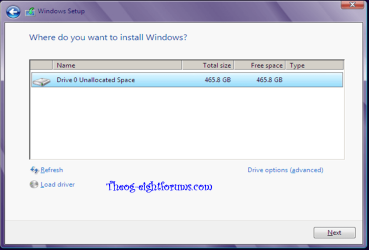
  7. Now reboot the system with the DVD/USB, and you will see only Unallocated Space. Use that to install the new windows.
Be warned though, this will clear out the partition table on the drive; make sure you have a backup before attempting this if you have important data.
 

My Computer My Computer

At a glance

Windows 7 Ultimate x86
OS
Windows 7 Ultimate x86
Thanks for the help! :)

btw no offense to the article above..it was really helpful,
I am explaining it again cz it din't explain
>how to delete the partitions
>do we have to delete the partition with OS as well or not
>what is clean install
and few more idiotic questions a beginner might have :geek:

You can delete all partitions in the Drive Options.
A clean install is installing to a clean HDD Drive.

Windows 8 Downgrade-008 SB-1.PNG

Windows 8 Downgrade-012 SB.PNG

  1. When installing at the partition screen hit Shift+F10.
  2. At the prompt type diskpart and press Enter.
  3. Type list disk (Not the number of the disk you want to use)
  4. Type select disk X where is X is the number of the disk you want to use.
  5. Type clean. This will erase all the data on your system.
  6. Type convert gpt.
  7. Now reboot the system with the DVD/USB, and you will see only Unallocated Space. Use that to install the new windows.
Yes, convert gpt is only a option, can be miss out.

Be warned though, this will clear out the partition table on the drive; make sure you have a backup before attempting this if you have important data.

Yes, always backup.
 

My Computer My Computer

At a glance

ME/XP/Vista/Win7
OS
ME/XP/Vista/Win7
Back
Top