Solved No Internet on desk top but all wifi devices work perfect.

Keggers

New member
Local time
1:47 PM
Messages
21
Hello, I'm seeking assistance to get connected with my pc to the Internet as I need it for work.. All of a sudden it has lost it's connection and when I run windows network diagnostics it reports
" there might be a problem with the driver for the local area connection".

All my wifi devices work as normal.

I have tried several reboots of the router and changed the LAN cables around but no difference.

Any help much appreciated.

Thankyou.
 

My Computer My Computer

At a glance

Windows 7
Computer type
PC/Desktop
OS
Windows 7
Welcome to Seven Forums,

Can you please provide an ipconfig/all output for review by following this Tutorial?

Also, do a snip of your Network Adapters in Device Manager make sure to expand it and post it here please.
 

My Computer My Computer

At a glance

Win7 & Win8 64bitIntel i5
Computer Manufacturer/Model Number
Lenovo Desktop/Samsung Laptop
OS
Win7 & Win8 64bit
CPU
Intel i5
Internet Speed
Charter-20 Mbps
Antivirus
Avast
Browser
FF, IE9 and Chrome
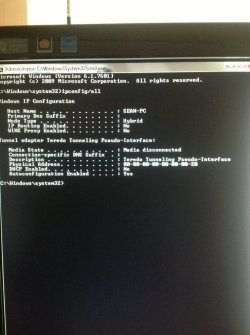
Hello again, I've tried to attach a screen shot of the ipconfig/all via my ipad as I don't know another way. Hope it works!

Connection type : wired
Provider : aol now talk talk I think
Broadband type : dsl
Router type : huawei echo life hg532
Antivirus : avg
Firewall : windows.

Ipconfig didn't show me much compared to the example in the tutorial,, looks like I don't have an IP address.

Hope this helps.
 

Attachments

  • image.jpg
    image.jpg
    67.7 KB · Views: 4

My Computer My Computer

At a glance

Windows 7
Computer type
PC/Desktop
OS
Windows 7
Also the network adaptor is a Realtek PCIe GBE Family Controller. I can open it up but shows me 7 different titles for the properties,,details,resources,power management,general,advanced,about,driver.

Do you need any of this info?

Thankyou.
 

My Computer My Computer

At a glance

Windows 7
Computer type
PC/Desktop
OS
Windows 7
Will I be able to fix this or is it beyond repair?
 

My Computer My Computer

At a glance

Windows 7
Computer type
PC/Desktop
OS
Windows 7
Your problem is that you don't have a LAN connection; with ipconfig/all you should see "Ethernet adapter Local Area Connection:" You either have a hardware problem with your LAN connection (it could be physically dead). That's the less likely scenario of two. Most likely it's a driver issue. Go to start -> right click computer -> manage -> device manager (column on the left) -> find your LAN connection and uninstall it. Right click in that same window and choose "scan for hardware changes". Let it automatically find and install the driver. If that doesn't work you will have to download the drivers with another computer, drop them on USB, and install on the non-working computer.
 

My Computer My Computer

At a glance

Windows 7 x64Core i5 3320m6GB DDR3Intel
Computer type
Laptop
Computer Manufacturer/Model Number
Dell
OS
Windows 7 x64
CPU
Core i5 3320m
Memory
6GB DDR3
Graphics Card(s)
Intel
Hard Drives
Samsung 120GB SSD
Antivirus
Microsoft Security Essentials
Browser
Chrome
Hello again, I've tried to attach a screen shot of the ipconfig/all via my ipad as I don't know another way. Hope it works!

Connection type : wired
Provider : aol now talk talk I think
Broadband type : dsl
Router type : huawei echo life hg532
Antivirus : avg
Firewall : windows.

Ipconfig didn't show me much compared to the example in the tutorial,, looks like I don't have an IP address.

Hope this helps.

Not only do you not have an IP address, there are no network adaptors showing up here at all.

You didn't post the screen shot of the Device manger with Network Adaptors expanded.

Sometimes shutting down completely and removing power then pushing the power button to drain all power then restarting will make the adaptors visible again.
 

My Computer My Computer

At a glance

Windows 7 Ult, Windows 8.1 Pro,Q9650-4.275GHz, E8600 4.5GHz, E6750-3.8GHzG.Skill PC2 9600 1200Mhz 5 5 5 15 2TGTX480
Computer type
PC/Desktop
Computer Manufacturer/Model Number
Home built
OS
Windows 7 Ult, Windows 8.1 Pro,
CPU
Q9650-4.275GHz, E8600 4.5GHz, E6750-3.8GHz
Motherboard
Evga 780i FTW
Memory
G.Skill PC2 9600 1200Mhz 5 5 5 15 2T
Graphics Card(s)
GTX480
Sound Card
Asus Xonar D2
Monitor(s) Displays
HannsG
Screen Resolution
1680X1050
Hard Drives
GSkill Phoenix Pro 120GB SSD
PSU
ThermalTake Toughpower 1000Watt modular
Case
ThermalTake XaserV
Cooling
Xigmatek S1283
Keyboard
Logitech G15
Mouse
Logitech G9
Internet Speed
T1
Hello again, I've tried to attach a screen shot of the ipconfig/all via my ipad as I don't know another way. Hope it works!

Connection type : wired
Provider : aol now talk talk I think
Broadband type : dsl
Router type : huawei echo life hg532
Antivirus : avg
Firewall : windows.

Ipconfig didn't show me much compared to the example in the tutorial,, looks like I don't have an IP address.

Hope this helps.

Not only do you not have an IP address, there are no network adaptors showing up here at all.

You didn't post the screen shot of the Device manger with Network Adaptors expanded.

Sometimes shutting down completely and removing power then pushing the power button to drain all power then restarting will make the adaptors visible again.


Tried all this twice, no change!!!! Also downloaded drivers from the net and they never helped either...
 

My Computer My Computer

At a glance

Windows 7
Computer type
PC/Desktop
OS
Windows 7
I am now thinking my Ethernet card is dead!!! Would it be best to just purchase a new one and give it a go?
 

My Computer My Computer

At a glance

Windows 7
Computer type
PC/Desktop
OS
Windows 7
When I see things disappearing like this then there could be some system file corruption or more unlikely is hardware failure.

To check the system files open an elevated command prompt and type or copy/paste> sfc /scannow then hit enter, let the scan run and see what it says when it's finished.
 

Attachments

  • sfc scannow picture.PNG
    sfc scannow picture.PNG
    3 KB · Views: 30

My Computer My Computer

At a glance

Windows 7 Ult, Windows 8.1 Pro,Q9650-4.275GHz, E8600 4.5GHz, E6750-3.8GHzG.Skill PC2 9600 1200Mhz 5 5 5 15 2TGTX480
Computer type
PC/Desktop
Computer Manufacturer/Model Number
Home built
OS
Windows 7 Ult, Windows 8.1 Pro,
CPU
Q9650-4.275GHz, E8600 4.5GHz, E6750-3.8GHz
Motherboard
Evga 780i FTW
Memory
G.Skill PC2 9600 1200Mhz 5 5 5 15 2T
Graphics Card(s)
GTX480
Sound Card
Asus Xonar D2
Monitor(s) Displays
HannsG
Screen Resolution
1680X1050
Hard Drives
GSkill Phoenix Pro 120GB SSD
PSU
ThermalTake Toughpower 1000Watt modular
Case
ThermalTake XaserV
Cooling
Xigmatek S1283
Keyboard
Logitech G15
Mouse
Logitech G9
Internet Speed
T1
Thanks, I'll try that in the morning and report my findings.
 

My Computer My Computer

At a glance

Windows 7
Computer type
PC/Desktop
OS
Windows 7
When I see things disappearing like this then there could be some system file corruption or more unlikely is hardware failure.

To check the system files open an elevated command prompt and type or copy/paste> sfc /scannow then hit enter, let the scan run and see what it says when it's finished.


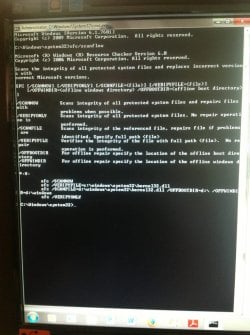
Hi there, I have done as requested above and I attach a photo of the results, not sure what it means though...
 

Attachments

  • 6c1980faeb3c92efc46b35468813e03e.jpg
    6c1980faeb3c92efc46b35468813e03e.jpg
    93.2 KB · Views: 1

My Computer My Computer

At a glance

Windows 7
Computer type
PC/Desktop
OS
Windows 7
When I see things disappearing like this then there could be some system file corruption or more unlikely is hardware failure.

To check the system files open an elevated command prompt and type or copy/paste> sfc /scannow then hit enter, let the scan run and see what it says when it's finished.


Hi there, I have done as requested above and I attach a photo of the results, not sure what it means though...

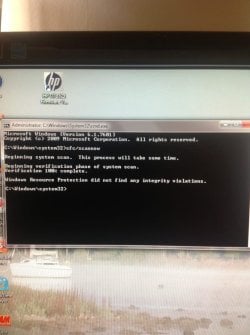
I entered the wrong command and have re done the scan and posted the results.
 

Attachments

  • 523c36ca0395f952be17a69af64ccede.jpg
    523c36ca0395f952be17a69af64ccede.jpg
    70.5 KB · Views: 1

My Computer My Computer

At a glance

Windows 7
Computer type
PC/Desktop
OS
Windows 7
When I see things disappearing like this then there could be some system file corruption or more unlikely is hardware failure.

To check the system files open an elevated command prompt and type or copy/paste> sfc /scannow then hit enter, let the scan run and see what it says when it's finished.


Hi there, I have done as requested above and I attach a photo of the results, not sure what it means though...

I entered the wrong command and have re done the scan and posted the results.

Well it's not a system file problem which would have been an easy fix.

Try running the file below, it will reboot your machine after it resets the network stack, please post the ipconfig/all again after the reboot.
 

Attachments

My Computer My Computer

At a glance

Windows 7 Ult, Windows 8.1 Pro,Q9650-4.275GHz, E8600 4.5GHz, E6750-3.8GHzG.Skill PC2 9600 1200Mhz 5 5 5 15 2TGTX480
Computer type
PC/Desktop
Computer Manufacturer/Model Number
Home built
OS
Windows 7 Ult, Windows 8.1 Pro,
CPU
Q9650-4.275GHz, E8600 4.5GHz, E6750-3.8GHz
Motherboard
Evga 780i FTW
Memory
G.Skill PC2 9600 1200Mhz 5 5 5 15 2T
Graphics Card(s)
GTX480
Sound Card
Asus Xonar D2
Monitor(s) Displays
HannsG
Screen Resolution
1680X1050
Hard Drives
GSkill Phoenix Pro 120GB SSD
PSU
ThermalTake Toughpower 1000Watt modular
Case
ThermalTake XaserV
Cooling
Xigmatek S1283
Keyboard
Logitech G15
Mouse
Logitech G9
Internet Speed
T1
Hi there, I have done as requested above and I attach a photo of the results, not sure what it means though...

I entered the wrong command and have re done the scan and posted the results.

Well it's not a system file problem which would have been an easy fix.

Try running the file below, it will reboot your machine after it resets the network stack, please post the ipconfig/all again after the reboot.


Hi chev65

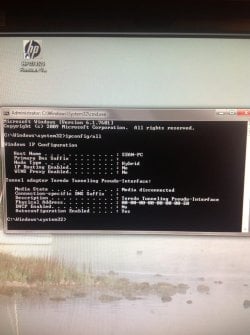
I ran the file below and post my latest ipconfig/all results although I think there's no difference from the first try,
 

Attachments

  • cdfc3e8495dad36b3eba7ee9bde1737c.jpg
    cdfc3e8495dad36b3eba7ee9bde1737c.jpg
    81.9 KB · Views: 1

My Computer My Computer

At a glance

Windows 7
Computer type
PC/Desktop
OS
Windows 7
I entered the wrong command and have re done the scan and posted the results.

Well it's not a system file problem which would have been an easy fix.

Try running the file below, it will reboot your machine after it resets the network stack, please post the ipconfig/all again after the reboot.


Hi chev65

I ran the file below and post my latest ipconfig/all results although I think there's no difference from the first try,

Ok then we know it's something on the board or it's hardware related at this point.

Are you able to access the cmos on this machine in order to clear the cmos and reset the board?
 

My Computer My Computer

At a glance

Windows 7 Ult, Windows 8.1 Pro,Q9650-4.275GHz, E8600 4.5GHz, E6750-3.8GHzG.Skill PC2 9600 1200Mhz 5 5 5 15 2TGTX480
Computer type
PC/Desktop
Computer Manufacturer/Model Number
Home built
OS
Windows 7 Ult, Windows 8.1 Pro,
CPU
Q9650-4.275GHz, E8600 4.5GHz, E6750-3.8GHz
Motherboard
Evga 780i FTW
Memory
G.Skill PC2 9600 1200Mhz 5 5 5 15 2T
Graphics Card(s)
GTX480
Sound Card
Asus Xonar D2
Monitor(s) Displays
HannsG
Screen Resolution
1680X1050
Hard Drives
GSkill Phoenix Pro 120GB SSD
PSU
ThermalTake Toughpower 1000Watt modular
Case
ThermalTake XaserV
Cooling
Xigmatek S1283
Keyboard
Logitech G15
Mouse
Logitech G9
Internet Speed
T1
Well it's not a system file problem which would have been an easy fix.

Try running the file below, it will reboot your machine after it resets the network stack, please post the ipconfig/all again after the reboot.


Hi chev65

I ran the file below and post my latest ipconfig/all results although I think there's no difference from the first try,

Ok then we know it's something on the board or it's hardware related at this point.


Are you able to access the cmos on this machine in order to clear the cmos and reset the board?


That was quick chev65, I'm sorry but you will have to explain a little further. The cmos?
 

My Computer My Computer

At a glance

Windows 7
Computer type
PC/Desktop
OS
Windows 7
Well it's not a system file problem which would have been an easy fix.

Try running the file below, it will reboot your machine after it resets the network stack, please post the ipconfig/all again after the reboot.


Hi chev65

I ran the file below and post my latest ipconfig/all results although I think there's no difference from the first try,

Ok then we know it's something on the board or it's hardware related at this point.

Are you able to access the cmos on this machine in order to clear the cmos and reset the board?

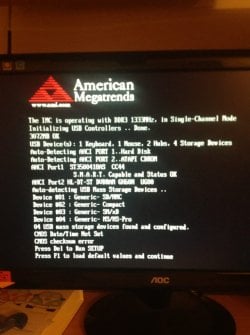
Hi chev65, CMOS cleared I believe, this is a screen shot when powered up.. What next?, thankyou.
 

Attachments

  • 76931591f5202cd3888543f54f169562.jpg
    76931591f5202cd3888543f54f169562.jpg
    69.6 KB · Views: 0

My Computer My Computer

At a glance

Windows 7
Computer type
PC/Desktop
OS
Windows 7
You might want to check the Date/Time settings, it says they aren't set for some reason.

Pressing the Delete button should get you to where you can set the date/time, might have to look around a bit in bios, then load defaults and start up then post the ipconfig/all to see if anything has changed.

Do you have Zone Alarm installed on this system?

Let me look around for more solutions,:

If the yellow exclamation is still showing for Teredo tunneling then try the following.

1. Open command prompt with administrator credentials (Find CMD and right-click - Run as Administrator).
2. Enter netsh environment. Type "netsh" and ENTER.
3. "int teredo" and ENTER
4. "set state disabled" and ENTER.
5. Open Device Manager and uninstall "Teredo Tunneling Pseudo-Interface".
6. Open command prompt with administrator credentials once again.
7. netsh + ENTER.
8. "int ipv6" + ENTER
9. "set teredo client" + ENTER
10. Open Device Manager and Scan for new hardware.
11. Select "Show hidden devices" from the View menu. You will now see that it is present without errors with any luck.

Option#2
If the item is disabled.
In the start menu search bar type in REGEDIT to open the registry editor. Navigate through the following:

HKEY_LOCAL_MACHINE\SYSTEM\CURRENTCONTROLSET\SERVICES\TCPIP6\PARAMETERS.

In the right pane look for Disabled Components, right click Disabled Components and select edit. Set the DWord value to 0. (If you do have Disabled Components there, the value may for example be set to ff which is invalid.)

You must Restart your computer and the teredo tunneling adapter will now start.

 
Last edited:

My Computer My Computer

At a glance

Windows 7 Ult, Windows 8.1 Pro,Q9650-4.275GHz, E8600 4.5GHz, E6750-3.8GHzG.Skill PC2 9600 1200Mhz 5 5 5 15 2TGTX480
Computer type
PC/Desktop
Computer Manufacturer/Model Number
Home built
OS
Windows 7 Ult, Windows 8.1 Pro,
CPU
Q9650-4.275GHz, E8600 4.5GHz, E6750-3.8GHz
Motherboard
Evga 780i FTW
Memory
G.Skill PC2 9600 1200Mhz 5 5 5 15 2T
Graphics Card(s)
GTX480
Sound Card
Asus Xonar D2
Monitor(s) Displays
HannsG
Screen Resolution
1680X1050
Hard Drives
GSkill Phoenix Pro 120GB SSD
PSU
ThermalTake Toughpower 1000Watt modular
Case
ThermalTake XaserV
Cooling
Xigmatek S1283
Keyboard
Logitech G15
Mouse
Logitech G9
Internet Speed
T1
You might want to check the Date/Time settings, it says they aren't set for some reason.

Pressing the Delete button should get you to where you can set the date/time, might have to look around a bit in bios, then load defaults and start up then post the ipconfig/all to see if anything has changed.

Do you have Zone Alarm installed on this system?

Let me look around for more solutions,:

If the yellow exclamation is still showing for Teredo tunneling then try the following.

1. Open command prompt with administrator credentials (Find CMD and right-click - Run as Administrator).
2. Enter netsh environment. Type "netsh" and ENTER.
3. "int teredo" and ENTER
4. "set state disabled" and ENTER.
5. Open Device Manager and uninstall "Teredo Tunneling Pseudo-Interface".
6. Open command prompt with administrator credentials once again.
7. netsh + ENTER.
8. "int ipv6" + ENTER
9. "set teredo client" + ENTER
10. Open Device Manager and Scan for new hardware.
11. Select "Show hidden devices" from the View menu. You will now see that it is present without errors with any luck.

Option#2
If the item is disabled.
In the start menu search bar type in REGEDIT to open the registry editor. Navigate through the following:

HKEY_LOCAL_MACHINE\SYSTEM\CURRENTCONTROLSET\SERVICES\TCPIP6\PARAMETERS.

In the right pane look for Disabled Components, right click Disabled Components and select edit. Set the DWord value to 0. (If you do have Disabled Components there, the value may for example be set to ff which is invalid.)

You must Restart your computer and the teredo tunneling adapter will now start.


Hi, I'm at the uninstall teredo part but can't find it in devices?
 

My Computer My Computer

At a glance

Windows 7
Computer type
PC/Desktop
OS
Windows 7
Back
Top