
Install Windows on System with MSATA and ISRT

How to Clean Install Windows on System with MSATA and ISRT


   Information
This tutorial would help show you how to install Windows on a system with MSATA ensuring that ISRT(Intel Smart Response Technology) and IRST (Intel Rapid Start Technology) are still enabled.

   Warning
Re-installation of Windows would delete everything stored on the system so make sure that you have backup of all your important data stored externally.


Before re-installing the operating system, disable the Intel Smart Response Technology.

Launch Intel Rapid Storage Technology application. There are two ways to launch the application:
Click the Intel Rapid Storage Technology icon from the system tray.

1.jpg

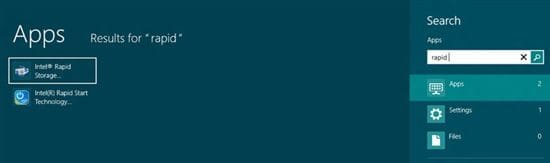
Search for Intel Rapid Storage from the Start Screen.
2.jpg

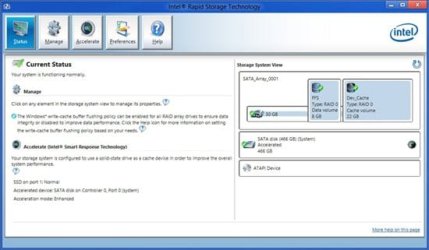
Intel Rapid Storage Technology application is displayed.
3.jpg

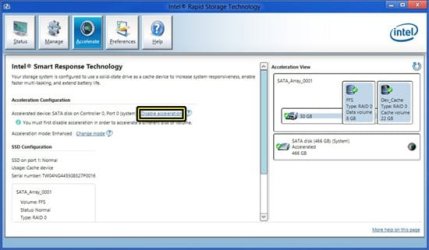
Select Accelerate tab and then click Disable acceleration.
4.jpg

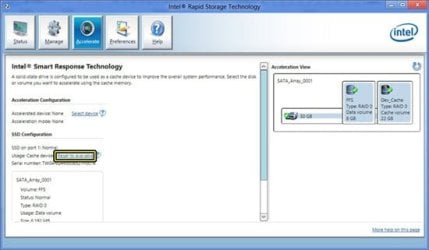
Under SSD Configuration, click Reset to available to reset volume.
5.jpg

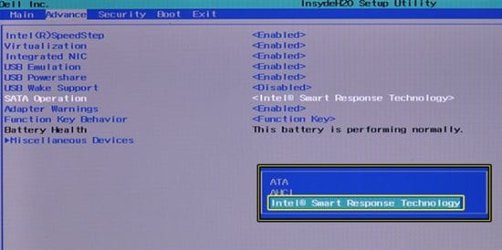
Go to System Setup. Ensure that SATA Operation is set to Intel Smart Response Technology.
6.jpg

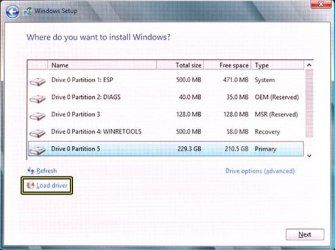
Initiate the operating system re-installation. On the Where do you want to install Windows? screen, click Load Driver to load Intel Rapid Storage driver.
7.jpg

   Note
The Intel Rapid Storage driver should be copied to a USB memory key. For Non-DELL systems check the system manufacturer website for the respective driver and for DELL systems download the respective drivers from the link below:


Dell drivers

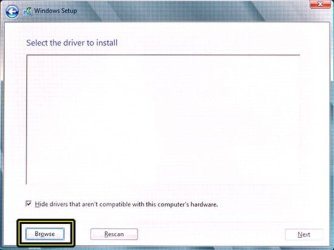
Connect the USB memory key and click Browse to locate the folder that contains the driver.
8.jpg

Continue with the operating system installation.

Check this for clean installing windows:

http://www.sevenforums.com/tutorials/1649-clean-install-windows-7-a.html or http://www.sevenforums.com/tutorial...e-firmware-interface-install-windows-7-a.html

Clean Install - Windows 8 or UEFI (Unified Extensible Firmware Interface) - Install Windows 8 with

Once the operating system is re-installed, re-enable Intel Smart Response Technology.

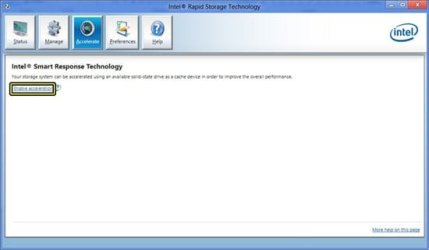
Launch the Intel Rapid Storage Technology application and go to Accelerate tab.
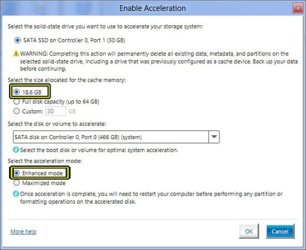
Click Enable acceleration.
9.jpg

Select 18.6 GB as the size of the cache memory, set acceleration mode to Enhanced mode and then click OK.

Once this done, the SSD will not be visible within Windows.
10.jpg

Now your Windows is installed with ISRT(Intel Smart Response Technology).

If you want to have IRST( Intel Rapid Start Technology) then you have to create a partition on SSD following the steps below:

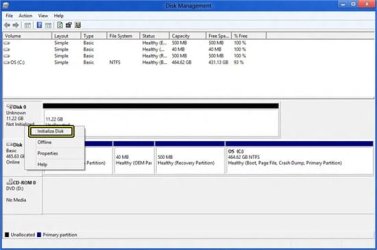
Open Disk Management. Right-click the SSD named Disk 1 and select Initialize Disk.
11.jpg

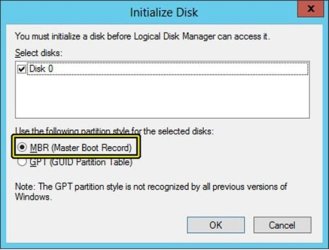
Select MBR (Master Boot Record) as the partition style and click OK.
12.jpg

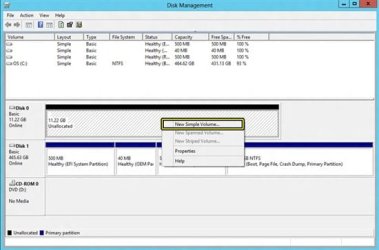
On the Disk Management, right-click the box that contains partition information and select New Simple Volume.
13.jpg

   Note
This partion should be more than RAM installed on the system and otherwise it might not work.


Specify the volume size and click Next. Follow the wizard and create the new volume.
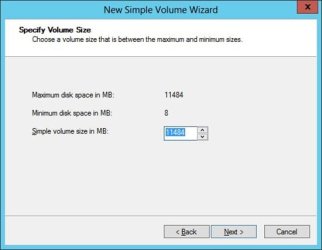
14.jpg

On the last screen of the wizard, click Finish.
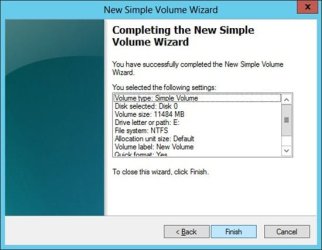
15.jpg

Launch Command Prompt using the operating system disk.

Windows 7

Windows 8

Type the following commands:
DISKPART and press <ENTER>.
list volume and press <ENTER>.
select volume x (where x is the volume number of your new partition created of size 11.22 GB) and press <ENTER>.
Type "SET ID=84" for MBR or "SET ID=D3BFE2DE-3DAF-11DF-BA40-E3A556D89593" for GPT mode <ENTER>.
exit and press <ENTER>
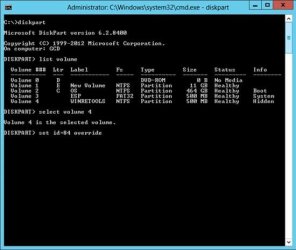
16.jpg

Go to Disk Management and check the hibernation partition created.
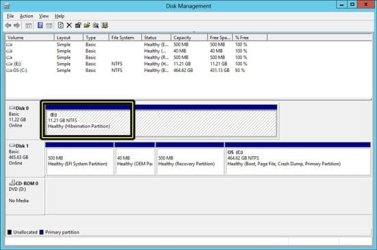
17.jpg

The settings for the Intel Rapid Start technology are complete and now you may continue to use your computer.

Now both ISRT( Intel Smart Response) and IRST( Intel Rapid Start) are enabled on the system.

I hope most of the users with similar questions find this post useful.


Last edited:
Last edited:

My Computer

Computer Manufacturer/Model Number
Dell Inspiron E 1505
OS
Windows 7 Professional 32 Bit
CPU
Genuine Intel(R) CPU T2080 @ 1.73GHz 1.73 GHz
Motherboard
DELL
Memory
2GB
Graphics Card(s)
ATI Mobility Radeon X1400
Sound Card
High Definition Audio Device
Screen Resolution
1280 by 800
Hard Drives
136 GB
Recovery 10 GB
Where do I get the Intel driver from? From the dell website for my system, I can only get the IRST driver to use in Windows but I need the one to install during setup. Where do I get that?
Drivers for XPS 15 (L521x)

Thanks

Hi pragnesh89,

Please let me know the model number of the system you have. As on Inspiron 1505 would not support ISRT as it is a old model system. It is a feature for new intel motherboards.

Keep us posted with the results so we can advise you further.
 

My Computer

Computer type
PC/Desktop
OS
Winndows 7 32 bit
My model number is Dell XPS L521X
 

My Computer

Computer Manufacturer/Model Number
Dell Inspiron E 1505
OS
Windows 7 Professional 32 Bit
CPU
Genuine Intel(R) CPU T2080 @ 1.73GHz 1.73 GHz
Motherboard
DELL
Memory
2GB
Graphics Card(s)
ATI Mobility Radeon X1400
Sound Card
High Definition Audio Device
Screen Resolution
1280 by 800
Hard Drives
136 GB
Recovery 10 GB
My model number is Dell XPS L521X

Hi pragnesh89,

Thanks for providing us this information. Please check this link below to download the required driver:

Driver Details | Dell US

You can put this driver on a USB key and then use it to load the driver at the time of installation. Keep us posted with the results so we can advise you further.
 

My Computer

Computer type
PC/Desktop
OS
Winndows 7 32 bit
Thanks for your help. I tried this before but the driver wasnt loading from USB before installation process. Nevertheless, I had to replace my hard drive because of clicking noises. And Dell sent the technician with the hard driver and so this time instead of clean installation, I decided to upgrade and it worked like a charm.
 

My Computer

Computer Manufacturer/Model Number
Dell Inspiron E 1505
OS
Windows 7 Professional 32 Bit
CPU
Genuine Intel(R) CPU T2080 @ 1.73GHz 1.73 GHz
Motherboard
DELL
Memory
2GB
Graphics Card(s)
ATI Mobility Radeon X1400
Sound Card
High Definition Audio Device
Screen Resolution
1280 by 800
Hard Drives
136 GB
Recovery 10 GB
Thanks for your help. I tried this before but the driver wasnt loading from USB before installation process. Nevertheless, I had to replace my hard drive because of clicking noises. And Dell sent the technician with the hard driver and so this time instead of clean installation, I decided to upgrade and it worked like a charm.

Hi pragnesh89,

Its great to hear that it worked out perfectly fine for you. If you have any queries in future as well feel free to reach out to us.
 

My Computer

Computer type
PC/Desktop
OS
Winndows 7 32 bit
Windows 7 Install, Load Drivers Trick

Hi All!

I too was stuck around this frustrating step.. "can't see/use drives", then ..'Load Driver' sees no drivers", and this is how I fixed it! ...

No-one mentions in ANY of these guides at all, that these links to the ISRT (and other) drivers are ".exe" files, and we are trying to load them outside of windows..

When we get to the "Load Driver" stage of these guides, the Windows installer doesn't seem to be able to see inside the .exe file to get the 'actual' drivers... (in many cases like mine)

Long story short, I unzipped/unpacked the driver's .exe file (which becomes a normal folder with drivers and files in it), put it back on the USB, and BAM! Windows installer sees the drivers!

I installed the driver/s and I continued on, the installer see all of the drives perfectly, I deleted all of the partitions, then left the ~950gb drive as 'Unallocated Space", and installed Windows to it perfectly without another hitch!! Windows working fine, with ISRT!

Before I figured out to UNZIP the .exe file to get the drivers, this lost me many hours, email and phone calls to Dell tech support, caused me much pain, and even Dell phone support couldn't help! I even suggested it and one guy said "no, it should see the drivers inside the .exe file", and told me not to bother doing it.. But it worked!! And I see many other people getting stuck where it won't find the drivers/drivers won't work..

So I hope this helps many others as is has helped me!! It may seem obvious to some, but it needs mentioning in the guides!! ...UNZIP THE DRIVERS FIRST!!
 

My Computer

Computer type
Laptop
Computer Manufacturer/Model Number
Dell, Inspiron 15R SE 7520
OS
Macbook Pro Mavericks, Dell Inspiron 15R SE Windows 7 64bit, Windows 8 64bit,
CPU
Core i7
Memory
8gb
Graphics Card(s)
ATI Radeon
Hard Drives
32gb SSD
1tb HDD
Migrating to ISRT from previous OS install

I am trying to implement ISRT ( not IRST) on my new motherboard( asus Z97-pro),but I already have my OS installed ( from my old motherboard). I understand i have to select RAID for the SATA type, instead of IDE, and reload windows.

my question- my main hard drive has two partitions C: and E: Will the switch to RAID mean that this one physical hard drive can only have one partition ( C:) and if during the reinstall, my drive is wiped clean, I will loose my contents on E: ?

thanks
homerr
 

My Computer

Computer type
PC/Desktop
Computer Manufacturer/Model Number
Asus
OS
win 7 64
CPU
i7 4790
Motherboard
Asus
Memory
8 GB
Graphics Card(s)
HIS ATI 4600
Back
Top