Great work everyone!
 Gandalf
, something that might be useful for GIMP (also a snip from the GIMP tut I am making for
ThrashZone):
1.
Installing Layer Effects
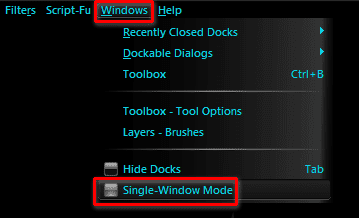
Please do the following to enable "one screen mode";
- Start up GIMP by clicking on the
 rb: and typing in "Gimp" in the search bar.
- Now in the menu list in GIMP, click on Window and then on Single-Window Mode.
You can download the
Layer Effects plugin
here.
:info: Of the three offered downloads, make sure to choose the top one.
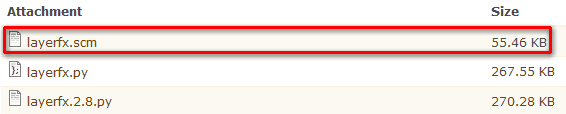
After downloading the file, paste it in the following directiry and restart GIMP afterwards;
C:\Users\<<User Name>>\.gimp-2.8\scripts
This plugin is required so that you can add various effects such as drop shadows, inner glows and strokes.
2.
Setting up the default image
Now that we have installed GIMP and the required plugins, let's make sure that GIMP will have the correct image size and specifications set.
- First open GIMP.
- Now click on Edit and then on Preferences at the bottom of the menu.
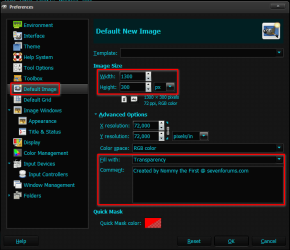
- A new window will pop up. Click on Default Image, which is the seventh option.
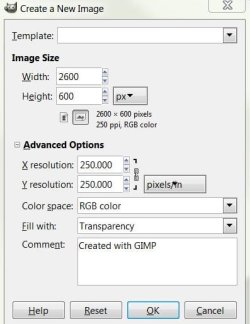
- Change the Image Width to 1300 and the Image Height to 300.
- Now under Advanced Options, change Fill With to Transparency.
- In the Comment section you can put whatever you want, for instance that you have created it.
- After changing everything click on OK and restart GIMP.
- This is how everything should look after changing it;
----------
Following option one will result in the
Layer Styles addon, with which you can easily add strokes, bevels, shadows, glows and such, it's basically the GIMP variant of Photoshop's
Layer Styles.
Option two is purely optional. 1300x300 is just the size that we make signatures at. This way we can put much more details in them. This will result in signatures with a higher quality. After creating a sig on that size you can resize them to the applicable 650x150 size

Do note that this is a snip from my upcoming GIMP tutorial and that you don't really need to follow it if you don't want. But if you do decide to follow it, I'd love to get some feedback (was it easy to follow, are some things unclear?).
Also
Mike, an FYI; the tutorial will consist out of three parts. The first part, of which this is a snip, will consist out of installing GIMP and making it ready to use and installing all addons and such. The second part will be the actual tutorial, it will teach how to create a basic signature with banner and all. Nothing fancy, just a basic sig. The third part of the tutorial will teach how to export the gimp file, save it as a .png and how to resize it from 1300x300 to 650x150.
How does that sound to you? Also do note that I have a custom theme installed in my GIMP so that it looks different and that the tut will be made with Gimp 2.8.10 (originally 2.8.8, but I plan to reinstall Windows soon ergo update all software).
Cheers,
Nommy