
Win 7 Pro file server with network shares - is this method secure?

tv69

New member
Local time
7:17 PM
Messages
9
Hello all,

We have a Windows 7 Pro computer in an unsecure room acting as a file server to 10 other computers on the network.

My issue is with creating and securing network shared folders so that prying eyes can not access info not meant for them.

We currently have 3 folders to share with different departments. These folders are 'Accounting', 'Design', and 'Production'.

As mentioned there are 10 other computers on the network and user accounts have been created on the file server to match the user accounts on each of the 10 computers. For these 10 user accounts on the file server, we did however set up the users with passwords that are different than the password used on their own computer. This was done to prevent anyone from logging into the file server and messing with it.

The method I am considering for sharing the 'Accounting', 'Design', and 'Production' folders is to share each folder on the file server and to add 'Everyone' as a user, granting access to all 10 users on the network. To limit access to any particular user, via the 'Security' tab on the shared folder, I press the edit button and add the user. Then all their permissions are set to deny. I would add more users I wish to deny access in the same way.

It seems to work fine. Mapping a network drive to the file server is allowed only by users not denied for the particular share and a password is not required to map to the share.

Is there any security risk to doing it this way or any downside I may encounter?

Thanks for any help.

TV
 

My Computer My Computer

Computer type
PC/Desktop
OS
Windows 7 Pro 64bit
Hi there,

This is not an optimal solution. What you've done, if I understand your explanation properly is open up access (everyone), then put band-aids over it.

One better approach is to (a). Create groups for each department (b). Create the shares with permissions specific to each group (Accounting users can access the accounting share), then grant specific Allow permissions only to that group for that folder and sub-folders. You could add deny permissions for others, but it simply adds complexity that you don't need.

A good security model starts from a deny-all point and adds allow permissions as required. You are working the other way.. Allow all then deny as required. It may well work, but you risk missing something one day and then someone gets access to something they shouldn't.

It's better to have a user complain that can't access something (that you then fix), than have someone with access to something they shouldn't and they don't tell you about it.

Where possible you should always stay away from Everyone permissions.

Also, full control, unless specifically needed, should only be granted to administrators.

As a general rule of thumb, you open it up only as much as you need to to let the people who should have access gain access.

It may be that the credentials required to access the share are stored in your credential manager (see control panel). Password protected shares are a good thing, as long as you don't have to enter the password every time. Worked in one company that was a little naive in this regard. We had to login to every share every morning because they were so paranoid.
 

My Computer My Computer

Computer type
PC/Desktop
Computer Manufacturer/Model Number
Home Made
OS
Linux Mint 17 Cinnamon | Win 7 Ult x64
CPU
Intel I7-3770K @ 4.2ghz
Motherboard
ASRock Extreme 4
Memory
32GB G-Skill C10Q
Graphics Card(s)
EVGA GTX 670 2GB SC
Sound Card
Creative Fatality ExtremeGamer
Monitor(s) Displays
LG E2742V x 2
Screen Resolution
1920x1080
Hard Drives
256GB Vertex 4 SSD
2TB Seagate ST2000DM001
1TB Seagate ST1000DM003
PSU
Corsair HX 650
Case
HAF 932 advanced
Cooling
Corsair H100i liquid cooler
Keyboard
Logitech Wireless
Mouse
Logitech Wireless
Internet Speed
OptusNet NBN 100/40
Antivirus
Malwarebytes
Browser
Firefox 30
Other Info
Router: Sagemcom F@st 3846 Crippled by Optus.

My Computer My Computer

Computer type
PC/Desktop
Computer Manufacturer/Model Number
Home built
OS
Windows 7 Ult, Windows 8.1 Pro,
CPU
Q9650-4.275GHz, E8600 4.5GHz, E6750-3.8GHz
Motherboard
Evga 780i FTW
Memory
G.Skill PC2 9600 1200Mhz 5 5 5 15 2T
Graphics Card(s)
GTX480
Sound Card
Asus Xonar D2
Monitor(s) Displays
HannsG
Screen Resolution
1680X1050
Hard Drives
GSkill Phoenix Pro 120GB SSD
PSU
ThermalTake Toughpower 1000Watt modular
Case
ThermalTake XaserV
Cooling
Xigmatek S1283
Keyboard
Logitech G15
Mouse
Logitech G9
Internet Speed
T1
Thank you Tanya for the in depth explanation. I had a feeling my approach was not ideal.

Thank you Chev for the link.

I came about the proposed solution because I had trouble mapping shared drives. As mentioned 10 users were set up on the Win 7 Pro file server that matched the 10 user names of the other 10 computers on the network. Since the file server is not in a secure location, it was decided to use different passwords for the 10 accounts on the file server than the passwords being used on to log on at each of the 10 computers, thus preventing any of the 10 users access to the file server.

Although I have mapped network drives many times before, I was not able to map a network drive in this case. Many combinations were tried but none worked.

Is it that I did not get the right combination of credentials/password or is it that the different password for users on the file server did not allow for it to work? I tried a similar approach with a Linux file server and it worked fine and I'm guessing I'm entering the credentials/password incorrectly on this Windows file server.

The windows file server is called 'SERVER' and has an 'ADMIN' account + the 10 other accounts on it, let's say user1, user2,... , user10.

After browsing the share, what would be the correct credentials to use to map the network drive? Would I need to 'Connect using different credentials'? Please note that I did allow permissions for the particular user under the security tab for the share.

Thank you once again for your help.

TV
 

My Computer My Computer

Computer type
PC/Desktop
OS
Windows 7 Pro 64bit
Well it turns out that the file server did not have 'Turn on password protected sharing' switched on and that was the problem. Everything works fine now.

When user1 is granted access to two shares from the file server, typing in the credentials once gives access to both shares. Is this normal behaviour or is there a way to force credentials to be entered for each network mapped drive even if they originate from the same file server?

Thanks,

TV
 

My Computer My Computer

Computer type
PC/Desktop
OS
Windows 7 Pro 64bit
We have a Windows 7 Pro computer in an unsecure room acting as a file server

That's all I need to read to see that you're against an impossible challenge. Physical security is number one priority in securing any server, because "the bad guys" can do literally anything to it when having physical access (which is FAR more powerful than administrator access).
The very first thing you need to do is to find a safe place to put it, under a lock at the very least. If anyone can walk in and use its keyboard/mouse/screen, they can login directly there, put disks and copy data, remove backup devices with all their data, or simply reboot with an external OS and bypass any security you can come with. A good reading on the matter is this:
Ten Immutable Laws Of Security (Version 2.0)
"Law 3" specifically.


it was decided to use different passwords for the 10 accounts on the file server than the passwords being used on to log on at each of the 10 computers, thus preventing any of the 10 users access to the file server.

I will have to say no again :p. This is actually counterproductive. Because of the way Windows shares work, a valid login for the share is also a valid login to the computer it's stored in. By using a different credentials, you only prevent them from using the very same password as they use on their computers, but they can still use the alternative one to login into the server, as they're doing to access the shares.
A better solution is to have the same password on both places. This is easier for the users to remember and more practical (less post-it's with passwords is also more secure) and straightforward to use. But to actually prevent any login into the server from the users, you can use a gpedit policy, located in:
Computer Configuration => Windows Settings => Security Settings => Local Policies => User Rights Assignment => Deny logon locally. Add your 10 users there, so they can't use their credentials to login as a normal user. Also, keep them out of the Terminal Server group, so they can't even use remote desktop to it. This still allows to use the shares though the network.

For everything else, I just agree with TanyaC and chev65. Grant the bare minimum permissions to get the job done, when in doubt, deny until someone complains.
One more thing. Since you have an insecure location, make sure you encrypt the backups, so when someone steals them, they'll have a hard time getting any data out of them.
 

My Computer My Computer

Computer type
Laptop
Computer Manufacturer/Model Number
Toshiba Sattelite A665-S6092
OS
Windows 7 Ultimate x64
CPU
Intel Core i7-740QM
Memory
8 GB DDR3
Graphics Card(s)
NVIDIA GeForce 330GT
Screen Resolution
1366x768
Hard Drives
Samsung 840 SSD 500GB
1TB USB3 external HD
Cooling
Coolermaster Notepal U3 notebook cooling pad
Internet Speed
3mbps ASDL
Antivirus
ClamWin 0.98.7
Browser
Opera 12.17 x86 (main), Firefox 38 (sec), IE11 (last resort)
When user1 is granted access to two shares from the file server, typing in the credentials once gives access to both shares. Is this normal behavior or is there a way to force credentials to be entered for each network mapped drive even if they originate from the same file server?
TV

Yes, the permissions you give are based on the user (or more specifically, the SID associated with the user). Remember, the password is associated with the user account, not with the share.

So, once a user logs in and is authenticated, they will get access to anything you have given them explicit access to.

To grant permissions to a specific user grant that user permissions to the share (Don't use everyone or the "users" group). Then grant specific allow permissions for what you want to do with the data managed by that share (Files and folders).

So, if you have two shares: "Accounts" and "Sales". Fred is a member of accounts, and sue is a member of sales, then you would grant fred access to the accounts share and not to sales, and Sue would be the reverse.

As to the second part of your question; As I said, the credentials apply to the user. They do not apply to the objects on the server. This is managed by the security, or what we call "Access Control Lists".

As long as you get your security correct it shouldn't be a problem.

If users share PCs you will need to have stringent log out policies and potentially automate some of that.

hth
tanya
 

My Computer My Computer

Computer type
PC/Desktop
Computer Manufacturer/Model Number
Home Made
OS
Linux Mint 17 Cinnamon | Win 7 Ult x64
CPU
Intel I7-3770K @ 4.2ghz
Motherboard
ASRock Extreme 4
Memory
32GB G-Skill C10Q
Graphics Card(s)
EVGA GTX 670 2GB SC
Sound Card
Creative Fatality ExtremeGamer
Monitor(s) Displays
LG E2742V x 2
Screen Resolution
1920x1080
Hard Drives
256GB Vertex 4 SSD
2TB Seagate ST2000DM001
1TB Seagate ST1000DM003
PSU
Corsair HX 650
Case
HAF 932 advanced
Cooling
Corsair H100i liquid cooler
Keyboard
Logitech Wireless
Mouse
Logitech Wireless
Internet Speed
OptusNet NBN 100/40
Antivirus
Malwarebytes
Browser
Firefox 30
Other Info
Router: Sagemcom F@st 3846 Crippled by Optus.
Alejandro85,

I really appreciate the response and your point of view. I have raised the point of the unsecure room to the owners and it will eventually be taken care of. There is probably one person in the building that may have the technical know how to cause some damage. It's not justification for an unsecure room but I agree that it is a bigger problem than passwords and user names.

Thank you also for the link to the 10 Immutable laws.

I don't quite understand you explanation of why it is bad to have user accounts on the server with different passwords than what are used by the users to log in to their own computers?

Each user logs into their user account on their computer with their local password. Network shares with different user credentials are going to be set up by admin only, not the users themselves.

I will look at the gpedit you suggested and the locking out of terminal services as well.

I'm still curious about this from my previous post.
When user1 is granted access to two shares from the file server, typing in the credentials once gives access to both shares. Is this normal behaviour or is there a way to force credentials to be entered for each network mapped drive even if they originate from the same file server?

Thank you for your input, much appreciated.

TV
 

My Computer My Computer

Computer type
PC/Desktop
OS
Windows 7 Pro 64bit
When user1 is granted access to two shares from the file server, typing in the credentials once gives access to both shares. Is this normal behavior or is there a way to force credentials to be entered for each network mapped drive even if they originate from the same file server?
TV

Yes, the permissions you give are based on the user (or more specifically, the SID associated with the user). Remember, the password is associated with the user account, not with the share.

So, once a user logs in and is authenticated, they will get access to anything you have given them explicit access to.

To grant permissions to a specific user grant that user permissions to the share (Don't use everyone or the "users" group). Then grant specific allow permissions for what you want to do with the data managed by that share (Files and folders).

So, if you have two shares: "Accounts" and "Sales". Fred is a member of accounts, and sue is a member of sales, then you would grant fred access to the accounts share and not to sales, and Sue would be the reverse.

As to the second part of your question; As I said, the credentials apply to the user. They do not apply to the objects on the server. This is managed by the security, or what we call "Access Control Lists".

As long as you get your security correct it shouldn't be a problem.

If users share PCs you will need to have stringent log out policies and potentially automate some of that.

hth
tanya

Ah thank you Tanya. I was typing my post to Alejandro as you were typing your response. I took your good advice, tested it out and it all seems to work fine. Don't use 'Everyone' and only grant access to those needing it. Next I will sort out some user groups to simplify the process of sharing.

All of you have been most helpful.

Cheers,

TV
 

My Computer My Computer

Computer type
PC/Desktop
OS
Windows 7 Pro 64bit
While I think of it, having just read your response to Alejandro...

He has raised some good points. Another one is the automatic expiring of passwords. This helps mitigate problems with passwords being known by the wrong people.

In such a case, synching the password on the client and the server is by far the easiest solution. Having different passwords, whilst not a bad idea, will add more complexity and will drive users bananas if you expire passwords.

If you use different passwords that sort of leaves you potentially with passwords never changing, simply for the sanity of your users.

As to the encryption of backups - you should NEVER store backups of business data on site any way. If you must, make sure they are as far away from the server as possible. Not only do you have the theft issue that Alejandro mentioned, you have fire and damage concerns. If the area where the server is located burns down, you don't want your backups going with it.

Too often when working at client sites have I seen backups sitting on the table right beside the server..
 

My Computer My Computer

Computer type
PC/Desktop
Computer Manufacturer/Model Number
Home Made
OS
Linux Mint 17 Cinnamon | Win 7 Ult x64
CPU
Intel I7-3770K @ 4.2ghz
Motherboard
ASRock Extreme 4
Memory
32GB G-Skill C10Q
Graphics Card(s)
EVGA GTX 670 2GB SC
Sound Card
Creative Fatality ExtremeGamer
Monitor(s) Displays
LG E2742V x 2
Screen Resolution
1920x1080
Hard Drives
256GB Vertex 4 SSD
2TB Seagate ST2000DM001
1TB Seagate ST1000DM003
PSU
Corsair HX 650
Case
HAF 932 advanced
Cooling
Corsair H100i liquid cooler
Keyboard
Logitech Wireless
Mouse
Logitech Wireless
Internet Speed
OptusNet NBN 100/40
Antivirus
Malwarebytes
Browser
Firefox 30
Other Info
Router: Sagemcom F@st 3846 Crippled by Optus.
Tanya,

Automatic expiring of passwords? Is that set up somehow? We never considered automatic expiration but definitely a manual change somewhere down the road at regular intervals.

Maybe I'm missing something, but the users will never know or need to know the password for shares for their user account to the file server. Shares will be set up once and as long as there are no hiccups the mapped drive should re-map on every reboot. User passwords on local users' computers can be changed at any time with no effect to the shares. If the password to user shares needs to be changed it will probably take 30 minutes tops for an admin to take care of of the changes are remapping of drives on 10 computers. Again, maybe I'm missing something here or maybe I have not explained it well?

As for backup, I agree and a plan is already in place for the short term to swap external backup drives once a week and store them offsite. As an alternative we are also planning a remote offsite backup plan via a software called Duplicati. We will have to test first to see if it is feasible. I don't like the idea of someone swapping drives because generally people will forget or just get lazy and stop the swapping, so I'm hoping the remote backup solution will work well for us.

Thank you again Tanya.

TV
 

My Computer My Computer

Computer type
PC/Desktop
OS
Windows 7 Pro 64bit
Hi,

Ok, it is generally a good idea, when setting up a network for a business (even SMBs), to plan out your security strategy. With all due respect, too often things just "evolve" and that's often how problems creep in.

Generally speaking a business would have passwords last a specific period of time, say 90 days, and then expire, at which point users must create a new password. There are a number of policy rules that can be applied to user accounts in the policy editor, which you should have access to (gpedit.msc).

These passwords can be the same on the client and the server. When the user updates the password on the client, it automatically updates it on the server. However, you will get calls from your users when they just don't change passwords and get locked out, mess up the change of password, or just continually lock themselves out of their accounts.

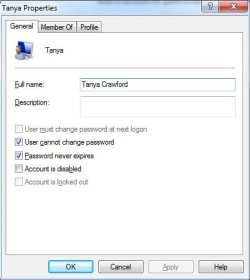
By far the "easiest" solution is to just set up the accounts to never expire. If such be the case, you can set the password on the client PC and the server to be different. The only real advantage that comes to mind is that if they gain access to the server, they will try their client PC password and find it doesn't work.

Of course, the easier the solution you choose, the less secure it is.

What you have to decide, or have the business decide, is how secure do you want things; With increased security comes increased complexity, and in all likelihood, increased support requirements from you.

This really is a business decision. And more often and not they will take the path of least resistance, and the cheapest option, which in the long run will probably bite them on the bum.

Hopefully I'm not confusing you

This is what a user property dialogue might look like.
 

Attachments

  • sf1.JPG
    sf1.JPG
    43.7 KB · Views: 8

My Computer My Computer

Computer type
PC/Desktop
Computer Manufacturer/Model Number
Home Made
OS
Linux Mint 17 Cinnamon | Win 7 Ult x64
CPU
Intel I7-3770K @ 4.2ghz
Motherboard
ASRock Extreme 4
Memory
32GB G-Skill C10Q
Graphics Card(s)
EVGA GTX 670 2GB SC
Sound Card
Creative Fatality ExtremeGamer
Monitor(s) Displays
LG E2742V x 2
Screen Resolution
1920x1080
Hard Drives
256GB Vertex 4 SSD
2TB Seagate ST2000DM001
1TB Seagate ST1000DM003
PSU
Corsair HX 650
Case
HAF 932 advanced
Cooling
Corsair H100i liquid cooler
Keyboard
Logitech Wireless
Mouse
Logitech Wireless
Internet Speed
OptusNet NBN 100/40
Antivirus
Malwarebytes
Browser
Firefox 30
Other Info
Router: Sagemcom F@st 3846 Crippled by Optus.
Back
Top