
MKLINK – Create and Use Links in Windows
A Link is basically nothing more than a shortcut. Its purpose is to get Windows to think that a file or folder which is physically located in folder Real on drive A is in fact in folder Fake on drive B by creating a link between B:\Fake (a link or junction) and A:\Real (a target folder). Opening the link for instance in Explorer shows contents of target, saving a document to link actually saves it on target.
As Windows now gets a query from user to open B:\Fake this query is sent to A:\Real. In reality the location B:\Fake does not exist but system answers this query as it was a real folder instead of just a symbolic link and presents user the contents of A:\Real as if it was contents of B:\Fake. Sounds complicated? Don’t worry, it’s quite easy in fact.
Part 1: What is a Link?
A Link can be so called Hard Link linking one file to a target file, or a Soft Link linking a folder to a target folder. Soft Links are also called Symbolic Links. Third link type is Junction, basically a hard link but as hard links can only link files we need to use junctions to link folders.
If you are using Windows Vista or later you have most probably used links without ever noticing it. In Windows XP all user data was saved in a folder called C:\Documents and Settings (default name and location). Windows Vista changed this; instead of Documents and Settings the data was divided between two system folders, C:\Users for user specific application data and personal files and folders, and C:\ProgramData for all users shared application data. To allow backwards compatibility all Windows versions since Vista have a link C:\Documents and Settings with two target folders, ProgramData and Users.
You can check this by yourself by allowing protected system files and folders to be shown and opening C: drive on Explorer:
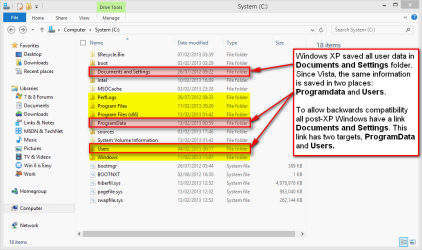
(Please notice, screenshots from Windows 8 but links work the same way on Windows 7. Highlighted with yellow = visible system folders created by Windows installation, red = hidden or protected system folders.)
If you try to open Documents and Settings you get an "Access Denied" message. It does not exist, there is no such folder on your C: drive but it is needed for legacy software.
An example: You want to install Microsoft Office XP on your Windows 7. As Office XP was published for Windows XP long before Vista it uses the XP system folder Documents and Settings to store user data. Vista and later Windows do no longer have this folder so a link is needed. Office XP setup thinks it is creating files and folders normally in Documents and Settings but actually your Windows 7 is lying to Office XP setup, not telling it those files and folders are in fact created in Users and ProgramData. Office XP setup does not notice this deception, installation works and later when user works with Office XP it still thinks the Documents and Settings folder is there, never learning the fact that all queries to that folder are sent further and returned as if they really came from Documents and Settings.
Part 2: Working with Directory Junctions
(1.) Command Syntax
Links are created wit command mklink, short from Make Link. Typing mklink /? on Command Prompt you get the command syntax and options:
(2.) Use an Elevated Command Prompt
You must use elevated command prompt to work with links.
(3.) Create a Link or a Junction
Creating a directory junction D:\Docs with target E:\Users\Kari\Documents:
Windows tells you clearly if the creating of junction has succeeded:

(4.) Main principles when creating a link or a junction
Links and junctions can be renamed and removed as any real folders. System automatically modifies registry and sets the target to be the same for a renamed link as it was on the original link.
This is because even not really existing, the system handles links as if they were real existing folders. This is what Explorer shows when asked for Properties for our example junction D:\Docs:
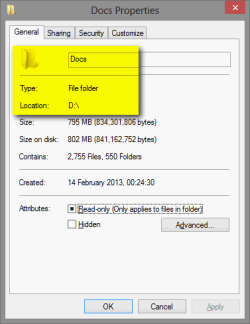
Only way to really see it is in fact a junction is to get directory listing in command prompt:
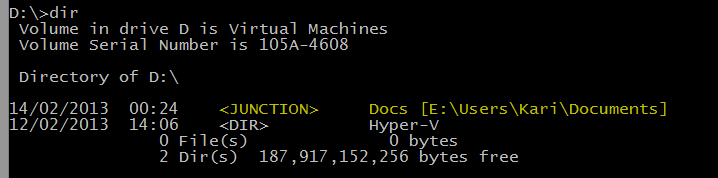
The listing not only shows it is a junction but also its target folder.
Part 3: Practical Examples
A typical situation: You have bought a game that must be installed on root level folder C:\Games. Your C: drive is becoming full, so you decide to move the whole C:\Games folder to D:, delete now empty C:\Games (remember, link folder may not exist) and create a junction:
When launching the game it still assumes it is located on C: although you, me and Windows know better : it's "secretly" residing on D: but still using the old address on C:.
Another situation: You want to work with some pics from last Christmas, to edit them to be ready to be published on that website of yours. Pics are currently located in X:\Backups\Pictures\My Pictures\Holidays\Christmas 2012.
You can create a junction X:\Pics, and now whenever you want to work with those pics you just type X:\Pics to Run dialog to open the correct folder:
Notice that if a path contains spaces it must be set in between quotation marks as in above target path.
That's about it. Any feedback welcome.
Kari
How to Create and Use Links with MKLINK in Windows
Information
As so many other things in computing, Windows Links seem more complicated to understand and use than what they really are in reality.
This tutorial will tell you how to create and use links using MKLINK to redirect system queries made to a local or network storage location to another location.
In this tutorial we will concentrate on the most important link type, a Directory Junction. A junction is a very practical way to customize your file handling and procedures.
This tutorial will tell you how to create and use links using MKLINK to redirect system queries made to a local or network storage location to another location.
In this tutorial we will concentrate on the most important link type, a Directory Junction. A junction is a very practical way to customize your file handling and procedures.
A Link is basically nothing more than a shortcut. Its purpose is to get Windows to think that a file or folder which is physically located in folder Real on drive A is in fact in folder Fake on drive B by creating a link between B:\Fake (a link or junction) and A:\Real (a target folder). Opening the link for instance in Explorer shows contents of target, saving a document to link actually saves it on target.
As Windows now gets a query from user to open B:\Fake this query is sent to A:\Real. In reality the location B:\Fake does not exist but system answers this query as it was a real folder instead of just a symbolic link and presents user the contents of A:\Real as if it was contents of B:\Fake. Sounds complicated? Don’t worry, it’s quite easy in fact.
Part 1: What is a Link?
Note
A Link in Windows is a virtual object that points to a real physical location. It can be compared to Windows desktop shortcut, doing essentially the same thing in redirecting user to a physical storage location.
A Link can be so called Hard Link linking one file to a target file, or a Soft Link linking a folder to a target folder. Soft Links are also called Symbolic Links. Third link type is Junction, basically a hard link but as hard links can only link files we need to use junctions to link folders.
If you are using Windows Vista or later you have most probably used links without ever noticing it. In Windows XP all user data was saved in a folder called C:\Documents and Settings (default name and location). Windows Vista changed this; instead of Documents and Settings the data was divided between two system folders, C:\Users for user specific application data and personal files and folders, and C:\ProgramData for all users shared application data. To allow backwards compatibility all Windows versions since Vista have a link C:\Documents and Settings with two target folders, ProgramData and Users.
You can check this by yourself by allowing protected system files and folders to be shown and opening C: drive on Explorer:
(Please notice, screenshots from Windows 8 but links work the same way on Windows 7. Highlighted with yellow = visible system folders created by Windows installation, red = hidden or protected system folders.)
If you try to open Documents and Settings you get an "Access Denied" message. It does not exist, there is no such folder on your C: drive but it is needed for legacy software.
An example: You want to install Microsoft Office XP on your Windows 7. As Office XP was published for Windows XP long before Vista it uses the XP system folder Documents and Settings to store user data. Vista and later Windows do no longer have this folder so a link is needed. Office XP setup thinks it is creating files and folders normally in Documents and Settings but actually your Windows 7 is lying
to Office XP setup, not telling it those files and folders are in fact created in Users and ProgramData. Office XP setup does not notice this deception, installation works and later when user works with Office XP it still thinks the Documents and Settings folder is there, never learning the fact that all queries to that folder are sent further and returned as if they really came from Documents and Settings.Part 2: Working with Directory Junctions
(1.) Command Syntax
Links are created wit command mklink, short from Make Link. Typing mklink /? on Command Prompt you get the command syntax and options:
Code:
[B]MKLINK [/B][[/D] | [/H] | [/J]] [B]Link [/B][B]Target[/B]

        [B]/D[/B]      Creates a directory symbolic link.  Default is a file symbolic link.
       [B]/H[/B]      Creates a hard link instead of a symbolic link.
        [B]/J [/B]  Creates a Directory Junction.
        [B]Link    [/B]specifies the new symbolic link name.
        [B]Target  [/B]specifies the path (relative or absolute) that the new link refers to.
(2.) Use an Elevated Command Prompt
You must use elevated command prompt to work with links.
(3.) Create a Link or a Junction
Creating a directory junction D:\Docs with target E:\Users\Kari\Documents:
Code:
mklink /j D:\Docs E:\Users\Kari\Documents(4.) Main principles when creating a link or a junction
- A file or a folder with the name of the intended Link name may not exist. The link file or folder name must be free to use, not reserved by an existing file or folder. If the name is reserved you get an error message. My D: drive already has a folder Test, this is what happens when trying to create a junction with D:\Test (already an existing folder) as link and E:\Users as target:
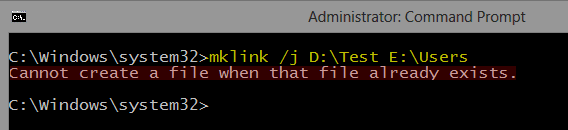
Notice that command prompt is telling about a file already existing instead of a folder. This is because the system sees links as shortcuts (files) and not as folders. - Target folder may but must not exist. If it does not exist at the time when a link is created it must be created before you can use the link:
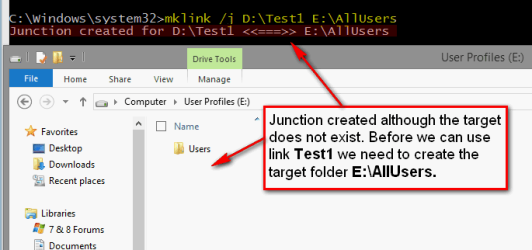
- Target can be another Link. Above in (3.) we created a junction D:\Docs with target E:\Users\Kari\Documents. Following command would now create a link C:\Docs with target D:\Docs:
In fact Windows sees no difference if the target is a real physical folder location or just another link. In this case all queries to C:\Docs would be sent to D:\Docs which would send them further to E:\Users\Kari\Documents. If a user now opens C:\Docs in Explorer, it shows the contents of E:\Users\Kari\Documents:Code:mklink /j C:\Docs D:\Docs
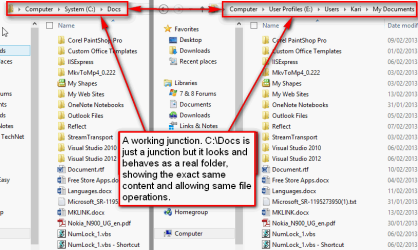
Noticed something interesting in screenshot above? The target folder is called Documents but Explorer shows it as My Documents. This is because those "My ..." folders in your user profile folder are actually not real folders. They are directory links: My Videos is simply a link with target Videos and so on.
Links and junctions can be renamed and removed as any real folders. System automatically modifies registry and sets the target to be the same for a renamed link as it was on the original link.
This is because even not really existing, the system handles links as if they were real existing folders. This is what Explorer shows when asked for Properties for our example junction D:\Docs:
Only way to really see it is in fact a junction is to get directory listing in command prompt:
The listing not only shows it is a junction but also its target folder.
Part 3: Practical Examples
A typical situation: You have bought a game that must be installed on root level folder C:\Games. Your C: drive is becoming full, so you decide to move the whole C:\Games folder to D:, delete now empty C:\Games (remember, link folder may not exist) and create a junction:
Code:
mklink /j C:\Games D:\GamesAnother situation: You want to work with some pics from last Christmas, to edit them to be ready to be published on that website of yours. Pics are currently located in X:\Backups\Pictures\My Pictures\Holidays\Christmas 2012.
You can create a junction X:\Pics, and now whenever you want to work with those pics you just type X:\Pics to Run dialog to open the correct folder:
Code:
mklink /j X:\Pics "X:\Backups\Pictures\My Pictures\Holidays\Christmas 2012"That's about it. Any feedback welcome.
Kari
Last edited:


 :
:


