How to Create Shortcut with Relative Path
Information
Shortcuts are an indisputable necessity of any user-friendly OS, and Windows is no exception. Their lingering existence make them an accustomed part of the Windows experience, providing a effortless means of navigating the file system, or launching our most used programs. They serve to boost user productivity by about 55%, and crowd desktop space by 10%.
The Windows Shortcut file, a metadata file that is interpreted by the shell, has adapted to support a number of features such as being able to display a custom icon, assign hotkeys to the link, store compatibility setttings including being able to run the program as administrator, link to web resources (not to be confused with .URL files), reference "magic strings" which allow linking to items inaccessible in the file system, and others. These are the main reasons why symbolic links haven't yet been a suitable replacement for end-users.
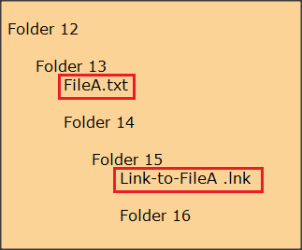
Despite the diverse assortment of functionality on offer, Windows Shortcuts suffer a major disadvantage in that they are unable to reference a relative target. This means that Shortcut files are incapable of pointing to a file system item that is situated in a known directory relative to the directory in which the link was invoked, consequently preventing their portability.
Luckily, there are some work-arounds and this tutorial outlines a slew of tricks you can use to counter this restrictive limitation on Windows part. Users wanting to use shortcuts on portable storage devices will find this tutorial especially handy.
The Windows Shortcut file, a metadata file that is interpreted by the shell, has adapted to support a number of features such as being able to display a custom icon, assign hotkeys to the link, store compatibility setttings including being able to run the program as administrator, link to web resources (not to be confused with .URL files), reference "magic strings" which allow linking to items inaccessible in the file system, and others. These are the main reasons why symbolic links haven't yet been a suitable replacement for end-users.
Despite the diverse assortment of functionality on offer, Windows Shortcuts suffer a major disadvantage in that they are unable to reference a relative target. This means that Shortcut files are incapable of pointing to a file system item that is situated in a known directory relative to the directory in which the link was invoked, consequently preventing their portability.
Luckily, there are some work-arounds and this tutorial outlines a slew of tricks you can use to counter this restrictive limitation on Windows part. Users wanting to use shortcuts on portable storage devices will find this tutorial especially handy.
Note
The pros and cons of each of the methods described here are summarised in the below table. Refer to this table before completing an option as you many find some options incapable for your situation. I.e., you would not want to use the Option One if you intent to use the link on a non-NTFS formatted portable storage device (symbolic links are exclusively compatible with NTFS).
CONTENTS:
- Option One: Using a Symbolic Link
- Option Two: Using a Shortcut of Window Explorer
- Option Three: Using a Batch File
- Option Four: Using a Visual Basic Script
OPTION ONE
Using a Symbolic Link
Note
Note well that symbolic links are a feature of the NTFS file system and Windows will only allow creation of a symbolic link on a NTFS formatted partition. If you wish to use this option on a portable storage device, ensure that it is NTFS formatted first.
Warning
A symbolic link may be moved around in the same partition and while the relative path is applicable, the link will continue to work. However, one should not be tempted at any time to copy a symbolic link anywhere, or move the symbolic link across a partition. In doing so, the symbolic link will be destroyed and the resulting file will be replaced by a copy of the target.
1. Open up an Elevated Command Prompt.
2. Change the working directory to that of the folder in which you would like the link file placed. Enter the cd command as per the syntax below, appropriately replacing <directory path>. The prompt text should change to reflect the new working directory.
Code:
cd /d [COLOR="Red"]<directory path>[/COLOR]
3. Do Step 4.a if your target item is a file or program, or do Step 4.b if it is a directory.
4.a Enter the following mklink command to create the link, substituting <link name> with a filename of your choice and specifying a target file or executable for <target>.
Note
The argument <link name> should not match a name that is already taken by a file in the current directory, but <target> may be any path name, whether it actually exists at the time of creation or not.
Code:
mklink "[COLOR="Red"]<link name>[/COLOR]" "[COLOR="red"]<target>[/COLOR]"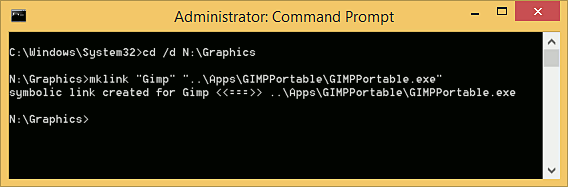
4.b Enter the below command, substituting <link name> with a filename of your choice and specifying a target directory path for <target>.
Note
The note in step 4 applies here as well. The only difference between the command featured here and that seen in step 4 is the addition of the /d switch. For more information about the mklink command enter mklink /? at the command line.
Code:
mklink /d "[COLOR="red"]<link name>[/COLOR]" "[COLOR="red"]<target>[/COLOR]"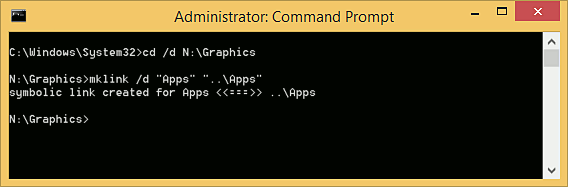
OPTION TWO
Using a Shortcut of Window Explorer
Note
The Explorer program, located at C:\Windows\Explorer.exe, given any path name as an argument on the command line, will attempt to invoke the given item. Taking advantage of this, we can create an ordinary shortcut of the explorer program and pass any desired path to it and explorer will invoke that item. This path can be relative.
1. Create a new shortcut in any desired location. Right-click in a folder or on the desktop and select New -> Shortcut.
2. Enter the text "explorer" as the location for the item to create a shortcut for (as a shorthand for typing the application's full path, C:\Windows\explorer.exe).

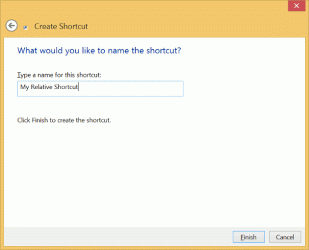
3. Enter what ever name you would like for your shortcut to display here, then click Finish.
4. Right-click the new shortcut file and select Properties.
5. In the Target field, append a space to the existing text and enter the relative (or absolute) path of the folder or file that you wish to link to.
Tip
If this path is relative it will be relative to the directory of which the shortcut file itself resides only if the Start in field is empty, else if the Start in field is populated with a valid path name the path here will be used as the base path for the path you've entered in the Target field.

6. Remove all text in the Start in field. Alternatively, you may type an absolute path here and this path will be used as the base path for the relative path you�ve entered as an argument in the Target field. You may close the Properties pane now.

7. Check if your link works. Double-click your new relative shortcut. If your user�s Documents folder opens up instead of the item you intended to link to, the item could not be found and you should check that you've completed Steps 5 and 6 correctly.
OPTION THREE
Using a Batch File
Note
Although flexible and easy to manage this option may not be preferable due to the unsightly quick flash of a command prompt screen each time the link is accessed.
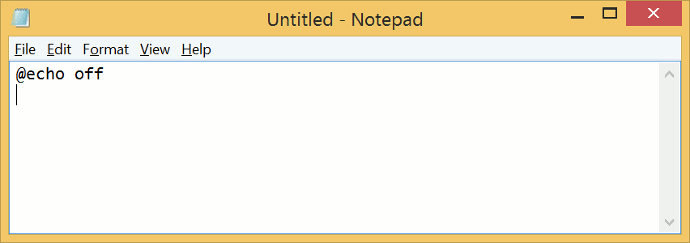
1. Open Windows Notepad or your preferred text editor.
2. Append an "@echo off" line to begin the batch file with.
3. If you intend to link to an application and wish to artificially alter the working directory for it, add a cd line like below, where <target> is the path of a directory, else skip this step.
Code:
cd /d [COLOR="Red"]<target>[/COLOR]4. Follow with a series of start commands, using the syntax presented. <target> may be a directory or file relative path name.
Tip
%~dp0 represents the path of the batch file. If you�d like your target to be relative to the root directory instead, remove the %~dp0 part.
Code:
start "" "%~dp0\[COLOR="red"]<target>[/COLOR]"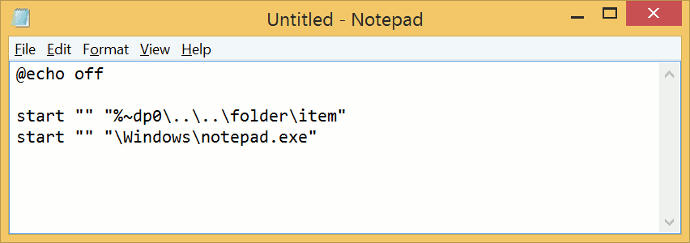
5. Save the file to a location of your choice and give it an extension of .bat.
OPTION FOUR
Using a Visual Basic Script
Note
This option may feel particularly slow if many Explorer windows are open.
1. Download the VBS_Shortcut.vbs file with the provided link.
VBS_Shortcut.vbs
Download
2. Open the downloaded VBScript file with Notepad or your preferred text editor.
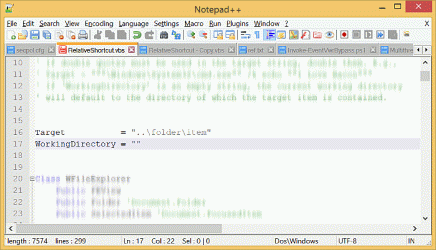
3. Locate lines 16 and 17 and adjust the string values appropriately, with "Target" being the relative path of the item you wish to link to and "WorkingDirectory" being the working directory for your application. Leave this value blank if you don't require the application's working directory be altered.
That's all. Got a question, query, suggestion, or recommendation? Please let me know in the section below right away.
Enjoy,
Pyprohly
Attachments
Last edited by a moderator: